
Are you looking to build a stunning website without dealing with complicated code? Elementor might be exactly what you need.
But how does Elementor work with WordPress to make website creation so simple and powerful? If you’ve ever felt overwhelmed by web design or struggled to customize your site, this article will clear things up for you. By the end, you’ll understand how Elementor transforms your WordPress experience, giving you full control to create the website you’ve always wanted—easily and quickly.
Keep reading to discover the magic behind this popular tool and how it can change the way you build your online presence.
Credit: elementor.com
Elementor Basics
Understanding the basics of Elementor helps build better WordPress sites. Elementor is a popular page builder plugin. It lets users create custom website layouts easily. No coding skills needed. This section explains what Elementor is, its main features, and the difference between free and Pro versions.
What Is Elementor
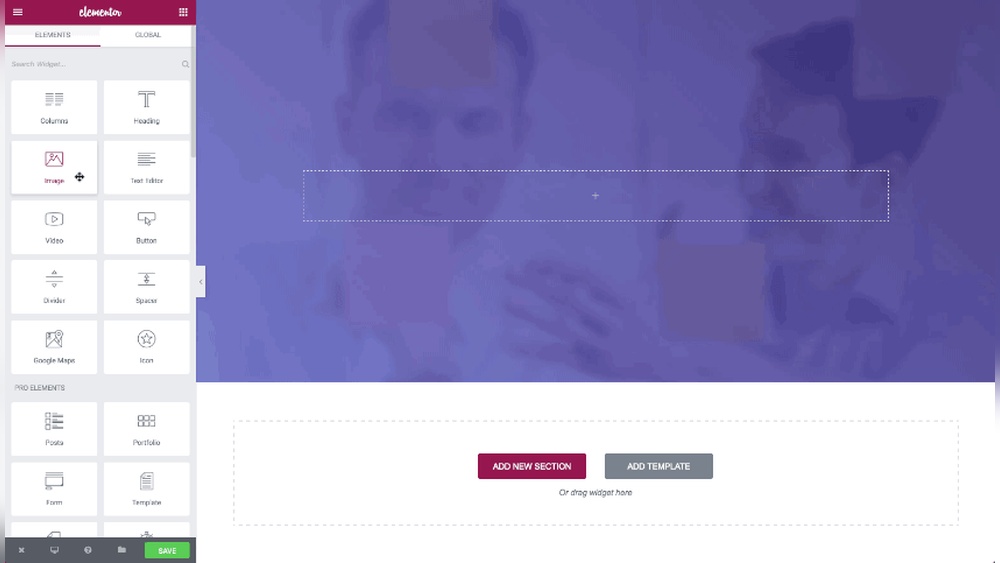
Elementor is a drag-and-drop page builder for WordPress. It allows users to design pages visually. Users can see changes instantly as they edit. It works with most WordPress themes. This tool makes website design faster and simpler. Beginners and professionals both use Elementor.
Key Features
Elementor offers many features to build sites. It includes a live editor for real-time design. Users get access to widgets like buttons, images, and text boxes. There are layout controls for sections and columns. Responsive design tools help pages look good on all devices. The plugin also supports templates for quick design starts.
Free Vs Pro Versions
The free version covers basic page building needs. It includes essential widgets and templates. The Pro version offers advanced features. It adds more widgets, such as forms and sliders. Pro users can customize headers and footers. It also supports WooCommerce for online stores. The Pro version suits users wanting more control and options.
Credit: wordpress.org
Integrating Elementor With WordPress
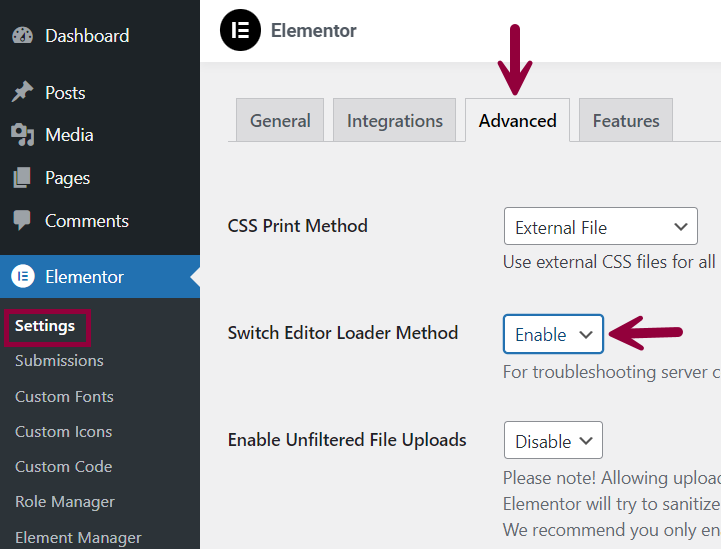
Integrating Elementor with WordPress is a straightforward process. Elementor is a popular page builder plugin that lets you design pages visually. It works inside the WordPress dashboard to create custom layouts. This integration helps users build websites without coding skills. Below are the key steps to start using Elementor with WordPress.
Installation Process
First, log in to your WordPress admin panel. Go to the “Plugins” section and click “Add New.” Type “Elementor” in the search bar. Find the Elementor Page Builder plugin and click “Install Now.” Wait a few moments as WordPress downloads and installs the plugin files.
Activating The Plugin
After installation, click the “Activate” button. This action enables Elementor on your website. Once activated, you will see a new menu item labeled “Elementor” in the dashboard. This menu gives access to settings and templates. You can now start creating pages with the Elementor editor.
Compatibility Requirements
Elementor works best with WordPress version 5.0 or higher. Your web host should support PHP 7.0 or above. Make sure your theme is compatible with page builders. Most modern themes work well with Elementor. It is important to keep WordPress and plugins updated for smooth functioning.
Designing With Elementor
Designing with Elementor makes building WordPress websites simple and fun. It offers tools that help create pages without coding. Anyone can craft a professional look by dragging elements and adjusting settings. The process feels natural and straightforward.
Drag-and-drop Interface
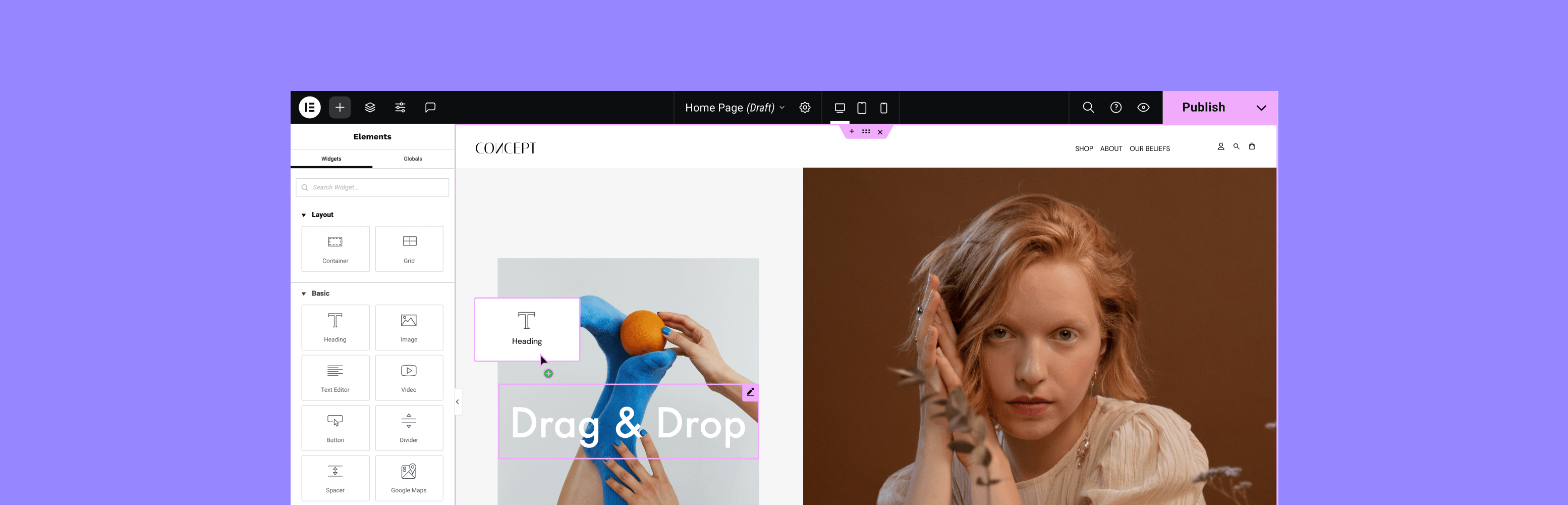
The drag-and-drop interface lets you move elements easily. Select a widget, drag it to the page, and drop it where you want. This visual editor shows changes instantly. You see exactly how your site will look.
No need to write code or use complex menus. The interface saves time and reduces errors. It helps beginners create designs quickly and clearly.
Using Widgets And Templates
Elementor offers many widgets like text, images, buttons, and videos. Each widget adds a specific feature to your page. Just drag a widget and drop it on the layout.
Templates are pre-made designs for pages or sections. They help start a project fast. Choose a template and customize it to fit your style. This way, you avoid building from scratch.
Customizing Layouts
Layouts can be adjusted to match your vision. Change column widths, spacing, and alignment easily. Customize fonts, colors, and backgrounds to suit your brand.
Settings appear in a panel on the side. Adjustments update in real-time on the page. This immediate feedback helps make better design choices.
Optimizing Performance
Optimizing performance is key for a smooth website experience. Elementor works with WordPress to help keep your site fast and responsive. Good performance keeps visitors happy and improves search engine rankings.
Speed Considerations
Elementor builds pages using clean code to reduce load times. It loads only necessary scripts and styles. Avoid using too many widgets on one page to keep it light. Regular updates help improve speed and fix bugs.
Caching And Minification
Caching stores a copy of your page to serve faster to visitors. Minification removes extra spaces and comments from code. These techniques reduce server load and speed up page delivery. Use caching plugins compatible with Elementor for best results.
Mobile Responsiveness
Elementor allows you to design mobile-friendly pages easily. It adjusts layouts to fit different screen sizes automatically. Mobile responsiveness improves user experience and helps with Google rankings. Always check your site on mobile before publishing.
Advanced Features
Elementor offers advanced features that enhance your WordPress site beyond basic page building. These tools help create unique designs and interactive elements. You gain control over every part of your website without coding. These features make your site more dynamic and engaging for visitors.
Theme Builder
The Theme Builder lets you design headers, footers, and other templates. You don’t need to rely on your WordPress theme’s default layouts. Create custom parts that fit your brand style perfectly. The changes apply site-wide, saving time and effort. It works with all WordPress themes for full design freedom.
Popup Builder
Popup Builder helps create attractive popups for announcements or offers. You can design them using Elementor’s drag-and-drop interface. Set triggers like time delay or scroll percentage to show popups. This feature increases user interaction and can boost conversions. Popups can be customized to match your website’s look.
Dynamic Content Integration
Dynamic Content Integration connects your site with data sources. It allows content to update automatically based on conditions. Show different text or images to different visitors easily. Use it for blogs, portfolios, or product listings with unique content. This feature makes your website smarter and more personalized.
Troubleshooting Common Issues
Troubleshooting common issues in Elementor is a key skill for WordPress users. Problems can arise from many sources. Knowing how to fix them saves time and stress. This section covers common problems and easy solutions.
Conflicts With Other Plugins
Elementor may not work well with some plugins. Conflicts cause errors or broken pages. To find conflicts, deactivate all other plugins. Reactivate one by one to see which causes issues. Keep Elementor and all plugins updated. Choose plugins that work well with Elementor.
Fixing Layout Problems
Layout problems are common in page builders. Sections may overlap or not display right. Clear your browser cache and reload the page. Check Elementor’s settings for responsive controls. Adjust margins and padding to fix spacing. Use Elementor’s preview mode to test layout on devices.
Debugging Tips
Start by enabling WordPress debug mode to see errors. Check your site’s PHP version; outdated versions cause trouble. Use a staging site to test changes safely. Clear your site cache and CDN cache if used. Contact Elementor support or community forums for help.
Extending Elementor
Extending Elementor allows you to build more advanced websites with ease. It works beyond the basic tools and features. You can add new functions and design options. This helps create unique pages tailored to your needs. Extensions make Elementor more flexible and powerful.
Popular Add-ons
Many popular add-ons enhance Elementor’s core features. These add-ons provide extra widgets, templates, and design tools. They simplify tasks like adding sliders, galleries, and forms. Some well-known add-ons include Essential Addons, Ultimate Addons, and Crocoblock. Using these can save time and improve site design.
Custom Widgets
Custom widgets let you create specific elements for your website. Developers build these widgets to meet unique needs. You can add buttons, pricing tables, or contact forms not in the default set. Custom widgets help make your site stand out and perform better.
Third-party Integrations
Elementor works with many third-party tools and services. These include email marketing, social media, and SEO plugins. Integrations allow smooth data sharing between Elementor and other platforms. This makes managing your website easier and more efficient.

Credit: cmsminds.com
Best Practices For Seamless Design
Creating a smooth design with Elementor and WordPress takes some smart steps. These steps help keep your website clean and easy to use. Following best practices makes the design process faster and your site better for visitors. Below are key tips to help you design without problems.
Consistent Styling
Keep fonts and colors the same across all pages. This makes your site look professional and neat. Use Elementor’s global settings to set styles once. It saves time and avoids style clashes. Consistent buttons and headings guide users clearly.
User Experience Focus
Design with visitors in mind. Make navigation simple and clear. Use Elementor’s drag-and-drop tools to arrange content logically. Test your site on phones and tablets. Fast loading and readable text keep users happy.
Regular Updates And Backups
Update Elementor and WordPress often. Updates fix bugs and improve security. Backup your site before changes. This protects your work from data loss. Use plugins or hosting tools for automatic backups.
Frequently Asked Questions
How Does Elementor Integrate With WordPress?
Elementor installs as a WordPress plugin, adding a visual drag-and-drop editor. It works seamlessly with WordPress themes and content. This integration allows users to design pages without coding, making website creation faster and easier within the WordPress environment.
Can Elementor Work With Any WordPress Theme?
Yes, Elementor is compatible with most WordPress themes. It adapts to existing styles but works best with themes designed for page builders. This flexibility lets users customize designs while keeping their preferred theme intact, enhancing site appearance and functionality.
Is Elementor Suitable For Beginners Using WordPress?
Absolutely, Elementor is beginner-friendly with its intuitive interface. It offers pre-built templates and drag-and-drop features. Users with no coding knowledge can create professional websites easily, making it ideal for WordPress beginners seeking design control.
Does Elementor Affect WordPress Website Speed?
Elementor is optimized for performance but can add extra code. Proper use and minimal widgets help maintain fast loading times. Using caching plugins alongside Elementor ensures the website remains speedy and responsive on WordPress.
Conclusion
Elementor works smoothly with WordPress to build websites fast. It uses a simple drag-and-drop system. You can see changes right away without coding. This tool helps create pages that look good on all devices. It suits beginners and those with some web skills.
Using Elementor with WordPress saves time and effort. It also lets you customize your site easily. Try it to make your website design easier and clearer.



