
Are you ready to take control and delete your WordPress account but don’t know where to start? You’re not alone.
Many people hesitate because they fear losing important content or making mistakes that can’t be undone. What if I told you it’s easier than you think—and you can do it safely and confidently? In this guide, you’ll discover simple steps to permanently delete your WordPress account without stress.
Keep reading, and by the end, you’ll have the power to manage your online presence exactly how you want.
Backup Your Website Data
Backing up your website data is very important before deleting your WordPress account. It keeps your work safe and lets you restore your site later. Losing your content, images, or settings can be frustrating without a backup. Follow simple steps to save all parts of your website easily.
Export Content
Exporting content saves your posts, pages, and comments. Go to the WordPress dashboard and find “Tools.” Click on “Export” to download an XML file. This file holds all your written content. Keep it safe on your computer or cloud storage. You can import it later to another WordPress site.
Save Media Files
Media files include images, videos, and documents. They are not included in the export file. Use an FTP client or file manager to download the “uploads” folder. This folder is inside “wp-content.” Store these files in a secure place. This step ensures your pictures and videos stay safe.
Download Database
The database holds your website’s settings and user information. Access your hosting control panel and open “phpMyAdmin.” Select your WordPress database and click “Export.” Choose the “Quick” export method and save the SQL file. This file can restore your entire website structure.
Credit: wpdeveloper.com
Delete WordPress Account Steps
Deleting your WordPress account is a straightforward process. Follow these clear steps to remove your account safely. Each step guides you through the necessary actions.
Log Into WordPress Dashboard
First, open your web browser and go to the WordPress login page. Enter your username and password. Click the “Log In” button. You will see your WordPress dashboard. This is the control center for your account.
Navigate To Account Settings
Look for your profile icon or username at the top right corner. Click it to open a dropdown menu. Select “Account Settings” or “Profile” from the options. This area holds your personal details and account options.
Remove Personal Information
Review all personal information on your profile page. Delete any sensitive data like your address or phone number. Clear your biography and website links if you want. This step helps protect your privacy before deleting the account.
Request Account Deletion
Scroll down to find the account deletion section. Some WordPress plans allow direct deletion here. If available, click “Delete Account” and confirm your choice. If not, contact WordPress support to request deletion. Follow their instructions to complete the process.
Delete WordPress Site Manually
Deleting your WordPress site manually requires careful steps. This process removes all site files, data, and hosting settings. It ensures your website is fully deleted and no longer accessible online.
Follow each step carefully to avoid leaving behind unwanted files or data.
Access Hosting Control Panel
First, log in to your hosting control panel. This is where your website files and database are stored. Common control panels include cPanel, Plesk, or custom dashboards. Use your hosting username and password to sign in.
Find the file manager or database section. These tools let you manage your website’s files and data.
Remove WordPress Files
Open the file manager in your control panel. Locate the folder where WordPress is installed. Usually, it is in the public_html or www directory. Select all files and folders inside.
Delete these WordPress files. This removes your website content and code from the server. Double-check to avoid deleting important files outside your WordPress folder.
Delete Database
Next, go to the database management section, such as phpMyAdmin. Find the database linked to your WordPress site. You can check the database name in your wp-config.php file if unsure.
Delete the entire database or drop all tables inside it. This erases all posts, pages, and user information stored on your site.
Cancel Hosting Plan
After deleting files and database, cancel your hosting plan if you no longer need the service. Go to your hosting account settings or billing page. Follow the steps to end your hosting subscription.
This step stops any further charges and frees up your domain and server space.
Delete WordPress Account On WordPress.com
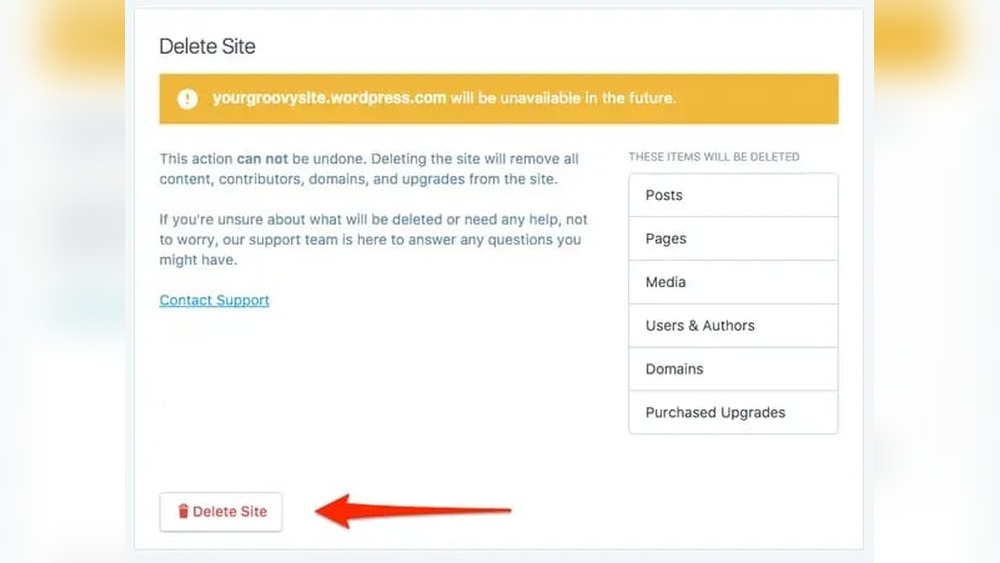
Deleting your WordPress account on WordPress.com is simple. Follow clear steps to close your account safely. This process removes your data and stops your access.
Sign In To WordPress.com
Start by visiting WordPress.com. Enter your username and password. Make sure your login details are correct. This step gives you access to your account settings.
Go To Account Settings
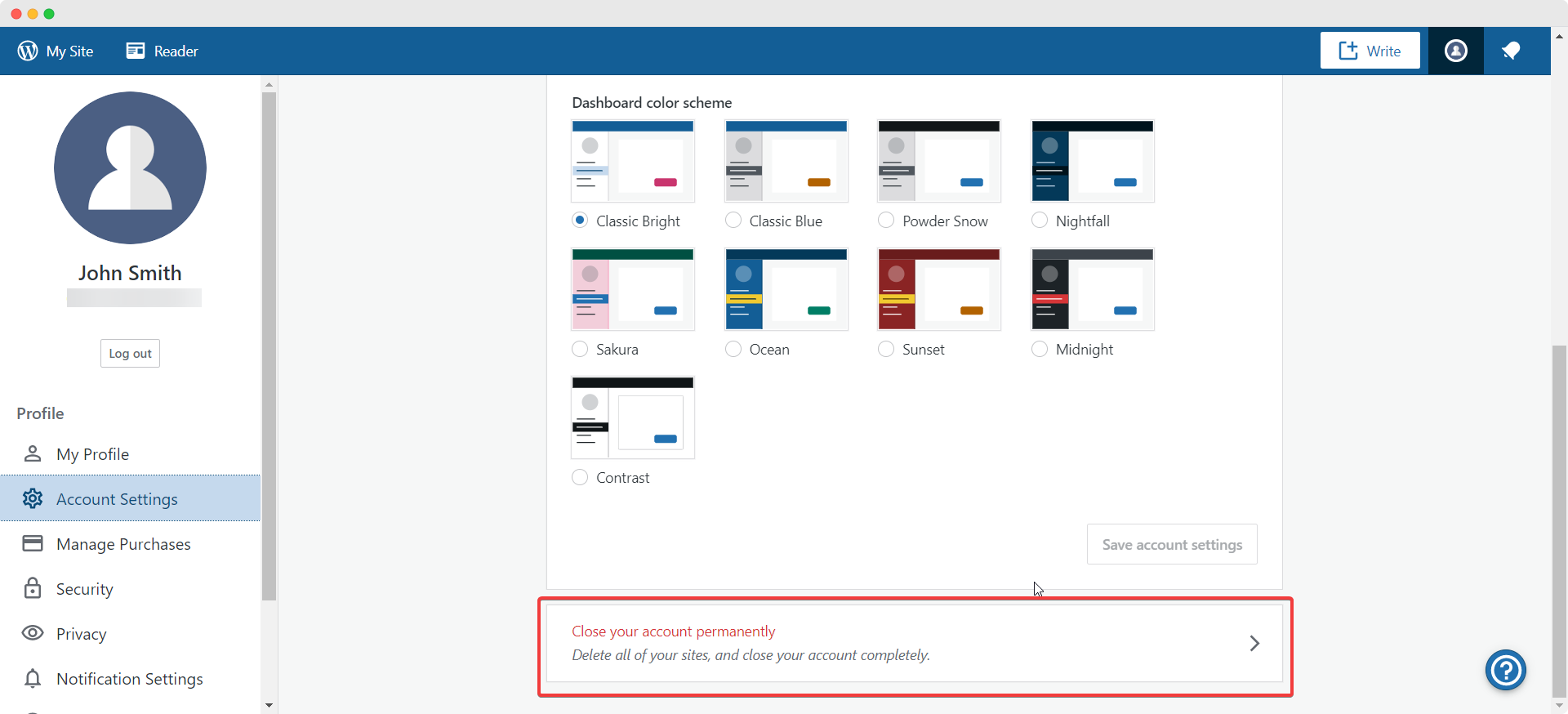
After signing in, find your profile icon. Click it to open a menu. Select “Account Settings” from the list. This section holds all your personal and security options.
Close Account Permanently
Scroll down to find the “Close your account” option. Click it to start the deletion process. WordPress.com will ask for confirmation. Confirm your choice to delete the account. Your data will be removed, and access will end.
Considerations Before Deleting
Deleting your WordPress account is a big decision. It affects more than just your access. Think carefully before you proceed. Several important points need your attention. These help you avoid problems later on.
Impact On Seo
Deleting your account removes your website from search engines. Your pages no longer appear in search results. Visitors will not find your content anymore. This can lower your online presence. Any backlinks pointing to your site will break. This can hurt your site’s reputation and ranking.
Loss Of Content
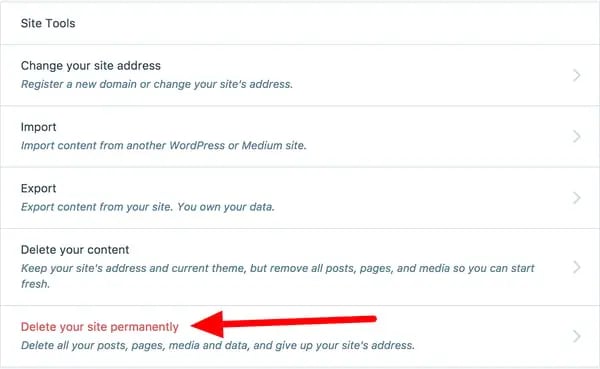
All your posts, pages, and media will be deleted. No backups mean permanent loss of your work. Your comments and user data will also disappear. Consider saving important files before deleting. Once gone, you cannot restore your content.
Alternative Options
Instead of deleting, think about other choices. You can deactivate your account temporarily. Export your content to keep a copy. Change your site to private or password-protected. These options keep your work safe while pausing your site.
Credit: blog.hubspot.com
Troubleshooting Common Issues
Deleting a WordPress account seems simple but can face some problems. This section helps solve common issues. Clear steps make the process easier. Follow these tips to fix troubles fast.
Unable To Access Dashboard
Sometimes, you cannot enter your WordPress dashboard. This blocks account deletion. Check your username and password first. Use the “Lost Password” link to reset it. Clear your browser cache and cookies. Try another browser or device for access. If problems continue, contact your hosting provider for help.
Account Deletion Not Processing
After requesting deletion, the process might stall. Wait a few minutes before trying again. Disable any active plugins that might block actions. Clear your browser cache to remove old data. Confirm you have admin rights to delete the account. If it still does not work, reach out to WordPress support for assistance.
Recover Deleted Site
Deleted your site by mistake? Quick action is key. Check your hosting provider’s backup options. Many hosts keep backups for a limited time. Use WordPress’s built-in revision or restore tools if available. Contact support immediately to increase recovery chances. Regular backups prevent data loss in the future.

Credit: wordpress.com
Frequently Asked Questions
How Do I Delete My WordPress Account Safely?
To delete your WordPress account safely, log in and go to account settings. Locate the delete option and confirm your decision. Backup your data before deleting to avoid losing important content.
Can I Recover My WordPress Account After Deletion?
No, once you delete your WordPress account, recovery is not possible. Ensure you have backed up all necessary data before confirming deletion.
What Happens To My WordPress Content After Deletion?
Deleting your WordPress account removes all your posts, pages, and media permanently. Make sure to export or save your content before deleting the account.
Is There A Difference Between Deleting A WordPress User And Account?
Yes, deleting a WordPress user only removes access for that user. Deleting the WordPress account removes your entire presence, including content and settings.
Conclusion
Deleting your WordPress account is a simple process. Take your time to follow the right steps carefully. Make sure to back up your content before deleting. Once deleted, you cannot recover your data. Think about your decision and act wisely.
This guide helps you manage your WordPress presence safely. Keep your online accounts organized and secure. Stay in control of your digital space.



