
Are you looking for a simple way to add powerful features to your WordPress site without writing complicated code? Shortcodes might be exactly what you need.
They let you do amazing things—like embedding videos, creating buttons, or displaying galleries—with just a few words inside square brackets. Imagine saving time and making your site more dynamic, all by using these tiny snippets. Keep reading, and you’ll discover how shortcodes work in WordPress, why they’re so useful, and how you can start using them right away to make your site shine.
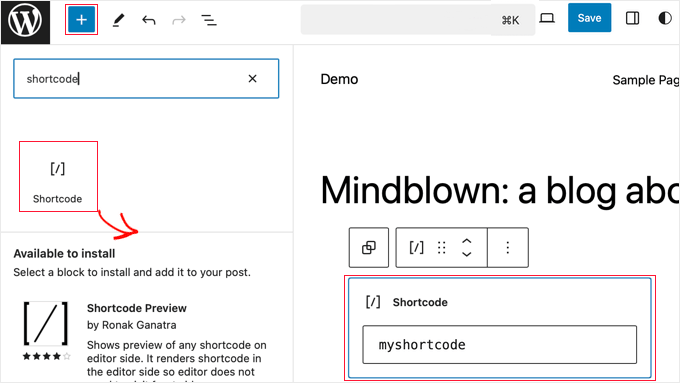
Credit: www.wpbeginner.com
What Are Shortcodes
Shortcodes are small pieces of code in WordPress. They help you add features to posts or pages quickly. Instead of writing long code, you use shortcodes inside square brackets. WordPress then replaces these with the actual content or function.
Shortcodes make building websites easier. You can add galleries, videos, forms, or buttons without coding skills. They save time and keep your content clean.
What Are Shortcodes In WordPress?
Shortcodes are simple tags you place in content. They look like [shortcode]. WordPress reads these and shows the feature or content linked to the shortcode. This way, you do not have to write code each time.
How Do Shortcodes Work?
When WordPress finds a shortcode, it runs a function behind it. This function tells WordPress what to display. The output could be text, images, videos, or interactive elements.
Why Use Shortcodes?
Shortcodes save time and effort. They allow you to add complex elements easily. No need to learn coding or use plugins every time. You keep your posts neat and organized.
Why Use Shortcodes
Shortcodes make WordPress easier and faster to use. They let you add complex features with just a few words. No coding needed. This saves time and effort.
They keep your content clean and organized. You do not have to write long codes every time. Shortcodes work behind the scenes to show the right content.
Easy To Use
Shortcodes are simple to add. Just type a word or phrase in square brackets. WordPress changes it into a button, video, or gallery automatically. Anyone can do it, even beginners.
Save Time
Using shortcodes saves lots of time. No need to write code for each feature. Just add the shortcode once, then reuse it anywhere. This speeds up creating pages and posts.
Keep Content Neat
Shortcodes keep your text clean. They hide complex code behind simple words. This makes your posts easier to read and edit. Your site stays organized and tidy.
Flexible And Powerful
Shortcodes can do many things. Show videos, buttons, galleries, forms, or custom content. They work with themes and plugins to add new features. You can customize them to fit your needs.
Consistent Design
Shortcodes help keep design consistent. Use the same shortcode on many pages. This gives your site a uniform look. Visitors find your site easier to use and trust.
Creating Basic Shortcodes
Creating basic shortcodes in WordPress lets you add custom content easily. Shortcodes are small pieces of code inside square brackets. They allow you to insert dynamic features without writing complex code every time. Understanding how to create these shortcodes helps you customize your site efficiently.
Start with simple shortcodes to see how they work. You write a function in PHP and register it with WordPress. Then you can use the shortcode anywhere in your posts or pages. This method saves time and keeps your content clean.
Shortcode Syntax
Shortcodes use square brackets like [shortcode]. They can have attributes, like [shortcode attribute=”value”]. This syntax tells WordPress to run the related function. The function returns content that replaces the shortcode in the page.
The basic format looks like this:
function my_shortcode_function() { return "Your content here"; } add_shortcode('myshortcode', 'my_shortcode_function'); You call this shortcode by typing [myshortcode] in your content. WordPress runs the function and shows the returned content.
Simple Examples
Here is a simple example. A shortcode that shows the current year:
function show_current_year() { return date('Y'); } add_shortcode('year', 'show_current_year'); Use [year] in your post. It will show the current year automatically.
Another example is a greeting message:
function greeting_shortcode() { return "Hello, welcome to my site!"; } add_shortcode('greet', 'greeting_shortcode'); Type [greet] in any post to display this message.
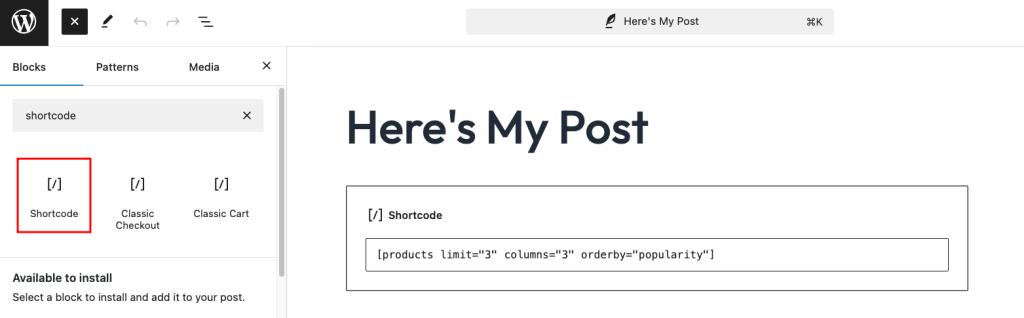
Credit: www.hostinger.com
Adding Attributes To Shortcodes
Embedding shortcodes in WordPress content makes it easy to add features without coding. Shortcodes are small codes enclosed in square brackets. They work like shortcuts to add functions or content. You place shortcodes directly in your content, and WordPress converts them into the intended output.
Shortcodes fit well in many parts of your WordPress site. They let you insert complex elements quickly. This section explains how to use shortcodes in posts, pages, widgets, and templates.
Posts And Pages
Posts and pages are the most common places to use shortcodes. You simply type or paste the shortcode into the content editor. WordPress processes the shortcode when visitors view the page. The shortcode can embed galleries, videos, buttons, or contact forms.
Using shortcodes in posts keeps your content clean. You avoid copying long codes or scripts. Shortcodes also help maintain consistency. For example, a shortcode for a call-to-action button looks the same everywhere.
Widgets And Templates
You can add shortcodes in widgets to show dynamic content in sidebars or footers. This adds flexibility to your site design. Many themes and plugins support shortcode use inside text widgets.
Templates are another place to use shortcodes. You add them to PHP files with a special function. This allows shortcodes to run in theme files. It helps customize your site without editing complex code.
Embedding Shortcodes In Content
Shortcodes simplify adding features to WordPress sites. Plugins often provide shortcodes to insert content easily. These small code snippets let users add complex elements without coding skills. They save time and keep pages clean.
Using shortcodes from plugins is common. Plugins create custom shortcodes for forms, galleries, sliders, and more. Users copy and paste shortcode text into posts or pages. WordPress then replaces the shortcode with the plugin’s output.
How Plugin Shortcodes Work
Plugins register shortcodes with WordPress. Each shortcode has a name inside square brackets. WordPress scans content for these tags and runs plugin code. The plugin returns HTML or other output to display.
Adding Plugin Shortcodes To Content
Place shortcode text in the WordPress editor. Shortcodes work in posts, pages, and widgets. Users can add parameters inside shortcodes to customize output. For example, . Forgetting the closing tag stops the shortcode. It can show raw code on your page instead of content. Always verify if your shortcode requires an end tag.
Using Shortcodes In The Wrong Place
Shortcodes work best in post or page content. They may not work in widgets or theme files. Some themes block shortcodes in widgets. Test your shortcode location if it does not display.
Conflicts With Other Plugins Or Themes
Plugins or themes can use the same shortcode name. This causes conflicts and errors. Deactivate plugins one by one to find the problem. Rename or replace conflicting shortcodes if needed.
Missing Required Attributes
Some shortcodes need extra information called attributes. For example, [button color="blue"]Click[/button]. Leaving out required attributes causes no output or errors. Read shortcode instructions carefully before use.
Common Shortcode Mistakes
Security is a key factor when using shortcodes in WordPress. Shortcodes can run code or show content on your site. This power means they can also create risks if not handled carefully. Protecting your site and visitors is important.
Understanding security risks helps you avoid common problems. You can keep your site safe and running well. Below are important security considerations for using shortcodes.
Sanitize User Input
Shortcodes often accept user input. This input can be text, numbers, or URLs. Always clean and sanitize this data. Sanitization removes harmful code or scripts. It stops attackers from injecting malicious code into your site.
Validate Shortcode Attributes
Check every attribute passed to a shortcode. Make sure they match expected values. For example, numbers should be numbers only. Text should not contain HTML or scripts unless safe. Validation prevents unexpected behavior and security gaps.
Avoid Direct Database Queries
Shortcodes should not run direct database queries without checks. Using WordPress functions like $wpdb->prepare() helps. It prevents SQL injection attacks. Always use safe methods to interact with the database.
Limit Shortcode Capabilities
Give shortcodes only the permissions they need. Avoid letting them execute unsafe PHP code. Do not allow access to sensitive data or files. Limiting capabilities reduces the chance of damage if exploited.
Keep Plugins And Themes Updated
Many shortcodes come from plugins or themes. Outdated software can have security holes. Regularly update plugins and themes. Updates fix bugs and close security gaps. This helps keep shortcode usage safe.
Use Nonce Verification
Nonce tokens protect from unauthorized actions. Use nonce checks in shortcodes that modify data. They verify requests come from trusted users. This stops attackers from tricking your site into unwanted changes.
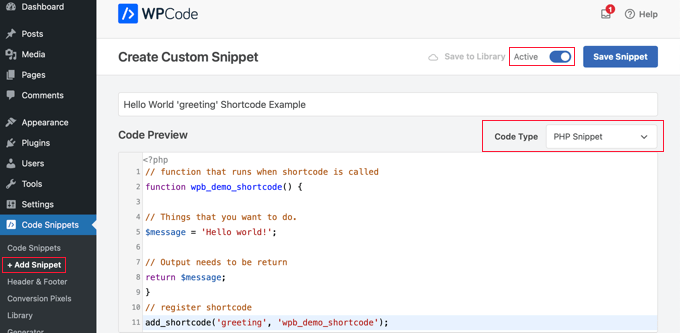
Credit: www.wpbeginner.com
Frequently Asked Questions
What Are WordPress Shortcodes Used For?
WordPress shortcodes simplify adding complex features to posts or pages. They save time by embedding content like galleries or forms with a simple code.
How Do I Add A Shortcode In WordPress?
To add a shortcode, insert it directly into the post or page editor. WordPress automatically processes and displays the corresponding feature on the site.
Can I Create Custom Shortcodes In WordPress?
Yes, you can create custom shortcodes using PHP functions in your theme’s functions. php file. This allows personalized features tailored to your site’s needs.
Do Shortcodes Work With WordPress Plugins?
Most WordPress plugins provide their own shortcodes. These enable easy integration of plugin features without coding, enhancing site functionality quickly.
Conclusion
Shortcodes make WordPress easier and faster to use. They let you add features without coding. Just insert the shortcode, and WordPress does the rest. This saves time and keeps your site clean. You can use shortcodes for galleries, videos, buttons, and more.
Experiment with them to see what works best. They help you create a better website with less effort. Keep practicing, and your site will look great. Shortcodes are simple tools that anyone can learn. Try them today and see the difference.



