
Are you wondering how to update PHP on your WordPress site without breaking anything? Keeping your PHP version up to date is one of the smartest moves you can make to boost your website’s speed, security, and overall performance.
But if you’re unsure where to start or worried about messing things up, you’re not alone. This guide will walk you through simple, clear steps to update PHP safely and confidently. By the end, you’ll know exactly what to do to keep your site running smoothly and faster than ever.
Let’s get started!
Why Update Php On WordPress
Updating PHP on your WordPress site is very important. PHP is the language that runs your website. Using the latest PHP version helps your site work better and stay safe. It also makes sure your site stays fast and uses less server power.
Benefits Of New Php Versions
New PHP versions run faster than old ones. This helps your site load pages quickly. Fast sites keep visitors happy and lower bounce rates. New versions also use less memory, saving server resources. They include fixes for bugs and security holes. This means fewer crashes and better site stability. Most new PHP versions support the latest WordPress features too.
Risks Of Outdated Php
Old PHP versions no longer get security updates. This leaves your site open to hackers. Outdated PHP can cause plugins and themes to stop working. Your site may run slowly or even break. Poor site performance can hurt your search rankings. Using outdated PHP also risks data loss or theft. Your visitors and your site both become vulnerable.

Credit: www.hostgator.com
Check Current Php Version
Checking your current PHP version is the first step before updating PHP on your WordPress site. Knowing the version helps you understand if an update is necessary. It also ensures compatibility with themes and plugins. There are easy ways to find this information without much technical knowledge.
Using WordPress Site Health
WordPress has a built-in tool called Site Health. It provides details about your website’s setup, including the PHP version. To use it, log in to your WordPress dashboard. Navigate to “Tools” and then click on “Site Health.”
Under the “Info” tab, look for the “Server” section. Here, you will see the current PHP version your site uses. This method is quick and does not require any extra plugins or hosting access.
Using Hosting Control Panel
Most hosting providers offer a control panel for managing your website. Popular panels include cPanel and Plesk. Log in to your hosting account and find the section for PHP settings or software.
The control panel usually displays the current PHP version. You may also have the option to change the version here. This method is helpful if you want to update PHP yourself or check server details directly.
Backup Your WordPress Site
Backing up your WordPress site is a must before updating PHP. It protects your content, settings, and design. A good backup helps you fix problems fast if something goes wrong during the update.
Backing up means saving a copy of your entire site. This includes your database, themes, plugins, and media files. Store the backup safely on your computer or cloud storage. This way, you won’t lose your work or data.
Creating A Full Backup
Start with a full backup to cover every part of your site. You can do this manually or use tools. Manual backups need you to copy files via FTP and export the database. This takes time and some technical skills.
Make sure you save the backup in a safe place. Label it with the date and time. This helps you find the right copy if needed later.
Backup Plugins To Use
Backup plugins simplify the process. They automate saving your site regularly. Some popular plugins include UpdraftPlus, BackWPup, and Duplicator. These tools let you schedule backups and store files remotely.
Choose a plugin that fits your needs. Check its reviews and update history. A reliable plugin can save you hours and protect your site easily.
Prepare For Php Update
Preparing for a PHP update is an important step. It helps keep your WordPress site safe and working well. Updating PHP can improve speed and security.
Before starting, you need to check your site carefully. Some parts might not work with the new PHP version. Taking time now saves problems later.
Check Plugin And Theme Compatibility
Plugins and themes must work with the new PHP version. Check if they support the latest PHP release. Visit the plugin or theme website for this info. Look for recent updates or notes about PHP compatibility. If not compatible, your site might break after updating PHP.
Test your site on a staging server or local environment. This step shows if plugins or themes cause errors. Fix issues before the real update to avoid site downtime.
Update Plugins And Themes
Keep plugins and themes up to date before changing PHP. Developers often fix bugs and add support for new PHP versions. Go to your WordPress dashboard and update all plugins and themes. This ensures better compatibility and fewer errors.
Back up your entire site before updating. Backups protect your data in case something goes wrong. Use a reliable plugin or manual method for backup.
Update Php Via Hosting Panel
Updating PHP through your hosting panel is a simple and quick way to keep your WordPress site running smoothly. Most hosting providers offer easy tools to change the PHP version. This helps improve site speed and security without complex steps.
You do not need to touch any code. Just log into your hosting account and follow a few clicks. The process usually takes less than five minutes.
Accessing Php Settings
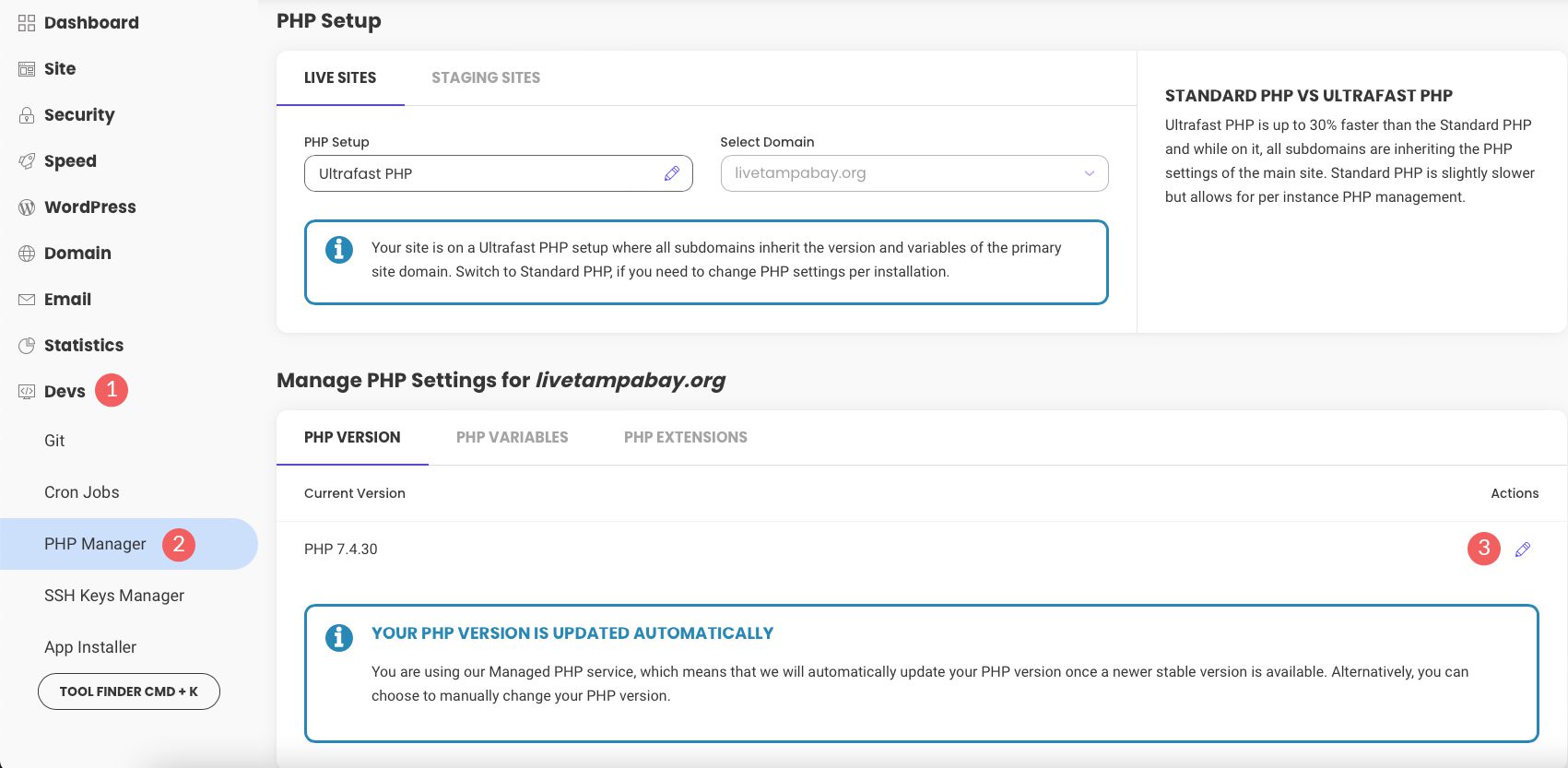
Start by logging into your hosting control panel. Look for sections like “Software,” “Programming,” or “PHP Settings.” Some hosts use names like “Select PHP Version” or “PHP Manager.”
Click on the PHP settings area. This is where you can view and change your current PHP version. If unsure, check your host’s help pages for exact locations.
Selecting The Php Version
Inside the PHP settings, find a dropdown menu or list of PHP versions. Choose the latest stable version supported by your WordPress plugins and themes. Usually, hosts show the recommended versions clearly.
Pick a version that balances speed and compatibility. Avoid very old or beta versions to prevent errors on your site.
Saving Changes
After selecting the PHP version, find the save or apply button. Click it to confirm your choice. The hosting panel may take a moment to update the settings.
Once saved, test your website to ensure everything works fine. If you see issues, you can revert to the previous PHP version using the same steps.
Update Php Via Cpanel
Updating PHP via cPanel is a simple way to improve your WordPress site’s speed and security. Most hosting providers offer cPanel to manage your website easily. You can change the PHP version without technical skills.
This method ensures compatibility with new WordPress features. It also helps prevent errors caused by outdated PHP versions. Follow the steps below to update your PHP safely using cPanel.
Navigating To Php Selector
Log in to your hosting account and open cPanel. Scroll down to the section called “Software” or “Programming.” Find and click on “Select PHP Version” or “PHP Selector.” This tool lets you choose the PHP version for your website.
Choosing The New Php Version
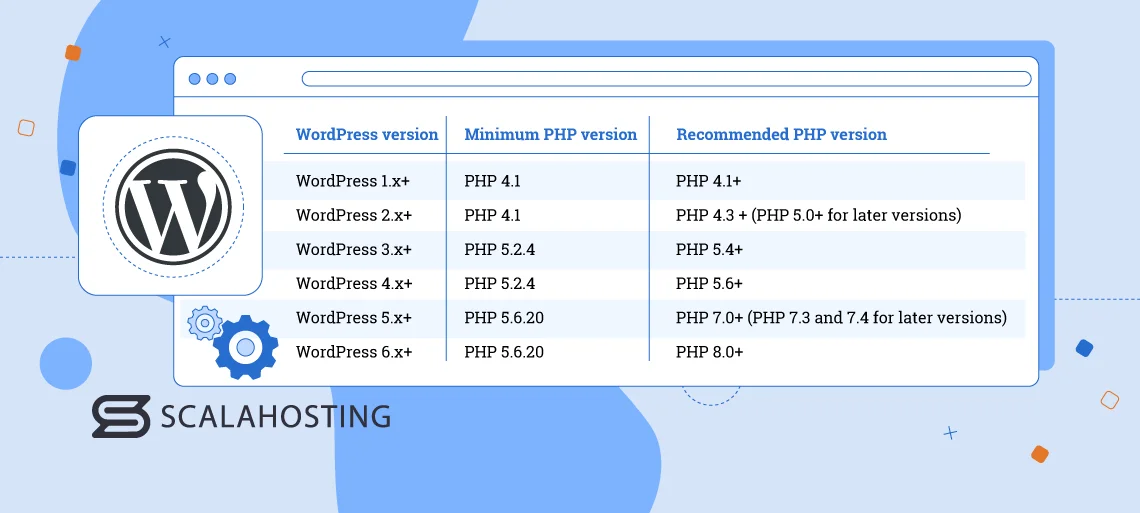
In the PHP Selector, you will see the current PHP version. Click the dropdown menu to view all available versions. Choose the latest stable version recommended by WordPress, usually PHP 7.4 or higher. Avoid selecting beta or outdated versions to keep your site safe.
Applying The Update
After selecting the new PHP version, click the “Set as current” or “Save” button. Wait a few seconds for the changes to apply. Clear your website cache if you use caching plugins. Check your site to ensure everything works correctly with the new PHP version.
Test Your Website After Update
Testing your website after updating PHP is very important. It helps you find any problems early. This step ensures your site works smoothly and looks good to visitors. Without proper testing, your site might break or slow down.
Checking For Errors
Start by looking for visible errors on your site. Visit different pages and watch for error messages or blank screens. Check your WordPress dashboard for any warning signs. Use the debug mode in WordPress to catch hidden errors. Also, check your server error logs for details.
Testing Site Functionality
Test all important features on your website. Click buttons, submit forms, and try the search function. Make sure your plugins and themes work well with the new PHP version. Check your site speed and loading times. Test on different browsers and devices to ensure a smooth experience for all users.
Credit: www.scalahosting.com
Troubleshoot Common Issues
Updating PHP on your WordPress site can sometimes cause issues. These problems often stop your website from working correctly. Knowing how to fix them is important. This section helps you solve common problems after a PHP update. Follow these simple steps to keep your site running smoothly.
Fixing Compatibility Problems
PHP updates may break some themes or plugins. This happens if they are not ready for the new PHP version. Start by checking which plugin or theme causes the issue. Deactivate all plugins and switch to a default theme. Then, reactivate them one by one. This helps identify the problem.
Update all plugins and themes to their latest versions. Developers often release fixes for new PHP versions. If a plugin or theme still fails, contact its support team. Avoid using outdated plugins or themes. They can harm your site’s performance and security.
Rolling Back Php Version
Sometimes, you must return to an older PHP version. This step helps if your site breaks after the update. Most hosting providers offer an option to change PHP versions in their control panel. Choose the previous PHP version that worked well for your site.
After rolling back, check your website carefully. Make sure all functions and pages load correctly. Use this older version until plugins and themes fully support the new PHP version. Keep your site safe and avoid downtime by acting quickly.
Keep Php Updated Regularly
Keeping PHP updated regularly is important for your WordPress site’s health. New PHP versions bring better security and faster performance. Old versions may cause errors or security issues. Updating PHP helps your site run smoothly and safely.
Setting Update Reminders
Set reminders to check PHP updates often. Use a calendar app or task manager for this. Mark a date every few months to review PHP versions. This habit prevents long periods of outdated PHP. Staying on schedule helps avoid sudden site problems.
Monitoring Site Performance
Watch your site after updating PHP. Look for changes in speed and functionality. Use tools like Google PageSpeed or Pingdom. Track loading times and any errors that appear. Monitoring helps catch issues early and keep your site healthy.
Credit: www.elegantthemes.com
Frequently Asked Questions
How Do I Check My Current Php Version In WordPress?
You can check your PHP version in WordPress by going to Tools > Site Health > Info. Under the Server section, find the PHP version. Alternatively, use a plugin like “Display PHP Version” for quick access. Knowing your PHP version helps ensure compatibility and security.
Why Should I Update Php On My WordPress Site?
Updating PHP improves your site’s speed, security, and performance. Newer PHP versions fix vulnerabilities and support modern code. It also ensures compatibility with themes and plugins. Regular updates help keep your WordPress site running smoothly and safely.
How Can I Update Php Version On My WordPress Hosting?
Log in to your hosting control panel, find the PHP settings or version manager. Select the latest supported PHP version and save changes. Some hosts offer one-click updates. Always back up your site before updating PHP to avoid potential issues.
Will Updating Php Break My WordPress Site?
Updating PHP can cause compatibility issues with outdated themes or plugins. Test updates on a staging site first. Ensure all plugins and themes are updated before switching PHP versions. Proper preparation minimizes risk and keeps your site functional.
Conclusion
Updating PHP on your WordPress site keeps it fast and secure. Always back up your site before making changes. Use your hosting control panel or ask your host for help. Check your plugins and themes for compatibility with the new PHP version.
Regular updates help avoid errors and improve site performance. Stay patient and follow each step carefully. A well-maintained site offers a better experience to your visitors. Keep your WordPress site healthy by updating PHP regularly.



