
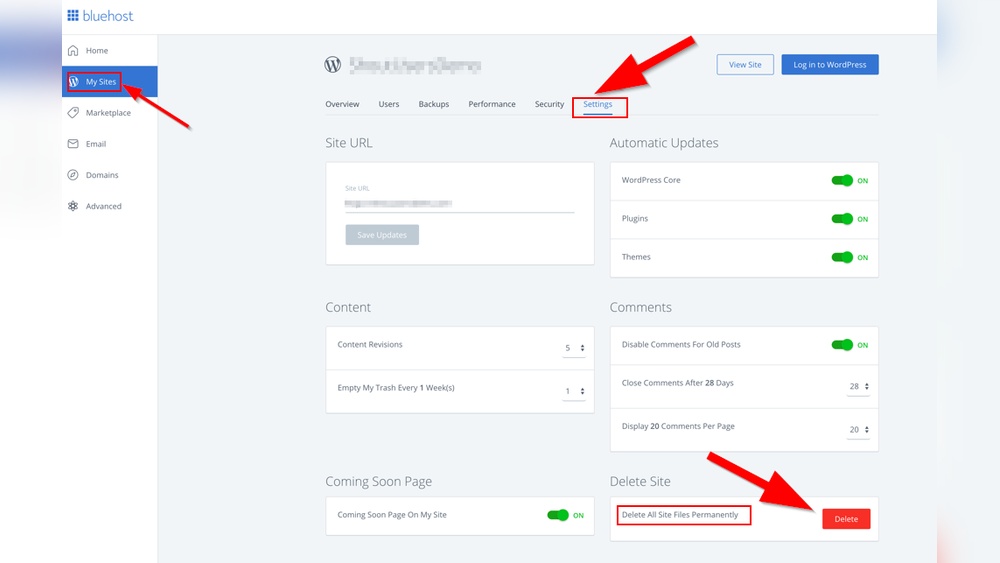
Are you ready to remove WordPress from your site but don’t know where to start? You might feel overwhelmed by all the technical steps or worried about losing your content.
Don’t worry—uninstalling WordPress doesn’t have to be complicated. You’ll discover simple, clear steps to safely and completely uninstall WordPress from your website. By the end, you’ll have the confidence to take control of your site and make the changes you need.
Keep reading, and let’s get started!
Prepare For Uninstallation
Preparing to uninstall WordPress is an important step. It helps avoid losing important files or data. Taking the right actions before uninstalling keeps your site safe and clean. Follow these steps carefully to prepare your site for removal.
Backup Your Website Data
Backing up your website data is crucial. It saves your posts, images, and settings. Use a backup plugin or your hosting control panel. Download the backup files to your computer. This protects your content in case you want to restore it later. Without a backup, your data may be lost forever.
Deactivate Plugins And Themes
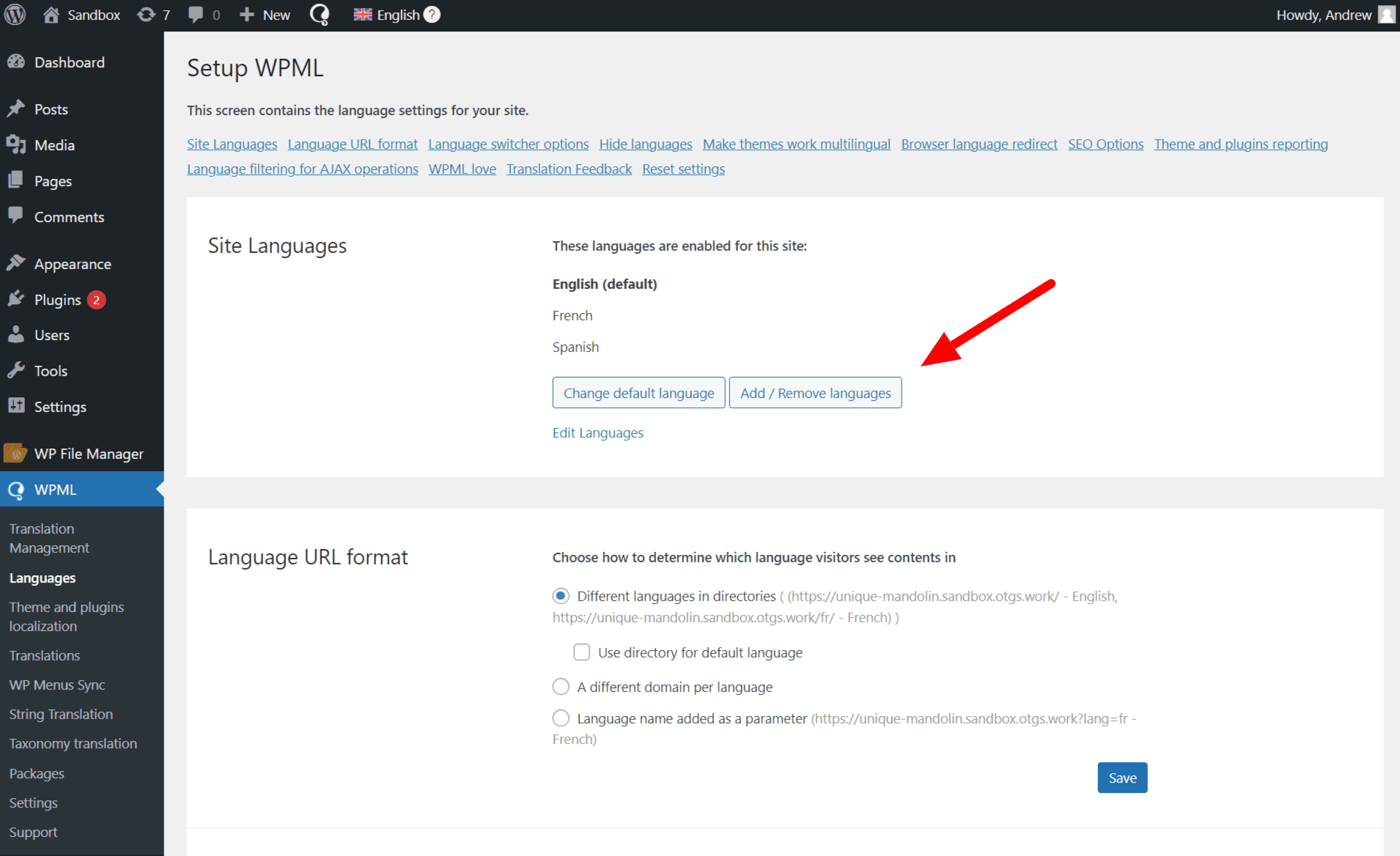
Deactivate all active plugins before uninstalling WordPress. Plugins can cause issues during the removal process. Also, switch to the default WordPress theme. This ensures no theme-related problems occur. Deactivating plugins and themes helps clean your site properly. It also makes uninstallation smoother and faster.
Credit: wpml.org
Delete WordPress Files
Deleting WordPress files is a key step to fully remove WordPress from your site. This process clears out all core files and folders that run your WordPress site. It ensures no leftover files remain on your server, freeing up space and preventing conflicts with future installations.
This guide will help you delete WordPress files safely using your hosting file manager. Follow each step carefully to avoid deleting important files accidentally.
Access Your Hosting File Manager
Start by logging into your web hosting control panel. Look for the file manager tool, often found under “Files” or “File Management.”
Open the file manager to see all files on your server. Navigate to the folder where WordPress is installed. Usually, this is the “public_html” or “www” directory.
Make sure you have backed up any files or data you want to keep before deleting.
Remove WordPress Core Files
Inside the WordPress folder, select all files and folders. This includes wp-admin, wp-content, wp-includes, and all loose files like wp-config.php.
Delete these files to remove WordPress core components. Check that the folder is now empty.
Empty your hosting account’s trash or recycle bin to free up space completely.
Remove WordPress Database
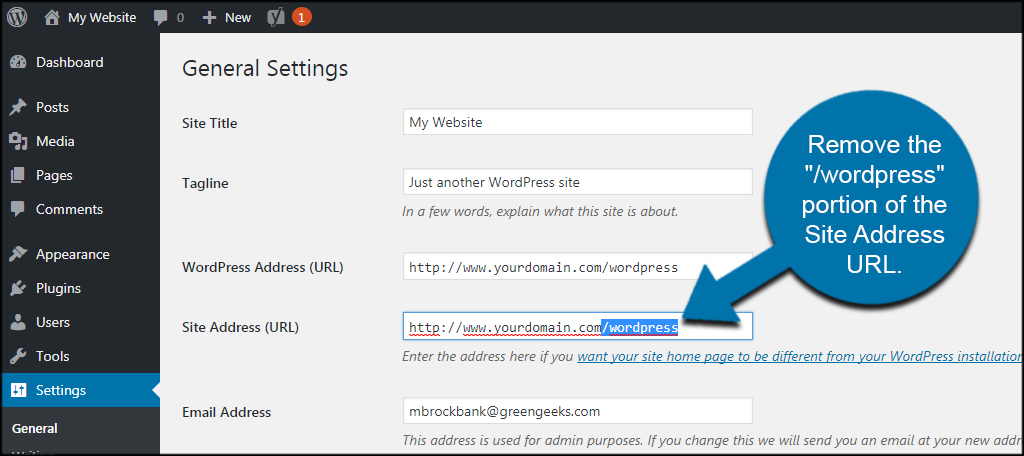
Removing the WordPress database is a key step in uninstalling WordPress from your site. The database holds all your content, settings, and user information. Deleting it ensures no leftover data remains on your server.
This step requires access to your hosting control panel or database management tool. Take care to back up any important data before proceeding. Once deleted, the database cannot be recovered.
Locate Your Database
Start by logging into your hosting control panel. Find the section labeled “Databases” or “MySQL Databases.”
Check your WordPress configuration file for the database name. Open the wp-config.php file in your WordPress root folder. Look for the line define('DB_NAME', 'your_database_name');
Note the database name. This helps you identify the correct database to remove.
Delete The WordPress Database
In your hosting panel, go to the database management tool, like phpMyAdmin.
Select the WordPress database you identified earlier.
Look for an option to delete or drop the database. Confirm your choice.
The system will remove all tables and data linked to your WordPress site. This step is final and irreversible.
Credit: www.greengeeks.com
Clean Up Hosting Account
Cleaning up your hosting account is an important step after uninstalling WordPress. It helps keep your server organized and free from leftover files. This process improves your site’s security and performance. Removing unused data also saves storage space and reduces clutter.
Delete WordPress User Accounts
WordPress user accounts may still exist in your hosting control panel. These accounts can have access to your server and cause security risks. Log in to your hosting dashboard. Find the section for user management. Identify any WordPress-related users. Delete these accounts carefully to prevent unauthorized access.
Remove Scheduled Tasks
Scheduled tasks or cron jobs can keep running even after WordPress is gone. These tasks may try to execute WordPress scripts. Check your hosting control panel for cron jobs. Look for jobs linked to WordPress files or plugins. Delete these scheduled tasks to stop unnecessary server activity.
Confirm Complete Removal
After uninstalling WordPress, confirming complete removal is essential. This step ensures no files or data remain on your site. Leftover files can cause errors or security risks. Follow these checks to confirm everything is deleted properly.
Check Website Accessibility
Visit your website URL in a browser. The site should no longer load the WordPress page. You might see a server error or a blank page instead. This means WordPress files are removed from your server. If you still see your old site, WordPress might not be fully deleted.
Verify Database Deletion
Access your hosting control panel or database manager. Locate the database used by your WordPress site. Check if the database or its tables still exist. If they do, delete them to remove all WordPress data. This step prevents old content from lingering behind.
Credit: www.hostinger.com
Alternative Uninstallation Methods
Uninstalling WordPress can be done in different ways. Some methods do not need the WordPress dashboard. These alternative methods help when you cannot access your site’s admin area. They also give more control over the removal process. Two common ways are using hosting control panel tools and FTP clients. Both are effective for clearing WordPress from your site.
Using Hosting Control Panel Tools
Many web hosts offer control panel tools like cPanel or Plesk. These tools let you manage files and databases easily. To uninstall WordPress, start by deleting WordPress files from the file manager. Look for the public_html folder or the folder where WordPress is installed. Select all WordPress files and remove them.
Next, delete the WordPress database. Go to the database section, usually called MySQL Databases or phpMyAdmin. Find the database linked to your WordPress site. Delete the database to remove all data. This method clears WordPress files and data quickly. No need to use WordPress admin or plugins.
Using Ftp Clients
FTP clients like FileZilla let you connect to your website server. This method works well if you cannot use the hosting control panel. First, connect to your server using FTP. Enter your FTP username, password, and host details. After logging in, navigate to the WordPress installation folder.
Select all files and folders related to WordPress. Delete them to remove WordPress files from your server. FTP clients do not delete databases. So, log in to your hosting control panel to delete the WordPress database. This two-step process ensures a complete uninstall.
Frequently Asked Questions
How Do I Completely Uninstall WordPress From My Site?
To completely uninstall WordPress, delete all WordPress files via FTP or hosting file manager. Remove the WordPress database using phpMyAdmin. Also, delete any associated backups and caches to ensure no leftover data remains on your site.
Can I Uninstall WordPress Without Losing My Content?
Uninstalling WordPress deletes all site content unless you back it up. Export your posts, pages, and media using WordPress export tools before uninstalling. Store the backup safely to restore your content later on a new installation or different platform.
What Happens After Uninstalling WordPress From My Hosting?
After uninstalling WordPress, your website will no longer display content. Visitors will see a blank page or server error. Your hosting space will be free for new installations or websites. Remember to clear your browser cache to avoid seeing old content.
Is It Safe To Uninstall WordPress Manually?
Yes, manual uninstallation is safe if done carefully. Delete WordPress files and database without affecting other hosting data. Always back up your website and database before manual removal to prevent accidental data loss and enable easy recovery if needed.
Conclusion
Uninstalling WordPress is simple with the right steps. Back up your data before starting. Delete WordPress files and databases carefully. Check your website to confirm removal. Clean up leftover files to avoid issues. This process helps keep your site clean and safe.
Take your time and follow each step. Feel confident managing your website changes.



