
Are you feeling stuck with your WordPress website? Maybe it’s cluttered, slow, or just not working the way you want.
You might be wondering, “How do I reset my WordPress website without losing everything important? ” Resetting your site can be the fresh start you need, but it can also feel risky if you don’t know the right steps. You’ll discover simple, clear ways to reset your WordPress site safely.
By the end, you’ll have the confidence to refresh your website and make it work perfectly for you again. Keep reading—you’re closer than you think to a brand-new WordPress experience!

Credit: jcsweet.com
Reasons To Reset WordPress
Resetting a WordPress website can solve many problems. It clears out old data and settings. This allows you to start with a clean slate. Knowing why to reset helps you decide if this step is right for you.
Common Scenarios For Resetting
Sometimes, your site becomes slow or buggy. Plugins or themes may cause conflicts. You might have made many changes that don’t work well. A reset removes these issues quickly. It is also useful when you want to rebuild your site. Testing new designs or features becomes easier after a reset. Developers use resets to create fresh environments for work. A reset can fix hacking damage or unwanted content too.
Benefits Of Starting Fresh
Starting fresh gives you a clean, fast website. Old errors and clutter disappear completely. You can set up your site the way you want. This improves site speed and user experience. It also helps organize content better. A clean site is easier to manage and update. Resetting saves time compared to fixing many small problems. It helps you focus on growing your website from a strong base.
Credit: kinsta.com
Backup Before Reset
Backing up your WordPress site before a reset is very important. It keeps your data safe. You avoid losing posts, images, and settings. A backup gives you a copy of your site. You can restore it anytime if something goes wrong. Take time to back up both content and files.
Exporting Content
Exporting content saves your posts, pages, and media. Use the WordPress export tool. Go to Tools > Export in your dashboard. Select “All content” to download everything. This creates an XML file. You can import this later to restore your content.
Backing Up Databases And Files
Your database holds all your site information. Back it up using your hosting control panel or plugins. Also, copy all WordPress files. This includes themes, plugins, and uploads. Store these backups on your computer or cloud storage. Having both files and database backups ensures full site recovery.
Resetting Using Plugins
Resetting a WordPress website can be tricky without the right tools. Plugins offer a simple way to clear your site and start fresh. They remove all content, settings, and customizations quickly and safely. This method saves time and avoids manual database changes.
Many plugins are designed for this task. They come with easy options to reset your entire site or parts of it. This helps developers, testers, or site owners who want a clean slate without reinstalling WordPress.
Popular Reset Plugins
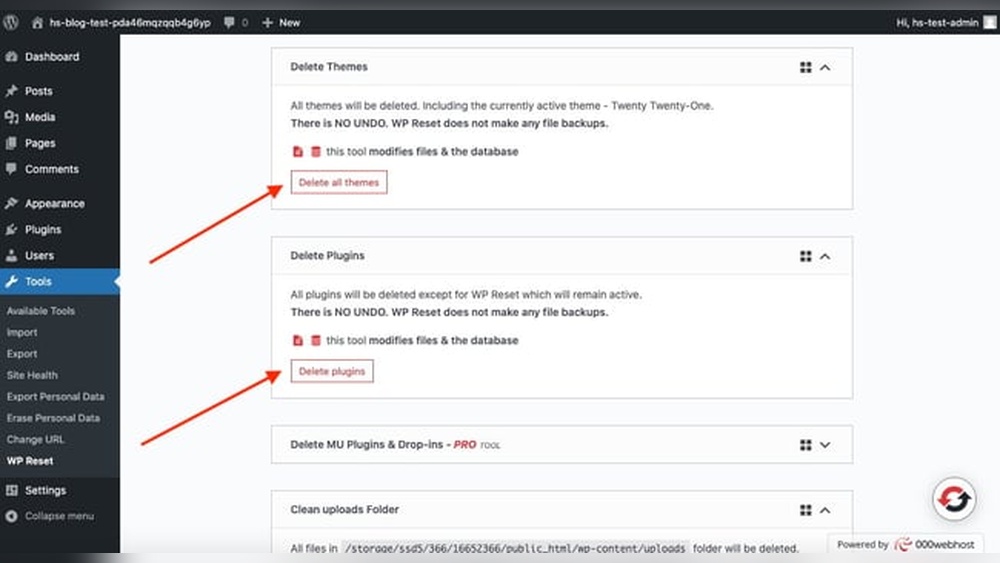
Several plugins stand out for resetting WordPress sites. WP Reset is one of the most popular. It resets the database but keeps files intact. Advanced WordPress Reset offers a simple one-click reset. WordPress Database Reset allows selective reset of database tables.
These plugins are free or have free versions. They work well for beginners and professionals. Each plugin has unique features, but all aim to simplify the reset process.
Step-by-step Plugin Reset Process
First, install and activate the reset plugin from the WordPress plugin directory. Next, find the plugin in your WordPress dashboard menu. Open the plugin’s settings or reset page.
Read the warnings carefully. Resetting deletes content permanently. Confirm that you want to reset your site. Some plugins require typing a confirmation word to proceed.
Click the reset button. Wait a few moments for the process to finish. Your WordPress site now looks like a fresh install. Log in again if needed and start rebuilding your site.
Credit: myunlimitedwp.com
Manual Reset Methods
Manual reset methods give full control over your WordPress site reset. These methods erase all data and files. Use them carefully to avoid losing important content. Manual resets need some technical skills but work well when automated tools fail.
Resetting Via Phpmyadmin
phpMyAdmin lets you reset WordPress by clearing the database. Log into your hosting control panel first. Find and open phpMyAdmin. Select your WordPress database from the list.
Look for all WordPress tables. These usually start with “wp_”. Select all tables and choose “Drop” to delete them. This removes all site data like posts, users, and settings.
After dropping tables, WordPress acts like a fresh install. Run the WordPress setup again to create new database tables. Enter new site details and admin info to start fresh.
Deleting WordPress Files Manually
This method involves deleting WordPress files from your server. Access your site files via FTP or file manager in your hosting panel. Locate the folder where WordPress is installed.
Delete all files and folders inside the WordPress directory. This removes themes, plugins, and uploads. Your site files will be completely erased.
After deleting files, upload a fresh copy of WordPress. Then, run the installation process to set up your site again. This starts your site with no previous data or settings.
Post-reset Setup
After resetting your WordPress website, the real work begins. This phase is the post-reset setup. It ensures your site looks good and works well again. The reset removes all previous settings, themes, plugins, and content. Setting everything back up step by step is important. This process helps your site run smoothly and safely.
Reinstalling Themes And Plugins
The first step is to reinstall your themes and plugins. Themes control your site’s appearance. Plugins add extra features like contact forms or SEO tools. Choose only the themes and plugins you really need. Avoid installing too many at once. This keeps your site fast and secure. Activate each plugin one by one. Check if they work correctly before moving on.
Restoring Content If Needed
Next, restore your content if you have a backup. Content includes posts, pages, images, and comments. Use a plugin or your hosting service to upload backups. Do this carefully to avoid errors. If no backup is available, start creating new content. Write clear and simple posts. Add images that fit your theme. Keep your visitors in mind while restoring content.
Tips To Avoid Data Loss
Resetting a WordPress website can cause data loss if not done carefully. Protecting your content and settings is very important. Follow simple tips to keep your data safe before starting the reset process.
Best Backup Practices
Create a full backup of your website before resetting. Include all files, databases, and media. Use reliable backup plugins or your hosting provider’s tools. Store backups in multiple places like cloud storage and your computer. Check the backup files to ensure they work. Regular backups reduce the risk of losing important data.
Testing On Staging Sites
Use a staging site to try the reset first. A staging site is a copy of your live website. It lets you test changes without affecting visitors. Reset the staging site and check if everything works well. Fix issues on the staging site before resetting the live site. This step saves time and prevents data loss on your main website.
Frequently Asked Questions
How Do I Reset My WordPress Website Safely?
To reset your WordPress safely, use a trusted plugin like WP Reset. It restores default settings without deleting files. Always back up your site before resetting to prevent data loss.
Can I Reset WordPress Without Losing Content?
Yes, some plugins allow partial resets, keeping content intact. However, a full reset deletes all data. Always verify plugin features to protect your content before proceeding.
What Are The Common Methods To Reset WordPress?
Common methods include using reset plugins, deleting database tables manually, or reinstalling WordPress. Plugins offer an easy, risk-free option for most users.
Will Resetting WordPress Delete My Themes And Plugins?
Resetting WordPress usually deletes themes and plugin data but keeps files installed. You may need to reactivate or reinstall some plugins and themes after reset.
Conclusion
Resetting your WordPress website can help fix many issues fast. Always back up your site before starting the reset. Choose the reset method that fits your needs best. Keep your website secure by updating plugins and themes after reset. A fresh start can improve your site’s performance and design.
Take your time and follow steps carefully. Resetting is simple with the right guidance and tools. Your website can look and work like new again.



