
Are you making changes to your WordPress site but worried visitors might see unfinished work? Putting your site in maintenance mode is the perfect solution.
It lets you work behind the scenes while showing your visitors a friendly message. You’ll learn exactly how to put WordPress in maintenance mode quickly and easily. By the end, you’ll be able to protect your site’s reputation and keep your audience informed every step of the way.
Ready to get started? Let’s dive in!
Credit: elementor.com
Why Use Maintenance Mode
Using maintenance mode on your WordPress site is important during updates or changes. It keeps the site safe and professional. Visitors see a clear message instead of broken pages or errors. This helps protect your site’s reputation and keeps users informed.
Benefits For Website Updates
Maintenance mode stops visitors from seeing unfinished changes. It gives you time to update themes, plugins, or content. Errors or bugs remain hidden until everything works well. This prevents confusion and keeps the site running smoothly. You can test new features without disturbing visitors.
Improving User Experience
Visitors get a friendly message about maintenance. They know the site is temporarily unavailable and will return soon. This reduces frustration or confusion during downtime. Clear communication builds trust and keeps visitors coming back. It also lowers the chance of users leaving your site early.
Built-in WordPress Maintenance
WordPress has a built-in maintenance mode that activates automatically. This feature helps keep your site safe during updates. It shows a simple message to visitors while work is in progress. No extra setup is needed to use this mode. It is designed to protect your site and avoid errors during changes.
Automatic Maintenance During Updates
WordPress switches to maintenance mode when updating themes, plugins, or core files. The system creates a temporary file named .maintenance. This file tells WordPress to show a maintenance message to visitors. The message says the site is briefly unavailable. Once updates finish, the file deletes itself and normal access returns. This process happens quickly and without user input.
Limitations Of Default Mode
The default maintenance mode only works during updates. It does not allow custom messages or designs. Visitors see a plain, generic message with no branding. You cannot control how long the mode stays active. If an update fails, the site may stay stuck in maintenance mode. This can confuse visitors and affect site traffic. To have more control, many choose plugins or custom solutions.
Using Plugins For Maintenance Mode
Putting your WordPress site in maintenance mode is simple with plugins. These tools create a temporary page for visitors while you update your site. Plugins save time and avoid coding errors. They offer easy options to customize the message and design.
Using plugins helps manage visitor experience during updates. You can control who sees the site and who sees the maintenance page. Many plugins come with ready-made templates. This makes your maintenance page look professional and neat.
Top Plugins To Consider
Several plugins work well for maintenance mode. “WP Maintenance Mode” is popular and easy to use. It offers a countdown timer and contact form. “SeedProd” lets you build custom pages with drag-and-drop. “Coming Soon Page & Maintenance Mode” is simple and effective. It allows social media integration and email capture. These plugins help keep visitors informed and engaged.
How To Install A Plugin
Go to your WordPress dashboard. Click on “Plugins” and then “Add New.” Type the plugin name in the search box. Find the plugin and click “Install Now.” After installation, click “Activate” to enable it. Configure the plugin settings from its menu. Set your maintenance message and customize the page. Save your changes and enable maintenance mode. Your site now shows the maintenance page to visitors.
Configuring Maintenance Mode Plugins
Configuring maintenance mode plugins is an important step for WordPress site owners. These plugins help you show a temporary page to visitors. This page informs them that your site is under maintenance.
Using plugins is easier than coding a maintenance page yourself. They offer options to customize the page and control who can see the live site. This way, you can keep working on your site while visitors see a neat message.
Customizing The Maintenance Page
Most maintenance mode plugins let you change the design and text. You can add your logo, background image, or colors. Write a simple message explaining the downtime. Clear and polite language works best.
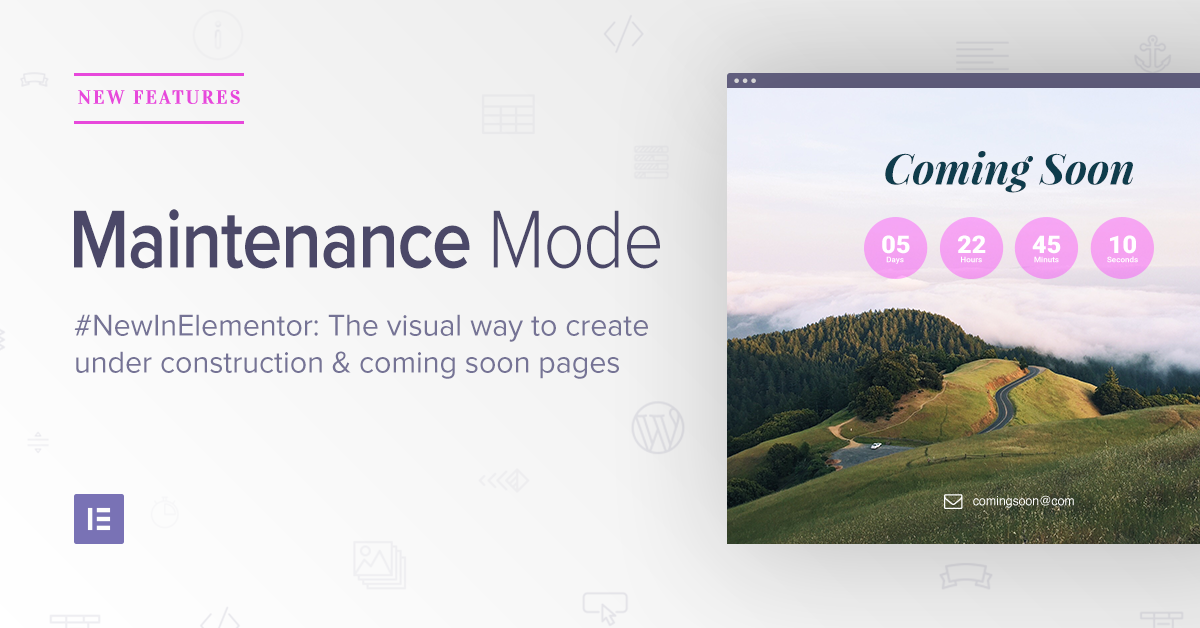
Some plugins allow adding countdown timers or contact forms. These features keep visitors informed and connected. Preview your page before activating maintenance mode to check the look. A professional and clean page builds trust with your audience.
Setting Access Permissions
Access permissions control who sees the maintenance page. You can allow admins, editors, or logged-in users to access the live site. This helps your team work without interruption. Some plugins enable access by IP address. Use this to grant special access to certain users.
Make sure to test the permissions after setting them. This avoids accidental lockouts or public access to unfinished work. Correct permissions keep your site secure during updates or fixes.
Manual Maintenance Mode Setup
Setting up maintenance mode manually on WordPress gives you full control over the process. It helps you show a custom message to visitors while you update your site. This method is simple and does not require plugins. You can create a professional look with just a few code changes.
Editing The .htaccess File
The .htaccess file controls how your server handles site requests. Editing it can redirect visitors to a maintenance page. First, access your WordPress root folder using an FTP client or file manager. Make a backup of the .htaccess file before editing it.
Add the following code at the top of the .htaccess file:
RewriteEngine On RewriteCond %{REQUEST_URI} !/maintenance.html$ RewriteCond %{REMOTE_ADDR} !^123\.456\.789\.000$ RewriteRule ^(.)$ /maintenance.html [R=503,L]Replace 123.456.789.000 with your IP address. This lets you access the site normally while others see the maintenance page. Save the file after adding the code.
Creating A Custom Maintenance Page
Design a simple HTML page named maintenance.html. This page will inform visitors your site is under maintenance. Keep the message clear and polite. You can add your logo and contact details to the page.
Upload the maintenance.html file to your WordPress root folder. Test the maintenance mode by visiting your site from another browser or device. Visitors should see your custom maintenance page until you remove the .htaccess code.
Credit: aioseo.com
Testing Maintenance Mode
Testing maintenance mode is a key step after activation. It ensures visitors see the right message. It also confirms your site is protected during updates. Without testing, you might miss errors or display problems. Testing helps keep your site professional and user-friendly.
Viewing The Maintenance Page
Open a different browser or use incognito mode. Visit your website URL to check the maintenance page. The page should show the message you set. It must block access to the main site content. Check for clear, simple text that explains the downtime.
Troubleshooting Common Issues
If the maintenance page does not appear, clear your browser cache. Sometimes, caching plugins interfere with the display. Disable caching plugins temporarily to test again. Check your maintenance mode plugin settings for errors. Make sure the mode is active and saved properly.
Disabling Maintenance Mode
Disabling maintenance mode in WordPress is a simple task. It lets your visitors see your site again. This step is important after updates or changes.
There are two main ways to turn off maintenance mode. You can use plugins or remove manual changes. Each method works well depending on how you started maintenance mode.
Turning Off Plugins
Many WordPress users use plugins to enable maintenance mode. To disable it, go to your WordPress dashboard. Find the plugin managing maintenance mode. Click deactivate. Your site will exit maintenance mode instantly. This method is fast and easy. It also keeps all your settings intact for later use.
Removing Manual Changes
Some users add code to the theme or WordPress files for maintenance mode. To disable it, you must remove that code. Access your site’s files using FTP or a file manager. Look for the maintenance mode code in the functions.php file or the root directory. Delete the maintenance mode code or the .maintenance file. Save the changes. Refresh your website. Your site will load normally again.

Credit: jetpack.com
Frequently Asked Questions
What Is WordPress Maintenance Mode?
WordPress maintenance mode temporarily hides your website during updates or fixes. It shows visitors a custom message, preventing access to your live site while you work.
How Do I Enable Maintenance Mode In WordPress?
You can enable maintenance mode using plugins like “WP Maintenance Mode” or by adding custom code to your theme’s functions. php file.
Can I Customize The Maintenance Mode Message?
Yes, most plugins allow you to customize the message, design, and even add countdown timers to inform visitors about your site’s status.
Does Maintenance Mode Affect Seo Rankings?
No, maintenance mode typically uses a 503 HTTP status, signaling search engines the site is temporarily down, protecting your SEO rankings during updates.
Conclusion
Putting WordPress in maintenance mode helps keep your site safe. Visitors see a simple message while you work behind the scenes. This stops confusion and broken pages from showing up. You can use plugins or manual methods to do this.
Choose what fits your comfort level best. Maintenance mode ensures your updates go smoothly. Your site looks professional and organized. Always remember to turn off maintenance mode when done. This way, your visitors return to a fully working site. Simple steps make big improvements in your website’s experience.



