
Are you ready to give your WordPress site a professional touch while you work behind the scenes? Putting your site under construction lets you build or update without showing unfinished pages to your visitors.
But how do you do it quickly and easily? You’ll discover simple steps that anyone can follow to set up an under-construction page. Keep reading, and you’ll have your site looking polished and ready before you know it.
Reasons To Use Under Construction Mode
Using under construction mode on your WordPress site helps you manage changes safely. It stops visitors from seeing unfinished work. This keeps your site looking professional and clean. Here are some key reasons to use this mode.
Protecting Your Site During Updates
Updating a website can cause errors or bugs. Under construction mode hides these problems from visitors. It prevents users from accessing broken pages. This helps avoid a bad first impression. It also keeps your site’s data safe during changes.
Maintaining User Experience
Visitors expect a smooth and working website. Under construction mode shows a clear message that the site is being updated. This avoids confusion or frustration. Users know you are working on improvements. It keeps their trust and interest in your site.
Improving Seo Impact
Search engines dislike websites with errors or downtime. Under construction mode stops search engines from indexing broken pages. This protects your search rankings. It helps your site stay healthy in search results. You avoid being penalized for bad user experience.
Credit: themehunk.com
Choosing The Right Under Construction Plugin
Choosing the right under construction plugin for your WordPress site is important. It helps you control what visitors see while you build or update your site. The right plugin keeps your site secure and professional. It also makes the process simple and quick. Picking the best plugin depends on your needs and the features offered.
Popular Plugin Options
Several under construction plugins are popular among WordPress users. Some well-known options include SeedProd, Coming Soon Page & Maintenance Mode by SeedProd, and WP Maintenance Mode. Each plugin offers different styles and tools. Choose one that fits your site’s design and your technical skills. Testing a few can help you decide which is easiest to use.
Key Features To Look For
A good under construction plugin should offer easy setup and customization. Look for features like custom templates, countdown timers, and SEO support. Email subscription forms help keep visitors updated. Mobile-friendly design is a must, so your page looks good on phones and tablets. Also, check if the plugin allows you to hide the page from search engines.
Free Vs Premium Plugins
Free plugins offer basic features and work well for simple needs. They are a good start for small sites or beginners. Premium plugins cost money but come with more options. These include advanced design tools, better support, and extra integrations. Choose based on your budget and how complex your under construction page should be. Sometimes, paying for premium saves time and effort.
Manual Method To Enable Maintenance Mode
Using the manual method to enable maintenance mode on your WordPress site gives you full control. It helps you show visitors a clear message that your site is under construction. This method does not need plugins. You can customize the message and design as you wish. It is good for small updates or quick fixes.
Editing The .htaccess File
The .htaccess file controls how your server responds to visitors. You can add rules to redirect visitors to a maintenance page. First, access your site files using an FTP client or file manager. Find the .htaccess file in the root folder of your WordPress site.
Add this code at the top of the file to block access:
RewriteEngine On RewriteCond %{REQUEST_URI} !/maintenance.html$ RewriteCond %{REMOTE_ADDR} !^123\.456\.789\.000$ RewriteRule ^(.)$ /maintenance.html [R=302,L] Replace 123.456.789.000 with your IP address. This allows you to access the site while others see the maintenance page.
Adding A Maintenance Page
Create a simple HTML file named maintenance.html. This file will show the under construction message. Include text like “Site under maintenance. Please check back soon.” Add basic styles for a clean look. Upload this file to your WordPress root folder using FTP or file manager. Visitors will see this page until you remove the .htaccess rules.
Temporarily Disabling Site Access
You can block all visitors except yourself by editing .htaccess. Use the IP address method to allow your access only. This is useful for major updates or redesigns. Be careful not to lock yourself out. Always keep a backup of your .htaccess file before changes. Remove the restrictions after finishing your work to restore full site access.
Credit: wordpress.org
Step-by-step Plugin Setup
Setting your WordPress site to under construction mode is simple with the right plugin. Follow these clear steps to set it up fast. This guide helps you install, configure, and activate the plugin without hassle. You will create a neat under construction page for visitors while you work on your site.
Installing The Plugin
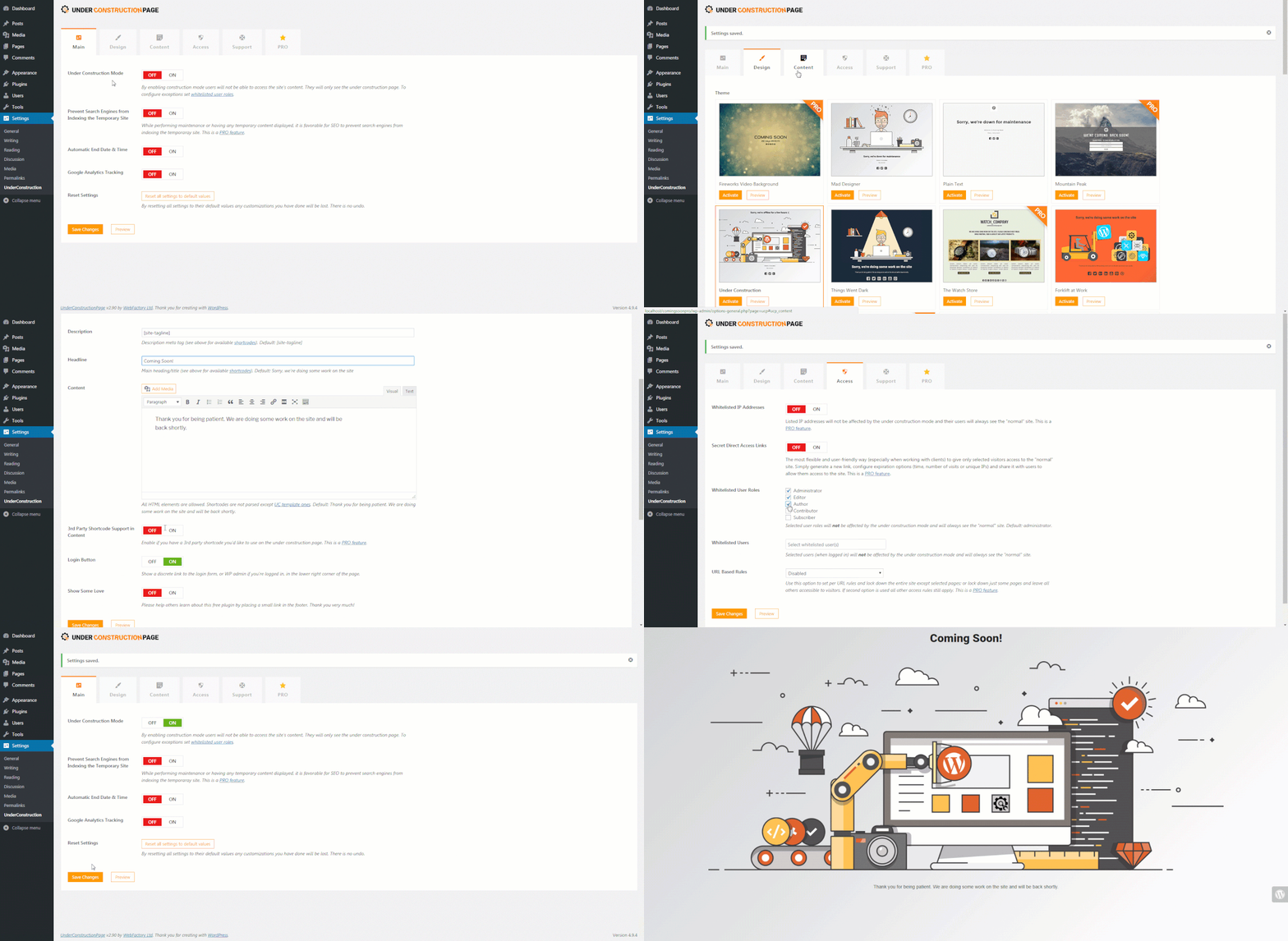
Open your WordPress dashboard. Go to the Plugins menu and click “Add New.” Type “under construction” in the search box. Find a popular plugin like “Under Construction Page” or similar. Click “Install Now” and wait a moment. Then click “Activate” to enable the plugin.
Configuring Display Settings
After activation, locate the plugin’s settings from the dashboard menu. Choose who can see the under construction page. Set it to show for all visitors except logged-in users. Pick the pages or posts that remain visible if needed. Save your settings to apply changes immediately.
Customizing The Under Construction Page
Open the plugin’s customization area. Select a template or start from a blank page. Add your message, logo, or any images you want visitors to see. Adjust colors and fonts to match your brand style. Preview the page to check how it looks on different devices.
Activating And Testing
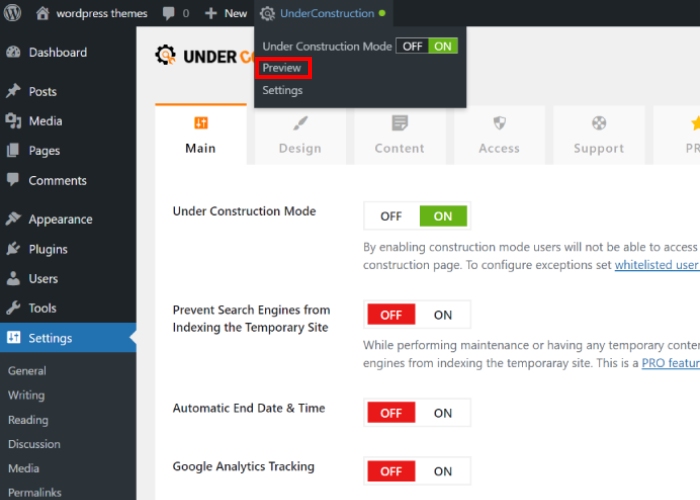
Turn on the under construction mode with the plugin switch. Open your website in a new browser or incognito window. Check that the under construction page appears for visitors. Log in to your site to confirm the normal view shows for admins. Make any needed tweaks in the settings.
Tips For A Compelling Under Construction Page
Creating an under construction page helps visitors know your site is being updated. It keeps users informed and interested while you work behind the scenes. A well-designed page builds trust and keeps your audience engaged. Here are some tips to make your under construction page effective and clear.
Clear Messaging
Use simple and direct words to explain the site status. Let visitors know the site is temporarily offline for improvements. Avoid long explanations. A brief message works best. Examples include “Site Under Construction” or “We Are Working On Something New.” Clear messaging reduces confusion and keeps visitors calm.
Contact Information
Provide an easy way for visitors to reach you. Add an email address or phone number. This shows you care about your audience. Some visitors might have urgent questions. Contact details make your site more reliable and trustworthy.
Countdown Timers And Social Links
Add a countdown timer to show when the site will be ready. This builds excitement and gives visitors a clear timeline. Social media links help visitors follow your updates. It keeps them connected during the downtime. Choose platforms you use often, like Facebook or Twitter.
Common Mistakes To Avoid
Putting your WordPress site under construction is useful during updates. It helps visitors know the site is temporarily offline. Many users make mistakes that cause problems. Avoid these errors to keep your site safe and user-friendly.
Leaving Mode Enabled Too Long
Some keep the construction mode on for days or weeks. This stops visitors from seeing your real content. It may lower your site traffic and trust. Turn off the mode as soon as your work is done.
Ignoring Mobile Users
Many forget to check how the construction page looks on phones. Mobile users may see broken layouts or hard-to-read text. Make sure your page looks good on all devices. Test it on smartphones and tablets before going live.
Neglecting Seo Settings
Construction mode can block search engines from indexing your site. This can hurt your SEO rankings. Use SEO-friendly plugins that allow search engines to crawl your pages. Also, add clear messages for search engines and visitors.

Credit: colorlib.com
Frequently Asked Questions
How Do I Activate Maintenance Mode In WordPress?
To activate maintenance mode, install a plugin like “WP Maintenance Mode. ” Then, configure the settings to display a custom message while your site is under construction.
Can I Customize The Under Construction Page Design?
Yes, most maintenance mode plugins let you customize text, colors, and images. This helps keep your brand visible during site updates.
Is It Necessary To Inform Visitors About Site Construction?
Yes, informing visitors prevents confusion and improves user experience. A clear message sets expectations and encourages them to return later.
Will Putting My Site Under Construction Affect Seo?
No, using maintenance mode properly won’t harm SEO. Ensure search engines can’t index the under construction page by enabling noindex settings.
Conclusion
Putting your WordPress site under construction keeps visitors informed and sets clear expectations. Choose a simple plugin or theme option to activate the mode quickly. Customize your message to fit your brand’s voice and purpose. Remember to test the site on different devices before going live.
This small step helps maintain professionalism and user trust during updates. Keep your site secure and ready for visitors when you finish your work. Stay patient and update regularly for the best user experience.



