
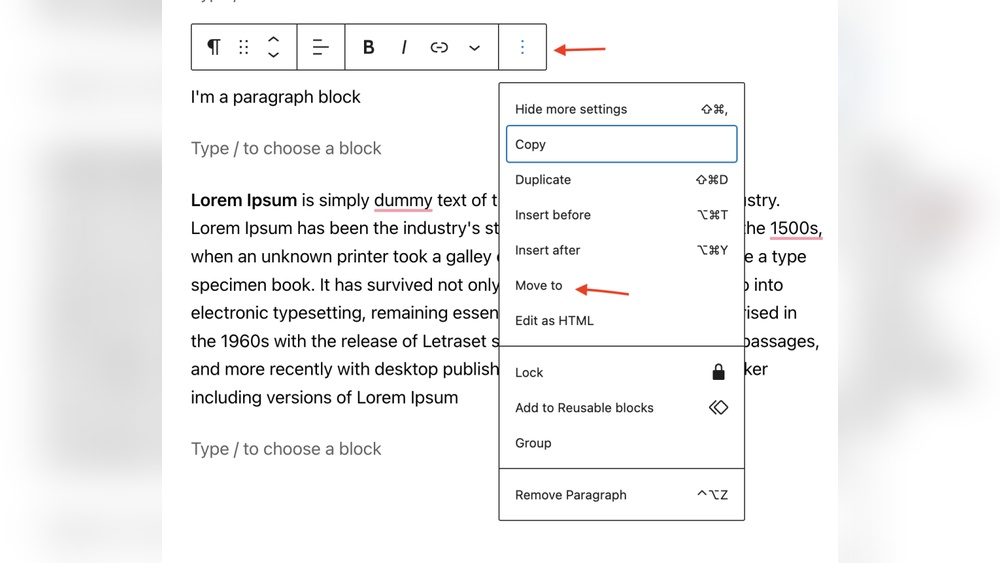
Are you struggling to move a block in WordPress and make your content look just right? You’re not alone.
Getting your blocks in the perfect spot can change how your page feels and keeps visitors hooked. You’ll discover simple, step-by-step ways to move blocks easily, even if you’re new to WordPress. By the end, you’ll have the confidence to arrange your content exactly how you want it—no frustration, no guesswork.
Keep reading, and let’s make your WordPress pages shine!
Credit: wordpress.com
Choosing The Right Block
Choosing the right block is important for moving content in WordPress. Each block type serves a different purpose. Knowing which block to move helps keep your page organized and clear. It saves time and avoids mistakes.
Types Of Blocks In WordPress
WordPress offers many block types. Paragraph blocks hold text content. Image blocks display pictures or photos. Heading blocks create titles and subtitles. List blocks organize points or steps. Buttons and columns help design the layout. Each block looks and works differently.
Some blocks contain other blocks. For example, a group block can hold multiple blocks inside. Knowing block types helps you pick the right one to move. Some blocks are simple. Others need more care when moving.
Identifying Blocks To Move
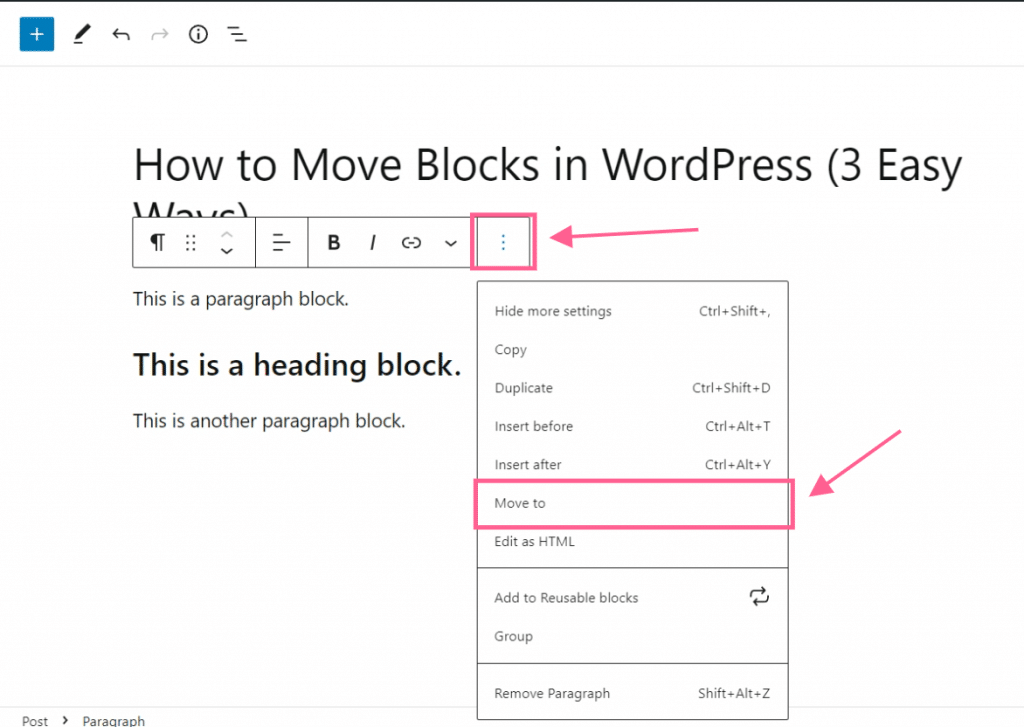
Look closely at the block you want to move. Check its content and purpose. Is it text, image, or another type? Use the block toolbar to select it. The toolbar shows options for moving and editing.
Be sure to select the whole block, not just part of it. Moving partial content can cause errors. Confirm the block’s position before moving. Think about where it fits best on your page. This makes your site easy to read and nice to look at.
Credit: wordpress.com
Using Drag And Drop
Using drag and drop in WordPress makes moving blocks simple and fast. You can change your page layout by dragging blocks to new spots. This method works well for all types of content blocks.
Drag and drop helps you see exactly where the block will go. It saves time compared to cutting and pasting. Let’s explore how to drag blocks and place them precisely.
How To Drag A Block
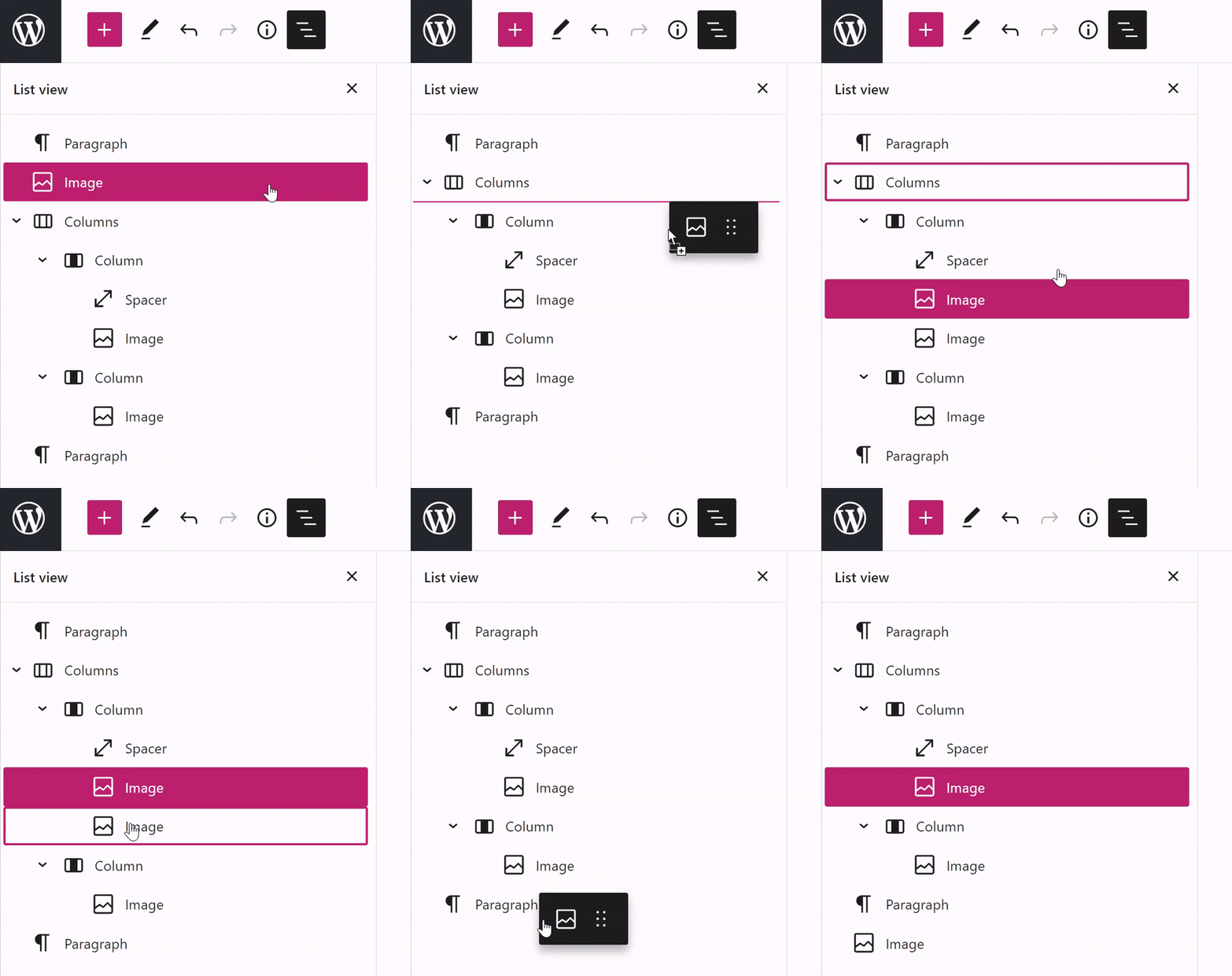
First, hover over the block you want to move. Look for the six dots icon on the left side of the block. Click and hold this icon to grab the block.
Drag the block up or down to the spot you want. A blue line appears to show the new position. Release the mouse button to drop the block there.
The block will move instantly to the new place on the page. You can drag blocks inside columns or between sections.
Tips For Precise Placement
Move slowly to control where the block goes. Watch the blue line carefully. It shows exactly where the block will land.
Use the arrow keys for small adjustments after dropping. This helps align blocks perfectly.
If the block is hard to drop, zoom out in your browser. This gives a better view of the layout.
Practice dragging blocks in a test page. This builds confidence and skill.
Moving Blocks With Keyboard Shortcuts
Moving blocks in WordPress becomes faster with keyboard shortcuts. Using keys to shift blocks helps save time. It also keeps your hands on the keyboard, avoiding mouse clicks.
This method is great for users who prefer keyboard navigation. It offers a smooth and efficient way to arrange content blocks. Let’s explore how to move blocks using shortcuts.
Shortcut Keys For Block Movement
To move a block, first select it by clicking or using keyboard navigation. Then press Ctrl + Alt + Up Arrow to move the block up. Use Ctrl + Alt + Down Arrow to move the block down. These shortcuts work on most WordPress block editors.
On a Mac, replace Ctrl with Cmd. This simple command shifts the block’s position without leaving the keyboard. It helps keep your workflow smooth and quick.
When To Use Keyboard Navigation
Keyboard shortcuts are ideal when you want to avoid using the mouse. They help when you need to move blocks quickly. Also, keyboard navigation supports users with accessibility needs.
This method works best for small changes or fine-tuning block order. For large edits, combining mouse and keyboard can be more effective. Using shortcuts reduces interruptions and keeps you focused on writing.
Credit: ultimateblocks.com
Rearranging Blocks In The List View
Rearranging blocks in the List View makes editing easier in WordPress. It gives a clear overview of all blocks on your page. This view helps you move blocks quickly without scrolling through the content. It is perfect for long posts or complex layouts.
Accessing The List View
To open the List View, click the icon on the top toolbar. It looks like three horizontal lines stacked. This opens a sidebar showing all blocks in a list format. You can see block names and their order here. The List View helps you find blocks fast and organize them easily.
Dragging Blocks In List View
Click and hold the block name in the List View. Drag it up or down to the new position you want. Release the mouse button to drop the block there. The page content changes automatically to match the new order. This method is simple and precise for arranging blocks.
Handling Nested Blocks
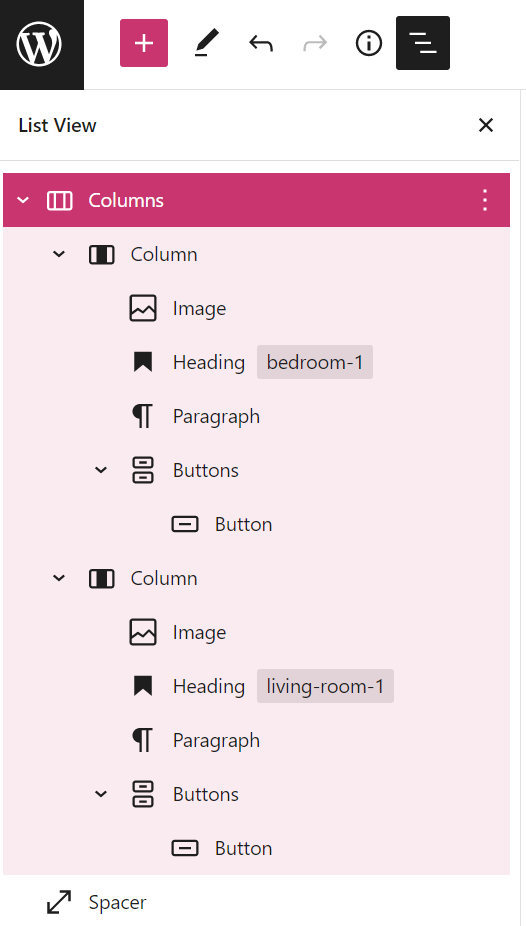
Handling nested blocks in WordPress can be tricky. Nested blocks are blocks placed inside other blocks. This structure helps organize content clearly. Moving these blocks needs care. Incorrect moves can break the layout or lose content.
What Are Nested Blocks?
Nested blocks are blocks inside another block. For example, a column block holding image and text blocks. They group related content together. This makes editing easier. Nested blocks keep complex layouts tidy.
WordPress allows many block types to contain others. Groups, columns, and lists often have nested blocks. Knowing this helps when moving blocks in the editor.
Moving Nested Blocks Correctly
Select the parent block carefully. Moving a parent block moves all nested blocks inside it. Use the block toolbar’s up and down arrows for small moves.
Drag and drop works well for larger moves. Grab the entire parent block, not just a nested block. This keeps the nested structure intact.
Check your content after moving. Nested blocks might shift unexpectedly. Fix any layout issues by adjusting block positions again.
Troubleshooting Block Movement Issues
Moving blocks in WordPress should be easy and smooth. Sometimes, blocks may not move as expected. This can cause frustration while editing your content. Troubleshooting these issues helps keep your workflow steady. Understanding common problems and plugin conflicts can save time and effort.
Common Problems And Fixes
Blocks may not move due to browser issues. Clear your browser cache and try again. Sometimes, a simple page reload fixes the problem. Check if your WordPress version is up to date. Outdated versions may cause block movement glitches. Also, disable browser extensions that might block scripts. Use a different browser to see if the issue persists.
Another problem is broken block settings. Reset the block or recreate it in the editor. This often resolves hidden errors. Avoid dragging blocks too fast; slow movements work better. Use the up and down arrows in the block toolbar for precise moves. Save your draft regularly to prevent data loss during edits.
Plugin Conflicts Affecting Blocks
Plugins can interfere with block movement. Some plugins change editor behavior or add custom blocks. Disable all plugins and check if blocks move properly. If yes, activate plugins one by one. This helps find which plugin causes the issue.
Update all plugins to their latest versions. Outdated plugins often cause conflicts. Avoid using too many plugins; they may slow down the editor. Look for alternatives if a plugin breaks block movement. Contact plugin support for help if needed.
Best Practices For Block Management
Managing blocks in WordPress can improve your editing experience. Following best practices helps keep your content clear and well-structured. It saves time and makes your pages look professional. Understanding how to move and organize blocks is key to effective block management.
Organizing Content Efficiently
Group related blocks together for easy access. Use reusable blocks to save common elements. Name your blocks clearly to find them faster. Break long content into smaller blocks to improve readability. Arrange blocks in a logical order that guides readers smoothly.
Maintaining Consistent Layouts
Use the same block styles across pages for uniform look. Set fixed widths and alignments to avoid layout shifts. Save and reuse block patterns to keep consistency. Check your layout on different devices to ensure it looks good. Consistent layouts build trust and improve user experience.
Frequently Asked Questions
How Do I Move A Block In WordPress Editor?
To move a block in WordPress, click the block to select it. Use the up or down arrow icons on the left to shift it. Alternatively, drag and drop the block to your desired position within the editor.
Can I Reorder Blocks Using Keyboard Shortcuts?
Yes, WordPress allows moving blocks with keyboard shortcuts. Use Alt + Shift + Up Arrow to move a block up. Use Alt + Shift + Down Arrow to move it down. This helps quickly rearrange content without using a mouse.
Is It Possible To Move Multiple Blocks At Once?
Currently, WordPress does not support moving multiple blocks simultaneously. You need to move each block individually. However, grouping blocks into a reusable block allows moving them together more easily.
What If The Block Won’t Move In WordPress Editor?
If a block won’t move, try refreshing the page or clearing browser cache. Ensure your WordPress and plugins are updated. Sometimes, conflicts or bugs prevent block movement, which updates usually fix.
Conclusion
Moving a block in WordPress is simple and quick. Just select the block you want to move. Then drag it to your desired spot or use arrow buttons. This helps you organize content easily. Practicing these steps will build your confidence.
Soon, editing your pages will feel natural. Keep trying, and your WordPress skills will improve every day.



