Are you ready to build your very own WordPress site but don’t know where to start? You’re in the right place.
Creating a website might seem tricky at first, but with the right steps, you can have your site up and running faster than you think. Imagine having a space online that you control, where you can share your ideas, sell products, or showcase your work.
This guide will walk you through every step, making the process simple and clear. By the end, you’ll feel confident and excited about your new WordPress site. Let’s get started!
Choosing A Domain And Hosting
Choosing the right domain and hosting is the first step to create a WordPress site. Your domain is the website’s address. Hosting is the service that stores your website files. Both must work well together for your site to run smoothly.
This section explains how to pick a domain name, select a hosting provider, and set up your hosting account. These steps will help your site start strong and stay online.
Picking The Right Domain Name
Choose a domain name that is short and easy to remember. Use simple words that relate to your website topic. Avoid numbers and hyphens, as they confuse visitors. Check if your desired name is available using a domain search tool. Select a domain extension like .com, .net, or .org that fits your site type.
Selecting A Hosting Provider
Look for a hosting provider with good speed and uptime. Read reviews to see how reliable their service is. Choose a provider that offers easy WordPress installation. Make sure they provide security features like SSL certificates. Check their customer support options for quick help if needed.
Setting Up Your Hosting Account
Sign up with your chosen hosting provider. Enter your domain name during the setup process. Choose a hosting plan that fits your website’s size and needs. Complete the payment and confirm your account. Use the hosting dashboard to install WordPress with one click. This will prepare your site for content creation.
Installing WordPress
Installing WordPress is the first step to building your website. It sets up the basic structure. You need WordPress files and a database to get started.
There are two main ways to install WordPress. One is easy and fast. The other is more detailed but gives control.
Using One-click Installers
Many web hosts offer one-click WordPress installers. These tools do the work for you. They save time and avoid errors.
Log in to your hosting control panel. Find the WordPress installer icon. Click it and fill in some details like site name and admin username.
After a few moments, WordPress will be installed. You get a link to your new site and admin dashboard. Easy, fast, and friendly for beginners.
Manual Installation Steps
Manual installation takes more steps but gives full control. First, download WordPress from the official website.
Upload the files to your web server using FTP or the file manager. Create a MySQL database and user in your hosting panel.
Open your website in a browser. WordPress will guide you through the setup. Enter your database name, username, and password.
Fill in your site title and admin account details. Click “Install WordPress” to finish. Now you can log in and start building.
Configuring Basic Settings
Configuring basic settings is the first step after installing WordPress. It helps shape your site’s identity and how visitors interact with it. These settings are easy to change and improve your site’s usability and SEO.
Setting Site Title And Tagline
The site title is your website’s name. It appears in browser tabs and search results. The tagline is a short phrase that describes your site. Keep it clear and simple. To set these, go to Settings > General in your WordPress dashboard. Enter a meaningful title and tagline that reflect your site’s purpose. This helps visitors understand your site quickly.
Adjusting Permalinks
Permalinks are the URLs used for your posts and pages. Clear URLs improve user experience and search engine ranking. WordPress offers several permalink structures. Choose “Post name” for clean and readable links. You can change this under Settings > Permalinks. Avoid using default settings with numbers. This makes your links easier to remember and share.
Managing User Roles
User roles control what different people can do on your site. WordPress has roles like Administrator, Editor, Author, Contributor, and Subscriber. Assign roles based on tasks and trust level. Manage roles in Users > All Users. Limit the number of administrators to protect your site. Proper user management keeps your site secure and organized.
Credit: www.elegantthemes.com
Choosing And Customizing A Theme
Choosing and customizing a theme is a key step in building your WordPress site. The theme controls how your site looks and feels. It affects colors, fonts, layout, and much more. Picking the right theme helps you create a website that fits your style and purpose.
Customizing the theme lets you add a personal touch. You can change colors, upload a logo, set menus, and adjust many design elements. This makes your site unique and appealing to visitors.
Finding Free Vs Premium Themes
Free themes are available in the WordPress theme directory. They are easy to access and cost nothing. Many free themes are simple and good for small sites or blogs.
Premium themes cost money but offer more features. They often have better design options and support. Premium themes suit business sites or those needing extra tools.
Choose based on your budget and needs. Start with free themes if you want to test ideas first.
Installing Your Theme
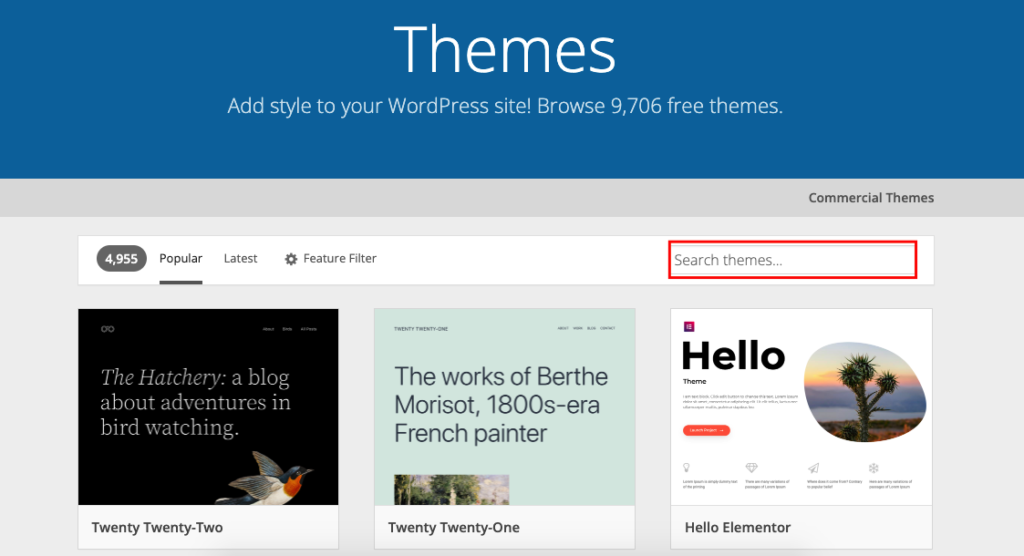
Log in to your WordPress dashboard. Go to Appearance > Themes and click Add New. Use the search bar to find your theme.
Click Install and then Activate. Your theme now controls your site’s look. You can install themes from your computer by uploading a zip file.
Customizing Appearance
Go to Appearance > Customize to open the theme customizer. This tool shows live previews of your changes. Adjust site identity, colors, menus, and widgets here.
Use simple changes first, like adding a logo or changing colors. Save your work often. This helps your site stay fresh and easy to use.
Adding Essential Plugins
Adding essential plugins is a key step in building a WordPress site. Plugins extend your website’s features. They help improve security, speed, and user experience. Choosing the right plugins makes your site more effective and easier to manage.
Must-have Plugins For Beginners
Start with plugins that cover basic needs. Use a security plugin to protect your site from threats. A caching plugin helps your site load faster. SEO plugins guide you to improve search engine ranking. Contact form plugins make it easy for visitors to reach you. These plugins are simple but powerful for new users.
Installing And Activating Plugins
Log in to your WordPress dashboard. Go to the “Plugins” section and click “Add New.” Use the search bar to find the plugin you want. Click “Install Now” and wait for the process to finish. Then, click “Activate” to enable the plugin on your site. Adjust the plugin settings if needed. This process takes just a few minutes.
Creating Key Pages
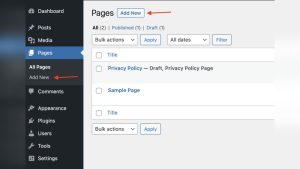
Creating key pages is an important step in building your WordPress site. These pages form the foundation and give visitors the right information. Each page has a unique role in showing who you are and what you offer.
Focus on clear and simple design. Use easy words. Keep navigation smooth. Visitors should find what they want quickly.
Building A Home Page
The home page is the first thing visitors see. Make it clean and welcoming. Use a clear headline that shows your main message. Add a few images or icons that match your brand. Include buttons that guide visitors to other important pages.
Keep text short. Use bullet points to highlight key features. Make sure the page loads fast. A slow page loses visitors.
Setting Up About And Contact Pages
The About page tells your story. Share who you are and what you do. Use a friendly tone. Add a photo if possible. Visitors like to know the person behind the site.
The Contact page helps visitors reach you. Include a simple form or your email address. Add phone number and location if needed. Make sure the contact details are easy to find.
Adding Blog Posts
Blog posts keep your site fresh and active. Write about topics related to your site. Use clear titles and short paragraphs. Add images to break the text. This makes reading easier.
Post regularly to attract visitors. Use keywords naturally in your writing. This helps your site appear in search engines.
Optimizing For Performance And Security
Optimizing your WordPress site for performance and security ensures a smooth user experience. Fast loading pages keep visitors happy. Strong security protects your site from attacks. Both are important for a successful website.
Speed Optimization Tips
Choose a reliable web host to improve loading times. Use a lightweight theme that loads quickly. Compress images before uploading to reduce file size. Install caching plugins to serve pages faster. Minimize the use of heavy plugins that slow down your site. Keep WordPress and all plugins updated to improve speed.
Basic Security Measures
Use strong passwords for your WordPress admin area. Change the default “admin” username to something unique. Install a security plugin to monitor threats. Enable two-factor authentication for extra protection. Keep WordPress, themes, and plugins updated regularly. Backup your site often to recover from any issues.

Credit: wordpress.org
Launching And Maintaining Your Site
Launching and maintaining a WordPress site requires careful steps to ensure smooth operation. This phase is crucial for your site’s success and user experience. Proper preparation before launch helps avoid common problems. Regular maintenance keeps the site secure and fast.
Pre-launch Checklist
Check all pages for errors and broken links. Test your site on different devices and browsers. Verify that all forms work correctly. Optimize images to improve loading speed. Set up SEO basics like meta titles and descriptions. Ensure your site has an SSL certificate for security. Confirm that your contact information is correct and visible.
Regular Updates And Backups
Update WordPress core, themes, and plugins regularly. These updates fix bugs and add new features. Back up your site often to avoid data loss. Use plugins or your host’s tools to automate backups. Store backups in a safe, separate location. Check your site for any issues after updates. Keep your website fast and secure with routine care.
Credit: wedevs.com
Frequently Asked Questions
What Are The First Steps To Create A WordPress Site?
Start by choosing a domain name and reliable hosting. Install WordPress via your host’s control panel. Then, log in to your dashboard to customize settings.
How Do I Select The Best WordPress Theme?
Pick a theme that matches your site’s purpose and style. Look for responsive, SEO-friendly, and regularly updated themes in the WordPress repository.
What Essential Plugins Should I Install For WordPress?
Install plugins for SEO, security, caching, and backups. Popular choices include Yoast SEO, Wordfence Security, W3 Total Cache, and UpdraftPlus.
How Can I Optimize My WordPress Site For Seo?
Use SEO plugins, create quality content, optimize images, and build backlinks. Ensure your site loads fast and is mobile-friendly for better rankings.
Conclusion
Creating a WordPress site is easier than it seems. Follow each step with care and patience. Choose a good hosting service and install WordPress. Pick a theme that fits your style and needs. Add important plugins to boost your site’s features.
Customize your pages and add content regularly. Keep your site updated to stay secure. With practice, your site will grow and improve. Start today and enjoy building your online presence. Your WordPress journey begins now!