
Are you struggling to find the right way to log into your WordPress account? You’re not alone.
Whether you’re new to WordPress or just need a quick refresher, knowing exactly how to access your dashboard is the first step to managing your site effectively. You’ll discover simple, clear steps to log in quickly and securely. Keep reading, and you’ll never have to worry about getting stuck at the login screen again.

Credit: wordpress.com
Accessing The Login Page
Accessing the login page is the first step to managing your WordPress site. The login page is where you enter your username and password. This page keeps your site secure from unauthorized users. Knowing the right URL helps you reach the login page quickly. There are two main ways to access it: using the default WordPress login URL or a custom login URL.
Default WordPress Login Url
The default WordPress login URL is simple and easy to remember. You just add /wp-login.php or /wp-admin at the end of your website address. For example, if your website is www.example.com, then your login page will be www.example.com/wp-login.php or www.example.com/wp-admin.
Typing this URL into your browser opens the login form. Enter your username and password to access the dashboard. This method works for most WordPress sites unless changed.
Custom Login Urls
Some websites use custom login URLs for better security. This means the login page address is different from the default one. Site owners change the URL to stop hackers from finding the login page easily.
Custom URLs often look like www.example.com/my-login or www.example.com/login123. You must know this custom address to log in. Usually, the website owner or developer provides this URL.
Entering Your Credentials
Entering your credentials is the key step to access your WordPress account. This process keeps your site secure and personal. You need to provide the right information to log in smoothly. Understanding what each field means helps avoid errors and saves time.
Username Vs Email
You can log in using your username or email address. The username is the name you chose when creating your account. The email is the one linked to your WordPress profile. Both work, but using your email is often easier to remember. Make sure you enter the exact spelling. Incorrect letters or spaces will cause login problems.
Password Tips
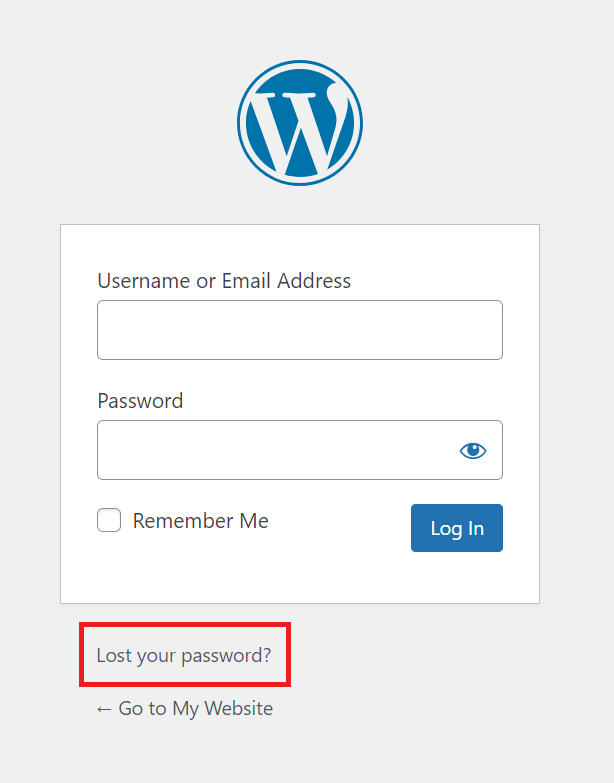
Your password protects your account. Use a strong password with letters, numbers, and symbols. Avoid common words or simple sequences like “1234” or “password”. Change your password regularly for better security. Keep it private and do not share it with others. If you forget your password, use the reset option on the login page.
Troubleshooting Login Issues
Login problems happen to many WordPress users. They stop you from accessing your site quickly. Troubleshooting login issues is key to fix these problems fast. It saves time and reduces stress. The tips below help you get back into your account.
Resetting Your Password
Forgot your password? No worries. Use the “Lost your password?” link on the login page. Enter your username or email address. WordPress sends a reset link to your email. Click the link and create a new password. Choose a strong but easy-to-remember password. This step often solves login problems.
Dealing With Locked Accounts
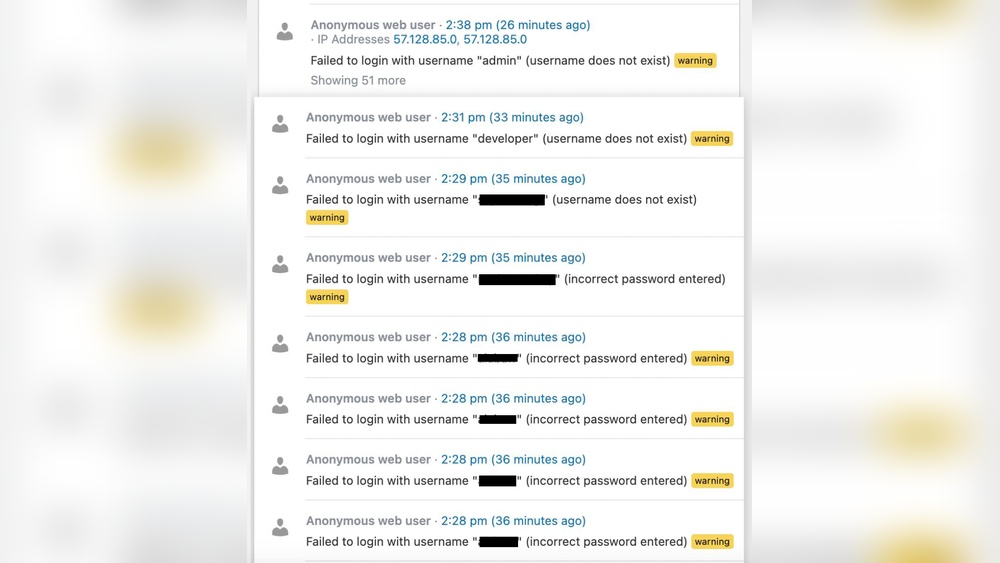
Too many failed login attempts can lock your account. This is a security feature to stop hackers. Wait for 15 to 30 minutes before trying again. Some sites let you contact the admin to unlock your account. Use a different browser or device to check if the lock remains. Patience helps in locked account cases.
Clearing Browser Cache
Old cache files can cause login errors. Clear your browser cache and cookies regularly. This action removes outdated data that blocks your login. After clearing, restart the browser and try logging in again. Use a private or incognito window as a quick test. This method often fixes hidden login glitches.
Credit: www.hostinger.com
Enhancing Login Security
Keeping your WordPress account safe is very important. Strong login security stops hackers from breaking in. Simple passwords are not enough today. You need extra steps to protect your site and data.
Use tools and settings that add layers of security. These tools make it harder for attackers to guess your password or access your account.
Using Two-factor Authentication
Two-factor authentication (2FA) adds a second step to login. Besides your password, you enter a code from your phone. This code changes every time you log in.
Even if someone steals your password, they cannot log in without the code. Many plugins offer easy setup for 2FA on WordPress.
Limiting Login Attempts
Limiting login attempts blocks users after several wrong tries. This stops attackers from guessing your password many times. It also protects your server from overload.
Plugins can set a maximum number of tries. After that, the IP address gets locked for a time. This small step improves your site’s defense a lot.
Logging In Via Mobile Devices
Logging into your WordPress account on a mobile device offers great flexibility. You can manage your site anytime and anywhere. Mobile access keeps your website updates close at hand. Two main options exist for mobile login: the WordPress Mobile App and mobile browser access.
WordPress Mobile App
The WordPress Mobile App provides a smooth login experience. Download it from your device’s app store. Open the app and enter your username and password. The app saves your login for easy access later. It gives direct control over posts, comments, and stats. Notifications alert you to new activity immediately. The app works on iOS and Android devices.
Mobile Browser Access
You can also log in using any mobile browser. Open your preferred browser app on the phone. Type your website’s URL followed by “/wp-login.php”. Enter your username and password on the login page. Mobile browsers support all WordPress features. This method works without installing extra apps. It is helpful for quick checks or updates on the go.

Credit: wordpress.com
Frequently Asked Questions
How Do I Find My WordPress Login Page?
You can find your login page by adding /wp-login. php or /wp-admin to your site URL. Example: www. yoursite. com/wp-login. php.
What If I Forget My WordPress Password?
Click the “Lost your password? ” link on the login page. Follow instructions to reset via your email.
Can I Log Into WordPress Using Email?
Yes, WordPress allows login using your registered email or username for easy access.
How Do I Stay Logged Into WordPress Safely?
Use strong passwords and enable two-factor authentication. Avoid public Wi-Fi for logging in.
Conclusion
Logging into your WordPress account is simple and quick. Just enter your username and password on the login page. Remember to keep your details safe and private. Use the “Lost Password” link if you forget your password. Regularly updating your password helps protect your site.
Now, you can easily manage your WordPress site anytime. Enjoy creating and sharing your content with confidence.



