
Imagine transforming your WordPress site with a stunning new theme, capturing your audience’s attention instantly. You want your website to stand out, to be visually appealing and user-friendly.
But how do you install a theme into WordPress? You may feel overwhelmed with the technicalities, but worry not! This guide is crafted just for you. It’s simple, straightforward, and designed to empower you with the knowledge to effortlessly give your site the makeover it deserves.
By the end of this article, you’ll not only know how to install a theme but also understand how to make it work seamlessly with your content. Let’s turn that vision into reality—read on and unlock the secrets to a captivating WordPress website.
Choosing The Right Theme
Purpose is key. A blog needs a simple look. A business site needs a clean and professional theme. Choose based on your needs. A theme should make your site clear and easy to use. Always match the theme with the site’s goal. This helps visitors understand your site better.
Free themes save money. They are good for simple sites. Premium themes offer more features. They might cost more. Premium often means better support. Choose free if budget is tight. Go premium for more options and help. Think about what you need before choosing.
Responsive design matters. Many use phones to browse. A site must look good on all screens. Responsive themes adapt to different devices. They help your site look good everywhere. Make sure your theme is responsive. It keeps your site user-friendly. Happy visitors stay longer.
Credit: www.namecheap.com
Preparing Your WordPress Environment
Ensure your WordPress is up-to-date. An updated site is more secure. Go to your dashboard. Click on “Updates” to see what’s new. Always keep the WordPress Core up-to-date. This helps in avoiding bugs and security issues.
Before any change, create a backup. Backups save your data. Use plugins like UpdraftPlus. Store backups safely. External drives or cloud storage work well. A backup ensures you can restore your site. Especially if something goes wrong.
Check the theme’s compatibility with your WordPress version. Visit the theme’s details page. Look for the compatibility section. Ensure it works with your current setup. This avoids glitches or display issues. Always choose a theme that fits well with your plugins and settings.
Installing A Theme Via WordPress Dashboard
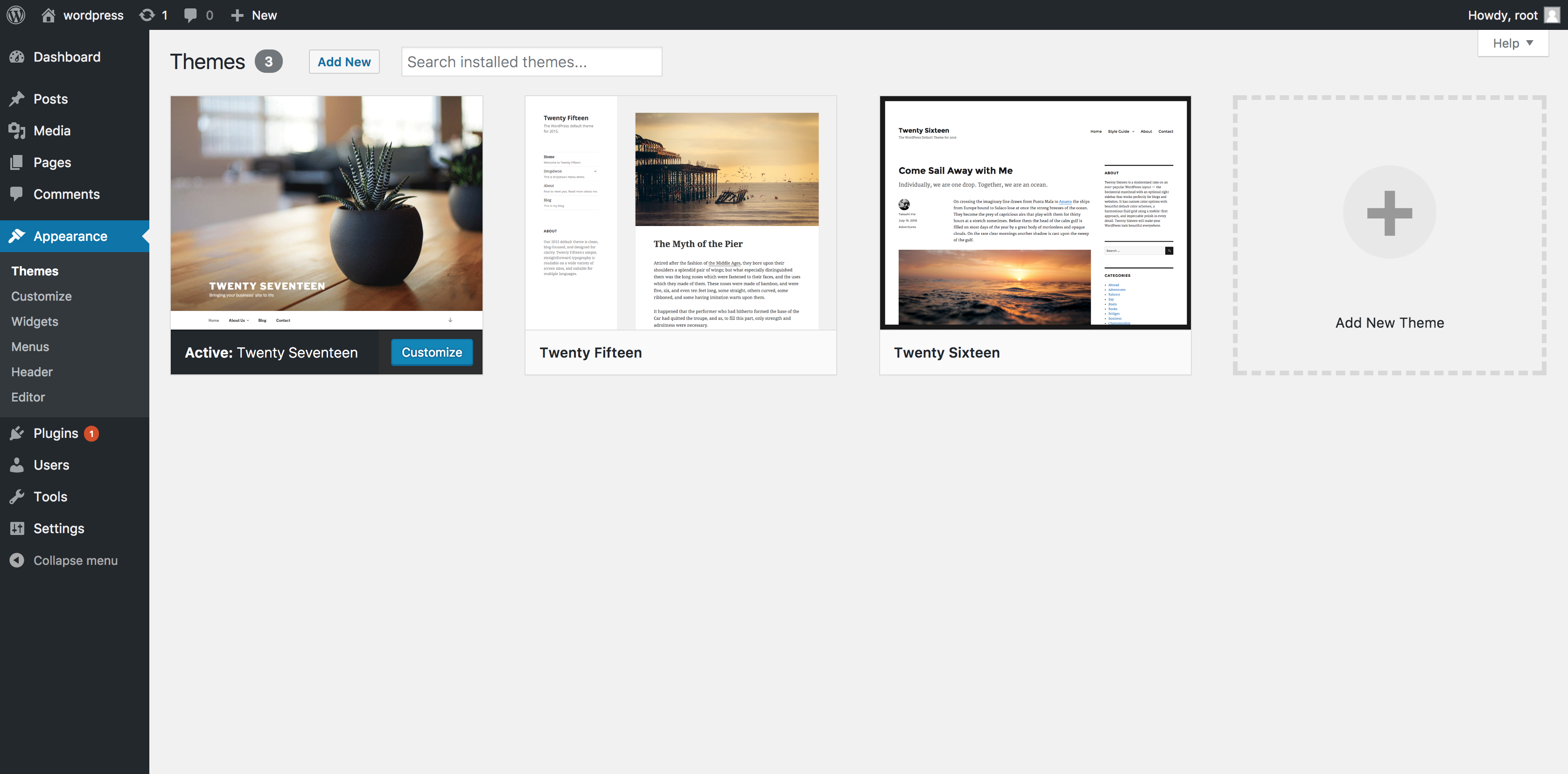
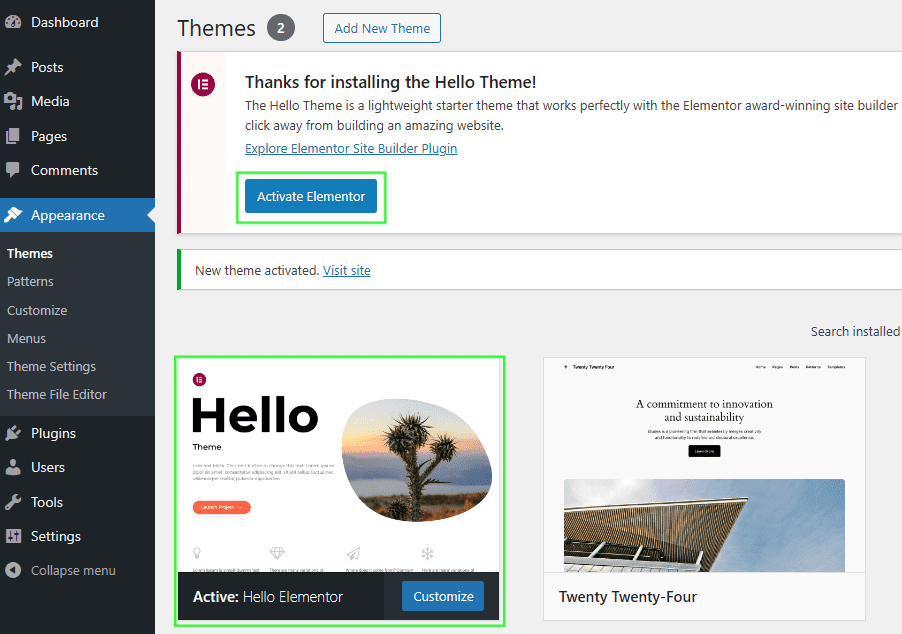
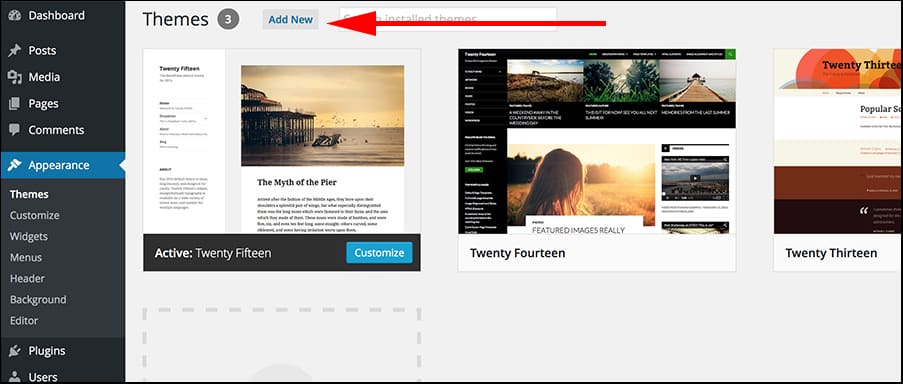
Start by logging into your WordPress dashboard. On the left side, find the Appearance menu. Click on it. Then, select Themes. This will show all your current themes.
At the top, you will see an Add New button. Click it to explore new themes. Use the search bar to find themes you like. Just type the name or keyword. Popular themes appear first.
Got a theme file? Click Upload Theme at the top. Use the Choose File button to pick your theme file. Ensure it is a .zip file. Click Install Now to upload it. After uploading, click Activate to use the theme.
Credit: help.elements.envato.com
Installing A Theme Via Ftp
FTP Client helps you connect to your website. Popular tools are FileZilla and Cyberduck. Open the tool and enter your website details. You need server address, username, and password. These details are from your hosting provider. Connect to your server to access files.
Download the theme files to your computer. Unzip the theme folder if needed. Use the FTP client to open the wp-content/themes directory on your server. Upload the theme folder there. Wait for the upload to complete. This might take a few minutes.
Go to your WordPress dashboard. Click on Appearance and then Themes. Find the new theme you uploaded. Click Activate to start using it. Your website will now use the new theme.
Customizing Your New Theme
Using the Customizer Tool is easy and fun. Open WordPress dashboard. Click on “Appearance”. Select “Customize”. See options to change the look. Colors, fonts, and more. Try different styles. Preview changes before saving. Make your site unique.
Adjusting Layout and Design is simple. Choose different layouts. Change header and footer style. Move sections around. Create a look you love. Keep it neat and tidy. Use design tools to help. Experiment with features.
Adding Widgets and Menus adds new features. Go to “Widgets” under “Appearance”. Drag and drop widgets. Add text, images, and videos. Improve site functionality. Create menus for easy navigation. Arrange menu items. Help visitors find what they need.
Credit: www.greengeeks.com
Troubleshooting Common Issues
Installing a theme in WordPress can sometimes be tricky. Start by navigating to ‘Appearance’ in your dashboard, then click ‘Themes’. Choose ‘Add New’, select your theme, and click ‘Install’. If issues arise, check compatibility and ensure your WordPress is updated.
Theme Not Displaying Correctly
The theme might not show right. Check if the theme is up-to-date. Sometimes, a simple update can fix the problem. Clear the browser cache to see changes. The cache may hide new updates. Also, check theme settings. A setting might be wrong.
Resolving Plugin Conflicts
Plugins can cause issues with themes. Deactivate all plugins and see if the theme works. If it does, reactivate plugins one by one. Find out which plugin causes the problem. Once found, look for updates or alternatives. Always keep plugins updated to avoid conflicts.
Restoring Previous Themes
If a new theme doesn’t work, go back to the old one. Use the WordPress dashboard to change themes. Go to Appearance and then Themes. Find your old theme and activate it. This brings back the previous look.
Maintaining Your WordPress Theme
Installing a theme into WordPress involves a few simple steps. Navigate to the WordPress dashboard, select “Appearance,” then “Themes,” and click “Add New. ” Choose your desired theme and hit “Install. ” It’s that straightforward.
Regular Theme Updates
Keeping your theme updated is very important. Updates help fix bugs and improve features. Check for updates often. You can do this in the WordPress dashboard. Click on the Updates section. Follow the instructions to update your theme. This keeps your site running smoothly.
Monitoring Theme Performance
Make sure your theme runs well. Slow sites are not fun. Use tools like Google PageSpeed. They show how fast your site loads. If the site is slow, try optimizing images. This can help a lot. Also, check plugins. They might make your site slow. Disable the ones you do not need.
Ensuring Theme Security
Protect your site from hackers. Use a strong password for your WordPress account. Update your theme and plugins. This helps block security holes. Install a security plugin. It watches for bad activity. Back up your site often. Backups help you restore your site if something goes wrong.
Frequently Asked Questions
How To Install A Theme In WordPress?
Go to your WordPress dashboard. Click on “Appearance,” then “Themes. ” Select “Add New. ” Choose a theme, then click “Install. ” Finally, activate the theme.
How Do I Import A Theme To WordPress?
Go to your WordPress dashboard. Click “Appearance,” then “Themes. ” Select “Add New,” then “Upload Theme. ” Choose your theme file, click “Install Now,” and activate it.
How Can You Manually Download Or Upload A WordPress Theme?
To manually download a WordPress theme, visit the theme directory and click ‘Download’. For uploading, go to the WordPress dashboard, select ‘Appearance’, then ‘Themes’, click ‘Add New’, and choose ‘Upload Theme’. Select the theme file and click ‘Install Now’. Ensure your theme is compatible with your WordPress version.
How Do I Use A Custom Theme In WordPress?
Download your custom theme. Go to WordPress dashboard. Navigate to Appearance > Themes > Add New. Click “Upload Theme,” select your file, then activate it. Customize settings in Appearance > Customize.
Conclusion
Installing a WordPress theme is quite simple. Follow the steps carefully. Choose a theme that suits your website’s style. Download it to your computer. Access your WordPress dashboard. Navigate to Appearance, then Themes. Click on Add New, then Upload Theme.
Select your downloaded file. Press Install, then Activate. Your new theme is now live. Customize it to match your brand. Explore its features and settings. Enjoy your refreshed website look. Remember, practice makes perfect. Keep experimenting with different themes. Enhance your site’s visual appeal.
Stay creative and keep learning. Your WordPress journey has just begun.



