
Have you ever found yourself staring at the login screen, completely blanking on your WordPress password? It’s frustrating, isn’t it?
You want to get back to managing your site, but without the right password, you’re stuck. Don’t worry—this guide will help you find your WordPress password quickly and safely. By the end, you’ll know exactly what steps to take to regain access and keep your site secure.
Ready to unlock your WordPress account? Let’s get started.

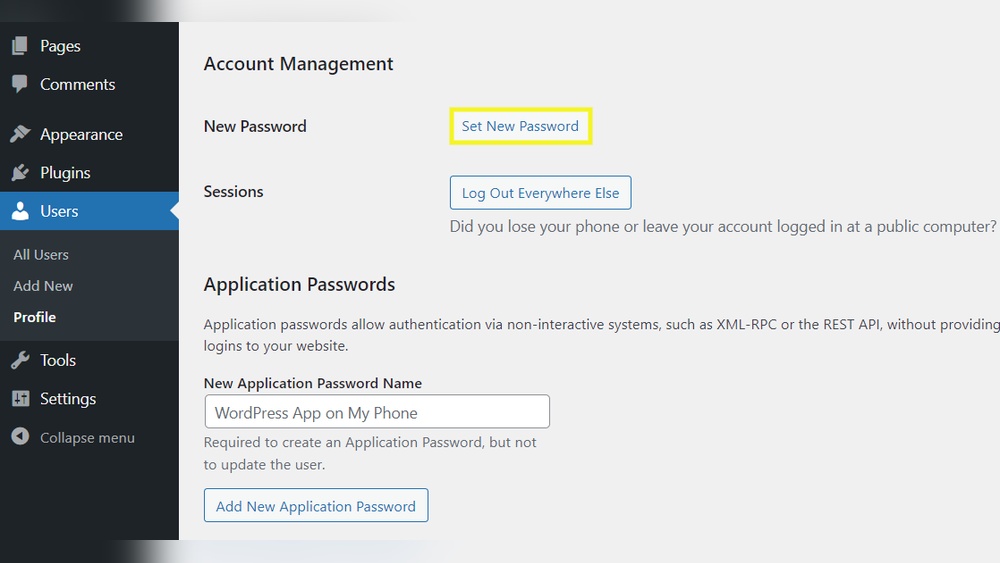
Credit: jetpack.com
Locate Password Reset Option
Finding your WordPress password starts with locating the password reset option. This option helps you regain access without knowing your old password. WordPress makes it simple and quick to reset your password right from the login screen. Follow the steps below to see how to find and use this feature.
Use The Login Screen
Go to your WordPress login page. Below the username and password fields, you will see a link that says “Lost your password?” or “Forgot password?” Click this link. This action takes you to the password reset page. It is the main spot to start the password recovery process.
Request Password Reset Email
On the password reset page, enter your username or email address. WordPress will send a password reset email to the address linked to your account. Check your email inbox, including the spam or junk folder. Open the email and click the reset link inside. This link leads you to a page where you can create a new password.
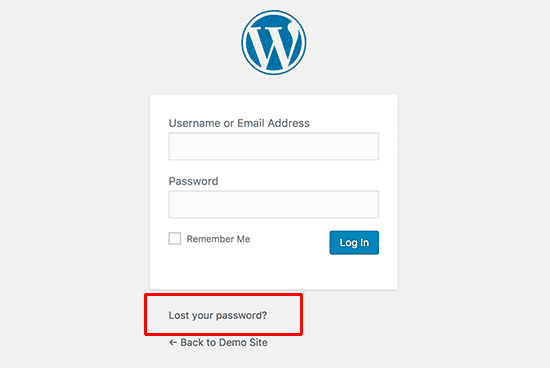
Credit: www.seekahost.com
Check Your Email Inbox
Checking your email inbox is the first step to find your WordPress password. WordPress sends a reset email after you request a password reset. This email contains a link to create a new password. You must find this email in your inbox to move forward.
Search For Reset Email
Open your email account linked to your WordPress site. Use the search bar and type “WordPress password reset.” Look for an email from WordPress or your website name. Check the spam or junk folder if you cannot find it in the inbox. Sometimes, these emails end up there by mistake.
Follow Reset Link
Once you find the reset email, open it carefully. Click the reset link inside the email. This link leads you to the password reset page on your WordPress site. Enter a new password that is strong and easy to remember. Save the changes to update your password immediately.
Reset Password Via Hosting Account
Resetting your WordPress password via your hosting account is a direct way to regain access. This method does not depend on email recovery. Instead, it uses tools inside your hosting control panel. You can change your password safely and quickly.
This method is useful when email recovery fails or you do not have access to your registered email. Hosting accounts often include phpMyAdmin, a tool to manage your WordPress database. Using phpMyAdmin, you can change the password stored in the database.
Access Hosting Control Panel
First, log in to your hosting control panel. This is where you manage your website files and settings. Look for options like cPanel, Plesk, or a custom dashboard. Enter your username and password to access the panel.
Once inside, find the section labeled “Databases” or “Database Management.” This section hosts the phpMyAdmin tool. It allows you to work directly with your WordPress database.
Use Phpmyadmin To Change Password
Open phpMyAdmin from your control panel. It shows a list of your databases on the left side. Select the database used by your WordPress site. If unsure, check your wp-config.php file for the database name.
After selecting the database, find the table named wp_users. The prefix may differ, but it usually ends with _users. Click to open the table and find your username.
Edit the row with your username. Locate the password field, usually labeled user_pass. Choose the MD5 function in the dropdown menu next to the password field. Enter your new password in plain text.
Save the changes. Your password is now updated in the database. Return to your WordPress login page and log in with the new password.
Modify Password Through Database
Modifying your WordPress password through the database is a direct way to regain access. This method helps when you cannot reset the password by email. It requires access to your web hosting control panel and some basic knowledge of databases.
Locate WordPress Database
First, log in to your web hosting control panel, such as cPanel. Find the section named “phpMyAdmin” and open it. In phpMyAdmin, you will see a list of databases on the left. Select the database used by your WordPress site. If unsure, check the wp-config.php file in your WordPress files. Look for the line that says DB_NAME. This name matches your WordPress database.
Edit User Table Password Field
Inside the database, find the table named wp_users. Click to open it. Locate your username in the list. Find the column called user_pass. This column stores your password in encrypted form.
To change the password, click “Edit” next to your user row. In the user_pass field, select “MD5” from the function dropdown. Then enter your new password in the value box. MD5 will encrypt the password properly for WordPress.
Save the changes by clicking “Go” or “Save”. Now, you can log in to your WordPress site using the new password. This method ensures you reset the password without email or WordPress dashboard access.
Use Ftp To Reset Password
Using FTP to reset your WordPress password is a practical method. It helps when you cannot use the usual password reset options. This method requires access to your website’s files through an FTP client. It allows you to directly modify the files on your server. This way, you can upload a script that resets your password safely.
Access WordPress Files Via Ftp
Start by opening your FTP client, like FileZilla. Enter your FTP username, password, and host details. Connect to your website’s server. Navigate to the root directory where WordPress is installed. This folder usually contains files like wp-config.php and folders like wp-content.
Check that you have permission to upload and edit files. Keep your FTP credentials secure to avoid unauthorized access. Once connected, you are ready to upload the password reset script.
Upload Password Reset Script
Create a simple PHP file with a password reset script. Name it something easy to remember, like reset-password.php. Upload this file to your WordPress root directory using the FTP client. After uploading, open your browser and visit the script URL. For example, yoursite.com/reset-password.php.
Follow the instructions on the script page to set a new password. Delete the script from your server once done. This step keeps your site secure and prevents misuse. Using FTP to reset your WordPress password is direct and effective.
Prevent Future Password Loss
Losing your WordPress password can slow down your work and cause stress. Preventing future password loss helps keep your site safe and saves time. Simple steps can protect your account and avoid common mistakes. Focus on easy tools and smart habits.
Use Password Managers
Password managers store your passwords securely. They create strong passwords you don’t need to remember. You only need to remember one main password. This tool fills in your login details automatically. It works on computers and phones. This way, you avoid writing passwords on paper or using simple ones.
Enable Two-factor Authentication
Two-factor authentication adds an extra step to login. It asks for a code from your phone after your password. This extra layer blocks hackers even if they get your password. Many WordPress plugins offer this feature for free. Enabling it makes your account much safer. Simple and effective protection for your site.
Credit: myunlimitedwp.com
Frequently Asked Questions
How Can I Reset My WordPress Password Easily?
To reset your WordPress password, click “Lost your password? ” On the login page. Enter your username or email to receive a reset link via email. Follow the link and create a new password to regain access quickly and securely.
Where Are WordPress Passwords Stored Securely?
WordPress passwords are stored in the database’s wp_users table in a hashed format. This ensures passwords are encrypted and protected from unauthorized access, enhancing the security of your website login credentials.
Can I Retrieve My WordPress Password From The Database?
You cannot retrieve the original WordPress password from the database because it’s hashed. Instead, you can reset it using the WordPress dashboard, phpMyAdmin, or the password reset email option.
What If I Forgot My WordPress Username And Password?
If you forgot both, use your website’s database or hosting control panel to find your username. Then, reset your password via the “Lost your password? ” Link or by updating it directly in the database.
Conclusion
Finding your WordPress password does not have to be hard. Use the steps shared here to recover it quickly. Always keep your login details safe and updated. Create strong passwords to protect your website from hackers. Remember, regular backups help you avoid losing important data.
Take a moment to check your email and database carefully. Stay calm and follow the instructions step by step. Your WordPress access will be back soon. Keep your site secure and running smoothly every day.



