

Are you looking to add a Vimeo video to your WordPress site but don’t know where to start? Embedding videos can boost your content, keep visitors engaged, and make your site look more professional.
The good news is, it’s easier than you think. You’ll discover simple, step-by-step ways to embed a Vimeo video on your WordPress page or post—no technical skills needed. By the end, you’ll have the confidence to showcase your favorite videos and make your website stand out.
Keep reading to unlock the secret to seamless video embedding!
Choosing The Right Vimeo Video
Choosing the right Vimeo video is the first step to embedding it in WordPress. Your video should fit your blog’s topic and audience. A relevant video keeps readers interested and increases engagement. Make sure the video quality is good and the content clear. This helps your visitors enjoy the video without distractions.
Finding Your Video Url
Start by locating the exact video you want to embed on Vimeo. Open the video page and look for the URL in your browser’s address bar. The URL usually starts with https://vimeo.com/. Copy this link carefully. This URL is essential to embed the video correctly into WordPress.
Checking Video Privacy Settings
Privacy settings affect who can see your video on your site. Check if the video is public or private. Public videos are easy to embed and share. Private videos may need special permissions. Confirm the video allows embedding. This ensures your visitors can watch it without issues.
Credit: www.seedprod.com
Using WordPress Block Editor
The WordPress Block Editor makes embedding Vimeo videos simple and fast. It offers a clean interface and easy-to-use blocks designed for media content. You can add videos without extra plugins or code. This editor helps you control how the video appears on your site.
Embedding Vimeo videos directly in your posts or pages improves user experience. Videos load smoothly and look professional. Visitors stay longer and enjoy your content more.
Adding A Vimeo Block
Start by opening the post or page where you want the video. Click the plus (+) icon to add a new block. Search for the “Vimeo” block in the block selector. Click it to add the block to your content area. The block will appear as a placeholder waiting for the video link.
Pasting The Video Url
Go to Vimeo and copy the URL of the video you want to embed. Return to your WordPress editor and paste the URL into the Vimeo block. The video will load instantly in the editor. You can preview it and make sure it shows correctly. No need to press special buttons; pasting auto-embeds the video.
Customizing Video Settings
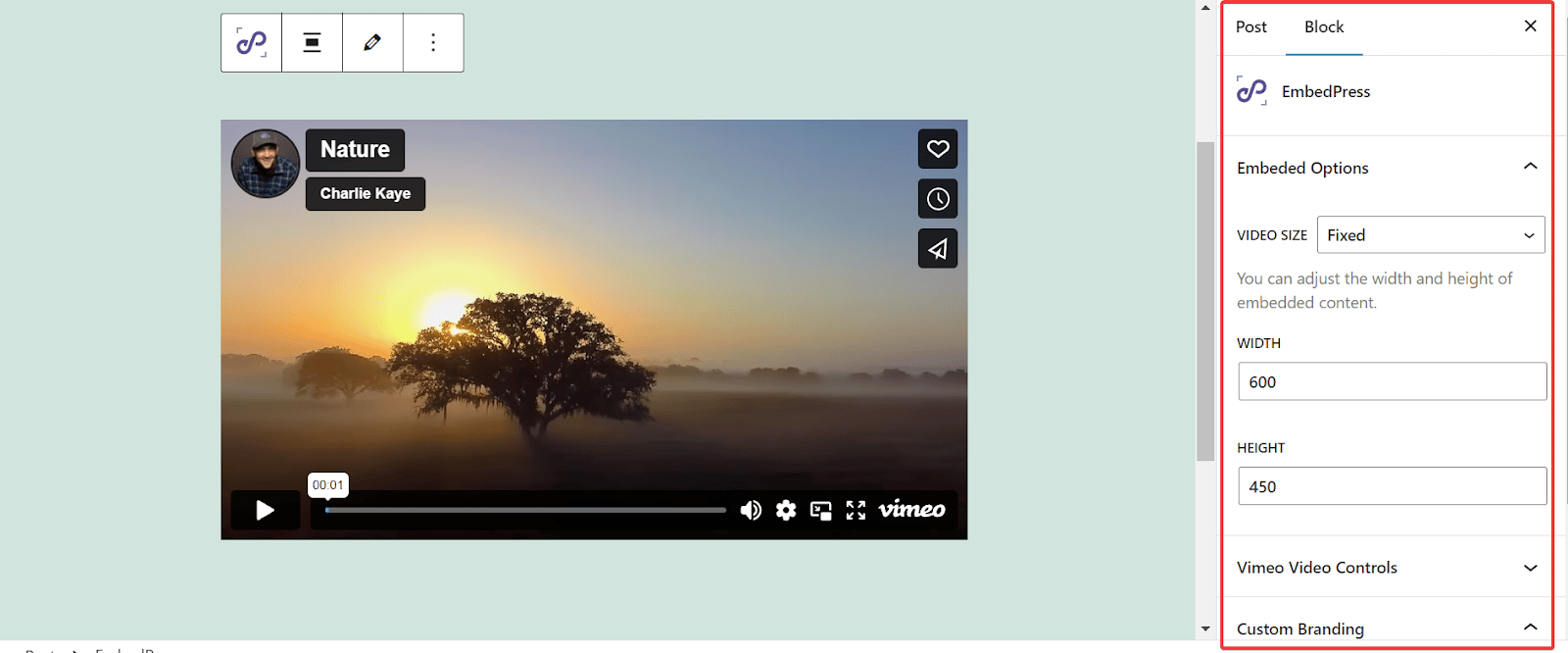
Click on the Vimeo block to reveal settings in the sidebar. You can adjust video alignment: left, center, or right. Choose the video size to fit your layout. Enable or disable autoplay or looping options. These settings help the video match your page style and visitor needs. Changes update immediately in the editor for quick review.
Embedding Via Classic Editor
Embedding a Vimeo video using the Classic Editor in WordPress is simple. This method works well for those who prefer the older editor interface. It lets you place videos directly into your posts without extra plugins. Follow these steps to embed Vimeo videos smoothly.
Switching To Text Editor
Open your post in the Classic Editor. Look for the tabs at the top right of the content box. Click on the “Text” tab to switch from Visual to Text mode. This mode lets you add HTML code directly. It’s necessary for embedding video code correctly.
Inserting Embed Code
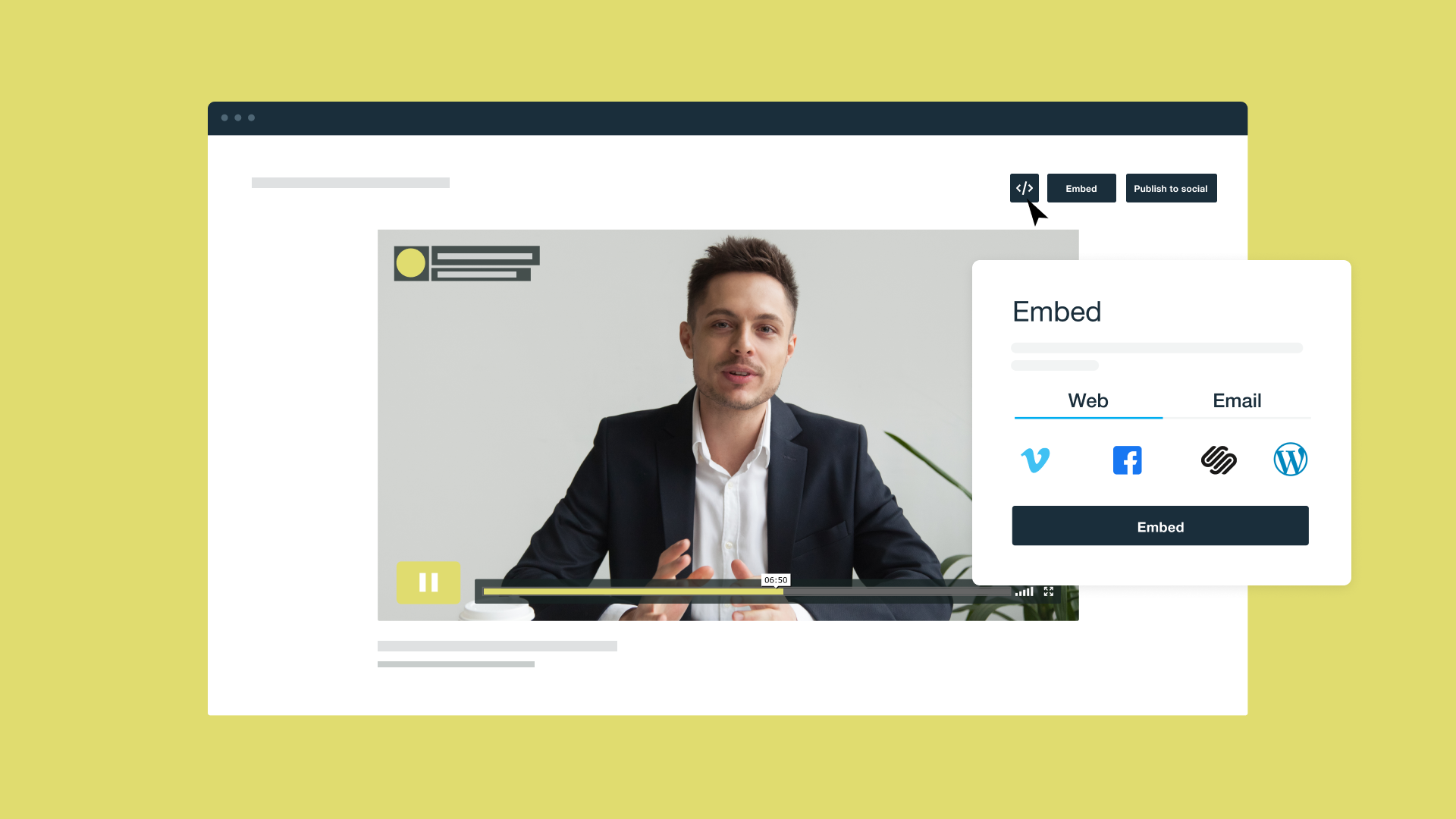
Go to Vimeo and find the video you want to embed. Click the “Share” button on the video page. Copy the embed code provided in the popup window. Return to your WordPress post in Text mode. Paste the copied code where you want the video to appear.
Previewing The Video
Switch back to the Visual tab to see how the video looks. Click the “Preview” button to open a live view of your post. Check if the video appears and plays correctly. Make any needed adjustments by returning to the Text editor. This step ensures your video works well before publishing.
Using Embed Shortcodes
Embedding Vimeo videos in WordPress is easy with shortcodes. Shortcodes are simple codes that you place in your post or page. WordPress then replaces these codes with the actual video player. This method keeps your content clean and organized.
Shortcodes also allow quick customization. You can change the video size, controls, and other options. This flexibility helps match the video to your site’s style and user needs.
Format Of Vimeo Shortcode
The basic format for a Vimeo shortcode is simple. Use [vimeo id="video_id"]. Replace video_id with the number in your Vimeo video URL. For example, if your video URL is https://vimeo.com/123456789, your shortcode will be [vimeo id="123456789"]. Just add this to your post or page content.
Adding Attributes For Customization
You can add extra attributes inside the shortcode to change how the video looks and works. For example, add width and height to control the player size. Example: [vimeo id="123456789" width="640" height="360"]. This sets the video to 640 pixels wide and 360 pixels tall.
Other attributes include
Embedding With Plugins
Embedding Vimeo videos in WordPress can be easy and quick with plugins. Plugins help you add videos without touching any code. They offer extra features to improve video display and control. Plugins suit users who want more options or face issues with default embedding.
Popular Vimeo Embed Plugins
Several plugins work well with Vimeo videos. Vimeography creates beautiful video galleries. Vimeo Video Embed offers simple and fast embedding. Embed Plus for Vimeo adds customization and privacy settings. These plugins support responsive design and fast loading.
Installation And Setup
Install plugins from the WordPress dashboard. Go to Plugins > Add New, then search the plugin name. Click Install and Activate. After activation, visit the plugin settings page. Enter your Vimeo video URL or ID. Adjust settings like video size, autoplay, or controls. Save changes and check your post or page.
Advantages Of Using Plugins
Plugins simplify adding Vimeo videos. They handle updates and compatibility automatically. You get more control over video appearance and behavior. Plugins often improve loading speed and mobile responsiveness. They help with SEO by adding proper video metadata. Plugins reduce the need for technical skills or custom coding.
Troubleshooting Common Issues
Embedding Vimeo videos in WordPress usually works smoothly. Sometimes, issues can stop the video from showing or playing correctly. Fixing these problems helps ensure visitors enjoy your content without interruptions. Understanding common issues saves time and frustration.
Video Not Showing
Check the video URL first. Make sure it is correct and complete. Vimeo videos set to private will not display. Change the video’s privacy settings to public or unlisted. Clear your browser cache and refresh the page. Disable conflicting WordPress plugins that may block video content. Use the default WordPress editor to embed the video for better compatibility.
Playback Problems
Playback issues can happen due to slow internet connections. Test your video on different networks or devices. Update your browser to the latest version. Some browsers block autoplay or sound by default. Ask viewers to click the play button manually. Check Vimeo’s server status for outages. Also, ensure your video format is supported by Vimeo and WordPress.
Responsive Design Fixes
Videos must fit well on all screen sizes. Use CSS code to make your Vimeo video responsive. Add a container with a percentage-based width and height. Avoid fixed pixel sizes in your embed code. WordPress themes sometimes override video size settings. Test your site on phones and tablets to confirm proper display. Responsive videos improve user experience and site speed.
Optimizing Video For Seo
Optimizing video content for SEO helps your website rank better in search engines. Proper optimization makes videos easier to find and understand. It also improves user experience by providing clear information and accessibility.
Embedding a Vimeo video in WordPress is just the start. Optimizing it with the right details boosts its value for search engines and visitors.
Adding Descriptive Titles
Use clear and relevant titles for your Vimeo videos. Titles should describe the video content in a few words. Avoid vague or generic titles. Search engines use titles to understand video topics. Good titles improve click rates and user engagement.
Include keywords naturally in the title. This helps the video appear in related searches. Keep titles short and easy to read. Make sure each title matches the video’s main idea.
Using Captions And Transcripts
Captions and transcripts make videos accessible to more people. They help viewers who cannot hear the audio or speak the language fluently. Search engines can read captions and transcripts, improving video indexing.
Adding captions also increases the time visitors spend on your page. Transcripts provide a text version of the video content. Use simple language and accurate wording in transcripts. This improves SEO and user experience at the same time.
Credit: vimeo.com
Credit: embedpress.com
Frequently Asked Questions
How Do I Embed A Vimeo Video In WordPress?
To embed a Vimeo video, copy the video URL or embed code from Vimeo. Then, paste it directly into your WordPress editor. WordPress automatically converts the URL into an embedded video for easy viewing on your site.
Can I Customize Vimeo Video Size On WordPress?
Yes, you can customize the video size. Use the embed code from Vimeo and adjust the width and height parameters. Alternatively, use WordPress block editor settings to resize the video within your page or post.
Is Embedding Vimeo Videos Seo Friendly?
Embedding Vimeo videos is SEO friendly when done correctly. Videos improve user engagement and increase time on page. Use descriptive titles, captions, and alt text to boost SEO further.
Do I Need A Vimeo Pro Account To Embed Videos?
No, a free Vimeo account allows embedding videos in WordPress. However, a Pro account offers advanced privacy and customization features, beneficial for professional websites.
Conclusion
Embedding a Vimeo video in WordPress is simple and quick. You only need a few steps to add videos to your site. This helps make your content more interesting and engaging for visitors. Just copy the video URL or embed code, then paste it into your WordPress editor.
You can also adjust the size and settings to fit your page. Adding videos keeps your site lively and helps visitors stay longer. Try embedding a Vimeo video today and see the difference it makes.



