
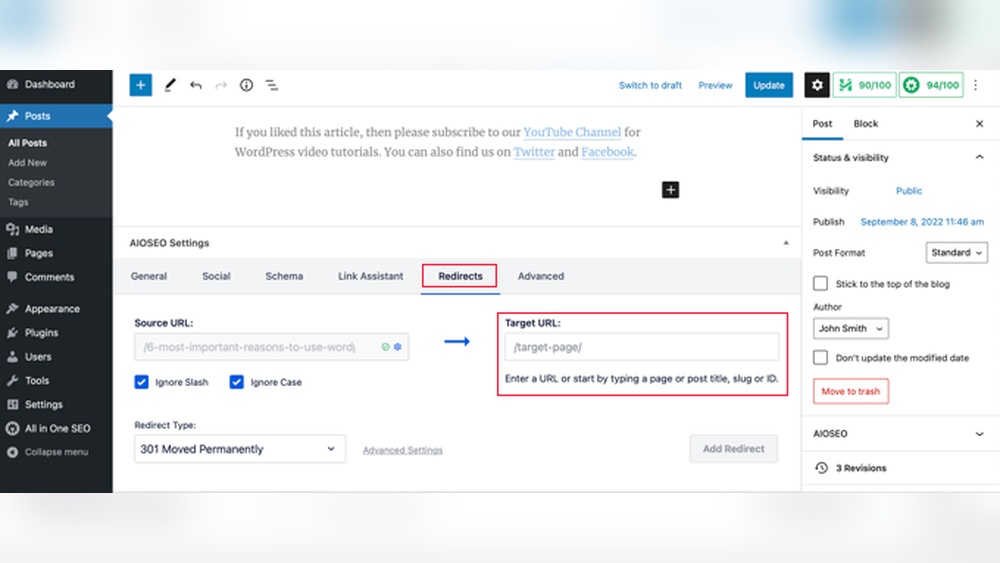
Are you struggling to move your website visitors smoothly from one page to another? If you want to keep your SEO rankings and avoid losing traffic, knowing how to do a 301 redirect in WordPress is a must.
This simple yet powerful tool helps you send visitors and search engines to the right place without confusion. You’ll discover easy steps to set up 301 redirects quickly, so you can protect your site’s reputation and grow your audience effortlessly.
Keep reading to learn how to make your WordPress site smarter and more user-friendly.
Why Use 301 Redirects
301 redirects help move visitors from one webpage to another automatically. They tell browsers and search engines that a page has moved permanently. This keeps your website visitors from hitting dead ends or broken links.
Using 301 redirects improves user experience and protects your site’s search rankings. It also helps maintain traffic and link value from old URLs. This is very important when you change page addresses or delete content.
Preserve Seo Rankings
301 redirects pass most of the original page’s SEO value to the new page. Search engines transfer link authority and page rank through the redirect. This avoids losing hard-earned SEO benefits.
Improve User Experience
Visitors find the right content without confusion or errors. Redirects prevent “404 Not Found” pages from showing up. This keeps users on your site longer and reduces frustration.
Manage Website Changes
301 redirects handle URL changes during site redesigns or migrations. They guide both users and search engines to updated pages. This keeps your website structure organized and consistent.
Protect Backlinks
Backlinks pointing to old URLs still count when redirected properly. Redirects keep link juice flowing to current pages. This helps maintain your website’s authority and ranking power.
Types Of Redirects In WordPress
Redirects help send visitors from one URL to another. WordPress supports different types of redirects. Each type serves a specific purpose in managing website traffic and SEO.
Understanding these types helps you choose the right redirect for your site. It also improves user experience and keeps search engines happy.
301 Redirect
A 301 redirect is permanent. It tells browsers and search engines the page has moved forever. This redirect passes most SEO value to the new page. Use it when you change URLs or delete pages.
302 Redirect
A 302 redirect is temporary. It shows that the page will return soon. Search engines do not transfer SEO value with this redirect. Use it during short-term site maintenance or testing.
307 Redirect
A 307 redirect is similar to 302 but HTTP 1.1 compliant. It also signals a temporary move. Browsers keep the original request method, like POST or GET. Use it for temporary changes without affecting SEO.
Meta Refresh
A meta refresh is a redirect done on the page level, not server. It usually waits a few seconds before redirecting. Search engines do not favor this type. Use it only if server redirects are not possible.
Manual 301 Redirect Via .htaccess
Manual 301 redirects using the .htaccess file offer a direct way to guide visitors and search engines from one URL to another. This method is efficient and fast. It works well for permanent URL changes. You need to access your website’s server files to make these changes. Be cautious while editing the .htaccess file. A small error can cause website issues.
Locate And Edit .htaccess File
Find the .htaccess file in your website’s root directory. Use an FTP client or file manager in your hosting control panel. The file may be hidden by default. Enable “show hidden files” to see it. Download a backup copy before editing. Open the file with a plain text editor.
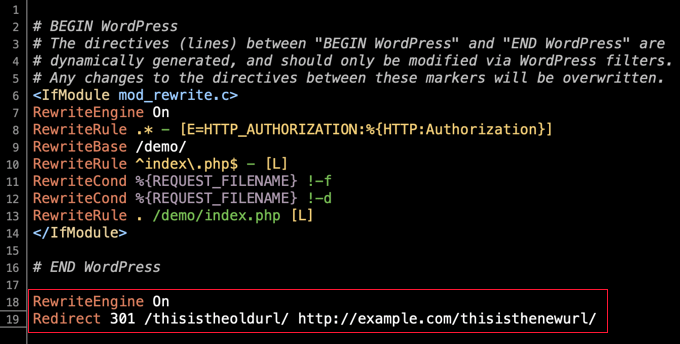
Add Redirect Code
To create a 301 redirect, add this line at the bottom of the file:
Replace /old-page-url/ with the path of the old page. Use the full URL of the new page after it. This code tells the server to redirect permanently.
Save And Test Redirect
Save the .htaccess file after adding the redirect code. Upload it back to the root directory if you edited it locally. Clear your browser cache to avoid old page loading. Visit the old URL to check if it redirects correctly. Use online redirect checkers for extra confirmation.
Credit: www.wpbeginner.com
Using Plugins For 301 Redirects
Using plugins to create 301 redirects in WordPress makes the process simple and fast. Plugins offer a user-friendly way to manage redirects without touching code. They help keep your site’s SEO healthy by properly redirecting old URLs to new ones. This avoids broken links and improves visitor experience.
Popular Redirect Plugins
Several plugins stand out for managing 301 redirects in WordPress. “Redirection” is one of the most popular choices. It is free and supports many redirect types. “Simple 301 Redirects” offers a straightforward interface for quick setup. “Yoast SEO” also includes redirect options in its premium version. Each plugin has unique features, but all focus on easy redirect management.
Setting Up Redirects With Plugins
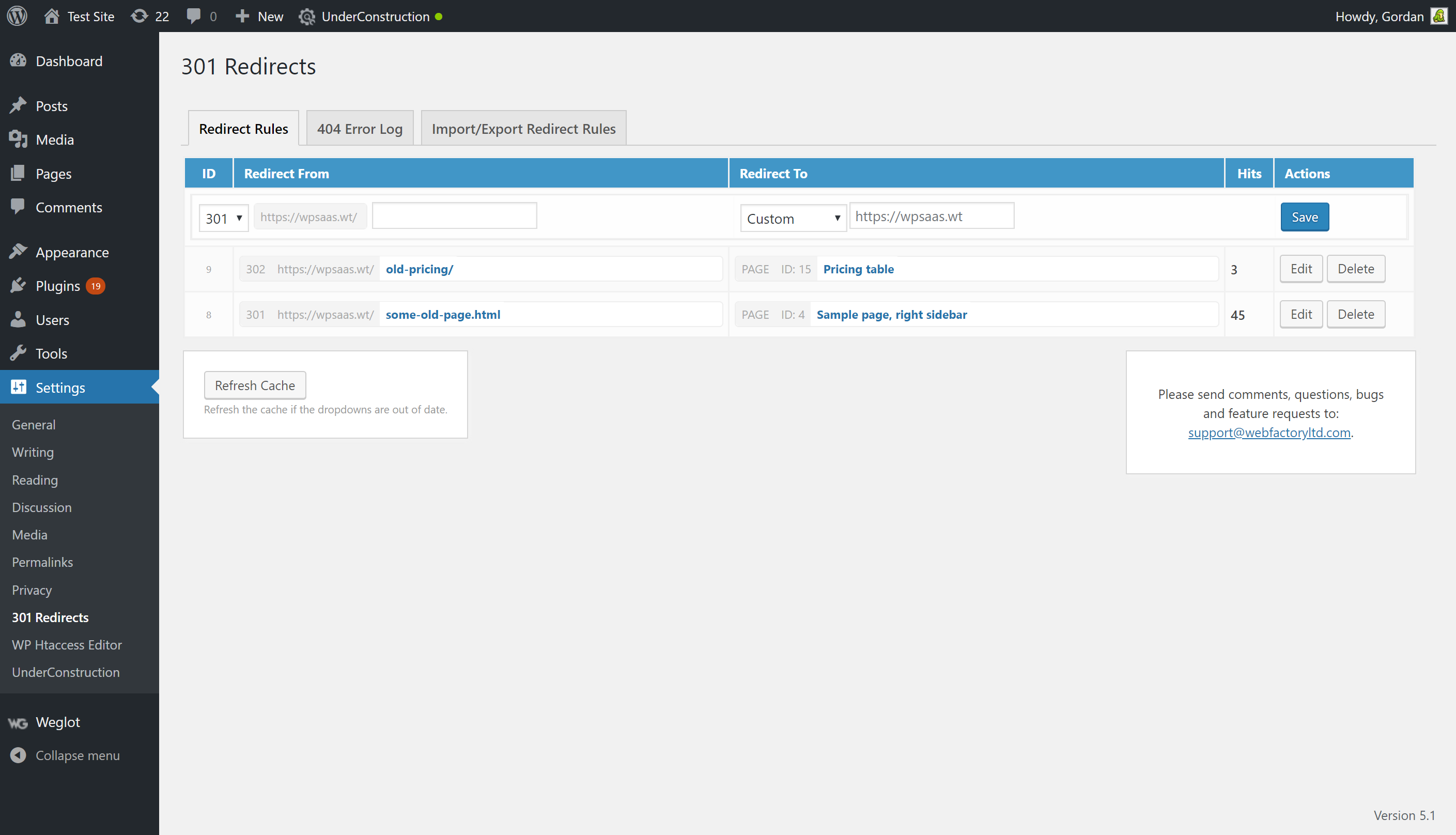
Start by installing your chosen plugin from the WordPress dashboard. After activation, find the plugin settings under the Tools or Settings menu. Enter the old URL in the source field. Add the new URL where visitors should be sent. Save the redirect and test it by visiting the old URL. The browser should automatically go to the new page. This process avoids manual edits to the .htaccess file or server settings.
Redirecting Individual Pages
Redirecting individual pages in WordPress helps keep your website visitors and search engines happy. It sends users from an old page URL to a new one. This is useful when you delete or move a page. It also keeps your site’s SEO intact by passing the page’s ranking to the new URL.
There are simple ways to set up 301 redirects for single pages. This keeps your links working and avoids 404 errors that hurt user experience.
Using A Plugin To Redirect Pages
One easy way to create a 301 redirect is by using a WordPress plugin. Plugins like “Redirection” let you set redirects without coding. Install and activate the plugin. Then add the old URL and the new URL you want visitors to go to.
This method is safe for beginners and works well for managing many redirects.
Editing The .htaccess File For Redirects
Another way is by editing your site’s .htaccess file. This file controls how your server responds to requests. You can add a line of code to redirect an old page to a new one.
Be careful when editing .htaccess. A small mistake can break your site.
Redirecting Pages Via Functions.php
You can also add redirect rules in your theme’s functions.php file. Use a simple PHP function to check the current page URL and redirect it.
This method requires some coding knowledge. It works well for custom redirects that depend on conditions.

Credit: yoast.com
Redirecting Entire Domains Or Urls
Redirecting entire domains or URLs is a common task for website owners. It helps move visitors from old sites or pages to new ones. This keeps traffic and search engine rankings intact. WordPress offers simple ways to set up these redirects.
Redirects guide users automatically. They prevent broken links and lost visitors. Setting redirects correctly improves user experience. It also helps maintain SEO value across changes.
Redirecting An Entire Domain Using .htaccess
The .htaccess file controls redirects on many WordPress sites. You can redirect a whole domain by adding a few lines to this file. This method works if your server uses Apache.
Add this code to your .htaccess file:
RewriteEngine On RewriteCond %{HTTP_HOST} ^old-domain\.com$ [NC,OR] RewriteCond %{HTTP_HOST} ^www\.old-domain\.com$ RewriteRule ^(.)$ https://new-domain.com/$1 [L,R=301,NC]This code sends all traffic from old-domain.com to new-domain.com.
Using A WordPress Plugin For Domain Redirects
Plugins simplify domain redirects without coding. Many redirect plugins exist in the WordPress repository. They offer easy interfaces to set redirects.
Install a plugin like “Redirection” or “Simple 301 Redirects.” Enter the old domain URL and new domain URL. The plugin handles the rest automatically.
This method suits beginners or those who prefer a visual tool.
Redirecting Single Urls In WordPress
Redirecting single URLs is useful for moved or deleted pages. You want visitors to find the correct new page easily.
Use the “Redirection” plugin to manage URL redirects. Add the old URL and point it to the new URL. This sends users directly to the new content.
Single URL redirects keep your site clean and user-friendly.
Common Mistakes To Avoid
Making a 301 redirect in WordPress is simple but can go wrong easily. Many people make common errors that cause problems. These mistakes can hurt your website’s SEO or stop visitors from reaching the right page. Avoiding these errors helps keep your site healthy and user-friendly.
Incorrect Redirect Type
Using the wrong redirect type can confuse search engines. A 301 redirect means the page moved permanently. Using a 302 or 307 redirect signals a temporary move. This mistake can prevent your site from keeping its ranking.
Redirect Loops
A redirect loop happens when two URLs point to each other. This trap keeps visitors and search engines stuck. It causes your site to load forever or show errors. Check all redirects carefully to stop loops.
Redirecting To Broken Links
Redirects should never lead to 404 errors or broken pages. If the new URL does not work, visitors will leave your site. Always test the target link before setting the redirect.
Not Updating Internal Links
After setting redirects, update your internal links too. Old links still pointing to the old URL confuse users and search engines. Keeping internal links current improves site navigation and SEO.
Too Many Redirects
Multiple redirects in a chain slow down your site. Each redirect adds extra loading time. Keep redirect paths short and direct to the final page.
Testing And Verifying Redirects
Testing and verifying redirects is a key step after setting up a 301 redirect in WordPress. It helps ensure your visitors and search engines reach the right page. Without testing, redirects may not work as expected. This can hurt user experience and SEO rankings.
Checking redirects is simple and quick. It gives confidence that your website works smoothly. Use tools and methods to verify each redirect is active and points correctly.
Using Online Redirect Checker Tools
Online tools help verify your 301 redirects easily. Enter the original URL and see where it leads. These tools show the HTTP status code and final destination. Look for status code 301 to confirm the redirect type.
Examples include Redirect Checker, HTTP Status, and SEO Site Checkup. These are free and user-friendly options. Use them to test multiple URLs fast.
Testing Redirects In Browser
Open the original URL in your web browser. Watch where the page loads. It should automatically take you to the new URL. Clear your cache before testing to avoid old data. Use private or incognito mode for accurate results.
Check if the page content matches the new location. This confirms the redirect works properly for visitors.
Using Developer Tools To Inspect Redirects
Browser developer tools provide detailed redirect information. Open the Network tab and reload the URL. Look for HTTP status codes and redirect chains. This helps spot any redirect loops or errors.
Developer tools show exact response headers. Confirm the redirect type is 301, not 302 or others. This method is good for advanced users seeking deeper insight.
Credit: wordpress.org
Frequently Asked Questions
What Is A 301 Redirect In WordPress?
A 301 redirect permanently sends visitors from one URL to another. It helps preserve SEO rankings when changing URLs or site structure in WordPress.
How Do I Create A 301 Redirect Using Plugins?
Install a redirect plugin like Redirection. Add the old URL and the new URL. Save to activate the 301 redirect in WordPress easily.
Can I Add 301 Redirects Manually In WordPress?
Yes, by editing the. htaccess file. Add redirect rules with proper syntax. This method requires caution to avoid site errors.
Why Use 301 Redirects For Seo In WordPress?
301 redirects transfer link equity from old URLs to new ones. This maintains search rankings and prevents broken links or 404 errors.
Conclusion
Setting up a 301 redirect in WordPress helps keep your site visitors happy. It sends users to the right page without confusion. This simple step also helps search engines know your new page location. Using plugins or editing your. htaccess file works well.
Always test your redirects to make sure they work. Keep your site organized and avoid broken links. A clear redirect improves user experience and SEO. Try these methods to keep your WordPress site running smoothly.



