
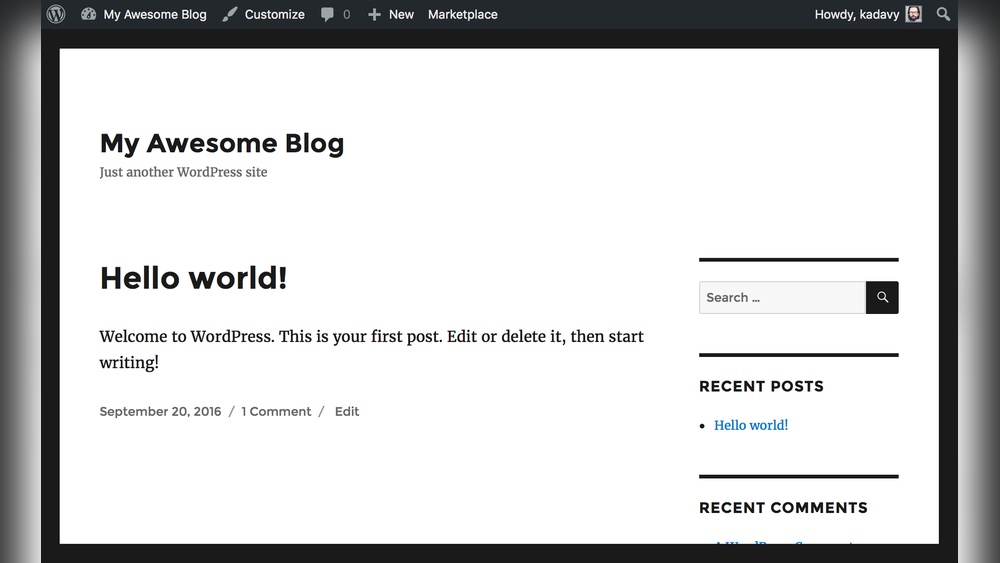
Are you ready to say goodbye to your WordPress blog but aren’t sure how to do it? Deleting your blog might seem tricky or even a little scary, especially if you’ve poured time and effort into it.
But don’t worry—this guide will walk you through the simple steps to delete your WordPress blog safely and completely. Whether you want a fresh start or just need to close this chapter, understanding the right way to delete your blog will save you time and stress.
Keep reading, and you’ll have it done before you know it.
Backup Your WordPress Blog
Backing up your WordPress blog is a key step before deleting it. Saving your content keeps your work safe. It also helps if you want to use your blog data later. This process is simple and protects your posts, pages, and media files.
Export Content Using WordPress Tools
WordPress has built-in tools to export your content quickly. Go to your dashboard and find the “Tools” menu. Click “Export” to start. Choose what to export: all content, posts, pages, or media. Download the export file to your computer. This file saves your blog’s text and images in XML format. You can import it to another WordPress site later.
Download Database And Files
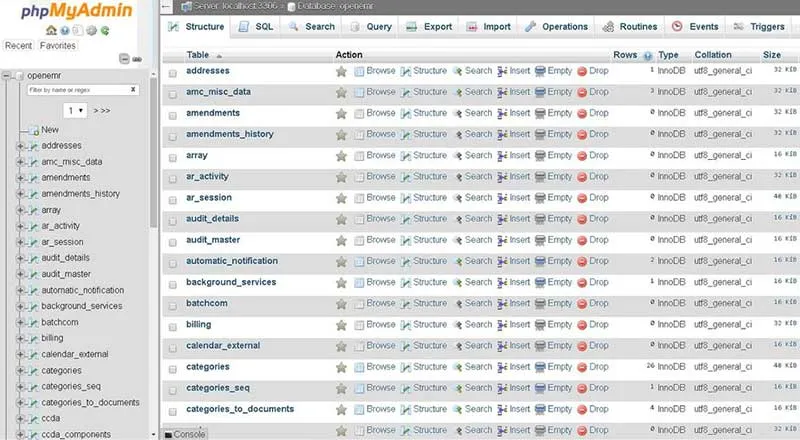
Backing up your database and files ensures a full copy of your blog. Use your hosting control panel or FTP to access your site files. Download the entire WordPress folder to your computer. Also, export your database using tools like phpMyAdmin. This step saves all your settings, comments, and user data. Keeping these backups allows full restoration if needed.
Credit: diggitymarketing.com
Delete Blog Through WordPress Dashboard
Deleting your WordPress blog starts right in the WordPress dashboard. This is the main control panel where you manage all parts of your site. You can remove posts, pages, themes, and plugins here before deleting the blog itself. Taking these steps helps keep your site clean and organized.
Remove Posts And Pages
First, clear out all posts and pages. Go to the “Posts” section in your dashboard. Select all posts and choose “Move to Trash.” Do the same for “Pages.” This step deletes your content but keeps your site intact for now.
Empty the trash folder to remove posts and pages permanently. This action frees up space and removes your content from public view. It is a quick way to clean your blog’s content before full deletion.
Delete Themes And Plugins
Next, remove themes and plugins you no longer need. Go to “Appearance” then “Themes.” Activate a default theme like Twenty Twenty-One. Delete other themes by clicking on them and choosing “Delete.”
For plugins, open the “Plugins” menu. Deactivate plugins first, then delete them. Removing unused plugins improves site performance and reduces security risks. This step clears your site’s design and functionality tools.
Delete WordPress Blog From Hosting
Deleting a WordPress blog from your hosting involves removing all files and databases linked to your site. This step frees up space and ends your website hosting. The process is simple but requires careful action to avoid errors.
Start by accessing your hosting control panel. Next, delete the WordPress files stored on the server. Finally, remove the database that holds your site’s content and settings.
Access Hosting Control Panel
Log in to your hosting account. Find the control panel, often called cPanel or similar. This is where you manage all hosting features. Use the control panel to access file and database tools.
Remove WordPress Files
Locate the file manager in the control panel. Open the folder where WordPress is installed. Select all WordPress files and folders. Use the delete option to remove them completely. This deletes your website files from the server.
Delete Database
Find the database section in the control panel. Open the database management tool, like phpMyAdmin. Select the WordPress database used for your site. Use the delete or drop option to remove the entire database. This erases all your posts, pages, and settings.
Cancel Hosting And Domain Services
Cancelling your WordPress blog means more than just deleting content. You must also stop your hosting and domain services. These services keep your blog live on the internet. Without them, your site will disappear completely. This step is important to avoid extra charges.
Terminate Hosting Account
Start by logging into your hosting provider’s dashboard. Find the section for account or service management. Look for an option to cancel or terminate your hosting plan. Follow the instructions carefully. Some hosts may ask for confirmation through email. Make sure to save any files you want before ending the account. Once terminated, your website files and databases will be deleted.
Manage Domain Name
Your domain name is your website’s address. You can either let it expire or cancel it manually. To cancel, log into your domain registrar account. Locate your domain settings or management area. Choose the option to cancel or not renew your domain. If you want to keep it, you can transfer it to another provider. Remember, domain names usually renew yearly. Stopping renewal will save money after cancellation.
Clear Cached Data And Backups
Clearing cached data and backups is a key step in deleting your WordPress blog. Cached data stores temporary files to speed up your site. Backups keep copies of your site for safety. Both need removal to fully delete your blog and free up space.
Purge Cache Plugins
Cache plugins save copies of your pages and posts. These copies load faster for visitors. Purging cache means deleting these stored files. Open your WordPress dashboard. Find the cache plugin settings. Click the purge or clear cache button. This removes all saved cache files. Your site will no longer serve old data.
Remove External Backups
Backups may exist outside your WordPress site. They can be on cloud storage or backup services. Locate where your backups are stored. Log in to these services. Delete all backups related to your blog. Check for scheduled backups and cancel them. Removing backups ensures no copies remain after deletion.
Check For Residual Content Online
Deleting your WordPress blog is a big step. It is important to check for leftover content online. Some parts of your blog may still appear on the internet. These can affect your privacy and online presence. Knowing where to look helps you clean up completely.
Search Engines Cache
Search engines save copies of web pages. This is called cache. Your deleted blog pages may still show in search results. The cached pages do not update right away. You need to request removal from search engines. Use tools like Google Search Console to remove cached content. This stops old pages from appearing in searches.
Third-party Services
Other websites or apps might have saved your blog content. Social media, archives, or backup sites can keep copies. These third-party services do not delete your content automatically. Check these platforms and ask them to remove your blog data. This helps erase all traces of your blog online.
Alternatives To Deleting Your Blog
Deleting a WordPress blog is a big step. Many people want to stop sharing but keep their content safe. There are simple ways to pause or hide your blog. These options let you return anytime. No need to lose your hard work forever.
Make Blog Private
You can make your blog private to stop public access. This means only you or chosen people can see it. WordPress has settings for privacy control. You can restrict visitors with passwords or membership. This way, your posts stay online but are hidden from the public.
Deactivate Instead Of Delete
Deactivating your blog is a softer option than deleting. It pauses your site without losing data. Your files and posts stay saved on the server. You can reactivate your blog whenever you want. This option helps if you need a break but plan to return later.

Credit: wordpress.com

Credit: wordpress.com
Frequently Asked Questions
How Do I Permanently Delete My WordPress Blog?
To permanently delete your WordPress blog, log in to your dashboard. Go to Settings > Delete Site or Delete Blog. Confirm the deletion by following the prompts. This action removes all content and data from WordPress servers permanently.
Can I Recover My WordPress Blog After Deletion?
No, once you delete your WordPress blog permanently, recovery is not possible. Always back up your content before deletion. Use plugins or export tools to save your data for future use or migration.
Will Deleting My WordPress Blog Remove It From Google?
Deleting your WordPress blog removes it from your site, but Google may keep cached pages. Use Google Search Console to request URL removals for faster de-indexing and avoid broken links.
What Happens To My Domain If I Delete My WordPress Blog?
Deleting your WordPress blog does not affect your domain registration. You retain ownership unless you cancel or transfer the domain separately through your registrar.
Conclusion
Deleting your WordPress blog is simple with clear steps. Back up your content first to avoid losing important data. Then, follow the WordPress settings to remove your site completely. Take your time and double-check each step. This way, you ensure nothing is missed.
Your blog will be gone, but your work stays safe if saved. Keep control of your online presence. You decide when and how to end your blog journey.



