
Are you ready to delete your WordPress account but don’t know where to start? It can feel confusing and even a little scary to say goodbye to your site and all its content.
But don’t worry—this guide will walk you through every step clearly and simply. By the end, you’ll have the confidence to delete your account safely and move on without any loose ends. Keep reading to find out exactly how to take control of your WordPress presence and make the process smooth and stress-free.
Reasons To Delete Your WordPress Account
Deleting a WordPress account is a choice many users make for several reasons. Each reason reflects a need to control personal data, reduce online traces, or change digital tools. Understanding these reasons helps decide if deleting your account is right for you.
Privacy Concerns
Many users worry about their data on the internet. WordPress stores personal information and activity logs. Some want to keep their details safe from hackers or marketers. Deleting the account stops further data collection and sharing. It gives peace of mind about online privacy.
Reducing Online Presence
Too much information online can feel overwhelming. Some people want to reduce their digital footprint. Removing a WordPress account deletes posts and comments tied to you. This helps limit what others can find about you online. It can be a step toward a simpler online life.
Switching To Another Platform
Users often try new blogging or website tools. WordPress may no longer fit their needs or style. Choosing a different platform can offer better features or easier use. Deleting the old account avoids managing multiple sites. It clears the path for a fresh start elsewhere.

Credit: wordpress.com
Backup Your WordPress Data
Backing up your WordPress data is a crucial step before deleting your account. It protects your content and settings from permanent loss. You can save your posts, pages, media, and comments easily. This backup allows you to restore your site or move your content elsewhere.
Exporting Posts And Pages
Start by exporting your posts and pages. Go to the WordPress dashboard and find the “Tools” menu. Click “Export” and choose “All Content” or select posts and pages only. Download the export file. It contains your written content and basic site data.
Saving Media Files
Media files like images and videos are not included in the export file. Use an FTP client or your hosting file manager to download the “wp-content/uploads” folder. This folder holds all your media. Save it to your computer or cloud storage for future use.
Backing Up Comments And Settings
Comments and site settings need a different backup method. Use a WordPress plugin like UpdraftPlus or BackWPup. These tools back up your entire database, including comments, themes, and plugins. Store the backup safely outside your website server.
Steps To Delete Your WordPress Account
Deleting a WordPress account follows clear steps. This guide breaks down the process simply. Each step ensures you delete your account safely and fully.
Follow these instructions carefully to avoid losing important data. Take your time and read each step before moving on.
Logging Into Your Account
Start by opening the WordPress login page. Enter your username and password. Click the login button to access your dashboard. Make sure your credentials are correct to avoid errors.
Navigating To Account Settings
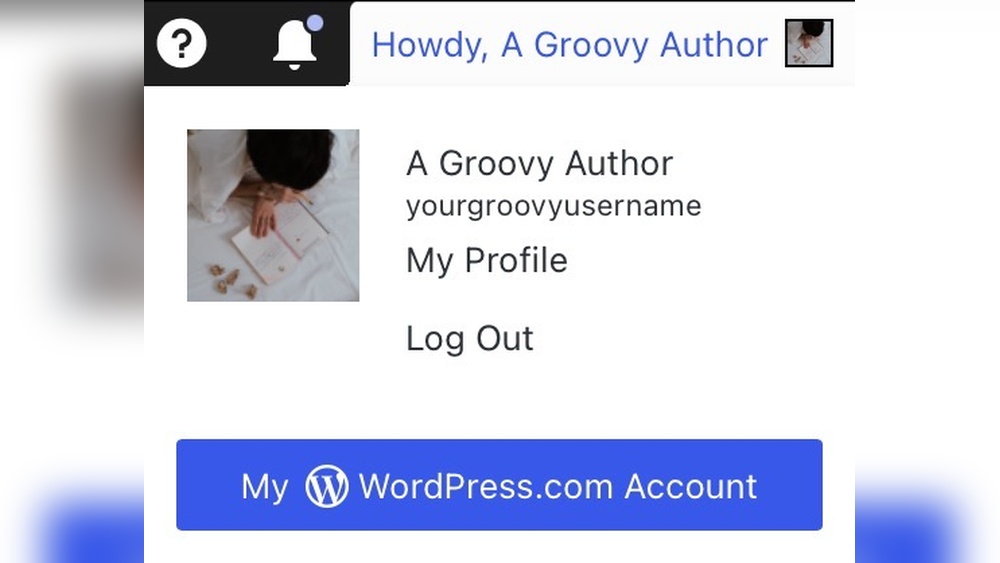
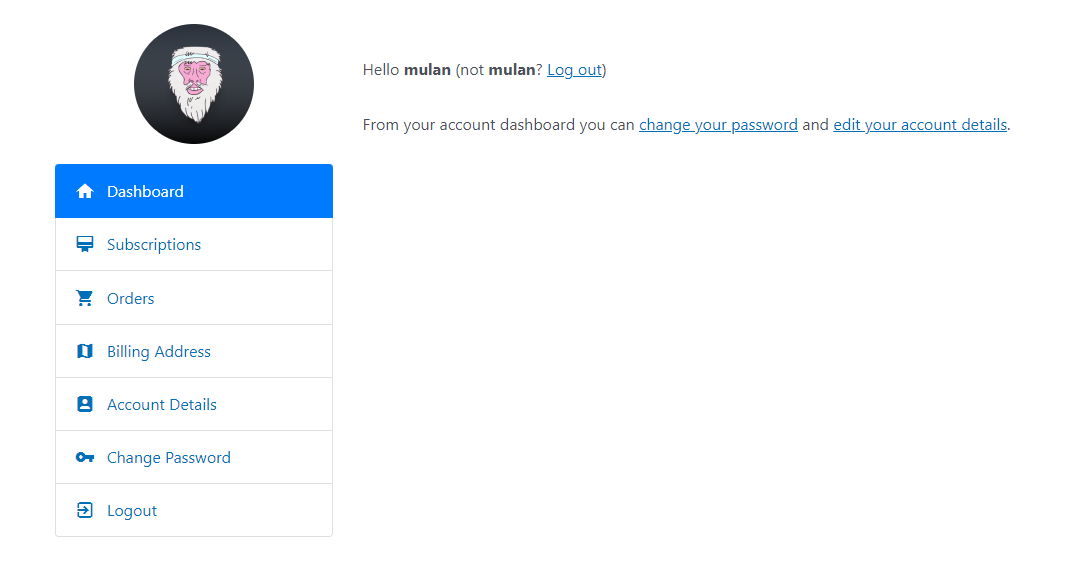
Once logged in, find your profile or account menu. This is usually at the top right corner. Click it and select “Account Settings” or “Profile.” This section holds your personal information and account options.
Initiating Account Deletion
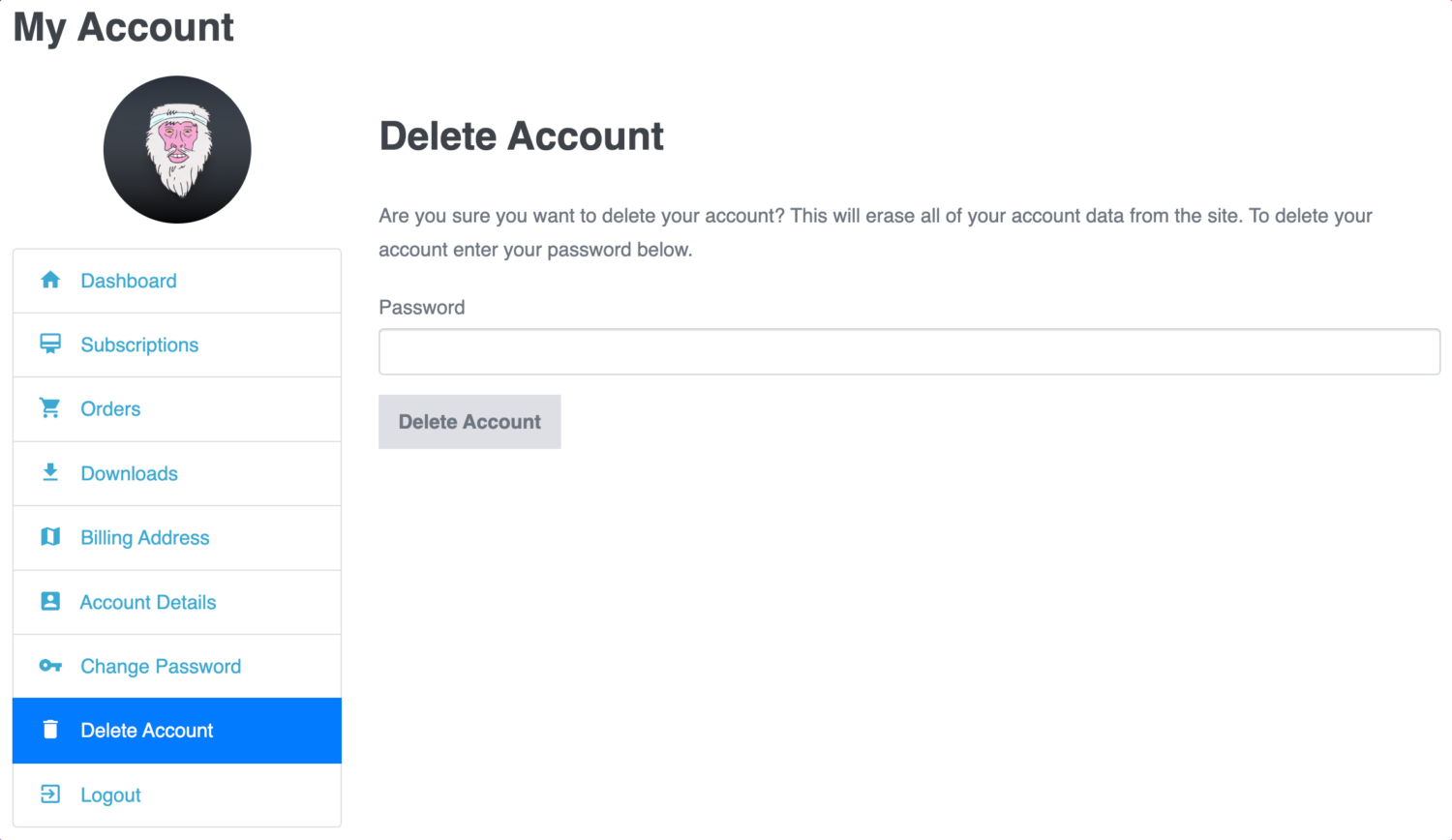
Inside Account Settings, look for the delete option. It may say “Delete Account” or “Close Account.” Click this option to start the deletion process. WordPress may ask you to confirm your choice before proceeding.
Confirming The Deletion Process
WordPress will ask for final confirmation. Read the warnings carefully. Confirm your decision by clicking the delete or confirm button. Your account will then be scheduled for deletion. Remember, this action is permanent and cannot be undone.
Credit: profilepress.com
What Happens After Deletion
Deleting your WordPress account is a serious step. It means you lose access to your site and all related data. Knowing what happens next helps you prepare and avoid surprises. Here is what you can expect after your account is deleted.
Data Removal Timeline
After deletion, WordPress starts removing your data. This process can take several days. Your posts, pages, and media files disappear from the site. Some information might stay longer in backups. But usually, all your content is gone within a week.
Impact On Linked Services
Services linked to your WordPress account will stop working. Plugins and themes tied to your account may lose functionality. Any third-party apps connected to your site will disconnect. Make sure to unlink or save important data before deleting.
Recovering Your Account
Once deleted, account recovery is often impossible. WordPress does not keep deleted accounts active. Some data may be recoverable within a short time, but this is rare. Always back up your site before deleting to avoid losing everything.
Alternatives To Deleting Your Account
Deleting your WordPress account is a big step. You might want to keep your content or just take a break. There are simpler ways to manage your account without deleting it. These options give you control and keep your work safe.
Deactivating Your Account Temporarily
You can deactivate your account to pause your site. This hides your content from visitors. Your posts and pages stay safe. You can reactivate your account anytime. It is a good choice if you want a break.
Removing Specific Content
Delete only the posts or pages you no longer want. This clears unwanted content but keeps your account. It helps keep your site tidy. You can update or edit posts instead of deleting them.
Changing Account Privacy Settings
Adjust your privacy settings to control who sees your site. Make your site private or password-protected. This limits access without losing your account. It keeps your work secure and hidden from public view.
Common Issues And Troubleshooting
Deleting a WordPress account might not always go smoothly. Some common problems can stop the process. Understanding these issues helps solve them fast. This section covers typical troubles and ways to fix them.
Deletion Option Not Visible
Sometimes, the delete button does not appear. This happens if you are not the account owner. Also, WordPress may hide this option for certain user roles. Check your permissions first. Log in as the main admin to see if the option shows up. Clear your browser cache and try again. Using a different browser can also help.
Error Messages During Deletion
Errors can appear while deleting your account. These messages may mention server problems or permissions. Note the exact error text. It gives clues about the issue. Try logging out and back in. Disable any plugins that might block actions. Refresh the page before trying again. If errors persist, wait a while. Server problems often fix themselves quickly.
Contacting WordPress Support
Support helps if you cannot delete your account. Prepare your account details and error messages. Use the official WordPress support page to send a request. Be clear and brief in your message. Explain what you tried already. Support teams respond faster with full information. Keep your communication polite and patient.
Credit: profilepress.com
Frequently Asked Questions
How Do I Delete My WordPress Account Permanently?
To delete your WordPress account permanently, log in, go to Account Settings, and select “Close your account. ” Follow the prompts to confirm. This action removes your data and content from WordPress. com entirely and cannot be undone.
Can I Recover My WordPress Account After Deletion?
No, once you delete your WordPress account, recovery is not possible. All content and data are permanently erased. Make sure to backup any important information before proceeding with account deletion.
What Happens To My WordPress Site After Account Deletion?
After deleting your WordPress account, your site and its content are removed from the platform. Visitors will no longer access your site, and all associated files will be deleted from WordPress servers.
Do I Need To Cancel Subscriptions Before Deleting WordPress?
Yes, cancel any active subscriptions or paid plans before deleting your WordPress account. This prevents future billing and ensures you are not charged after your account is closed.
Conclusion
Deleting your WordPress account is simple and quick. Take time to back up your data first. Follow the right steps carefully to avoid mistakes. Once deleted, your content will no longer appear online. You can always create a new account later.
Stay sure before you delete, as this action cannot be undone. Keep your site safe by managing accounts wisely. Now you know how to delete your WordPress account easily.



