
Are you ready to bring your website idea to life but stuck on how to connect your GoDaddy domain to WordPress? You’re not alone, and the good news is—it’s simpler than you think.
Imagine having your unique domain name working perfectly with your WordPress site, making it easy for visitors to find you online. This step is crucial, and once you get it right, your website’s growth will skyrocket. In this guide, you’ll discover clear, step-by-step instructions to connect your GoDaddy domain to WordPress quickly and without hassle.
Keep reading—you’re just moments away from making your website fully yours!
Prepare Your Godaddy Domain
Preparing your GoDaddy domain is the first step to connect it with WordPress. This process ensures your domain is ready to link smoothly with your website. Follow each step carefully to avoid errors and delays. Simple actions here set a strong base for your site’s success.
Access Your Godaddy Account
Start by signing into your GoDaddy account. Use your email and password for login. After logging in, go to your account dashboard. This area shows all your domains and services. It is easy to manage your domain from here.
Locate Domain Settings
Find the domain you want to connect to WordPress. Click on the domain name to open settings. In this section, you can manage DNS, privacy, and other options. Make sure you are in the correct domain settings page.
Unlock Your Domain
Domains often have a lock to prevent changes. Find the domain lock option in settings. Turn off or unlock the domain to allow connection changes. This step is necessary to link your domain with WordPress.
Set Up WordPress Hosting
Setting up WordPress hosting is the first step to connect your GoDaddy domain to WordPress. Hosting is where your website lives online. Choosing the right hosting ensures your site runs smoothly and loads fast.
After setting up hosting, install WordPress. It is the software that builds your website. Once installed, you get details like login info to start customizing your site.
Choose A WordPress Hosting Provider
Pick a hosting provider that supports WordPress. Many providers offer simple WordPress plans. Look for good speed, uptime, and customer support. Popular hosts include Bluehost, SiteGround, and GoDaddy itself. Choose a plan based on your website’s size and traffic needs.
Install WordPress
Most hosts offer one-click WordPress installation. Log in to your hosting account. Find the WordPress installer in the control panel. Follow the steps to install. It takes just a few minutes. After installation, you get a URL to access your site’s dashboard.
Get Your WordPress Site Details
After installation, note your WordPress login details. You will get a username, password, and site URL. Use these to log in to the WordPress dashboard. From there, start customizing your site and connecting your GoDaddy domain.
Connect Domain To WordPress
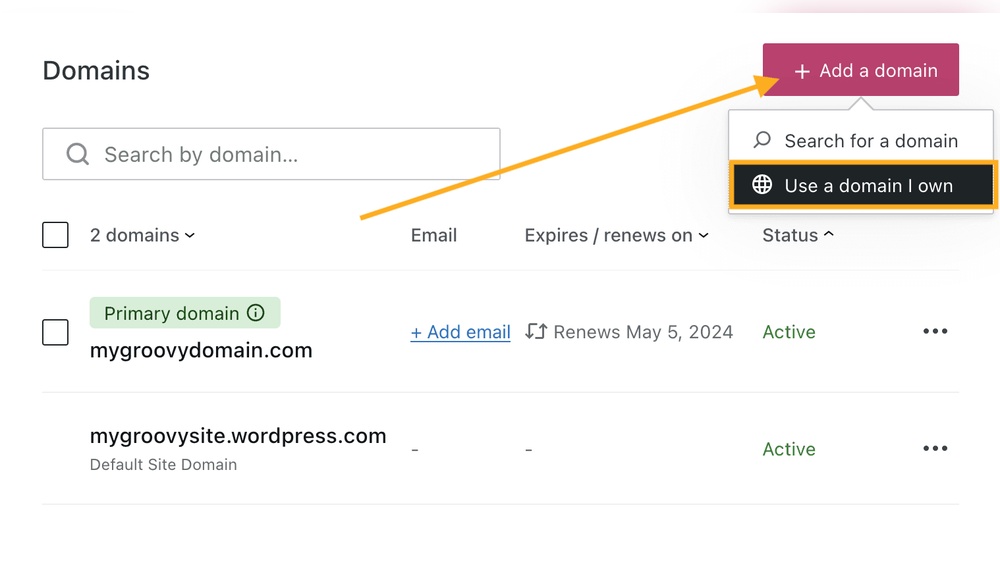
Connecting your GoDaddy domain to WordPress allows you to use your own web address. It makes your website look professional and easy to find. This process involves a few simple steps. You change some settings on GoDaddy and then check if everything works well.
Update Nameservers On Godaddy
First, log in to your GoDaddy account. Find the domain you want to connect. Go to the domain settings page. Look for the nameserver section. Replace the current nameservers with WordPress nameservers. Save the changes to update your domain.
Verify Domain Connection
Next, go to your WordPress dashboard. Enter your domain name in the domain setup area. WordPress will check if the nameservers are correct. If everything is right, you will see a confirmation. This step ensures your domain is linked to WordPress.
Wait For Dns Propagation
After updating nameservers, wait for DNS propagation. This can take from a few hours to 48 hours. During this time, your domain may not work properly. Be patient and check your site later. Your domain will connect fully once propagation ends.
Use Godaddy’s Domain Forwarding
Using GoDaddy’s domain forwarding helps you connect your domain to your WordPress site quickly. This method sends visitors from your domain to your WordPress website address. It does not change your domain’s DNS settings. Instead, it redirects users to your WordPress site.
Domain forwarding is easy to set up and works well for simple connections. It suits those who want to keep their domain registered with GoDaddy. You can control forwarding settings right in your GoDaddy account.
Configure Forwarding Settings
Sign in to your GoDaddy account and open the domain manager. Find the domain you want to forward. Click on “Manage DNS” to see your domain settings.
Scroll to the “Forwarding” section. Click “Add” under “Domain Forwarding.” Enter your WordPress site URL in the forwarding address box. Choose whether to forward with “http://” or “https://”.
Set Forwarding Type
Choose the forwarding type: “Permanent (301)” or “Temporary (302).” Use permanent for long-term forwarding. Temporary works for short-term or testing.
Decide if you want to enable “Forward with masking.” Masking hides the WordPress URL and shows your domain instead. Add a title, description, and keywords for masked pages.
Test The Forwarding
Save your changes and wait a few minutes. Open a new browser tab and enter your GoDaddy domain. Check if it redirects to your WordPress website.
Try different devices or browsers to confirm the forwarding works everywhere. If it does not work, clear your browser cache or check your settings again.
Troubleshoot Common Issues
Connecting your GoDaddy domain to WordPress can sometimes lead to small issues. These problems can stop your site from showing correctly. Troubleshooting common issues helps you fix these problems fast. Below are key steps to check and solve common connection problems.
Check Dns Settings
DNS settings tell the internet where your website lives. Make sure your domain points to WordPress servers. Check if the nameservers or A records are correct. A small mistake here can block your website from loading. Use GoDaddy’s dashboard to review and update DNS details. It may take some time for changes to work, usually up to 48 hours.
Clear Browser Cache
Old cache can show outdated website versions. Clear your browser cache to see the latest site changes. This step often solves display issues after connecting your domain. Use your browser settings to delete cached files and cookies. Then, reload your site to check if the problem is gone.
Contact Support
Some issues need expert help. Contact GoDaddy or WordPress support if problems continue. Provide clear details about your issue for faster help. Support teams can guide you through complex settings or fix technical glitches. Keep your account information ready to verify your identity.

Credit: www.gsplugins.com
Secure Your Website
Securing your website protects your visitors and improves trust. It also helps your site rank better on search engines. Without proper security, your site may be vulnerable to attacks or data theft.
Adding security features is simple. You can start by enabling an SSL certificate and forcing HTTPS connections. These steps make your site safer and more reliable.
Enable Ssl Certificate
SSL certificates encrypt data between your website and visitors. This keeps information private and secure. Many hosting providers, including GoDaddy, offer free SSL certificates. You can activate it from your hosting control panel or WordPress dashboard. After enabling SSL, your site URL changes from “http” to “https”. This shows visitors your site is safe.
Force Https Connection
Forcing HTTPS ensures all visitors use the secure version of your site. This stops unsecured “http” access. In WordPress, you can force HTTPS by editing your .htaccess file or using a plugin. This step redirects all traffic to the secure “https” URL automatically. It prevents security warnings and keeps your site consistent.
Manage Your Domain And Site
Managing your domain and website is key after connecting your GoDaddy domain to WordPress. This ensures your site runs smoothly and stays secure. It also helps keep your visitors happy and coming back. Regular care avoids unexpected problems and downtime.
Simple tasks like renewing your domain, updating plugins, and backing up your site keep everything in order. These steps protect your investment and improve your site’s performance. Let’s explore how to handle each of these tasks effectively.
Renew Domain Regularly
Your domain name must be renewed before it expires. If it lapses, your site may go offline. GoDaddy sends reminders, but mark your calendar too. Renewing early avoids losing your domain to someone else. Set your domain to auto-renew for peace of mind.
Update WordPress Plugins
Plugins add features and improve your website. Outdated plugins can cause security risks or errors. Check for updates in your WordPress dashboard often. Install updates as soon as they are available. This keeps your site safe and running fast.
Backup Your Website
Backing up your website means saving a copy of all your files and data. This helps restore your site if something goes wrong. Use a trusted plugin or your hosting service for backups. Schedule backups regularly and store them in a safe place.

Credit: wordpress.com

Credit: wordpress.com
Frequently Asked Questions
How Do I Link My Godaddy Domain To WordPress?
To link your GoDaddy domain to WordPress, update your domain’s nameservers to WordPress hosting. Log in to GoDaddy, go to domain settings, and change nameservers to those provided by WordPress. This connects your domain to your WordPress site instantly.
Can I Use Godaddy Domain With WordPress Hosting?
Yes, you can use your GoDaddy domain with any WordPress hosting. Simply point your domain’s DNS records or nameservers to your WordPress host. This allows your domain to display your WordPress website seamlessly.
How Long Does Domain Connection Take With Godaddy And WordPress?
Domain connection usually takes a few minutes to 48 hours. DNS propagation varies by location and ISP, so be patient. Most changes reflect within a few hours.
Do I Need To Buy Hosting From Godaddy For WordPress?
No, you don’t need GoDaddy hosting. You can buy hosting from any provider and point your GoDaddy domain to that host. This flexibility helps you choose the best WordPress hosting.
Conclusion
Connecting your GoDaddy domain to WordPress is simple with clear steps. You just need to update your domain’s DNS settings carefully. This lets visitors find your WordPress site easily. Take your time and follow each step slowly. Soon, your website will be live and ready.
Keep your login details safe for future changes. Enjoy building your online presence with confidence.



