
Are you noticing that your WordPress site isn’t showing recent changes? Or maybe it’s running slower than usual?
The culprit could be your cache. Clearing the cache in WordPress is a simple step that can fix these issues fast. You’ll learn exactly how to clear your cache, why it matters, and how doing this can make your site faster and smoother for your visitors.
Keep reading—you’re just a few easy steps away from improving your website’s performance!
Why Cache Matters
Cache is important for every WordPress site. It stores parts of your site temporarily to help pages load faster. Without cache, your site would have to load everything from scratch each time. This can slow down your website and hurt user experience. Understanding why cache matters helps you keep your site running smoothly.
Impact On Site Speed
Cache reduces the time needed to load your website. It saves copies of pages and files so visitors see them quickly. Faster sites keep visitors happy and reduce bounce rates. Search engines also rank faster sites higher. Good caching means your site feels quick and responsive.
Types Of Cache In WordPress
WordPress uses several types of cache to speed up your site. Browser cache stores data in visitors’ browsers for quick access. Page cache saves full copies of pages to show instantly. Object cache holds database query results to avoid repeating work. Each type helps your site load faster in different ways.
Credit: docs.themeisle.com
Identifying Cache Plugins
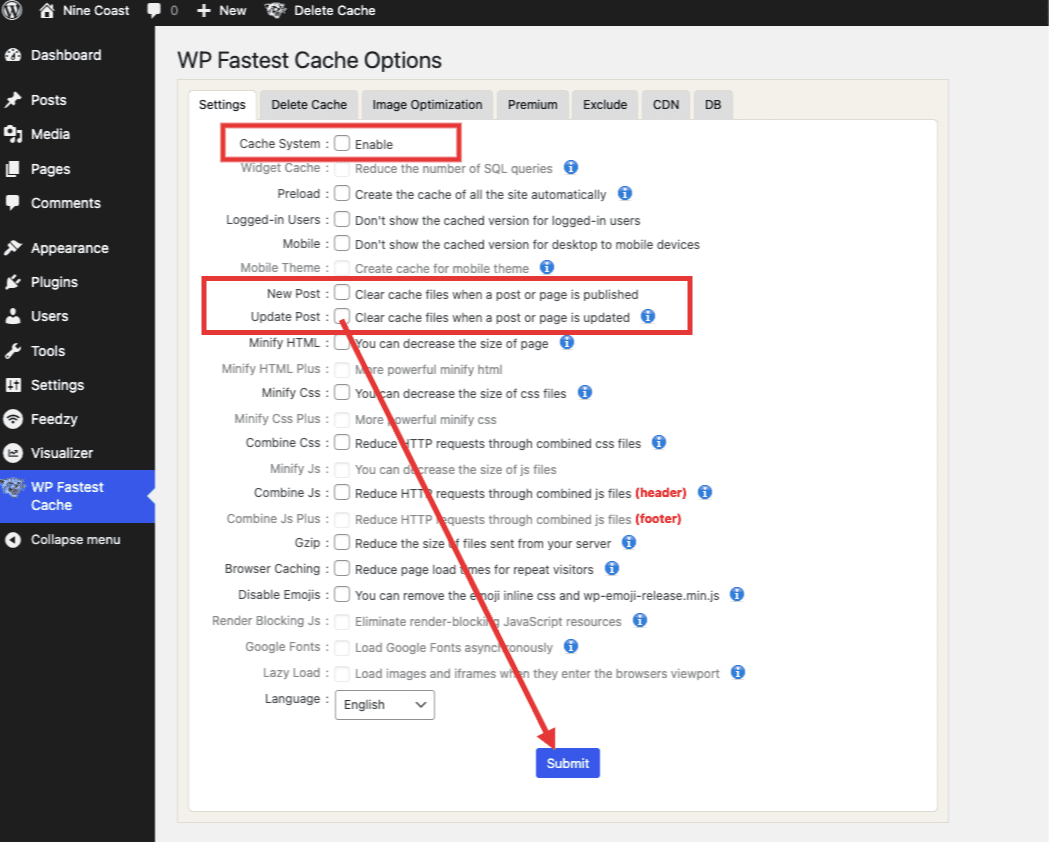
Identifying cache plugins is the first step to clear cache in WordPress. Cache plugins store temporary data to help your site load faster. Sometimes, this cache needs to be cleared to show recent changes. Knowing which cache plugin is active helps you clear the cache correctly. Not all WordPress sites use the same cache plugin. Some may have none at all. Checking which plugin is active is simple and quick.
Popular Cache Plugins
Many WordPress users rely on popular cache plugins. These include WP Super Cache, W3 Total Cache, and WP Rocket. Each plugin has unique features and cache clearing methods. WP Super Cache generates static HTML files to speed up loading. W3 Total Cache improves site performance with advanced settings. WP Rocket offers easy setup and automatic cache clearing. Other plugins like LiteSpeed Cache and Cache Enabler are also common. Knowing these names helps in identifying your active cache plugin.
Checking Active Cache Plugins
To check active cache plugins, log in to your WordPress dashboard. Go to the Plugins section and click on Installed Plugins. Look for any cache plugin names in the list. Active plugins usually have a highlighted background or an “Active” label. If you see WP Super Cache, W3 Total Cache, WP Rocket, or others, one of them handles your caching. No active cache plugin means your site may use server-side caching. In that case, contact your hosting provider for cache clearing options.
Clearing Cache Via Plugins
Caching plugins help speed up your WordPress site by storing parts of your pages. Sometimes, you need to clear this stored data to see recent changes. Clearing cache via plugins is a quick and easy way to refresh your site. Each plugin has its own method to clear cache. Below are simple steps for the most popular ones.
Clearing Cache In Wp Super Cache
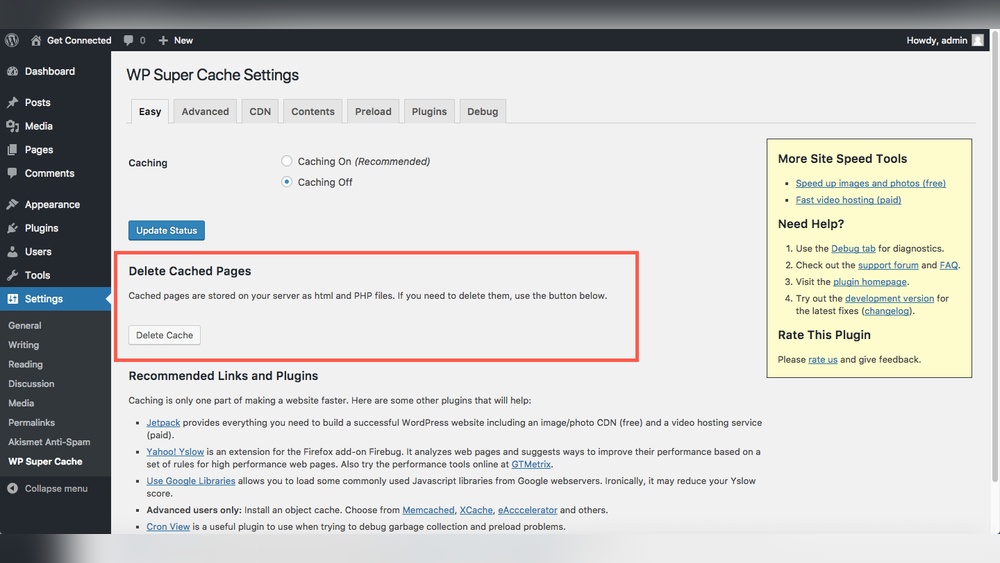
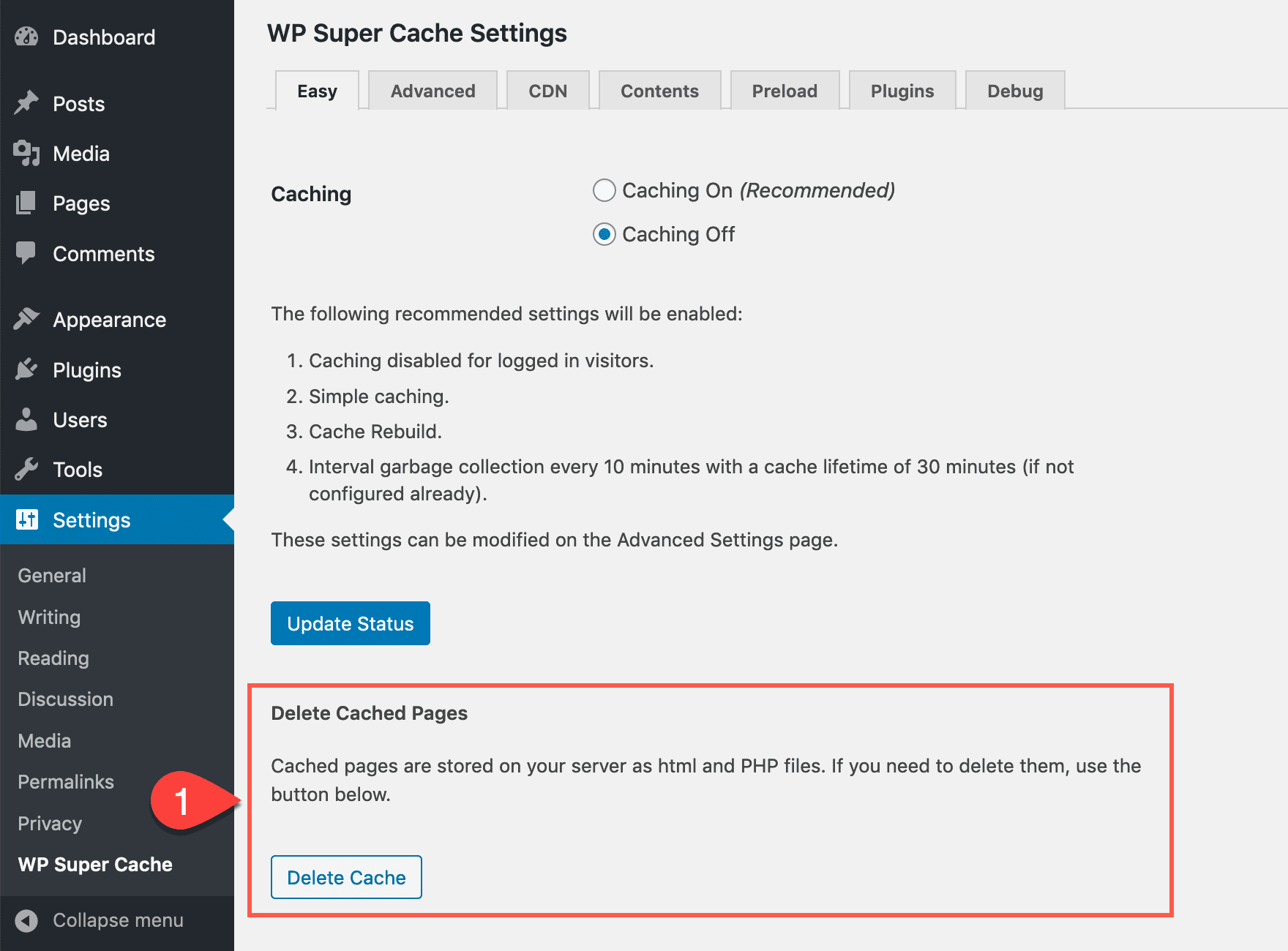
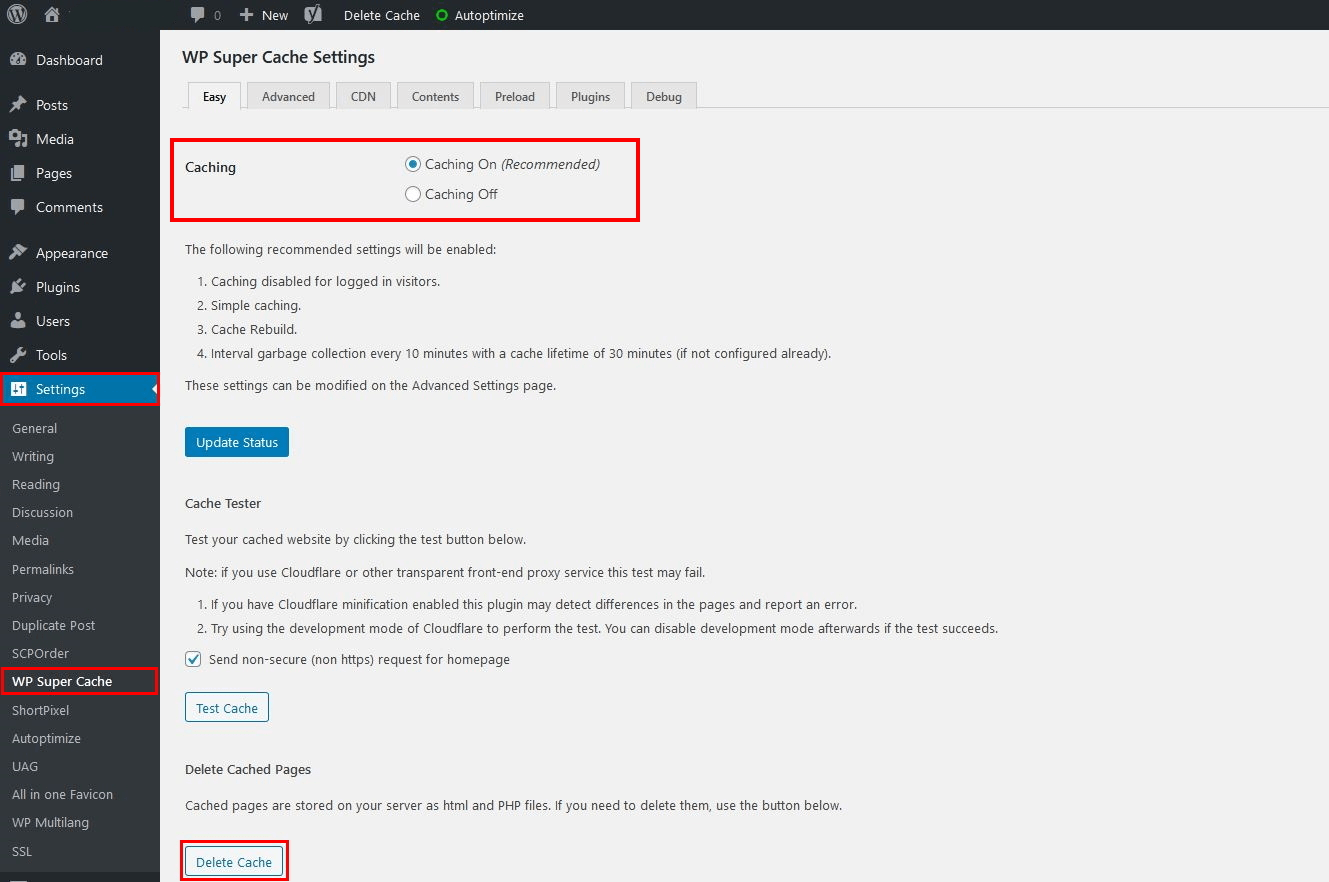
Go to your WordPress dashboard. Find the “WP Super Cache” menu under “Settings.” Click on the “Easy” tab. You will see a button labeled “Delete Cache.” Click it to clear all cached files. Wait a few seconds for the process to finish. Your site now shows the latest updates.
Clearing Cache In W3 Total Cache
Access the WordPress dashboard. Navigate to “Performance” in the sidebar. Click on “Dashboard.” Look for the “empty all caches” button at the top. Click this button to clear the cache. The plugin will remove stored data quickly. Check your website to confirm changes appear.
Clearing Cache In Wp Rocket
Open your WordPress admin panel. Find “WP Rocket” in the menu. Click on “Dashboard” under the plugin options. You will see a button called “Clear Cache.” Click this to remove cached files. WP Rocket clears the cache fast. Your website will load fresh content now.
Credit: www.elegantthemes.com
Clearing Browser Cache
Clearing your browser cache helps load the newest version of your WordPress site. Browsers save parts of web pages to speed up loading. This stored data is called the cache. Sometimes, it keeps old files, causing your site to show outdated content. Clearing the cache removes these old files. This lets you see the latest updates on your site. It also fixes display issues caused by cached data.
Steps For Different Browsers
Each browser has its own way to clear the cache. Here are simple steps for popular browsers.
Google Chrome: Click the three dots at the top right. Select “More tools” then “Clear browsing data.” Choose “Cached images and files.” Pick a time range. Click “Clear data.”
Mozilla Firefox: Click the three lines at the top right. Choose “Settings” then “Privacy & Security.” Scroll to “Cookies and Site Data.” Click “Clear Data.” Check “Cached Web Content.” Press “Clear.”
Microsoft Edge: Click the three dots at the top right. Select “Settings” then “Privacy, search, and services.” Under “Clear browsing data,” click “Choose what to clear.” Select “Cached images and files.” Click “Clear now.”
Safari (Mac): Click “Safari” in the menu bar. Choose “Preferences” then “Privacy.” Click “Manage Website Data.” Select “Remove All” and confirm.
When To Clear Browser Cache
Clear your browser cache after site changes. This shows the newest content to you and visitors. Clear cache if pages look broken or outdated. It helps fix loading problems and display errors. Also, clear cache when troubleshooting site issues. This ensures your browser loads fresh data. Regular clearing improves your browsing experience.
Clearing Server Cache
Clearing server cache is a key step to keep your WordPress site fast and fresh. Server cache stores copies of your website files. This helps your site load faster for visitors. But sometimes, the cache holds old files. This can cause your site to show outdated content. Clearing the server cache forces the server to load new files. This helps fix display errors and speed issues.
Using Hosting Control Panels
Most web hosts offer control panels with cache clearing tools. Popular panels include cPanel, Plesk, and custom dashboards. Log in to your hosting account. Find the section for cache management or performance. There is often a button to clear or flush the cache. Click this button to remove old cached files. The server will then serve fresh content on your site. This method is quick and simple. It does not require technical skills.
Clearing Cache With Cdn Services
Content Delivery Networks (CDNs) store cached copies of your site worldwide. CDNs improve site speed for visitors far from your server. But CDN cache can also keep outdated files. To clear CDN cache, log in to your CDN provider’s dashboard. Look for cache or purge options. You can clear all cached files or specific URLs. Purging the CDN cache ensures visitors get updated content. This step is important if you use a CDN with WordPress.
Credit: www.ionos.com
Automating Cache Clearing
Automating cache clearing saves time and keeps your WordPress site fast. Manually clearing cache can be a hassle. Automation makes sure your visitors always see the latest content without delays. It also reduces errors caused by outdated cache files.
Scheduled Cache Purging
Set your cache to clear at regular times. This keeps your site fresh without manual work. You can choose daily, weekly, or custom intervals. Scheduled purging helps avoid slow site speed due to old cache buildup. It works well for sites with frequent updates.
Plugin Settings For Automation
Many caching plugins offer automatic clearing options. Check your plugin’s settings for cache expiration or auto-clear features. Enable these to let the plugin manage cache removal. Some plugins clear cache after content changes automatically. This keeps your site updated and fast without extra effort.
Troubleshooting Cache Issues
Cache problems can slow down your website or show old content. Fixing these issues helps your site run smoothly. This section covers how to spot and solve common cache troubles in WordPress.
Cache Not Clearing Properly
Sometimes, clearing cache does not remove old files. Your browser or a caching plugin may still store data. Try clearing your browser cache first. Then clear the cache from your WordPress plugin again.
Check if your caching plugin settings are correct. Some plugins have options to clear cache automatically. Make sure these are enabled. Also, deactivate other plugins temporarily. Conflicts between plugins can stop cache from clearing.
Common Cache-related Errors
Cache errors can cause pages to load incorrectly. You might see outdated content or broken layouts. Another issue is login problems after clearing cache. This happens if cookies or sessions are cached.
To fix these errors, clear both your site cache and browser cache. Disable your cache plugin and check the site again. Update your caching plugin to the latest version. Outdated plugins often cause errors.
Frequently Asked Questions
How Do I Clear The Cache In WordPress Manually?
To clear the cache manually in WordPress, use your caching plugin’s settings. Find the “Clear Cache” or “Purge Cache” button and click it. This removes stored files and refreshes your site content instantly for visitors.
Why Should I Clear The WordPress Cache Regularly?
Clearing your WordPress cache regularly ensures visitors see updated content. It helps prevent display errors, speeds up loading, and improves site performance. Regular cache clearing also resolves common plugin conflicts and visual glitches.
Can Clearing Cache Affect My WordPress Website’s Seo?
Clearing cache improves SEO by showing fresh content to search engines. It prevents outdated pages from being indexed, enhancing your site’s relevance and ranking. Regular cache clearing supports better user experience, which positively impacts SEO.
What Are The Best Plugins To Clear WordPress Cache?
Popular plugins for clearing WordPress cache include W3 Total Cache, WP Super Cache, and WP Rocket. These plugins offer easy cache clearing options and improve site speed. Choose one based on your site needs and compatibility.
Conclusion
Clearing your WordPress cache keeps your site fresh and fast. It helps show the latest updates to visitors. Regularly clearing cache avoids display problems and old content. Use simple plugins or your hosting tools to clear cache easily. Remember, a clean cache improves user experience and site performance.
Keep this step in your website routine for best results.



