
Are you noticing that your WordPress site isn’t showing the latest changes you made? Or maybe it feels slower than usual?
The culprit might be your cache. Clearing cache in WordPress is a simple but powerful way to refresh your site and fix many common issues. You’ll learn exactly how to clear cache quickly and easily, so your website runs smoothly and looks just the way you want.
Keep reading—your site’s best performance is just a few steps away.
Credit: docs.themeisle.com
Why Cache Matters
Cache plays an important role in how your WordPress site works. It stores copies of your web pages. This helps your site load faster for visitors. Without cache, your server must create the page every time. This can slow down your site and annoy users.
Impact On Website Speed
Cache cuts down the time it takes to load pages. It saves parts of your site on the visitor’s browser or server. This means less work for your server. Visitors see your site quickly. Fast sites keep people coming back and reduce bounce rates.
User Experience Benefits
A fast site feels smooth and easy to use. Visitors don’t wait long for content. This makes browsing pleasant. Good user experience helps visitors find what they want. It encourages them to stay longer and explore more pages.
Seo Advantages
Search engines prefer fast websites. Sites that load quickly rank higher in search results. Cache helps improve your site’s speed. This can boost your visibility on Google and other search engines. Better rankings bring more visitors to your site.
Credit: www.ionos.com
Types Of Cache In WordPress
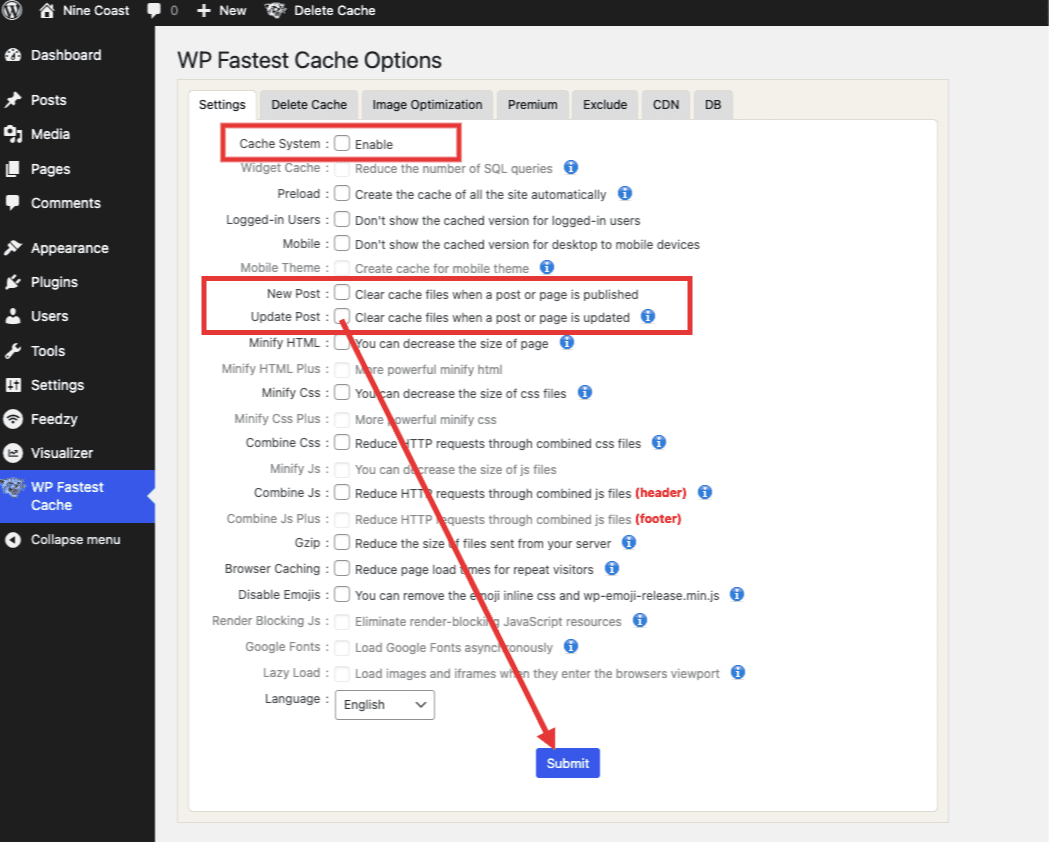
Caching helps WordPress load faster by saving copies of your web pages. It reduces the time to show content to visitors. Different types of cache work together to improve site speed. Understanding these types helps you clear cache correctly.
Browser Cache
Browser cache stores website data on visitors’ devices. It saves images, scripts, and styles so pages load faster next time. Clearing browser cache forces browsers to get fresh content. This is useful when you update your website design or content.
Server Cache
Server cache keeps saved copies of your site on the web server. It reduces the load on the server by serving cached pages. Clearing server cache helps show recent changes immediately. Many hosting providers offer built-in server caching options.
Plugin Cache
Plugin cache comes from caching plugins installed on your WordPress site. These plugins create and store static versions of your pages. Clearing plugin cache removes old versions and updates the site view. Popular plugins include W3 Total Cache and WP Super Cache.
Clearing Cache Via Plugins
Clearing cache in WordPress is important for showing the latest website updates. Plugins make this task simple and quick. They store copies of your pages to speed up loading times. Sometimes, these cached copies need to be cleared to see changes on the live site.
Many popular caching plugins include easy options to clear the cache. This helps keep your website fresh without technical steps. Below are steps for clearing cache using three common plugins.
Using Wp Super Cache
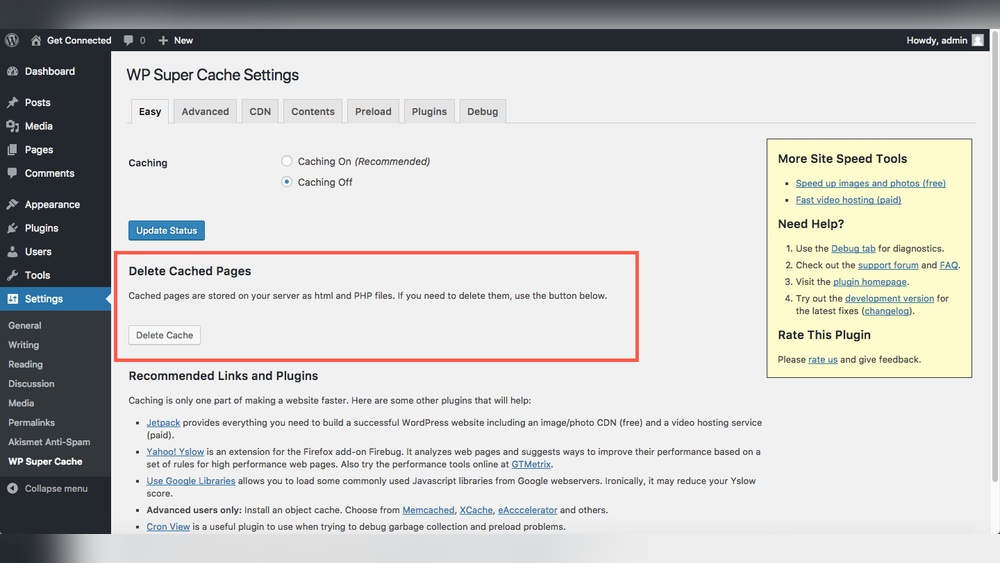
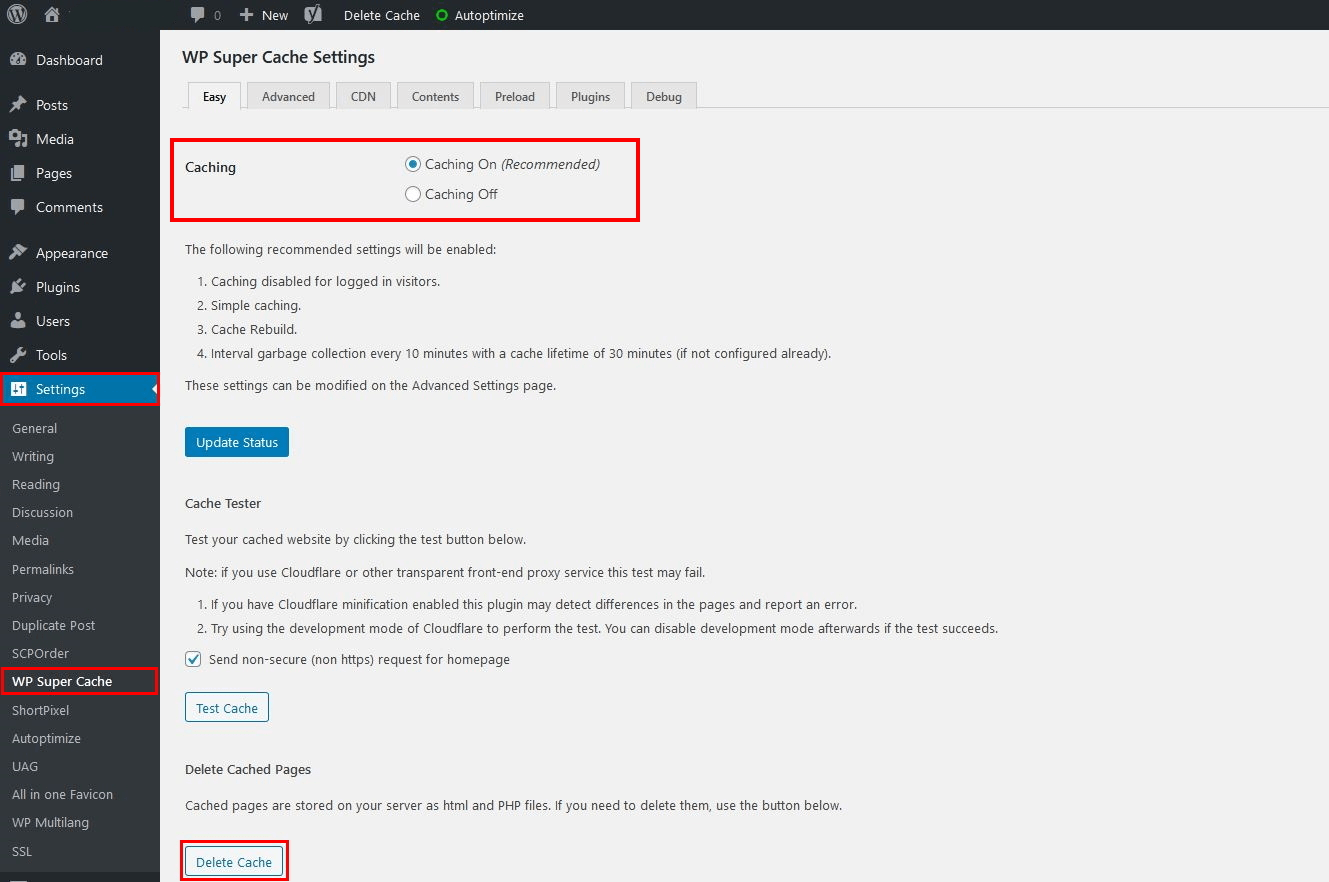
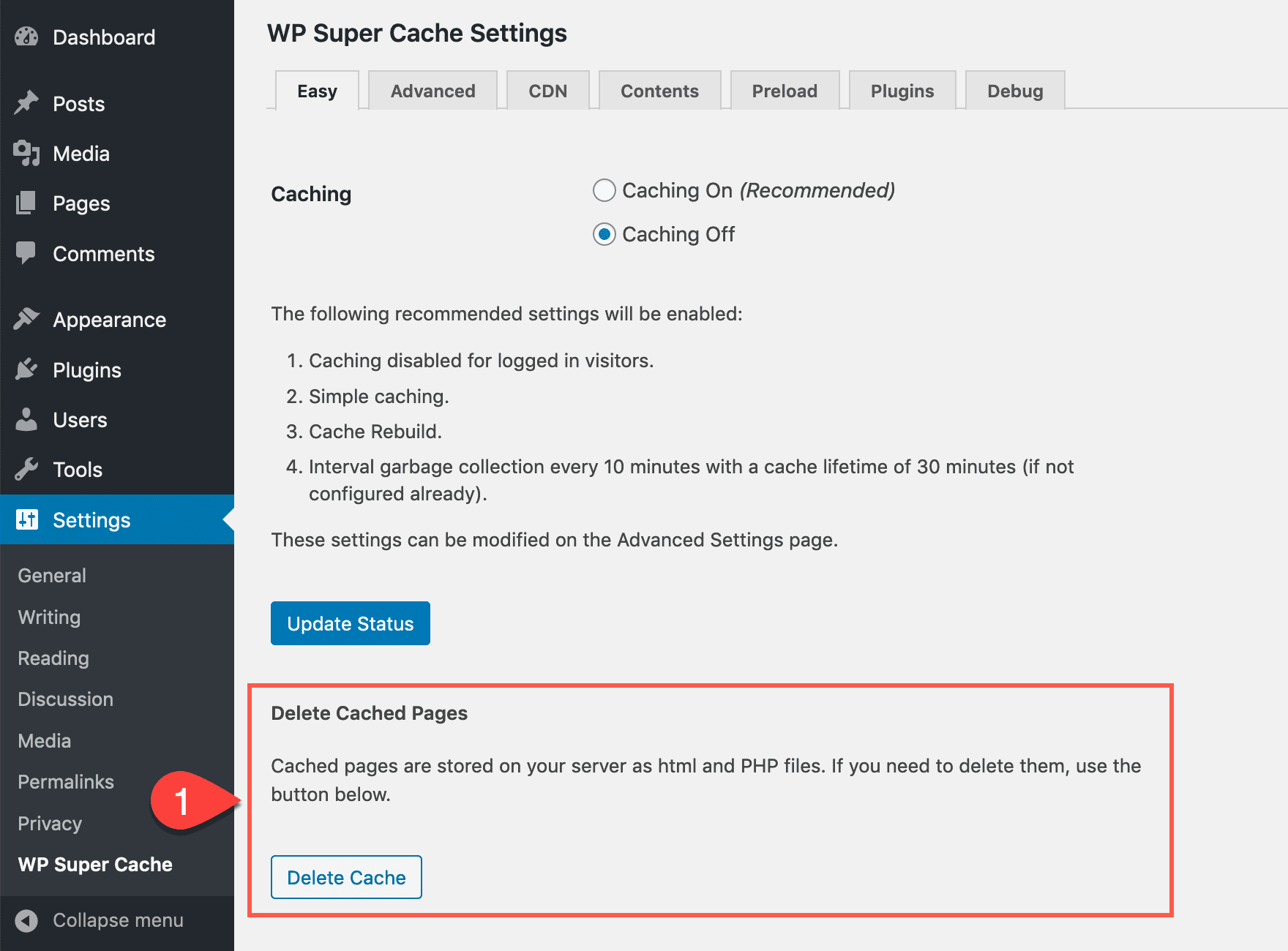
Open your WordPress dashboard. Go to the “Settings” menu and choose “WP Super Cache.”
Find the “Delete Cache” button on the main page. Click it to clear all cached files. Wait a few seconds for the process to finish.
Refreshing your site will now show the latest content.
Using W3 Total Cache
Access your WordPress admin area. Click on “Performance” in the sidebar menu.
Select “Dashboard” from the W3 Total Cache options. Click the “empty all caches” button.
This action deletes all saved cache files. Your website will load fresh data after this.
Using Litespeed Cache
Go to the WordPress admin panel. Click “LiteSpeed Cache” on the left menu.
Open the “Manage” tab. Click the “Purge All” button.
The plugin clears cached pages and objects. The site now shows updated information instantly.
Clearing Cache Manually
Clearing cache manually helps solve many WordPress issues fast. It removes old files that may slow your site. This process ensures visitors see the latest content. Manual clearing is useful when automatic tools fail. It gives you control over what gets deleted.
Deleting Cache Files Via Ftp
Connect to your website using an FTP client. Navigate to the wp-content folder. Find the cache or cache-related folders. Select all files inside the cache folder. Delete these files to clear cached data. This process removes stored site information. It forces WordPress to generate fresh files. Be careful not to delete other important files.
Clearing Browser Cache
Your web browser stores site data to load pages faster. This data can cause display problems on WordPress. Open your browser settings and find the clear browsing data option. Choose to clear cached images and files. This action refreshes your browser’s memory. Reload your website to see updated content. This step helps fix layout or style errors.
Clearing Server Cache From Hosting
Many hosting providers use server-side caching. This cache stores website data on their servers. Login to your hosting control panel. Look for caching options or tools. Use the clear cache or purge cache button. This removes cached files from the server. It helps your site show recent changes. If unsure, contact your hosting support for guidance.
Automating Cache Clearing
Automating cache clearing saves time and keeps your website fast. It removes old files without manual work. This helps your visitors see fresh content quickly. Automation also reduces errors from forgetting to clear cache.
Scheduling Cache Purge
Set a schedule to clear cache regularly. Many WordPress plugins offer this feature. Choose times when your site has less traffic. This avoids slowing down the site for visitors. Scheduled purges keep cache from getting too large. They ensure your site loads the newest content.
Cache Clearing After Updates
Clear cache automatically after updates. Updates include changes to posts, pages, or plugins. This stops old versions from showing to users. Plugins like WP Rocket or W3 Total Cache can do this. Auto-clearing after updates keeps your site accurate. It saves you from manual clearing every time.
Troubleshooting Cache Issues
Troubleshooting cache issues in WordPress can be tricky. Cache helps your site load faster. But sometimes, it causes problems instead of fixing them. Knowing how to spot and solve these issues is important. It keeps your site running smoothly and visitors happy.
Common Problems
Sometimes your site shows old content even after updates. This happens because the cache stores outdated files. Another issue is slow site performance due to cache conflicts. You might also see errors or broken layouts caused by caching plugins. These problems can confuse visitors and hurt your site’s reputation.
Fixing Cache Conflicts
Clear your cache manually from the plugin or hosting panel. Disable all caching plugins temporarily to find conflicts. Then, enable them one by one while checking the site. Update all plugins and themes to avoid compatibility issues. Use a single caching plugin to prevent overlapping cache rules. Clear your browser cache too, since it might store old data.
When To Contact Support
If cache problems continue after trying fixes, ask for help. Support teams can check server settings and logs. They can identify hidden issues causing cache errors. Contact your hosting provider or plugin support for expert advice. Early help avoids bigger problems and keeps your site live.
Credit: www.elegantthemes.com
Frequently Asked Questions
What Is Cache In WordPress And Why Clear It?
Cache stores temporary website data to speed up loading. Clearing cache removes outdated files, ensuring visitors see fresh content.
How Do I Clear Cache Using A WordPress Plugin?
Install a caching plugin like W3 Total Cache or WP Super Cache. Use its clear cache button in the plugin settings to delete cache easily.
Can Clearing Cache Improve WordPress Site Performance?
Yes, clearing cache removes old data that can slow your site. It helps load updated content faster and fixes display issues.
How Often Should I Clear Cache In WordPress?
Clear cache after any website updates or changes. Regular clearing prevents visitors from seeing outdated content and maintains site speed.
Conclusion
Clearing cache in WordPress keeps your site fresh and fast. It helps show the latest changes immediately. You can clear cache using plugins or your hosting panel. Regularly doing this avoids old content showing to visitors. A simple cache clear improves user experience and site performance.
Try these easy steps to keep your WordPress site running smoothly. Small actions like this make a big difference over time. Keep your website updated and running without delay.



