
Are you worried about the security of your WordPress site? Changing your WordPress password regularly is one of the easiest and most effective ways to protect your website from hackers.
But how do you change your WordPress password quickly and safely? In this guide, you’ll discover simple, step-by-step instructions that anyone can follow, even if you’re not tech-savvy. Keep reading, and you’ll have your new password set up in no time—giving you peace of mind and stronger control over your site’s security.

Credit: wpx.net
Accessing The WordPress Login Page
Accessing the WordPress login page is the first step to change your password. Without this page, you cannot enter your site’s admin area. The login page is where you type your username and current password.
Finding the login page is easy once you know the URL. It usually follows a simple pattern based on your website address. Knowing this URL saves time and helps you avoid errors.
Finding The Default WordPress Login Url
The default login URL ends with /wp-login.php. Add this after your website name. For example, www.yoursite.com/wp-login.php. This link takes you directly to the login form.
Using The /wp-admin Url
Typing /wp-admin after your site address also works. It redirects you to the login page if you are not signed in. For example, www.yoursite.com/wp-admin.
How To Bookmark The Login Page
Bookmark your login page for quick access. Open the login page, then save it in your browser. This step helps you avoid typing the URL every time.
Resetting Password Via Login Screen
Resetting your WordPress password through the login screen is the fastest way to regain access. This method works well if you forget your password or want to change it for safety. The process is simple and does not require technical skills. Just a few clicks and you can set a new password securely.
Using The Lost Password Link
Start at the WordPress login page. Below the username and password fields, find the “Lost your password?” link. Click this link to begin the reset process. It directs you to a page where you enter your username or email address. WordPress uses this information to identify your account.
Enter your username or email carefully. Then, click the “Get New Password” button. WordPress will send a password reset email to the address you provided. This step confirms your identity before changing the password.
Receiving The Password Reset Email
Check your email inbox for a message from WordPress. The subject usually says “Password Reset” or similar. Open the email and look for the reset link inside. This link takes you to a secure page where you create a new password.
Click the reset link quickly. It expires after some time for security reasons. On the reset page, enter a strong new password twice. Use letters, numbers, and symbols to make it safe. After saving, you can log in with the new password immediately.
Changing Password From Dashboard
Changing your WordPress password from the dashboard is fast and simple. It helps keep your site safe from unauthorized access. You can update your password anytime without needing extra tools or plugins.
This method works for all users with access to the WordPress dashboard. Follow clear steps to find the right settings and create a strong password. Keep your account secure with just a few clicks.
Navigating To Profile Settings
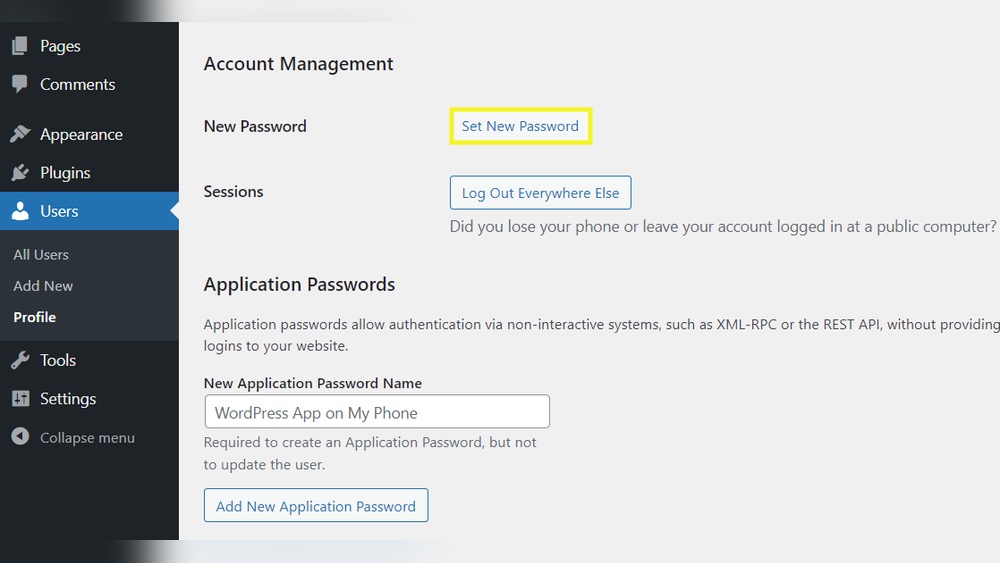
Start by logging into your WordPress dashboard. Look for your username or profile icon, usually at the top right corner. Click on it to open a dropdown menu. Select “Profile” or “Edit Profile” from the list. This page holds your personal settings, including password options.
Scroll down to find the “Account Management” section. Here, you will see the option to change your password. This section is easy to locate and clearly labeled.
Creating A Strong New Password
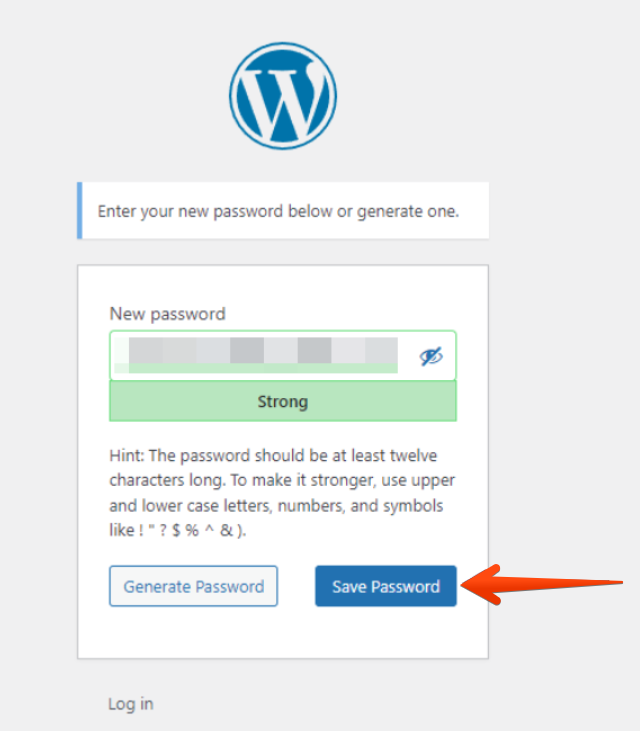
WordPress offers a password generator to help you create a strong password. You can use it or type your own. Aim for at least 12 characters with letters, numbers, and symbols. Avoid common words or simple sequences.
Once you enter the new password, WordPress will show its strength. Choose a password marked as strong or very strong. Confirm the new password by typing it again. Save your changes by clicking the “Update Profile” button at the bottom.
Credit: wpx.net
Updating Password Via Phpmyadmin
Updating your WordPress password using phpMyAdmin is a direct way to regain access. This method works well if you cannot reset your password through the WordPress dashboard. It requires access to your website’s hosting control panel. You will change the password stored in the database manually.
This approach is safe if you follow the steps carefully. It helps when other reset methods fail or are unavailable. The process involves accessing the database, finding the user table, and editing the password field.
Accessing Database
Log in to your hosting control panel. Look for the phpMyAdmin tool and open it. This tool lets you manage your website’s database. Select the database used by your WordPress site from the left sidebar.
Locating User Table
Find the table named wp_users. The prefix wp_ may differ based on your setup. Click on the wp_users table to view its contents. This table stores all user information, including usernames and passwords.
Editing Password Field
Locate your username in the list of users. Click the Edit button next to your user row. Find the user_pass field. Change the function dropdown to MD5. Enter your new password in the value box. Save the changes by clicking the Go button.
Your password is now updated in the database. Use this new password to log in to WordPress.
Using Ftp To Reset Password
Using FTP to reset your WordPress password is a direct method that bypasses the usual login process. This approach helps when you cannot access your admin dashboard or email. You need access to your website’s files through an FTP client. The process involves editing a core WordPress file to add a temporary password reset function. After using it, you remove the code for security.
Downloading Functions File
First, connect to your website using an FTP client like FileZilla. Navigate to the folder named wp-content/themes/your-active-theme. Find the file called functions.php. Download this file to your computer. Always keep a backup before making changes. This file controls many functions in your theme.
Adding Password Reset Code
Open the downloaded functions.php file in a text editor. Add the following code at the end of the file:
wp_set_password('newpassword123', 1);This code resets the password to newpassword123 for the user with ID 1, usually the admin. Save the file after adding the code. This step creates a new password you can use to log in.
Uploading Modified File
Return to your FTP client and upload the modified functions.php file back to the same theme folder. Overwrite the existing file. Visit your WordPress login page and use the new password to log in. After logging in, remove the password reset code from functions.php. Upload the cleaned file again. This keeps your site safe from unauthorized access.
Tips For Creating Secure Passwords
Creating a secure password is key to protecting your WordPress account. Strong passwords stop hackers from guessing your login details. Simple passwords are easy to crack. Use safe methods to build passwords that are tough to break.
Using Password Generators
Password generators create random, complex passwords for you. These tools mix letters, numbers, and symbols. This makes passwords hard to guess. Many websites and apps offer free password generators. Use them to get strong, unique passwords for your account.
Avoiding Common Mistakes
Do not use easy-to-guess words like “password” or “123456.” Avoid using your name or birthdate. Never reuse passwords across different sites. Simple patterns or sequences can be cracked quickly. Change your password regularly to keep it secure.
Troubleshooting Password Reset Issues
Resetting a WordPress password should be simple. Sometimes, problems happen. Troubleshooting these issues can save time and stress. This section covers common problems and quick fixes. Follow these tips to regain access smoothly.
Email Not Received
Check your spam or junk folder first. The reset email may be there. Confirm your email address is correct on the login page. Use an email address linked to your WordPress account.
Some hosts block outgoing emails. Contact your hosting provider if emails never arrive. Try using a different email address for reset requests. Check your email server settings to allow WordPress messages.
Access Denied Errors
Access denied messages often mean permission issues. Clear your browser cache and cookies before retrying. Disable any security plugins temporarily; they can block password resets.
Check your .htaccess file for restrictive rules. Reset it to default if needed. If you have database access, update the password directly via phpMyAdmin. This bypasses the usual reset process.
Credit: help.one.com
Frequently Asked Questions
How Can I Change My WordPress Password From Dashboard?
Log in to your WordPress dashboard. Go to Users > Profile. Scroll down to “Account Management. ” Enter a new password and click “Update Profile” to save changes.
What If I Forgot My WordPress Password?
Use the “Lost your password? ” link on the login page. Enter your username or email. Follow the instructions sent via email to reset your password.
Can I Change WordPress Password Using Phpmyadmin?
Yes, access phpMyAdmin via your hosting panel. Find the WordPress database, locate the wp_users table. Edit your user’s password, use MD5 to encrypt it, and save changes.
How Often Should I Update My WordPress Password?
Update your WordPress password every 3 to 6 months. Regular updates improve security and protect your website from unauthorized access.
Conclusion
Changing your WordPress password keeps your site safe. It only takes a few simple steps. Regular updates help protect your account from hackers. Always choose a strong password with letters, numbers, and symbols. Write it down or use a password manager to remember it.
Don’t share your password with others. Stay alert for any suspicious activity on your site. Taking these actions helps you keep control of your WordPress site. Keep your site secure by changing your password often. Easy and smart.



