
Are you wondering how to change your homepage on WordPress but don’t know where to start? You’re not alone.
Your homepage is the first thing visitors see, and making it just right can keep people on your site longer. In this guide, you’ll discover simple steps to customize your WordPress homepage quickly and easily. By the end, you’ll have a homepage that truly represents you and grabs your visitors’ attention.
Ready to make your website shine? Let’s dive in!
Credit: www.hostinger.com
Accessing WordPress Settings
Accessing WordPress settings is the first step to change your homepage. This process is simple and quick. You only need to know where to find the right options in your dashboard. Understanding how to navigate WordPress settings helps you customize your site easily.
Logging Into The Dashboard
Start by entering your website’s URL with “/wp-admin” at the end. This opens the login page. Use your username and password to sign in. After logging in, you will see the WordPress dashboard. It shows many menus and options for your site.
The dashboard is the control center for your website. From here, you can manage posts, pages, and settings. Take a moment to get familiar with the layout. It makes it easier to find what you need next.
Navigating To Reading Settings
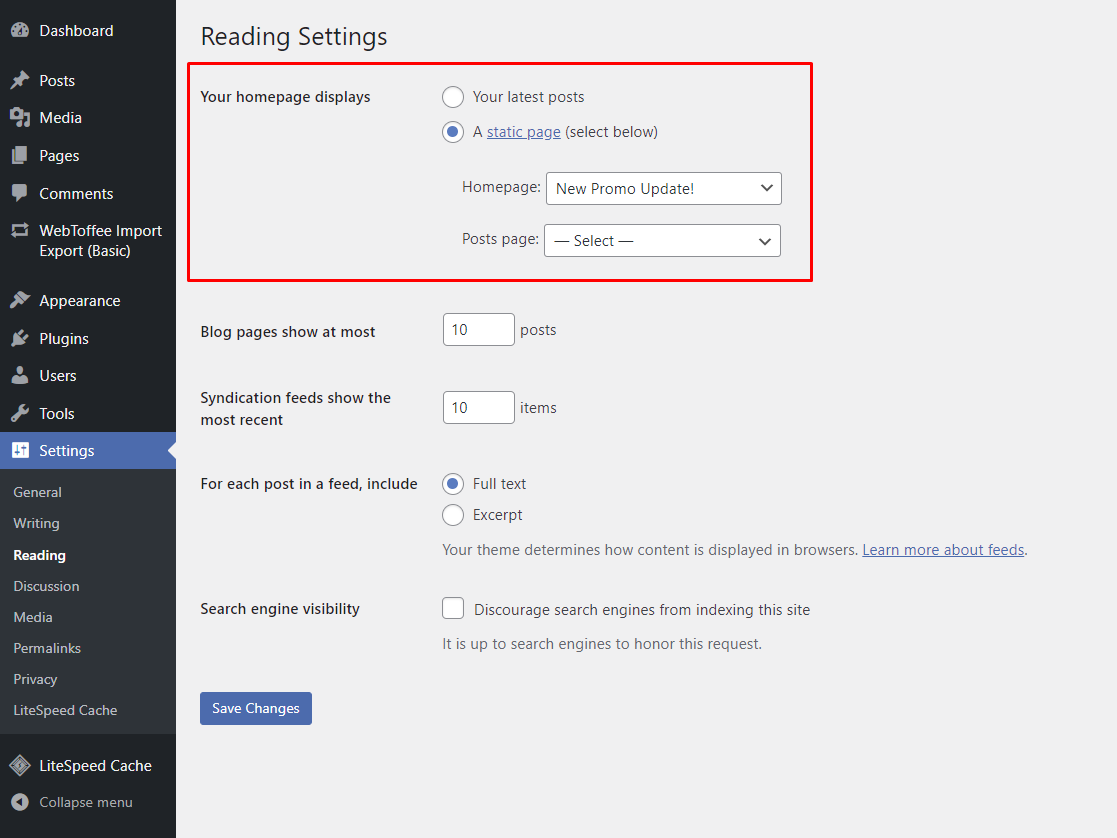
Look at the menu on the left side of the dashboard. Find the “Settings” option near the bottom. Hover over it or click to see more choices. Choose “Reading” from the list.
The Reading Settings page controls how your homepage works. Here, you can decide if your homepage shows your latest posts or a static page. This setting is key for changing your homepage content.
Credit: cyberchimps.com
Choosing Your Homepage Type
Choosing the right homepage type shapes your website’s first impression. It controls what visitors see first. A clear homepage can guide visitors better. WordPress offers two main homepage types. Each suits different website goals. Understanding both helps you pick the best option.
Setting A Static Page
A static page shows the same content all the time. It works well for business or portfolio sites. You create a special page for your homepage. This page stays fixed, no matter when visitors arrive. It lets you highlight key information clearly. You control the design and message fully. Visitors see your chosen content immediately.
Using Your Latest Posts
This homepage type displays your newest blog posts. It suits blogs or news sites that update often. Visitors see fresh content on every visit. WordPress automatically shows posts in order. This keeps your homepage dynamic and current. It encourages visitors to explore your latest ideas. The layout usually includes post titles, dates, and excerpts.
Creating A New Homepage
Creating a new homepage on WordPress lets you control what visitors see first. A fresh homepage can improve your site’s look and user experience. It starts with building a new page and then designing it to fit your style and goals.
Adding A New Page
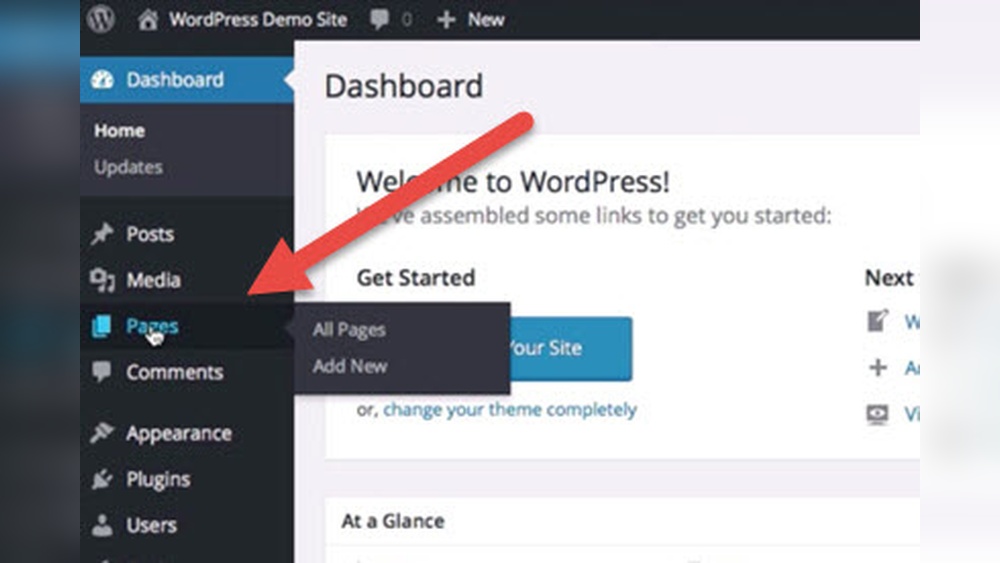
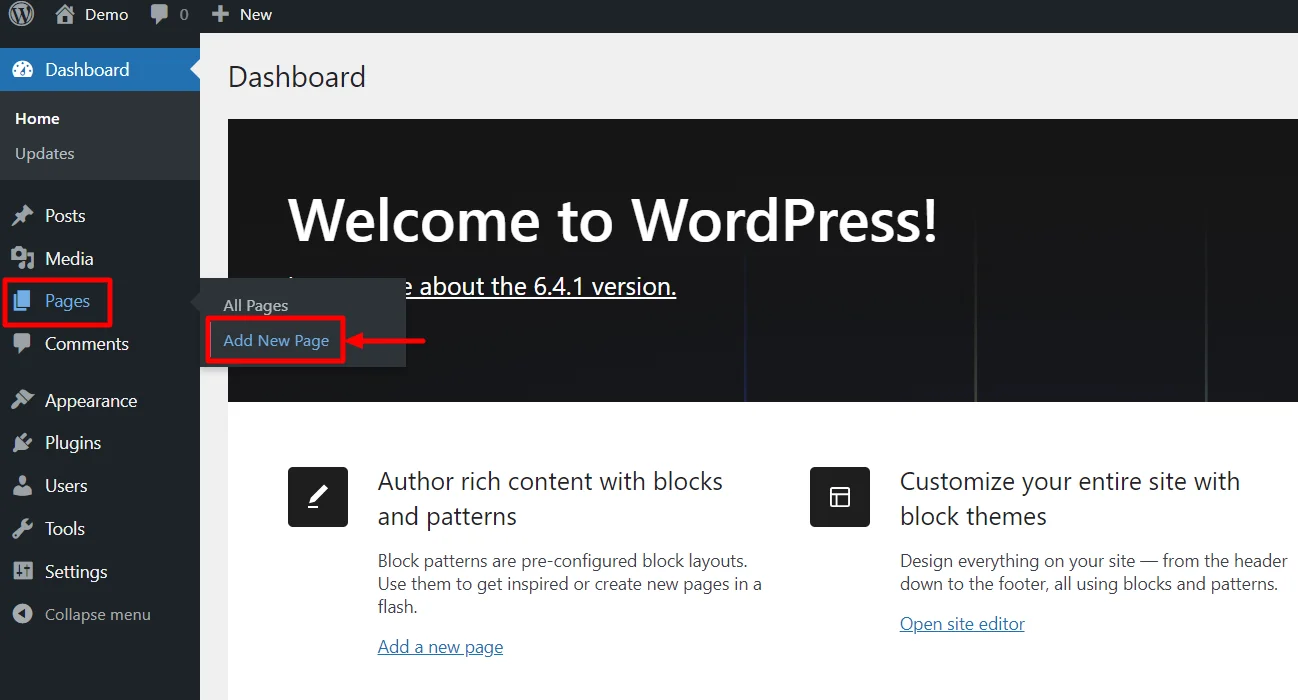
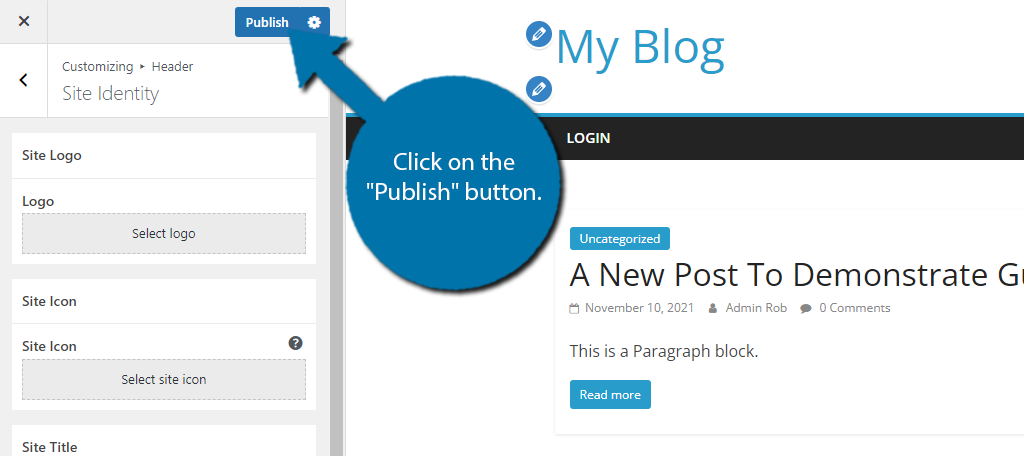
First, log in to your WordPress dashboard. Go to the Pages menu and click “Add New.” Give your page a clear title, like “Home.” This helps you find it easily later. Keep the content simple at first. You can add text, images, or anything you want on your homepage. Once done, click “Publish.” The page is ready to use.
Designing Your Homepage Layout
Next, choose how your homepage looks. Use the WordPress block editor to add sections. Blocks include text, images, buttons, and videos. Arrange them in a way that guides visitors. Make sure the layout is clean and easy to read. Use headings and short paragraphs to break content.
Check your homepage on different devices. It should look good on phones and tablets too. Adjust spacing and font size if needed. A well-designed homepage keeps visitors interested and helps them find what they need fast.
Assigning The Homepage
Assigning the homepage in WordPress lets you choose what visitors see first. This step is important for shaping your site’s first impression. You can set a static page as your homepage instead of showing your latest posts. This method helps create a clean, professional look.
Selecting The Static Page As Homepage
Go to your WordPress dashboard. Find the “Settings” menu and click on “Reading.” Under “Your homepage displays,” select “A static page.” From the dropdown menu, choose the page you want as your homepage. This page will appear when visitors visit your site’s main URL.
Saving Your Changes
After choosing the static page, scroll down to the bottom of the screen. Click the “Save Changes” button to apply your settings. Without saving, your homepage will not update. Refresh your website to see the new homepage live.
Customizing Your Homepage Further
Customizing your homepage further helps create a unique website. It improves user experience and keeps visitors interested. You can make changes beyond the basic setup to fit your style and needs. Two great ways to enhance your homepage are using page builders and adding widgets or plugins.
Using Page Builders
Page builders let you design pages with simple drag-and-drop tools. No coding skills needed. You can add images, text blocks, buttons, and more. Popular page builders like Elementor and Beaver Builder offer many templates. These templates help you start quickly and customize easily. Adjust layouts, colors, and fonts to match your brand. The visual interface shows changes instantly. This makes it easy to create a professional homepage look.
Adding Widgets And Plugins
Widgets add extra features to your homepage. They can show recent posts, social media feeds, or contact forms. Plugins extend your website’s functionality with tools for SEO, security, and speed. Choose plugins carefully to avoid slowing your site. Use widgets in sidebars, footers, or other widget-ready areas. Together, widgets and plugins make your homepage more interactive and useful. They help visitors find important information quickly.
Credit: www.greengeeks.com
Troubleshooting Common Issues
Changing your homepage on WordPress usually goes smoothly. Sometimes, small problems happen. These issues stop your new homepage from showing correctly. Troubleshooting helps find and fix these problems fast. This saves time and keeps your site looking right.
Homepage Not Updating
Sometimes you change the homepage, but the old page still shows. This happens because of caching. Caching stores old versions of your pages. Clear your browser cache first. Then, clear any cache from your WordPress caching plugin. If you use a hosting service with caching, clear it there too. After clearing caches, refresh your site. Your new homepage should appear.
Permalink Conflicts
Permalink conflicts can block your homepage update. WordPress uses permalinks to create page URLs. If two pages share the same permalink, WordPress may show the wrong page. Check your homepage permalink under Settings > Permalinks. Make sure no other page uses this URL. If there is a conflict, change the permalink of one page. Save your changes and refresh the site. This fixes most permalink problems.
Frequently Asked Questions
How Can I Set A Static Homepage In WordPress?
To set a static homepage, go to Settings > Reading in your WordPress dashboard. Choose “A static page” and select your desired homepage from the dropdown. Save changes to apply the new homepage.
Can I Use A Custom Page As My Homepage?
Yes, you can create a custom page and set it as your homepage. Design the page using the editor or page builder, then assign it as the homepage in Settings > Reading.
How Do I Revert To The Blog Posts Homepage?
Go to Settings > Reading and select “Your latest posts” as the homepage display option. Save your changes, and WordPress will show your blog posts on the homepage again.
Will Changing My Homepage Affect Seo Rankings?
Changing your homepage can impact SEO if not done carefully. Ensure your new homepage is well-optimized with relevant content, meta tags, and proper URL redirects if needed to maintain rankings.
Conclusion
Changing your homepage on WordPress is simple and quick. You only need to follow a few clear steps. This lets you show the content you want visitors to see first. Always check your changes to make sure everything looks right.
Keep your homepage updated to keep your site fresh and interesting. Now, you can control what people see when they visit your site. Take your time and enjoy customizing your WordPress homepage.



