
Backing up your WordPress website is one of the smartest moves you can make to protect your hard work. Imagine losing all your posts, images, and settings in an instant—scary, right?
But don’t worry, backing up your site is easier than you think. You’ll discover simple, step-by-step ways to secure your website’s data. Keep reading, and you’ll learn how to stay safe from unexpected crashes, hacks, or mistakes that could cost you everything.
Your website’s future depends on it!
Choosing The Right Backup Method
Choosing the right backup method for your WordPress website is important. Backups protect your site from data loss, hacks, and errors. You need a method that fits your skills and website needs. Some methods are simple but less flexible. Others offer more control but need technical knowledge. Understanding each option helps you pick the best one.
Manual Backup
Manual backup means you save your website files and database yourself. You use tools like FTP and phpMyAdmin. This method gives you full control over your data. It requires basic knowledge of file management and databases. You must regularly download and store files safely. This process can be time-consuming but is free. It suits those who want full control and don’t mind extra work.
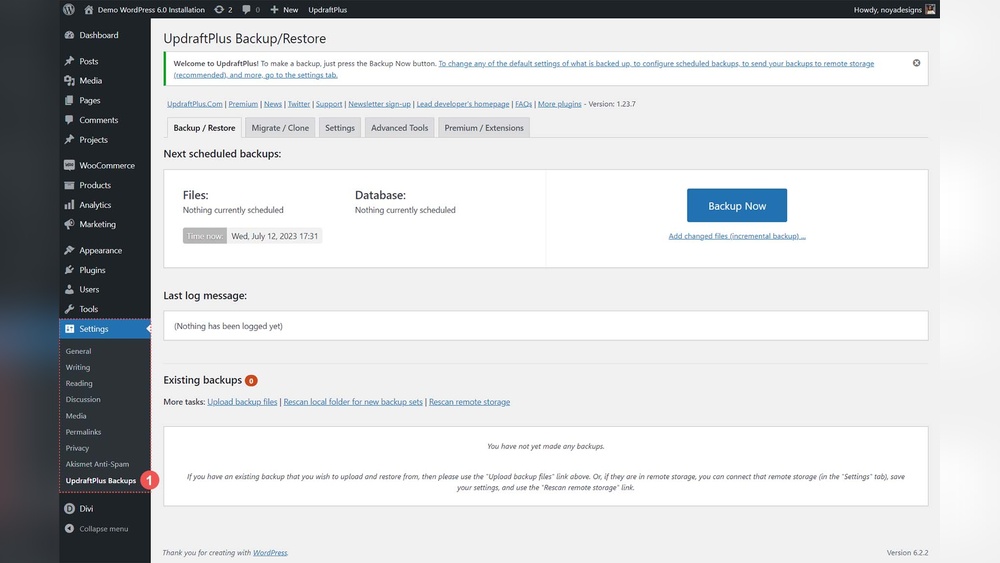
Backup plugins automate the backup process for WordPress sites. They create copies of your files and database quickly. Many plugins offer scheduling to run backups automatically. Some also save backups to cloud storage for safety. Plugins are easy to install and use. They fit users who want a simple, hands-off solution. Popular options include UpdraftPlus, BackWPup, and Duplicator.
Hosting Provider Backups
Many hosting providers offer backup services as part of their packages. These backups happen automatically on the server. You can often restore your website with one click. This method reduces your workload and risk of mistakes. It is ideal for beginners or busy site owners. Check your host’s backup frequency and retention policies. Not all hosts provide reliable or frequent backups.
Credit: agethemes.com
Preparing For Backup
Preparing for backup is a key step before saving your WordPress site data. It helps avoid errors and saves time. Take time to organize and check what you need. This makes the backup process smooth and safe.
Checking Website Size
Know how large your website is before backing up. This includes all files, images, and content. A big site takes longer to back up. It may also need more storage space. Use tools or plugins to find your site size quickly. This helps plan your backup method well.
Gathering Ftp And Database Details
Collect your FTP and database information early. FTP details let you access your website files. Database details hold your website’s content and settings. Keep your username, password, and server address ready. This information is vital for a full backup. Store these details safely for easy use.
Setting Backup Schedule
Decide how often to back up your site. Regular backups protect against data loss. Choose daily, weekly, or monthly timing. Pick a time when your site traffic is low. This reduces interruptions for visitors. Use backup plugins that allow automatic schedules. This keeps your backups consistent and up to date.
Backing Up WordPress Files
Backing up WordPress files is an important step to protect your website data. It saves your website content, design, and settings. Regular backups help you restore your site if something goes wrong. This section explains how to back up your WordPress files manually.
Accessing Website Files Via Ftp
FTP lets you connect to your website server directly. Use an FTP client like FileZilla to log in. Enter your FTP username and password from your hosting provider. Once connected, you see all your website files and folders. This access allows you to download and save your files safely.
Downloading WordPress Core Files
WordPress core files run your website’s basic functions. These files are in the root folder, usually named “public_html” or “www.” Select all these files and folders. Download them to your computer for backup. This step saves the WordPress system files needed to run your site.
Saving Themes And Plugins
Themes control how your website looks. Plugins add extra features. Both are in the “wp-content” folder. Open this folder and find “themes” and “plugins.” Download these folders to keep your custom designs and added features. Saving these files ensures your website looks and works the same after a restore.
Credit: www.elegantthemes.com
Backing Up The Database
Backing up your WordPress database is a vital step to protect your website data. The database stores all your posts, comments, and settings. Losing this data can cause serious issues for your site. Regular backups keep your site safe from errors or hacks. Below are two easy ways to back up your database.
Using Phpmyadmin For Database Export
phpMyAdmin is a popular tool to manage your WordPress database. It lets you export your database quickly. Start by logging into your web hosting control panel. Find and open phpMyAdmin. Select your WordPress database from the list.
Click on the “Export” tab at the top. Choose the “Quick” export method and select “SQL” as the format. Click the “Go” button to download your database file. Save this file in a safe place. This file holds all your website content and settings.
Exporting Database With Plugins
Plugins offer an easy way to back up your database without technical steps. Many free plugins help export your database automatically. Install a backup plugin from the WordPress plugin directory. Activate the plugin and open its settings.
Choose the option to back up the database only. Set a schedule if the plugin allows it. Start the backup process and download the file. Keep the backup files secure. Plugins simplify backups and help avoid mistakes.
Using Backup Plugins
Backing up your WordPress website is a smart step to protect your content and data. Using backup plugins makes this process simple and fast. These plugins help you save your site files and database without technical hassle.
Backup plugins are easy to install and use. They offer options to schedule backups and store them safely. This way, your website can be restored quickly after any problem.
Installing Popular Backup Plugins
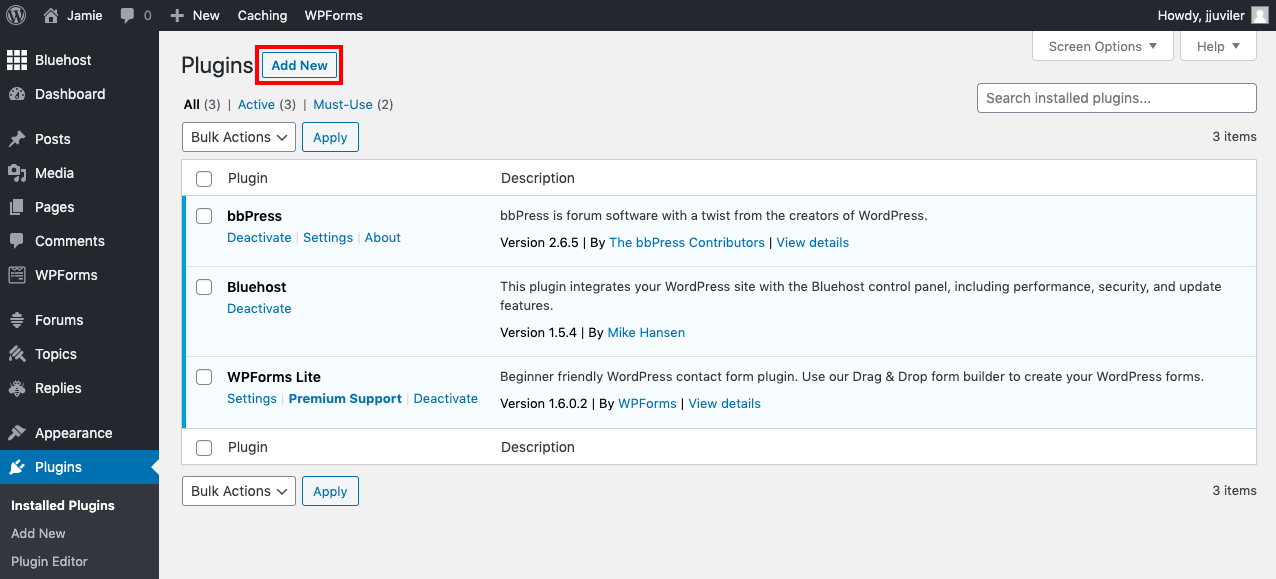
Go to your WordPress dashboard and find the “Plugins” menu. Click “Add New” and type the plugin name in the search bar. Popular choices include UpdraftPlus, BackWPup, and Duplicator. Click “Install Now” and then “Activate” to start using the plugin.
Configuring Backup Settings
Open the plugin settings from your dashboard menu. Choose how often to back up your site, like daily or weekly. Select what to save: files, database, or both. Pick a storage location such as cloud services or your server.
Running The Backup Process
Start the backup manually by pressing the backup button in the plugin. The plugin creates a copy of your website files and database. Wait until the process finishes to ensure a full backup. Check the backup files to confirm they are saved correctly.
Storing And Managing Backups
Backing up your WordPress website is only half the job. Storing and managing those backups properly is just as important. Without safe storage, your backups might not help when you need them most. Organizing backups well also saves time and stress during recovery. This section explains how to choose storage locations, automate backup storage, and restore your site from a backup.
Choosing Backup Storage Locations
Select storage spots that keep your backups safe and easy to access. Use cloud storage services like Google Drive or Dropbox for reliable offsite backups. External hard drives work well for local storage but keep them in a secure place. Avoid storing backups on the same server as your website. Doing so risks losing both site and backup if the server fails.
Automating Backup Storage
Set up automatic backup storage to save time and avoid errors. Many WordPress plugins offer scheduled backups that upload to your chosen storage location. Automating ensures backups happen regularly without your input. You can set daily, weekly, or monthly schedules depending on your website’s update frequency. Check your backups often to confirm the process works correctly.
Restoring From A Backup
Know how to restore your site quickly from a backup. Use your backup plugin’s restore feature or manually upload backup files via FTP. Follow clear steps to avoid missing files or causing errors. Test the restored site to confirm everything works as expected. Keep multiple backup copies in different locations for safer recovery options.
Best Practices For WordPress Backup
Backing up your WordPress website protects your content and settings. Follow best practices to keep your data safe and easy to restore. Proper backup habits reduce risks and save time during problems.
Regular Backup Frequency
Set a backup schedule that fits how often you update your site. For active sites, daily backups work well. For less active sites, weekly backups may be enough. Keep backups updated to avoid losing recent changes.
Testing Backup Integrity
Check your backup files regularly to ensure they are complete. Test restoring backups on a test site or local setup. This confirms that your backup works if you need it.
Securing Backup Files
Store backups in safe places, like cloud storage or external drives. Protect backup files with passwords or encryption. Avoid keeping backups only on your website server to prevent loss.

Credit: www.youtube.com
Frequently Asked Questions
How Often Should I Backup My WordPress Website?
You should backup your WordPress site at least once a week. More frequent backups are recommended for busy or frequently updated sites. Regular backups protect your data from loss due to hacking, updates, or server failures. Automated backup plugins can simplify this process.
What Are The Best WordPress Backup Plugins?
Popular WordPress backup plugins include UpdraftPlus, BackupBuddy, and BackWPup. These plugins offer automated scheduling, cloud storage options, and easy restoration features. Choose a plugin that fits your needs and budget. Always test backups to ensure they work correctly.
Can I Backup My WordPress Site Manually?
Yes, you can manually backup your WordPress site by exporting the database and downloading files via FTP. This method requires technical knowledge and is more time-consuming. Manual backups are useful for full control but less convenient than automated solutions.
Where Should I Store My WordPress Backups Safely?
Store WordPress backups in multiple locations like cloud storage (Google Drive, Dropbox) and local drives. Offsite backups protect your data from server crashes or hacks. Avoid storing backups on the same server as your website.
Conclusion
Backing up your WordPress website protects your work and data. Regular backups help avoid losing important files and content. Choose a method that fits your skills and budget. Keep backups in a safe place, separate from your website. Check your backups often to ensure they work well.
Taking these steps keeps your site safe and easy to restore. Don’t wait for problems—backup today and stay worry-free.



