
Imagine having the power to manage your WordPress site like a pro. You can control who has access to what, ensuring everything runs smoothly and securely.
But here’s the catch: not everyone needs to be an admin. Understanding WordPress user roles is key to protecting your site while empowering your team. We’ll dive into the ins and outs of WordPress user roles, focusing on how to wisely assign admin access.
Discover how a simple tweak in permissions can enhance your site’s security and efficiency. Are you ready to unlock the full potential of your WordPress site? Let’s get started!
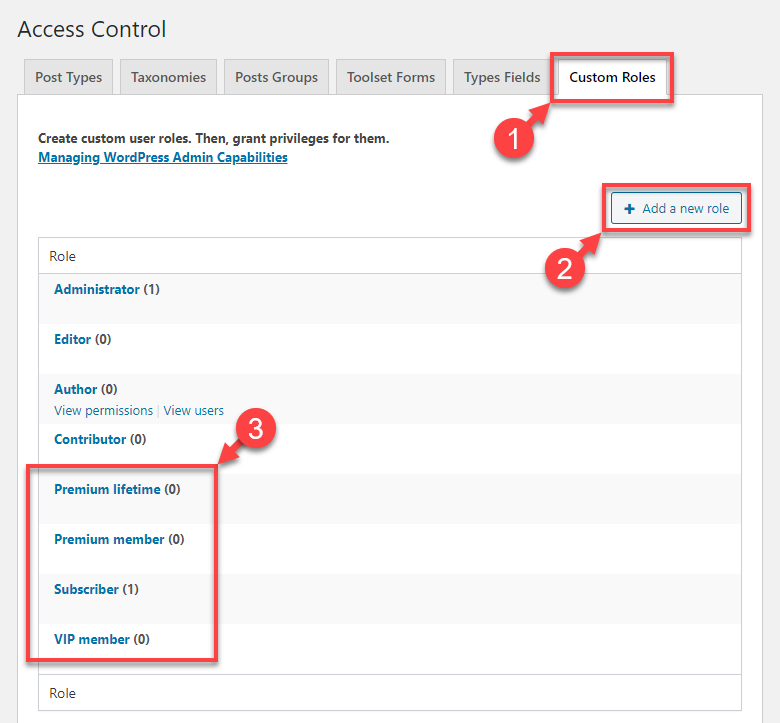
Credit: toolset.com
WordPress User Roles Overview
WordPress has different user roles. Each role has unique permissions. The Administrator can do everything. They manage the site. They can change settings. The Editor can publish and edit posts. Authors can write their own posts. They cannot edit others’ posts. Contributors write drafts. They cannot publish them. Subscribers can read posts. They cannot write or edit.
Choosing the right role is important. It keeps the site secure. It makes sure people have the right access. Always think carefully about which role to assign. It helps to avoid mistakes. It ensures smooth site operation.
Understanding Administrator Role
The Administrator role in WordPress is very important. It has the most powerful capabilities. An Administrator can manage settings and control the site. They can add and remove users. They also edit or delete content. This role can even install plugins and themes. It’s a role with many permissions.
Assign this role to trusted people only. They can make big changes. If someone misuses this role, the site can be in trouble. Only assign it if they need to manage the site. Make sure they understand the responsibilities. They should know how WordPress works. It’s best for people who maintain or develop the site.
Assigning Admin Access
First, go to your WordPress dashboard. You will see the Users option on the left. Click on it. Here, you can see all users. To change a user’s role, find their name. Click Edit next to their name. This takes you to the user settings page. User settings help you manage roles. Be careful when making changes.
Look for the Role dropdown menu in the settings. Click on it. You will see different roles like Subscriber, Editor, and Admin. Choose Admin to give admin access. After selecting, click Update User to save changes. Remember, admins have full control. Choose wisely. Admins can manage settings, users, and more. Make sure the person is trusted.

Credit: smartslider.helpscoutdocs.com
Security Considerations
Choosing the right user role for admin access in WordPress is crucial. Only trusted individuals should have this level of control. Incorrect settings can lead to security risks.
Risks Of Over-assigning Admin Rights
Giving too many people admin rights can be risky. Admins have access to important settings. They can change themes and plugins. This can harm your site if they make mistakes. Always limit admin access. Only trusted users should be admins. Review admin roles regularly. This keeps your site secure.
Monitoring User Activity
Keep an eye on user activities. Use plugins to track changes. This helps spot unusual behavior. If something looks wrong, check it fast. Remove access if needed. Logs show who made changes. Reviewing logs can prevent problems. Protect your site by staying alert.
Alternative User Roles
The Editor role has many benefits. Editors can manage all content. They can edit, publish, and delete posts. This role is great for content teams. Editors ensure content is perfect. They can also manage categories. This keeps the website organized. Editors do not need admin access. This limits potential risks.
Contributors can write and edit their own posts. They cannot publish them. An editor or admin must approve. This helps control content quality. Authors have more power than contributors. They can publish their own posts. But they can’t edit other users’ posts. Both roles are vital for team management. They help ensure website safety.
Customizing User Roles
Custom roles in WordPress help manage permissions. Plugins make this easy. They offer many features. Some plugins allow role creation. Others modify existing roles. Choose a plugin that suits your needs. Always check reviews before installing. Popular plugins include User Role Editor and Members. They simplify role customization. Each plugin has unique features. Explore them to find the best fit. Remember to back up your site before changes. This protects against errors. Plugins ensure flexibility in role management. They offer great control over user permissions. Use them wisely for better site management.
Best practices help avoid errors. First, define your needs clearly. Decide what each role should do. Keep roles simple and clear. Complex roles can confuse users. Use clear names for each role. This helps users understand their tasks. Regularly review roles for accuracy. Update them as site needs change. Restrict admin access to trusted users. This prevents unauthorized changes. Document all changes made to roles. This helps track modifications over time. Testing new roles is important. Ensure they work as expected. Never skip testing after changes.
Troubleshooting Admin Access Issues
Many users face admin access issues in WordPress. Sometimes, the username or password might be incorrect. Other times, the admin role is removed by accident. A plugin conflict can also cause problems. Users may also see a blank page after login. This is called the white screen of death. It’s frustrating, but solutions exist.
- Check your username and password. Ensure they are correct.
- Try resetting the password. Use the “Lost your password?” link.
- Disable all plugins. See if the issue disappears.
- Switch to a default theme like Twenty Twenty.
- Verify the user role in the database. Ensure it’s set to admin.
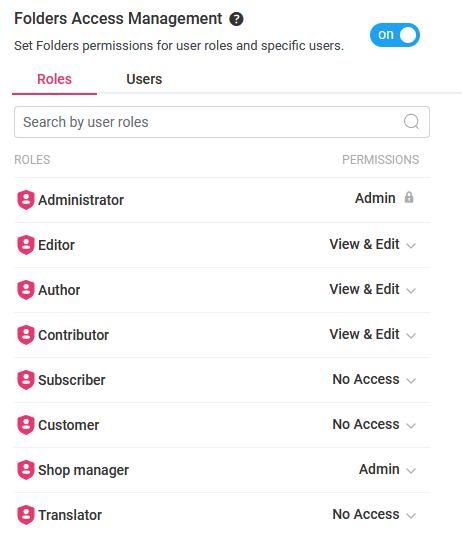
Credit: premio.io
Frequently Asked Questions
How Do I Give Admin Access In WordPress?
To give admin access in WordPress, navigate to “Users” in your dashboard. Select “Add New” and enter the user’s details. Assign the “Administrator” role before saving. This grants full control over site management, including theme changes, plugin installations, and settings adjustments.
What Is The Administrator Role In WordPress?
The Administrator role in WordPress offers complete control over the website. Admins can install plugins, change themes, edit content, manage users, and modify settings. It’s essential to assign this role cautiously due to its extensive permissions, ensuring only trusted individuals have access.
Can I Restrict Admin Permissions In WordPress?
Restricting admin permissions isn’t directly possible through WordPress roles. However, plugins like “User Role Editor” offer flexibility. They enable customization of capabilities, tailoring admin access to specific needs. This ensures enhanced security by controlling what each admin can do on your site.
How Many Admin Users Should WordPress Have?
Typically, WordPress should have a limited number of admin users. This minimizes security risks and ensures streamlined site management. Ideally, assign admin roles to trusted individuals with technical expertise. Regularly review user access to maintain a secure and efficient environment.
Conclusion
Choosing the right user role is crucial for WordPress access. Admin roles have full control. They manage settings, users, and content. Editors can modify posts, but lack admin privileges. Authors only write and edit their posts. Contributors draft content but can’t publish.
Subscribers simply read and comment. Always assess needs before assigning roles. Protect your site with careful access management. Regularly review roles for security. Clear roles prevent confusion. Empower users to work effectively. Maintain a safe, efficient WordPress environment. Understanding user roles ensures smooth operation.
Make informed decisions for your site’s success.



