
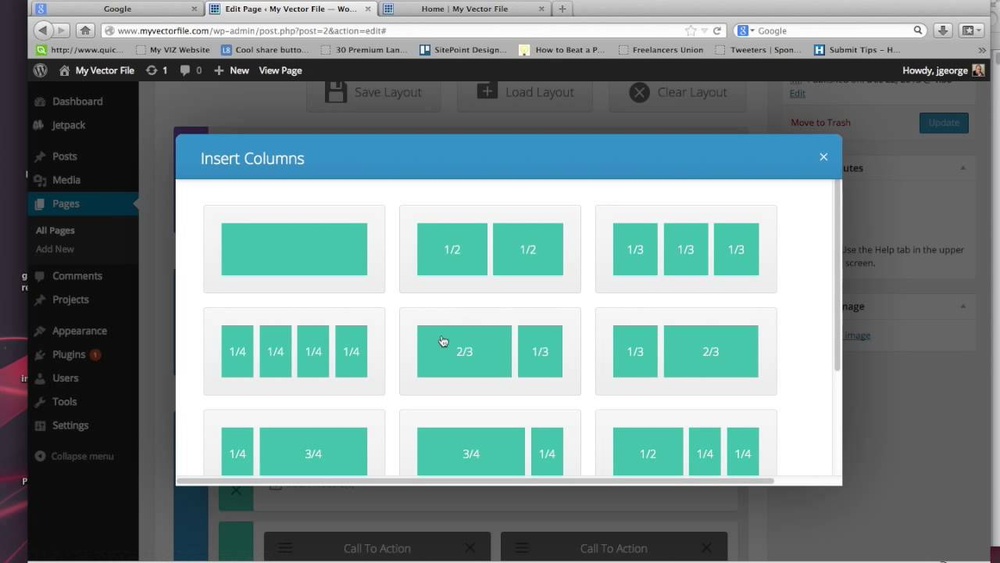
Are you wondering if WordPress makes building your website easy with drag and drop features? You’re not alone.
Many people want a simple way to design pages without needing to code or hire a developer. Imagine being able to move elements around your site just by clicking and dragging—no technical skills required. You’ll discover exactly how WordPress handles drag and drop.
By the end, you’ll know if it fits your needs and how to get started quickly. Keep reading to unlock the secret to building your dream website with ease!
Credit: www.themexpert.com
Drag And Drop In WordPress
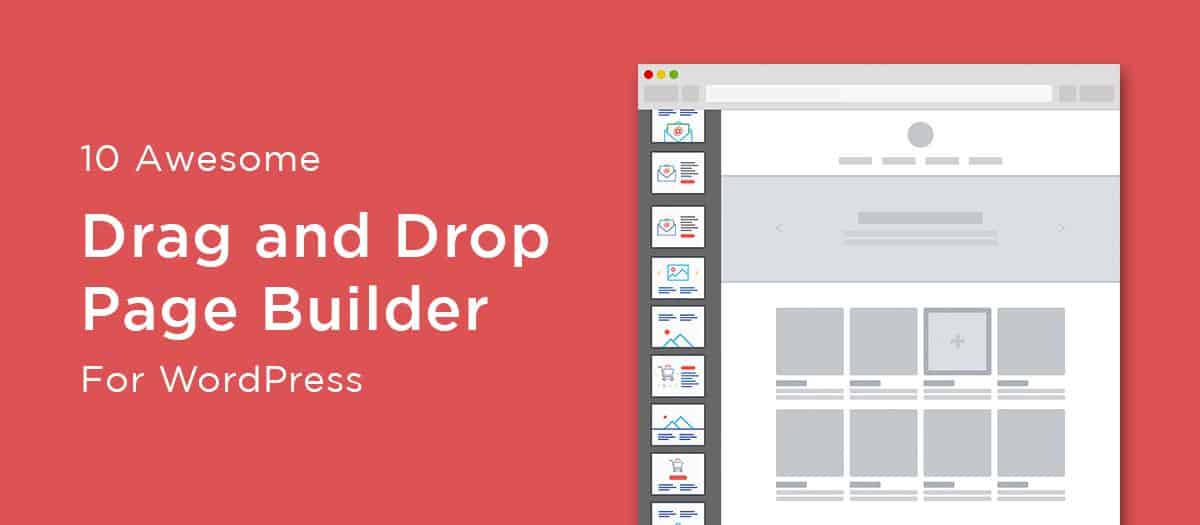
Drag and drop in WordPress makes website building simple and fast. It lets users move elements on a page by clicking and dragging. This feature helps create layouts without coding. Many WordPress themes and plugins support drag and drop tools. These tools help design pages visually, showing changes immediately.
How Drag And Drop Works
Drag and drop works by letting users select an element on the screen. Users hold the mouse button and move the element to a new spot. Then, they release the button to place it there. This action updates the page layout right away. No need to write any code or use complex menus. The interface is usually clean and user-friendly. It shows what the page will look like as you build it.
Benefits For Beginners
Beginners find drag and drop easy to learn and use. It removes the need to understand coding languages. Users can experiment with page design freely. Mistakes are easy to fix by moving elements again. This method saves time and reduces frustration. It gives confidence to create attractive websites. Users see results instantly, making the process fun and clear.
Built-in WordPress Editors
WordPress includes built-in editors to create and manage content. These editors help users build pages and posts easily. They offer different ways to add text, images, and other elements. Understanding these editors shows if WordPress truly supports drag and drop.
Block Editor (gutenberg)
The Block Editor, also called Gutenberg, uses blocks for content. Each block is a separate piece like a paragraph, image, or video. Users can move blocks up or down with simple clicks. This makes arranging content easy and flexible.
Blocks allow dragging and dropping inside the editor. You can reorder blocks by dragging them. This gives a basic drag-and-drop feel inside WordPress. The editor also offers many block types for different content needs.
Classic Editor Limitations
The Classic Editor is older and works like a simple text box. It lacks drag-and-drop for content parts inside the editor. Users must write and format using buttons and menus.
This editor does not allow moving images or text blocks by dragging. It limits flexible page design inside WordPress. Many users prefer the Block Editor for easier content control.
Popular Drag And Drop Plugins
Drag and drop plugins make building WordPress sites simple. They let users design pages by moving elements. No coding is needed. These tools help create beautiful layouts fast. Many plugins offer different features and styles. Here are some popular drag and drop plugins worth knowing.
Elementor
Elementor is one of the top WordPress page builders. It has a clear and easy interface. Users drag widgets like text, images, and buttons onto pages. Real-time editing shows changes instantly. It works well with most themes. Elementor offers free and paid versions. Its popularity comes from flexibility and fast performance.
Beaver Builder
Beaver Builder is another popular drag and drop plugin. It focuses on simplicity and reliability. Users can create responsive designs that look good on all devices. The plugin has a front-end editor with live previews. It supports custom post types and WooCommerce. Beaver Builder suits beginners and advanced users alike.
Divi Builder
Divi Builder stands out with its visual editor and many design options. It includes modules for sliders, forms, and galleries. The plugin allows users to save and reuse layouts. Divi Builder integrates with the Divi theme but also works with others. It’s a good choice for those who want creative control.
Choosing The Right Plugin
Choosing the right drag-and-drop plugin for WordPress is important. It affects how easily you build and customize your site. Many plugins offer different options. Some focus on simplicity. Others provide advanced tools. Picking one that fits your needs saves time and effort. Consider what matters most to you before deciding.
Ease Of Use
Look for a plugin that is simple to learn. The interface should be clear and intuitive. Dragging and dropping elements should feel natural. A steep learning curve can slow down your work. Beginners benefit from plugins with helpful tutorials. Quick setup lets you start building right away.
Features And Flexibility
Check which features the plugin offers. Basic tools like text, images, and buttons are a must. Some plugins add extra options like animations or custom layouts. Flexibility matters if you want a unique design. Choose a plugin that adapts to your style. Avoid those that limit your creativity.
Pricing And Support
Many drag-and-drop plugins have free versions. These often have limited features. Paid versions unlock more tools and options. Compare prices carefully. Also, check if the plugin offers good support. Reliable customer service helps solve problems fast. Good support improves your overall experience.
Setting Up A Drag And Drop Page
Setting up a drag and drop page in WordPress makes website building simple. It allows you to design pages by moving elements instead of coding. This method saves time and gives you control over your site’s look. Below are steps to start creating your own drag and drop page.
Installing A Plugin
WordPress does not have built-in drag and drop features. You need a plugin for this function. Search for popular drag and drop page builders like Elementor or Beaver Builder. Go to your WordPress dashboard, click “Plugins,” then “Add New.” Type the plugin name in the search box. Click “Install Now” and then “Activate.” The plugin is now ready to use.
Creating Your First Page
After activating the plugin, go to “Pages” and click “Add New.” Enter a title for your page. Look for the button to launch the drag and drop editor, usually labeled “Edit with [Plugin Name].” Click it to open the visual editor. The editor shows a blank page where you can add content blocks and elements.
Adding And Arranging Elements
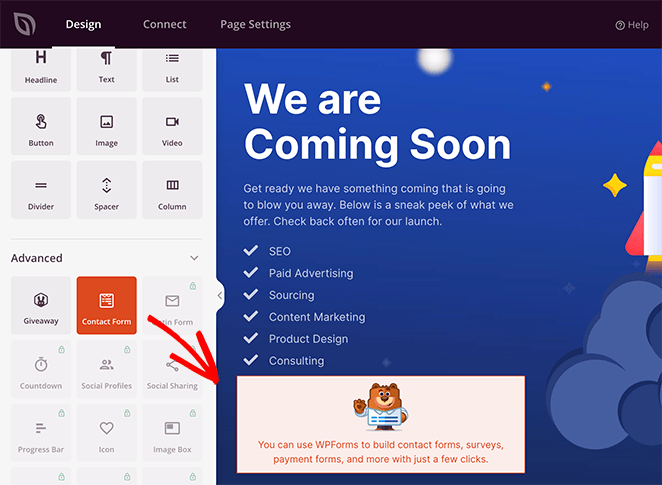
Drag elements like text, images, and buttons from the sidebar into your page. Drop them in the desired spot. Rearrange elements by dragging them up or down. Each block can be customized with simple options. Adjust colors, fonts, and sizes easily. This way, you build a page that fits your style without code.
Credit: www.monsterinsights.com
Tips For Effective Page Design
Designing a webpage with drag and drop tools in WordPress can be easy and fun. Good design helps visitors find information fast. It also makes your site look professional and trustworthy. Follow these tips to create effective pages that keep visitors engaged and happy.
Maintaining Consistency
Use the same colors, fonts, and styles across all pages. Consistent design creates a smooth experience for visitors. It helps people recognize your brand quickly. Keep headings, buttons, and spacing uniform. Avoid mixing too many styles or fonts on one page.
Optimizing For Mobile
Many users visit websites on phones and tablets. Make sure your design adapts to smaller screens. Use drag and drop blocks that are mobile-friendly. Test your pages on different devices. Avoid tiny buttons or crowded layouts that are hard to navigate.
Speed And Performance
Fast-loading pages keep visitors longer and improve search ranking. Use lightweight drag and drop plugins that do not slow your site. Compress images before uploading. Limit the number of elements on each page. Clean, simple designs load quicker and work better.
Common Issues And Fixes
Using drag and drop features in WordPress can sometimes lead to issues. Many users face common problems that block smooth editing. Understanding these issues helps fix them fast. This section highlights typical problems and easy solutions.
Plugin Conflicts
Plugins add extra features but may clash with drag and drop tools. Conflicts can cause errors or stop the editor from working. To fix this, deactivate all plugins and check the editor. Activate plugins one by one to find the problem. Update plugins and WordPress to the latest versions. Use only trusted and compatible plugins.
Responsive Design Problems
Drag and drop editors might not always show well on phones or tablets. Elements can look broken or misplaced. Test your site on different devices often. Use editor settings to adjust layouts for mobile views. Choose themes and plugins that support responsive design. Clear cache to see changes immediately.
Saving And Publishing Errors
Sometimes changes do not save or publish correctly. This issue frustrates many users. Check your internet connection first. Clear your browser cache and cookies. Disable browser extensions that may block scripts. Increase your site’s PHP memory limit if needed. Save changes in smaller steps to avoid errors.

Credit: visualmodo.com
Frequently Asked Questions
Does WordPress Have Built-in Drag And Drop Features?
WordPress itself does not include built-in drag and drop page building. However, many plugins provide this functionality. Popular plugins like Elementor and Beaver Builder offer easy drag and drop editing. These tools simplify designing pages without coding, making WordPress more user-friendly.
Which WordPress Plugins Offer Drag And Drop Builders?
Top drag and drop plugins for WordPress include Elementor, Divi Builder, Beaver Builder, and WPBakery. These plugins allow users to create custom layouts visually. They come with pre-built templates and elements to speed up design. Most support responsive design and are beginner-friendly.
Can I Use Drag And Drop With WordPress Themes?
Yes, many WordPress themes are compatible with drag and drop builders. Themes like Astra, OceanWP, and GeneratePress work well with page builder plugins. This compatibility ensures smooth integration and flexibility in customizing your site’s appearance without coding skills.
Is Drag And Drop Editing Good For Beginners?
Drag and drop editors are ideal for beginners. They eliminate the need to write code while building pages. Users can visually arrange content blocks easily. This approach saves time and reduces frustration, making website creation accessible to non-technical users.
Conclusion
WordPress offers drag and drop features through plugins and themes. These tools help you build websites easily without coding. Many popular page builders work well with WordPress. You can create layouts by simply dragging elements around. This makes website design faster and less stressful.
Beginners find drag and drop very helpful. It lets you focus on content, not technical details. Overall, WordPress supports drag and drop options for simple website creation. Try different plugins to find what fits your needs best. Your website can look professional with little effort.



