
Are you wondering if Mailchimp works seamlessly with your WordPress site? If you want to grow your email list, send stunning newsletters, and boost your website’s engagement, knowing how these two tools connect is key.
Imagine having an easy way to capture visitors’ emails right from your site and managing your campaigns without hassle. You’ll discover exactly how Mailchimp integrates with WordPress and what it means for your business. Keep reading to find out how to make the most of this powerful combo.
Mailchimp And WordPress Compatibility
Mailchimp and WordPress are two popular tools for website owners and marketers. WordPress helps build websites easily. Mailchimp allows sending emails to many people at once. Connecting these two tools can improve how you manage your website and email campaigns.
Mailchimp works well with WordPress. They share information smoothly. This compatibility helps gather email addresses from your site visitors. It also allows sending targeted emails based on visitor actions. Many plugins make this connection simple to set up and use.
Why Connect Mailchimp With WordPress
Connecting Mailchimp with WordPress lets you collect emails directly from your site. Visitors can subscribe to newsletters with ease. The integration helps automate your email marketing. It saves time by syncing contacts automatically.
You can create signup forms that match your website design. Also, track how people interact with your emails and website. This helps improve your marketing strategy step by step. The connection makes managing contacts and campaigns easier.
Benefits Of Integration
One benefit is better audience targeting. You can send personalized emails based on visitor behavior. This increases chances people will read and click your emails.
The integration also improves user experience on your site. Visitors see relevant signup forms and messages. This encourages more signups and builds your email list faster.
Another benefit is saving time. The syncing process is automatic. No need to export or import contacts manually. This reduces mistakes and keeps your list updated.
Credit: www.ionos.com
Choosing The Right Mailchimp Plugin
Choosing the right Mailchimp plugin for WordPress is important. The right plugin helps you connect your website with your email marketing easily. It should fit your needs and budget. Also, it must be simple to use and reliable.
Many plugins offer different features. Some focus on easy setup. Others provide advanced tools for email campaigns. Think about what matters most for your site.
Popular Plugins For Integration
Several plugins work well with Mailchimp and WordPress. “Mailchimp for WordPress” is popular and user-friendly. It helps create sign-up forms quickly. Another option is “MC4WP: Mailchimp for WordPress.” It offers extra customization and tracking.
“Easy Forms for Mailchimp” stands out for its simple design. It fits small sites with basic needs. “Mailchimp Forms by MailMunch” also adds good design options and pop-ups.
Comparing Features And Pricing
Most plugins have free and paid versions. Free versions offer basic features like simple forms and email list syncing. Paid versions add tools like advanced analytics and automation.
Price varies by plugin. Some charge monthly fees. Others offer one-time payments. Choose a plugin with features you need and a price you can afford.
Check plugin reviews and updates. Frequent updates mean better security and performance. Good support helps solve problems fast.
Setting Up Mailchimp On WordPress
Setting up Mailchimp on WordPress is simple and quick. This process helps you collect emails and send newsletters directly from your site. Follow these steps to get started without hassle.
Installing The Plugin
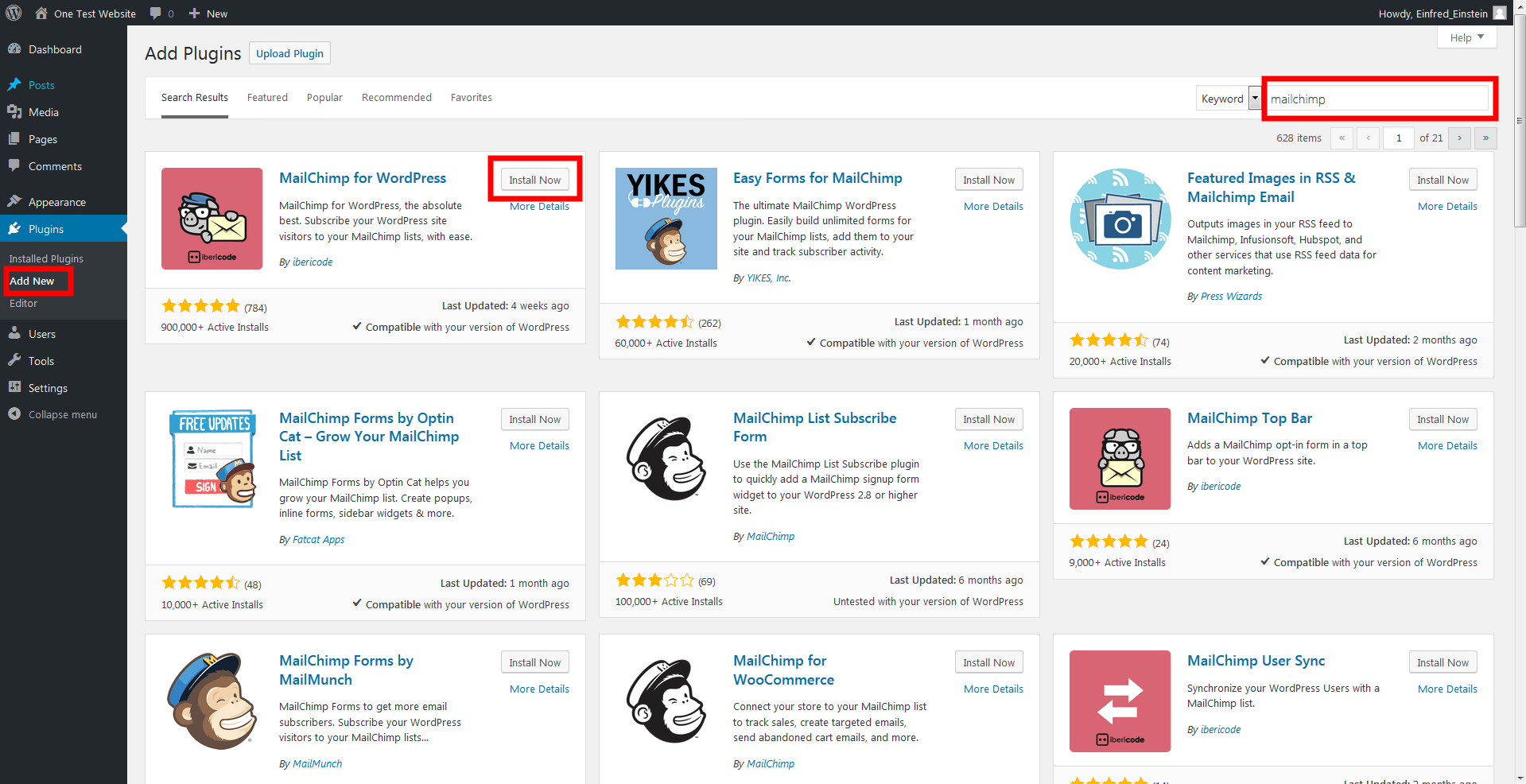
First, go to your WordPress dashboard. Click on “Plugins” and then “Add New.” Search for “Mailchimp for WordPress.” Find the plugin and click “Install Now.” After installation, press “Activate” to enable it.
Connecting Your Mailchimp Account
Next, open the Mailchimp plugin settings. You need your Mailchimp API key to connect. Log in to your Mailchimp account, find the API key under “Account” and “Extras.” Copy the key and paste it in the plugin settings. Click “Connect” to link your account.
Configuring Basic Settings
Set up your mailing list in the plugin. Choose the list where you want to collect emails. Customize the signup form fields to match your needs. Save your settings. Your Mailchimp is ready to collect subscribers on WordPress.

Credit: zapier.com
Creating And Embedding Signup Forms
Creating and embedding signup forms is key to growing your email list. Mailchimp and WordPress work well together to make this easy. You can design forms in Mailchimp, then add them to your WordPress site. This helps capture visitor emails and build your audience.
Designing Forms In Mailchimp
Start by logging into your Mailchimp account. Choose the “Signup Forms” option from the audience dashboard. You can pick from different form types like embedded forms or pop-ups. Customize the form’s colors, fields, and text to match your brand. Keep the design simple and clear for visitors.
Adding Forms To WordPress Pages
After designing, grab the form’s embed code from Mailchimp. Go to your WordPress dashboard and open the page or post editor. Switch to the HTML or code view. Paste the embed code where you want the form to appear. Save or update the page to see the form live on your site.
Using Widgets And Shortcodes
WordPress lets you add Mailchimp forms using widgets or shortcodes. Navigate to Appearance > Widgets in your WordPress dashboard. Drag a Custom HTML widget to your sidebar or footer area. Paste the form embed code there. Alternatively, use a plugin that supports Mailchimp shortcodes. Insert the shortcode in posts or pages to display forms easily.
Automating Email Campaigns
Automating email campaigns saves time and keeps your audience engaged. Mailchimp integrates smoothly with WordPress to help automate emails easily. This automation sends emails based on user actions without manual work. It boosts your email marketing by sending timely messages to subscribers. Setting up these automated emails is simple and effective.
Setting Up Welcome Emails
Welcome emails greet new subscribers as soon as they join your list. Mailchimp lets you create a welcome email that sends automatically after signup. This builds a good first impression and starts a relationship with your audience. You can customize the message and design to match your brand. Welcome emails often include a thank you note or a special offer.
With WordPress integration, new users who sign up on your site get this email immediately. This automation works quietly in the background, giving subscribers instant contact. It helps keep your list active and interested from the start.
Using Automation Triggers
Automation triggers send emails based on specific actions or dates. Mailchimp offers many trigger options like website visits, purchases, or birthdays. These triggers personalize emails and make them more relevant to subscribers.
In WordPress, you can link user activities to these triggers. For example, a trigger can send a follow-up email after a user downloads a file. Or it can remind users about items left in their shopping cart. Triggers keep your emails timely and useful, increasing engagement and sales.
Troubleshooting Common Issues
Integrating Mailchimp with WordPress can sometimes cause issues. These issues often slow down your work or stop some features from working. Troubleshooting helps fix these problems fast. It also keeps your email marketing running smoothly. Below are common problems and how to solve them.
Fixing Plugin Conflicts
Plugins can clash with each other. This causes errors or stops Mailchimp from working properly. Deactivate other plugins one by one. Check if Mailchimp starts working after turning off each plugin. This helps find the conflicting plugin. Update all plugins and WordPress to their latest versions. Sometimes, old versions cause conflicts. Clear your site cache after updates to avoid loading issues.
Handling Api Connection Errors
API errors happen when Mailchimp cannot connect to WordPress. Check if your API key is correct. Copy it again from your Mailchimp account. Paste it carefully in your WordPress Mailchimp settings. Make sure there are no extra spaces. Also, check your internet connection. Sometimes slow or blocked connections cause errors. If errors continue, try generating a new API key. Replace the old key with the new one in settings.
Optimizing Integration For Better Results
Optimizing the integration between Mailchimp and WordPress can improve your email marketing success. It helps you connect better with your audience and grow your subscriber list. Simple adjustments can make your campaigns more effective.
Focusing on key features like tracking subscriber activity and improving form conversion rates can boost your results. These steps help you understand your audience and encourage more sign-ups.
Tracking Subscriber Activity
Tracking subscriber activity shows how people interact with your emails. Mailchimp provides tools to monitor opens, clicks, and unsubscribes. This data helps you see what content works best.
Linking this information to your WordPress site reveals user behavior on your pages. It gives insight into which posts or products attract attention. Use this data to tailor your email content and timing.
Improving Form Conversion Rates
Improving form conversion rates means getting more visitors to sign up. Design simple and clear signup forms on your WordPress site. Use strong calls to action to encourage users to subscribe.
Test different form placements, colors, and messages to find what works best. Mailchimp forms can be customized to match your site design. A good form reduces friction and increases subscriber growth.
Credit: cyberpanel.net
Frequently Asked Questions
Does Mailchimp Work With WordPress Websites?
Yes, Mailchimp integrates seamlessly with WordPress. You can add signup forms and sync subscriber data easily using plugins or custom code.
How To Connect Mailchimp With WordPress Plugin?
Install a Mailchimp WordPress plugin like Mailchimp for WordPress (MC4WP). Then, enter your API key to link your account and manage lists.
Can I Use Mailchimp Forms On WordPress Pages?
Absolutely. Mailchimp forms can be embedded on WordPress pages using shortcodes or blocks, helping you grow your email list effectively.
Is Mailchimp Integration Free On WordPress?
Basic Mailchimp integration is free through plugins. However, advanced features or high subscriber counts may require paid Mailchimp plans.
Conclusion
Mailchimp connects easily with WordPress sites. This integration helps you collect emails and send newsletters. You can use simple plugins to link both platforms. It saves time and keeps your audience engaged. Many WordPress users find this combo useful for marketing.
Setting it up does not require advanced skills. Try it to see how it improves your email campaigns. It’s a smart choice for growing your website audience.



