
Are you wondering if Dreamweaver can help you build or manage your WordPress site? You’re not alone.
Many people ask whether these two powerful tools work well together. If you want to create a stunning website without endless coding headaches, understanding how Dreamweaver and WordPress connect could save you time and effort. Keep reading to discover how these tools can boost your web design process and what you need to know to make them work for you.
Credit: www.hostpapa.com
Dreamweaver And WordPress Compatibility
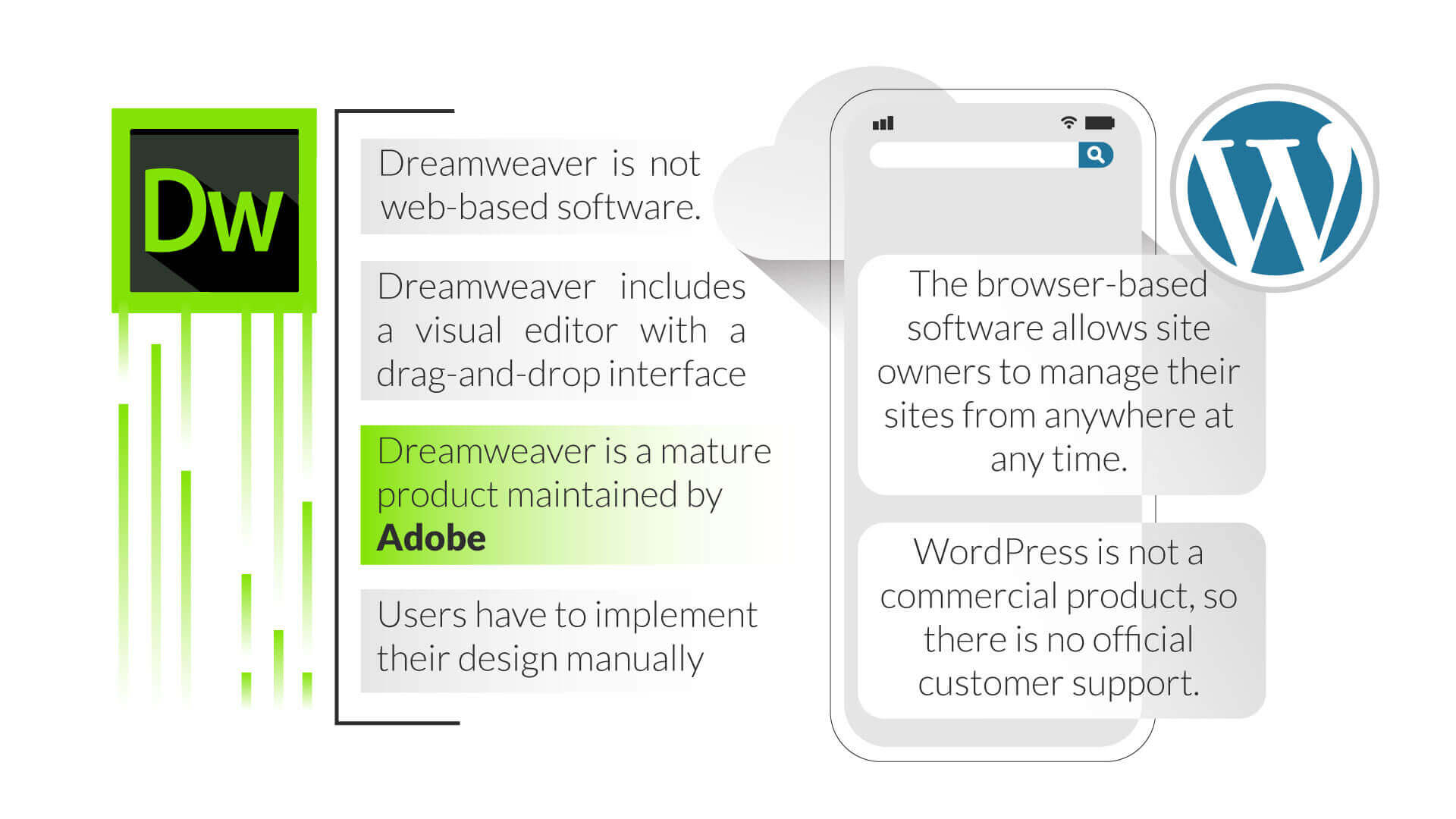
Dreamweaver and WordPress can work together, but with some care. Dreamweaver is a web design tool. WordPress is a popular content management system. Their compatibility depends on how you use Dreamweaver for WordPress sites.
Dreamweaver allows editing WordPress themes and templates. It supports coding in PHP, HTML, and CSS. These are the languages WordPress uses. This makes Dreamweaver useful for custom WordPress development.
How Dreamweaver Supports WordPress
Dreamweaver offers code highlighting for PHP and HTML. It helps developers write clean and organized code. You can open WordPress theme files directly in Dreamweaver. It supports FTP and SFTP, allowing file uploads to WordPress servers.
Its visual editor shows how themes look while coding. This live preview feature saves time. Dreamweaver also integrates with Git, which helps manage WordPress code versions. It does not install WordPress but edits its files well.
Key Features For WordPress Development
Code hinting in Dreamweaver suggests WordPress functions and tags. This feature speeds up coding and reduces errors. The built-in CSS designer helps style WordPress themes easily. It supports responsive design for mobile-friendly sites.
Dreamweaver allows you to manage multiple site files in one place. This is useful for complex WordPress projects. The FTP client lets you upload and test changes quickly on your WordPress site.
Limitations To Consider
Dreamweaver does not have built-in WordPress theme builders. It cannot install or update WordPress plugins. Beginners might find coding in Dreamweaver difficult without WordPress knowledge.
There is no direct integration with WordPress dashboards. Changes must be uploaded manually to the server. Dreamweaver’s design view may not always show dynamic WordPress content correctly.
Setting Up Dreamweaver For WordPress
Setting up Dreamweaver for WordPress lets you edit website files with ease. It helps manage themes and plugins in one place. Proper setup saves time and avoids errors. Follow simple steps to prepare Dreamweaver for WordPress development.
Installing Required Extensions
Dreamweaver needs some extensions to work well with WordPress. These add tools for PHP and WordPress code support. Open Dreamweaver’s Extension Manager. Search for WordPress or PHP-related extensions. Install the extensions and restart Dreamweaver. This makes coding easier and faster.
Configuring Local And Remote Servers
Set up both local and remote servers in Dreamweaver. The local server stores files on your computer. The remote server connects to your live WordPress site. Open Site Setup in Dreamweaver. Enter your local folder path and server details. Choose the right server model like PHP MySQL. Save settings to sync files correctly.
Connecting To WordPress Sites
Dreamweaver connects directly to WordPress sites via FTP or SFTP. In Site Setup, add your FTP login information. Use your host, username, and password. Test the connection to ensure it works. Once connected, you can upload and edit files easily. This simplifies managing WordPress themes and plugins.
Designing WordPress Themes In Dreamweaver
Designing WordPress themes in Dreamweaver offers a clear path for building custom websites. It blends code editing with visual tools. This balance helps users create themes that look good and work well. Dreamweaver supports the main WordPress files. It also lets you customize style and layout with ease.
This approach suits beginners and those with some coding knowledge. Dreamweaver’s environment makes theme design more manageable. It shows both the code and how the site looks. That way, changes update in real time, saving time and effort.
Working With WordPress Template Files
WordPress themes use template files to structure content. These include files like header.php, footer.php, and index.php. Dreamweaver lets you open and edit these files directly. It highlights PHP, HTML, and JavaScript code. This makes spotting errors easier. You can see how each template fits together in the theme.
Editing these files in Dreamweaver helps control how posts and pages appear. It also allows adding custom functions. This control is key to building unique WordPress themes.
Using Dreamweaver’s Visual Tools
Dreamweaver offers visual tools that show your theme design live. Drag-and-drop features help place images and text blocks. The split view shows code and design side-by-side. You can make edits and see results immediately. This visual feedback helps avoid mistakes.
The visual editor works well for layout changes. It simplifies adjusting margins, padding, and element size. These tools help create responsive designs that look good on phones and tablets.
Customizing Themes With Css And Php
CSS controls the look of your WordPress theme. Dreamweaver lets you edit CSS files with color pickers and code hints. Changing fonts, colors, and spacing becomes simple. You see style changes instantly in the design view.
PHP customization adds dynamic features to your theme. Dreamweaver supports PHP code editing with syntax highlighting. This helps add custom functions or modify theme behavior. Editing PHP in Dreamweaver improves theme flexibility and uniqueness.
Credit: www.elegantthemes.com
Managing WordPress Plugins Via Dreamweaver
Managing WordPress plugins through Dreamweaver brings a simple way to control and customize your site. Dreamweaver lets you open, edit, and save plugin files directly. This helps keep your plugins updated and tailored to your needs without leaving the editor.
Using Dreamweaver can improve your workflow. It provides a clear view of plugin code and folders. This makes it easier to organize and manage changes efficiently.
Editing Plugin Files Safely
Always back up your site before editing plugin files. Dreamweaver allows you to edit PHP, CSS, and JavaScript files easily. Use its built-in code editor to avoid syntax errors. Small mistakes can break your site, so save changes step-by-step. Test the plugin on a local or staging site first.
Best Practices For Plugin Development
Use clear and simple code. Comment your code to explain functions and sections. Keep your code organized in folders and files. Avoid changing core WordPress files. Use Dreamweaver’s code hinting and validation tools to write clean code. Regularly update your plugin to stay compatible with WordPress.
Debugging Plugin Code
Dreamweaver helps by showing errors in your code. Use its live preview to see changes immediately. Check error messages and fix issues line by line. Use debugging tools like WP_DEBUG in WordPress to find hidden problems. Testing in Dreamweaver reduces mistakes on your live site.
Common Challenges And Solutions
Working with Dreamweaver and WordPress can bring some challenges. These challenges often relate to how the two platforms handle content and files. Solving these issues helps keep your website running smoothly. Here are common problems and how to fix them.
Handling Dynamic Content
Dreamweaver is great for static pages but struggles with WordPress’s dynamic content. WordPress uses PHP to load content from a database. Dreamweaver cannot fully preview this dynamic content.
To solve this, use Dreamweaver mainly for editing HTML and CSS files. Test dynamic parts directly on your WordPress site in a browser. This way, you see exactly how content displays to visitors.
Synchronizing Local And Live Sites
Keeping files in sync between your local Dreamweaver setup and live WordPress site can be tricky. Changes made locally may not reflect online immediately.
Use Dreamweaver’s FTP feature carefully to upload only necessary files. Avoid overwriting WordPress core files or plugins. Regularly back up your live site before uploading changes.
Troubleshooting Connection Issues
Dreamweaver sometimes struggles to connect to WordPress servers. Connection errors stop you from uploading or editing files.
Check your FTP login details and server settings first. Use passive FTP mode if active mode fails. Contact your hosting provider if problems persist.

Credit: blog.adobe.com
Alternatives To Dreamweaver For WordPress
Dreamweaver is a well-known tool for web design. But it is not the only choice for WordPress development. Many alternatives offer features better suited for WordPress. These tools can help build and manage sites more easily.
Popular Code Editors
Code editors like Visual Studio Code and Sublime Text are popular. They support many programming languages. These editors have plugins for WordPress coding. They help write clean and fast code. Many developers prefer them for their simplicity and speed.
WordPress-specific Development Tools
Tools like Local by Flywheel and WP-CLI focus on WordPress. Local by Flywheel creates local WordPress sites quickly. WP-CLI allows command-line management of WordPress tasks. These tools simplify development and testing. They reduce errors and save time.
Benefits Of Using Cms-based Editors
CMS-based editors work inside WordPress itself. Editors like the Gutenberg block editor help build pages visually. These editors need no coding skills. They speed up content creation and design. Users can see changes instantly without switching apps.
Frequently Asked Questions
Does Dreamweaver Support WordPress Theme Development?
Yes, Dreamweaver supports WordPress theme development by allowing users to edit PHP, HTML, and CSS files. It offers code hints and live preview, making theme customization easier and more efficient for developers.
Can Dreamweaver Connect Directly To A WordPress Site?
Dreamweaver can connect to a WordPress site using FTP or SFTP protocols. This enables users to upload, edit, and manage WordPress files directly from the Dreamweaver interface, streamlining the development workflow.
Is Dreamweaver Suitable For WordPress Beginners?
Dreamweaver is more suited for users with basic coding knowledge. Beginners may find it challenging, but it offers visual tools that help in understanding WordPress structure and code editing gradually.
How Does Dreamweaver Handle WordPress Plugin Editing?
Dreamweaver allows editing WordPress plugin files like PHP, JavaScript, and CSS. It provides syntax highlighting and code completion, which helps developers customize or create plugins efficiently within the same environment.
Conclusion
Dreamweaver can work well with WordPress for many tasks. It allows easy editing of theme files and custom code. Users can design pages visually and also tweak HTML and CSS. Some setup is needed to connect Dreamweaver with WordPress files.
It suits those who prefer a mix of coding and design tools. Dreamweaver does not replace WordPress but complements it nicely. Overall, it offers a flexible way to build and update WordPress sites. This makes it a useful option for beginners and experienced users alike.



