
Are you struggling with the frustrating “Could Not Instantiate Mail Function” error on your WordPress site? This common issue can stop your emails from sending, causing missed notifications and lost opportunities.
If you rely on your website to connect with customers or receive important messages, fixing this problem quickly is crucial. You’ll discover simple, effective solutions to get your WordPress mail function working again—no technical jargon, just clear steps you can follow right now.
Keep reading to regain control over your site’s email and avoid future headaches.
Credit: wpmailsmtp.com
Common Causes Of Mail Function Errors
Mail function errors in WordPress are common and can stop emails from sending. These errors happen for different reasons. Understanding these causes helps fix the problem faster. Below are the most common causes of mail function errors in WordPress.
Server Configuration Issues
Many mail errors start with the server setup. Some servers block email sending by default. This stops WordPress from using the mail function. Incorrect server settings for PHP mail can also cause issues. The server might lack the right permissions or required modules. These problems prevent emails from leaving the server.
Incorrect Email Settings
Email settings inside WordPress must be accurate. Wrong sender addresses or SMTP details cause failures. Using an email address that does not match the domain can trigger errors. Missing or wrong SMTP ports and authentication details also block emails. Correct email settings are essential for smooth mail delivery.
Plugin Conflicts
WordPress plugins can interfere with each other. Some plugins override the default mail function. Others may block emails due to bugs or poor coding. Conflicts between plugins that handle emails cause failures. Deactivating plugins one by one helps find the problem plugin.
Theme-related Problems
The active theme can affect email sending. Themes with custom mail functions may cause errors. Outdated or badly coded themes might conflict with WordPress mail. Sometimes theme updates fix these issues. Testing with a default theme can rule out theme problems.
Diagnosing Email Sending Problems
Diagnosing email sending problems in WordPress helps find the root cause fast. Understanding why your site can’t send emails improves user experience. It also ensures important messages reach inboxes without delays. Follow simple steps to identify and fix email issues effectively.
Checking WordPress Error Logs
Error logs record all system warnings and failures in WordPress. Access these logs to spot email-related errors. Look for messages about “mail function” or “SMTP errors.” These clues guide you to the exact problem source. Enable debug mode in WordPress to generate detailed logs if needed.
Using Email Testing Plugins
Email testing plugins simulate sending emails from your WordPress site. They confirm if your email setup works correctly. Plugins like WP Mail SMTP test connection and delivery success. They also provide error messages if emails fail. This method saves time and avoids manual testing hassle.
Verifying Smtp Server Status
SMTP servers handle email sending outside WordPress. Check if your SMTP server is online and responsive. Server downtime or misconfiguration blocks email delivery. Use online tools or contact your hosting provider to verify server status. Stable SMTP ensures reliable email sending from your website.
Quick Fixes For Mail Function Errors
Errors with the mail function in WordPress can cause big problems. Emails might not send, and users may get frustrated. Quick fixes help solve these errors fast. They bring your site’s email back to work without much hassle.
Try these simple steps to fix the mail function errors. They are easy to do and do not need deep technical skills.
Resetting Email Settings
Start by checking your email settings in WordPress. Reset the “From” email address to a valid one. Use an email that matches your website domain. This helps avoid issues with email servers rejecting messages.
Make sure the SMTP settings are correct if you use a plugin. Wrong server info blocks emails. Resetting to default can clear hidden errors. Save changes and test sending an email.
Disabling Conflicting Plugins
Plugins can cause conflicts with the mail function. Disable all plugins except the mail plugin. Test if emails send correctly now. If yes, enable plugins one by one to find the troublemaker.
Remove or replace the plugin that causes the problem. This prevents future email errors. Keep your plugins updated to avoid conflicts.
Switching To Default Theme
The active theme may interfere with the mail function. Switch to a default WordPress theme like Twenty Twenty-One. Test the email function again.
If emails work with the default theme, the issue lies in your theme. Contact the theme developer or consider changing themes. This step isolates the problem quickly.
Credit: docs.gravityforms.com
Configuring Smtp For Reliable Email Delivery
Emails are essential for WordPress sites. They notify users about orders, registrations, and updates. Sometimes, the default mail function fails. This causes missed emails and lost communication. Configuring SMTP helps solve this issue. SMTP ensures emails send through a secure server. This improves reliability and delivery speed. Setting up SMTP is simple and effective. Below are key steps to configure SMTP for your WordPress site.
Choosing An Smtp Plugin
Start by selecting a reliable SMTP plugin. Plugins like WP Mail SMTP and Easy WP SMTP are popular. They offer easy setup and strong support. Check plugin ratings and reviews before installing. Choose one compatible with your WordPress version. A good plugin helps avoid technical problems later.
Setting Up Smtp Credentials
Gather SMTP details from your email provider. You need the SMTP host, port, username, and password. Enter these details in the plugin settings. Select the correct encryption method, usually SSL or TLS. Save your changes carefully. Incorrect details can cause email failures.
Testing Smtp Configuration
After setup, test the SMTP settings. Most plugins provide a test email feature. Send a test email to your address. Check if the email arrives quickly and without errors. Troubleshoot if the test fails. Testing confirms your SMTP setup works well. Reliable email delivery keeps your site professional.
Improving Email Deliverability
Improving email deliverability helps ensure your WordPress messages reach inboxes. Many WordPress users face issues with emails not sending or landing in spam. Fixing this improves communication with visitors and customers. Focus on reliable email sending methods and proper authentication settings.
Using Professional Email Services
Professional email services offer better delivery rates than default WordPress mail. Services like SMTP providers handle email sending with proper servers. These services prevent your emails from being marked as spam. They also provide detailed logs to track email status.
Connecting WordPress with SMTP services improves reliability. It reduces errors like “Could Not Instantiate Mail Function.” Many plugins allow easy integration of SMTP with WordPress.
Implementing Spf, Dkim, And Dmarc
SPF, DKIM, and DMARC are email authentication methods. They prove your emails come from trusted sources. SPF lists servers allowed to send emails for your domain. DKIM adds a digital signature to each email. DMARC tells receiving servers how to handle suspicious emails.
Setting these records in your domain’s DNS increases email trust. It lowers chances of emails being blocked or sent to spam. Most email providers support SPF, DKIM, and DMARC for better security.
Avoiding Spam Triggers
Spam triggers cause emails to be flagged and blocked. Avoid using all capital letters or excessive punctuation in emails. Keep subject lines clear and relevant to the content. Avoid spammy words like “free,” “buy now,” or “urgent.”
Use simple, polite language and avoid large attachments. Regularly clean your email list to remove inactive addresses. These steps help emails reach the inbox, not the spam folder.

Credit: community.gravityforms.com
Advanced Troubleshooting Techniques
Advanced troubleshooting helps solve the “Could Not Instantiate Mail Function” error in WordPress. Basic checks might miss hidden issues. These techniques dive deeper into the problem. They help find errors in code, server settings, or email functions.
Debugging With Wp_debug
Activate WP_DEBUG in your WordPress setup. It shows error messages and warnings. These details reveal why the mail function fails. Edit the wp-config.php file and set define('WP_DEBUG', true);. Check the debug log for mail errors. Fix the issues the log points out.
Checking Php Mail Function Availability
Test if the PHP mail() function works on your server. Create a simple PHP script that sends a test email. Run the script outside WordPress. If the mail does not send, the problem is server-related. Contact your hosting provider or adjust server settings accordingly.
Consulting Hosting Provider
Hosting providers often restrict or disable the mail function. Ask your host if mail() is enabled on your account. Some hosts require extra setup for email functions. They can check server logs for mail errors. Following their advice can fix mail delivery problems fast.
Frequently Asked Questions
What Causes “could Not Instantiate Mail Function” In WordPress?
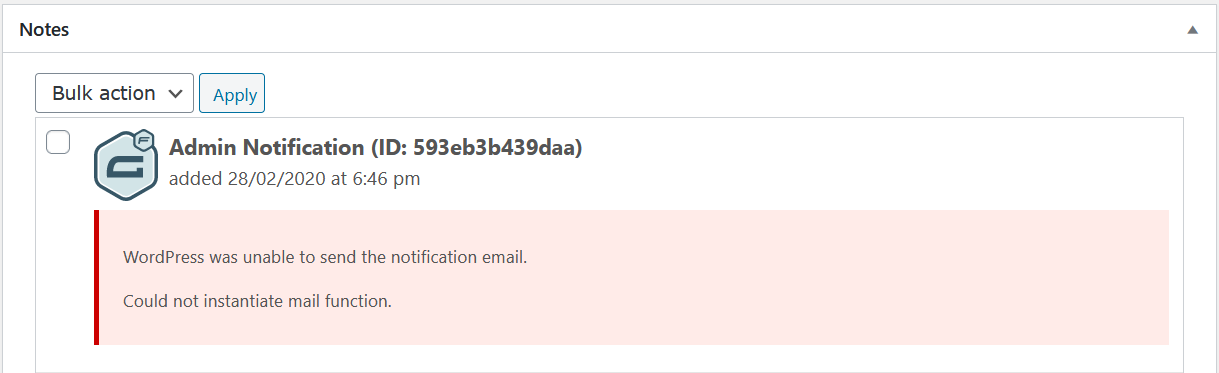
This error happens when WordPress cannot send emails using PHP mail(). It often occurs due to server misconfigurations or disabled mail functions.
How Can I Fix The WordPress Mail Function Error?
To fix it, check your hosting email settings, install SMTP plugins, or configure SMTP properly for reliable email delivery.
Does Smtp Plugin Solve WordPress Mail Function Issues?
Yes, SMTP plugins bypass PHP mail() by sending emails through authenticated SMTP servers, improving email reliability and avoiding the error.
Can Hosting Restrictions Cause WordPress Mail Errors?
Absolutely. Many hosts disable PHP mail() to prevent spam, causing WordPress mail function errors if no alternative email method is set.
Conclusion
Fixing the “Could Not Instantiate Mail Function” error improves your WordPress site’s email. Check your settings carefully to avoid mistakes. Use the right SMTP details for smooth email sending. Testing your email after changes helps catch problems early. Simple steps can solve most issues quickly.
Keep your site running well and your users happy. Small fixes make a big difference in your website’s performance.



