
Are you struggling with the frustrating problem of not being able to upload media to your WordPress site? You’re not alone, and this issue can stop your website from looking its best or sharing important content.
Imagine how much easier it would be to fix this quickly and get back to creating. You’ll discover simple, clear solutions to solve your media upload problems fast. Keep reading—your website deserves to shine without these annoying hiccups.
Common Upload Issues
Uploading media to WordPress can sometimes be tricky. Several common issues stop files from uploading correctly. Understanding these problems helps fix them faster. Here are the main upload issues you might face.
File Size Limits
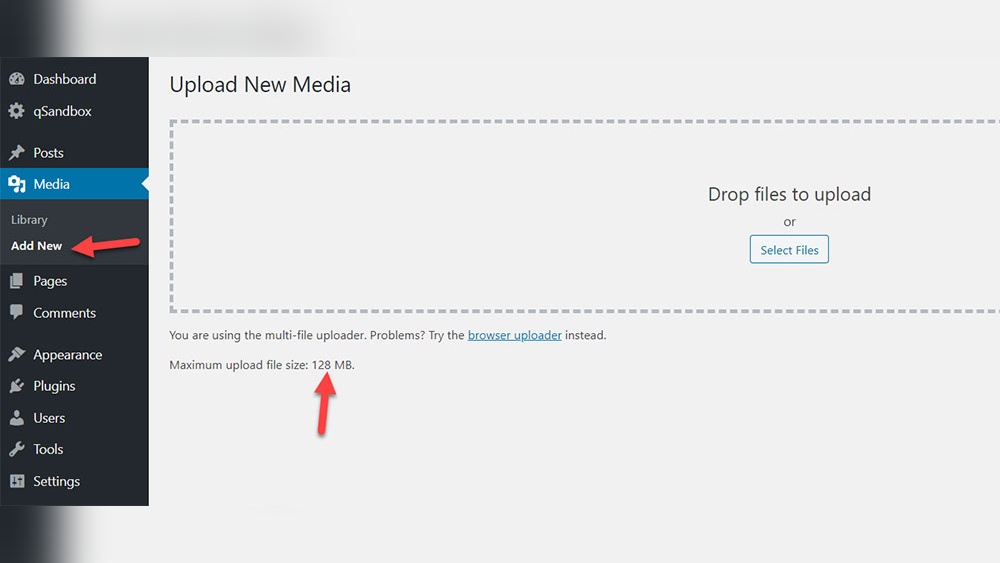
WordPress has a maximum file size for uploads. Files larger than this limit will not upload. This limit depends on your hosting provider settings. Large images or videos often exceed this size. Check your upload limit in the media uploader or hosting control panel.
To fix this, reduce the file size or ask your host to increase the limit. Small files upload smoothly and without errors.
File Type Restrictions
WordPress only allows certain file types for security reasons. Common allowed types include JPEG, PNG, GIF, PDF, and MP4. Trying to upload unsupported file formats triggers an error. This block keeps harmful files off your site.
Convert your media to an accepted format. Use image editors or converters online. This simple step avoids upload failures.
Permission Errors
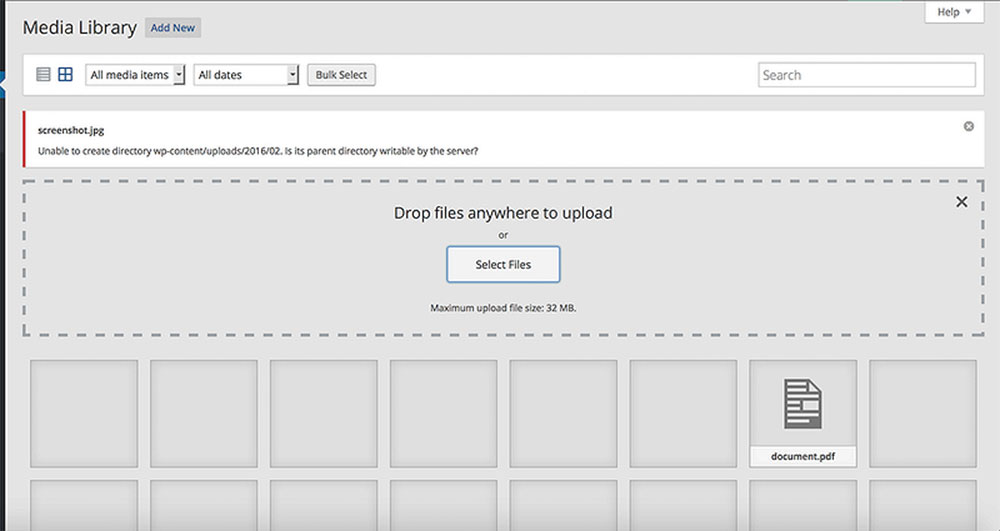
Permission errors happen when WordPress cannot save files properly. This usually relates to incorrect folder permissions on the server. The uploads folder must have write permissions. Without this, WordPress cannot store your media.
Fix this by setting correct permissions on the wp-content/uploads folder. Your host can help with this if needed. Correct permissions ensure smooth file uploads every time.
Credit: muffingroup.com
Server Configuration Problems
Server configuration problems often block media uploads in WordPress. These issues relate to how the server handles files and runs scripts. Fixing them requires checking specific settings.
Php Settings
PHP controls many WordPress functions. Wrong PHP settings can stop media uploads. For example, the upload_max_filesize limits file size. If a file is too large, WordPress rejects it. Another key setting is post_max_size. It must be larger than upload_max_filesize. Also, file_uploads must be enabled. Without this, uploads won’t work.
Memory Limits
WordPress needs enough memory to process uploads. Low PHP memory limits cause errors. The memory_limit setting controls this. Increase it to at least 128M for smooth uploads. Low memory can cause incomplete uploads or timeouts. Check your server’s memory allocation and raise it if needed.
Timeouts
Timeout settings define how long a server waits for a process. Short timeouts interrupt file uploads. The max_execution_time sets script run time in seconds. A low value can stop uploads before they finish. Increase this limit to allow enough time for larger files. Also, check max_input_time, which limits data parsing time.
Plugin And Theme Conflicts
Plugin and theme conflicts often cause media upload issues in WordPress. Plugins and themes add features but sometimes clash. This clash can stop media files from uploading correctly. Identifying and fixing these conflicts can restore your upload functionality quickly.
Deactivating Plugins
Start by deactivating all plugins. This step helps check if a plugin causes the problem. After deactivation, try uploading media again. If uploads work, reactivate plugins one by one. Test uploads each time. This process finds the conflicting plugin.
Switching Themes
Change your theme to a default WordPress theme like Twenty Twenty-Three. This switch tests if your theme causes the issue. If media uploads work with the default theme, the problem lies in your original theme. Consider updating or replacing the conflicting theme.
Conflict Testing
Perform conflict testing by combining both steps. Deactivate plugins and switch to a default theme. Try uploading media again. If it works, activate plugins one by one. Check media uploads after each activation. This method isolates the exact source of the conflict.

Credit: wpengine.com
Browser And Cache Solutions
Browser and cache issues often cause problems with uploading media to WordPress. Clearing your browser’s cache or switching browsers can solve many upload errors. Sometimes, browser extensions block uploads or interfere with WordPress features. This section covers easy steps to fix these common problems.
Clearing Cache
Cached files can cause conflicts with WordPress uploads. Clear your browser cache to remove old data. This forces the browser to load fresh content. To clear cache, open browser settings, find privacy or history options, and select clear cache. Restart the browser after clearing cache. Try uploading media again to see if the issue resolves.
Trying Different Browsers
Sometimes, a browser may not work well with WordPress. Testing a different browser helps find if the problem is browser-specific. Popular browsers like Chrome, Firefox, Safari, or Edge usually work smoothly. Open WordPress in another browser and attempt to upload your media. If it works, the issue lies in the original browser.
Disabling Extensions
Browser extensions can block certain WordPress functions. Disable extensions one by one to check if any cause the upload problem. Focus on ad blockers, security tools, or privacy extensions first. After disabling, refresh WordPress and try uploading media. If uploads work, keep the problematic extension disabled or look for alternatives.
File Permission Fixes
File permission problems often stop media from uploading in WordPress. Fixing permissions can solve this issue fast. You must check the files and folders that store your media. If these have wrong settings, WordPress cannot save new files. This part explains how to set correct permissions, use FTP for changes, and fix ownership problems.
Setting Correct Permissions
Files and folders need specific permissions to work with WordPress. Usually, folders require 755 permission. Files need 644 permission. These numbers control who can read, write, or run the files. Wrong numbers block uploads or cause errors. Set folders to 755 and files to 644. This lets WordPress save media safely.
Using Ftp For Changes
FTP tools help change permissions easily. Connect to your website with an FTP client like FileZilla. Find the wp-content folder and then the uploads folder. Right-click on the folder and choose “File Permissions” or “Permissions.” Enter 755 for folders and 644 for files. Apply changes to all folders and files inside. FTP makes permission fixing simple and quick.
Ownership Issues
Sometimes, the server user does not own the WordPress files. Ownership conflicts cause upload failures. The user running the web server must own the media folders. Ask your hosting provider to check or fix file ownership. Correct ownership lets WordPress write files without permission errors. This step is key if permission changes do not work.
Using Alternative Upload Methods
Sometimes, the usual WordPress media upload fails. Alternative methods help add media without trouble. These methods work around common upload issues. They let you keep your content fresh and complete. Using these options can save time and avoid frustration.
Uploading Via Ftp
FTP stands for File Transfer Protocol. It allows direct file upload to your server. Use an FTP client like FileZilla for this task. Connect to your website’s server using FTP details. Upload images or media files to the ‘wp-content/uploads’ folder. After upload, use a plugin to register files in WordPress. FTP uploads bypass WordPress’s upload limits or errors.
Media Library Plugins
Some plugins improve media management in WordPress. They offer alternative upload interfaces or bulk upload features. Plugins like “WP Media Folder” or “Media Library Assistant” help upload and organize files. These tools can fix upload problems inside WordPress. They also add extra features for easier media handling.
Direct Database Uploads
Uploading media directly to the database is rare but possible. This method needs technical skills and caution. You insert media file data into the database manually. Use tools like phpMyAdmin to access your database. After upload, link the media to posts or pages. This method bypasses upload size limits and server restrictions.
Preventive Measures
Preventing media upload issues in WordPress saves time and avoids frustration. Taking simple steps keeps your site running smoothly. These measures help stop problems before they start.
Regular Updates
Keep WordPress core, themes, and plugins updated. Updates fix bugs and improve security. Outdated software often causes upload errors. Check for updates weekly to stay current.
Backup Strategies
Create regular backups of your site and media files. Backups protect your data from loss or corruption. Store backups on external drives or cloud storage. Test backups to ensure they work correctly.
Monitoring Upload Logs
Check upload logs to spot errors early. Logs show failed upload attempts and reasons. Use plugins or hosting tools to access logs. Monitoring helps identify and fix issues fast.

Credit: stackoverflow.com
Frequently Asked Questions
Why Can’t I Upload Media To WordPress?
You may face upload issues due to file size limits, incorrect file permissions, or server restrictions. Check your PHP settings and folder permissions to resolve this.
How To Fix WordPress Media Upload Errors?
Clear your browser cache, deactivate conflicting plugins, and increase PHP memory limit. Also, verify your upload folder permissions for smoother uploads.
What File Types Are Allowed In WordPress Media Uploads?
WordPress supports common formats like JPG, PNG, GIF, MP4, and PDF. Unsupported file types can cause upload failures, so convert files to accepted formats.
Can Server Settings Block WordPress Media Uploads?
Yes, server restrictions like max upload size and file permission errors can block uploads. Adjust your server’s PHP. ini and. htaccess files to fix these issues.
Conclusion
Fixing media upload issues in WordPress is often simple. Check your file size and format first. Clear your browser cache and try again. Review your website’s storage limits and permissions. Updating WordPress and plugins can help too. Sometimes, disabling plugins solves the problem.
Keep backups before making big changes. Patience and small steps will get your media uploading right. Don’t let this stop your website growth. Keep trying, and your site will work smoothly again.



