
Are you wondering if you can use WordPress with Google Sites to build your online presence? You’re not alone.
Many people want the power and flexibility of WordPress but also appreciate the simplicity of Google Sites. What if you could combine the best of both worlds? You’ll discover how these two platforms work together, what’s possible, and what challenges you might face.
By the end, you’ll know exactly how to make your website stand out using WordPress and Google Sites side by side. Keep reading to unlock the secrets!
Comparing WordPress And Google Sites
WordPress and Google Sites are popular tools for building websites. Each has unique features and serves different needs. Comparing them helps choose the right platform for your project.
Key Features Of WordPress
WordPress is a powerful content management system. It supports blogs, business sites, and online stores. Users can customize themes and add plugins easily. It offers control over SEO and design. WordPress has a large community for support and resources.
Key Features Of Google Sites
Google Sites is simple and easy to use. It integrates well with other Google tools like Drive and Calendar. It allows quick page creation without coding skills. Templates are basic but clean and functional. Ideal for small projects and team collaboration.
Strengths And Limitations
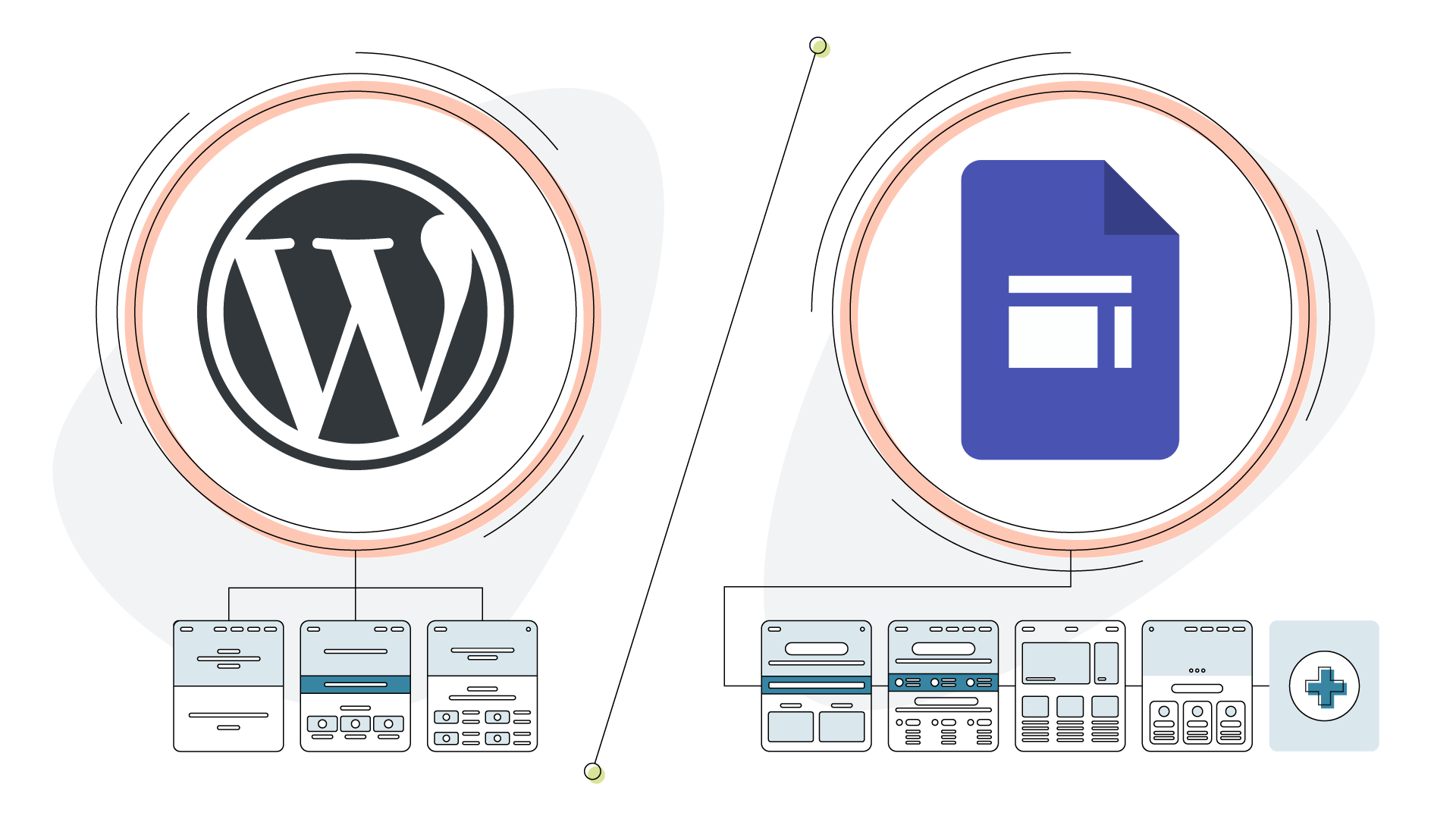
WordPress excels in flexibility and customization. It needs hosting and some technical skill. Google Sites is free and straightforward. It lacks advanced design and plugin options. WordPress suits complex projects. Google Sites works best for simple, fast setups.
Credit: www.elegantthemes.com
Integrating WordPress With Google Sites
Integrating WordPress with Google Sites allows you to combine the strengths of both platforms. WordPress offers powerful blogging and content management features. Google Sites provides an easy way to create simple websites quickly. Together, they can enhance your online presence without much hassle.
This integration helps you share WordPress content inside Google Sites. You can also use Google Sites to organize links to your WordPress pages. Several third-party tools make this process smoother. Let’s explore how to connect these two platforms effectively.
Embedding WordPress Content
You can embed WordPress posts or pages directly into Google Sites. Use the embed code from WordPress or third-party plugins. Copy the HTML or iframe code and paste it into your Google Sites page. This method shows live WordPress content inside your Google Site. Visitors see updated posts without leaving Google Sites.
Using Google Sites To Host WordPress Links
Google Sites works well as a hub for your WordPress links. Create a clean, simple menu or page with links to your WordPress blog or shop. Organize links by categories or topics. This helps visitors find your WordPress content easily. It also keeps your Google Site neat and user-friendly.
Third-party Integration Tools
Several tools help connect WordPress and Google Sites. Plugins like EmbedPress or iframe generators simplify embedding content. Automation tools such as Zapier can share new WordPress posts to Google Sites automatically. These tools reduce manual work and improve content flow. Choose one based on your technical comfort and needs.
Benefits Of Combining Both Platforms
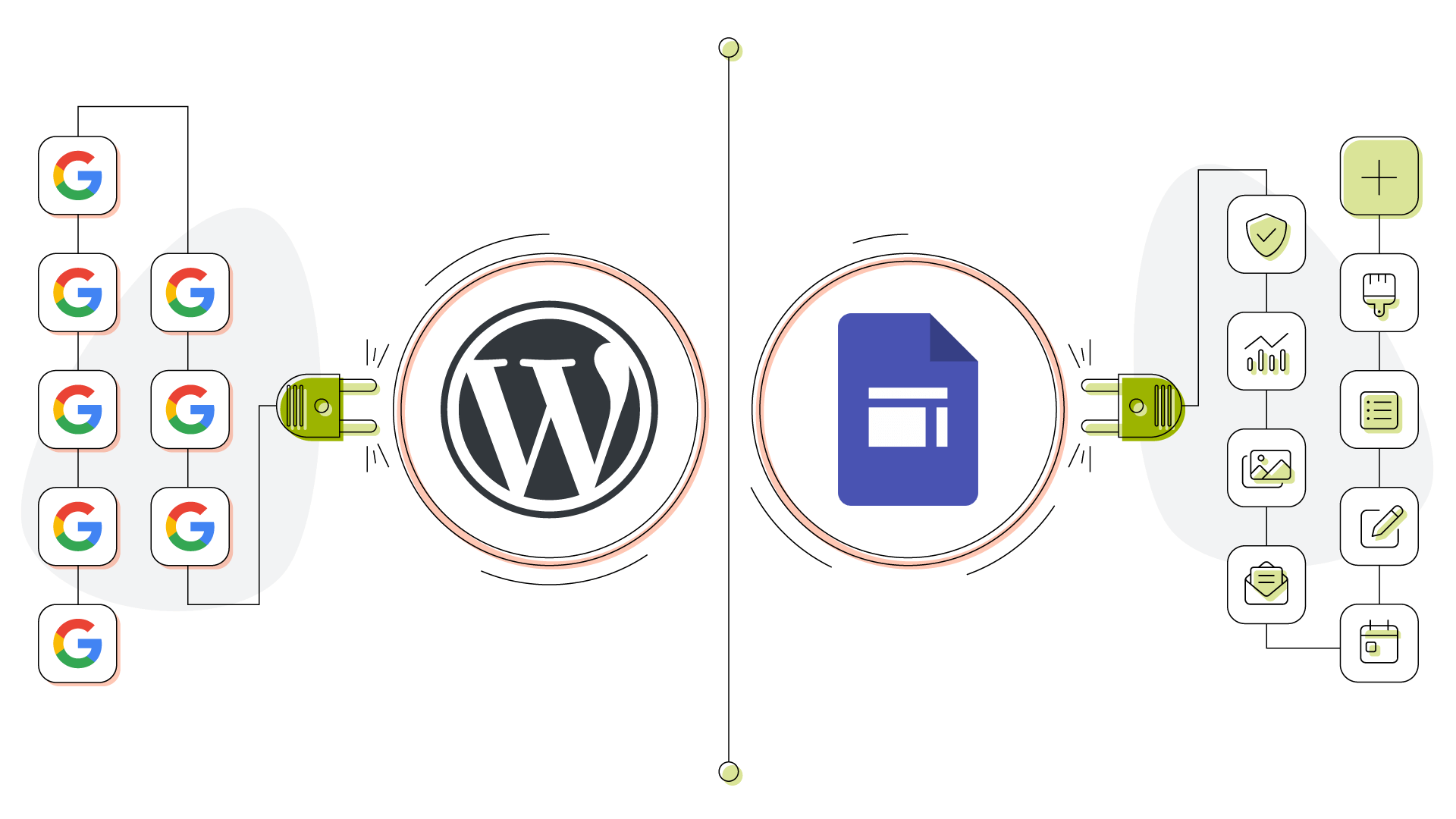
Combining WordPress with Google Sites offers unique benefits. Each platform has strengths that complement the other. Using both together can improve your website’s design, teamwork, and search engine presence. This approach suits users who want simple collaboration with powerful customization.
Enhanced Customization Options
WordPress provides many themes and plugins for design. You can tailor your site’s look and features easily. Google Sites offers a simple, clean layout but fewer design choices. Using WordPress for complex pages and Google Sites for basic content balances style and simplicity. This mix allows more control over your website’s appearance and function.
Improved Collaboration Features
Google Sites excels in teamwork and sharing. Multiple users can edit pages at the same time. It integrates well with Google Workspace tools like Docs and Drive. WordPress has some collaboration tools but is less focused on real-time editing. Using Google Sites alongside WordPress makes it easier for teams to work together on content and updates.
Seo And Traffic Advantages
WordPress is strong in SEO with many plugins and settings. It helps optimize your site for search engines. Google Sites benefits from Google’s infrastructure and fast loading times. Combining both can improve your site’s visibility and speed. This blend helps attract more visitors and keeps them engaged longer.
Credit: www.hostpapa.com
Common Challenges And Solutions
Using WordPress with Google Sites brings several challenges. These issues can affect site performance and user experience. Understanding common problems helps find easy solutions. This section explains three main challenges and how to solve them.
Compatibility Issues
WordPress and Google Sites use different platforms and technologies. This causes compatibility problems. WordPress uses PHP and databases. Google Sites is cloud-based with limited code support. Embedding WordPress features directly into Google Sites is tricky.
To solve this, use embed codes or iframes. Embed WordPress posts or pages using iframe on Google Sites. This keeps content visible without full integration. Another option is linking between the two sites instead of combining them.
Managing Content Synchronization
Keeping content updated on both platforms can be hard. Changes made on WordPress do not reflect automatically on Google Sites. This creates outdated or duplicate information.
Use manual updates to sync content regularly. Copy new posts or updates from WordPress and paste them in Google Sites. Use tools like RSS feeds to automate partial updates. This reduces time and keeps content fresh.
Handling Design Consistency
WordPress offers flexible themes. Google Sites has limited design options. This causes differences in style and layout between the two sites.
Choose simple designs on WordPress that match Google Sites’ look. Use similar colors, fonts, and logos on both platforms. This creates a consistent user experience. Avoid complex WordPress themes that clash with Google Sites.
Step-by-step Setup Guide
This step-by-step setup guide will help you use WordPress with Google Sites. Follow each step carefully to create a smooth connection between the two platforms. This guide is perfect for beginners who want to combine the power of WordPress content with the simplicity of Google Sites.
Preparing Your WordPress Site
First, make sure your WordPress site is ready. Update to the latest version for best performance. Check that your content is organized and easy to share. Choose posts or pages you want to link or embed on Google Sites. Enable public access so visitors can see your content. Copy the URLs of your WordPress pages or posts for later use.
Setting Up Google Sites
Open Google Sites and start a new site or edit an existing one. Pick a simple template that fits your style. Add a clear title and description to your site. Create pages or sections where you want WordPress content to appear. Save your changes often to avoid losing progress. Prepare areas for embedding or linking your WordPress content.
Linking And Embedding Content
Use the “Embed” option in Google Sites to add WordPress content. Paste the URL of your WordPress page into the embed box. Adjust the size and position of the embedded content on your Google Site. Alternatively, add links to WordPress pages using text or buttons. Test all links and embeds to ensure they work properly. This keeps your site user-friendly and engaging.
Best Practices For Maintenance
Maintaining a website that uses both WordPress and Google Sites requires clear steps. Good maintenance keeps your site fast, safe, and reliable. Follow these best practices to manage your site smoothly.
Regular Updates And Backups
Update WordPress themes, plugins, and core files often. These updates fix bugs and improve security. Google Sites updates happen automatically, but check your content regularly. Back up your WordPress site before every update. Use reliable backup tools to save files and databases. Store backups in a safe place outside your main server.
Monitoring Site Performance
Track how fast your pages load on both platforms. Slow sites lose visitors and hurt search rankings. Use tools like Google PageSpeed Insights for checking speed. Review your Google Sites layout to keep it simple. Remove unused plugins or heavy images from WordPress. Monitor uptime to catch any downtime early.
Ensuring Security Across Platforms
Use strong passwords for WordPress and Google accounts. Enable two-factor authentication for extra protection. Regularly scan WordPress for malware or suspicious files. Google Sites has built-in security, but stay alert for phishing links. Limit user access and permissions on both platforms. Always use secure HTTPS connections to protect data.
Credit: www.hostpapa.com
Frequently Asked Questions
Can WordPress And Google Sites Be Integrated Directly?
No, WordPress and Google Sites cannot be directly integrated. They are separate platforms with different hosting and design systems.
Is It Possible To Embed WordPress Content In Google Sites?
Yes, you can embed WordPress content using iframe or embed codes, but functionality is limited compared to a full WordPress site.
Can I Use Google Sites To Host A WordPress Blog?
No, Google Sites does not support WordPress hosting. WordPress requires a separate hosting service or WordPress. com.
How Do WordPress And Google Sites Differ In Customization?
WordPress offers extensive customization with plugins and themes. Google Sites has limited design options and fewer customization features.
Conclusion
WordPress and Google Sites serve different purposes but can work together. You can link a WordPress blog to a Google Sites page for simple navigation. Each platform has its strengths; choose based on your needs. WordPress offers more customization, while Google Sites is easier for quick setups.
Combining them can help reach a wider audience. Keep your goals clear and pick tools that fit best. This way, your website stays effective and easy to manage.



