
Have you ever wondered if you can upload a PDF to your WordPress site? Whether you want to share a brochure, a guide, or a report, adding PDFs can boost your content’s value and keep your visitors engaged.
But is it as simple as it sounds? If you’re looking for a quick, easy way to upload and display PDFs on your site without any hassle, you’re in the right place. Keep reading to discover exactly how to do it and make your WordPress site more powerful for your audience.
Credit: www.youtube.com
Uploading Pdfs To WordPress
Uploading PDFs to WordPress allows you to share important documents with visitors. It is simple and fast. You can add manuals, brochures, reports, or any PDF files to your posts or pages. This helps your audience access files easily without leaving your site.
Supported File Types
WordPress supports many file types for upload. PDF is one of the common types allowed by default. You can also upload images, videos, audio files, and documents like DOCX or PPTX. If you want to add other file types, you might need extra plugins or code changes.
File Size Limits
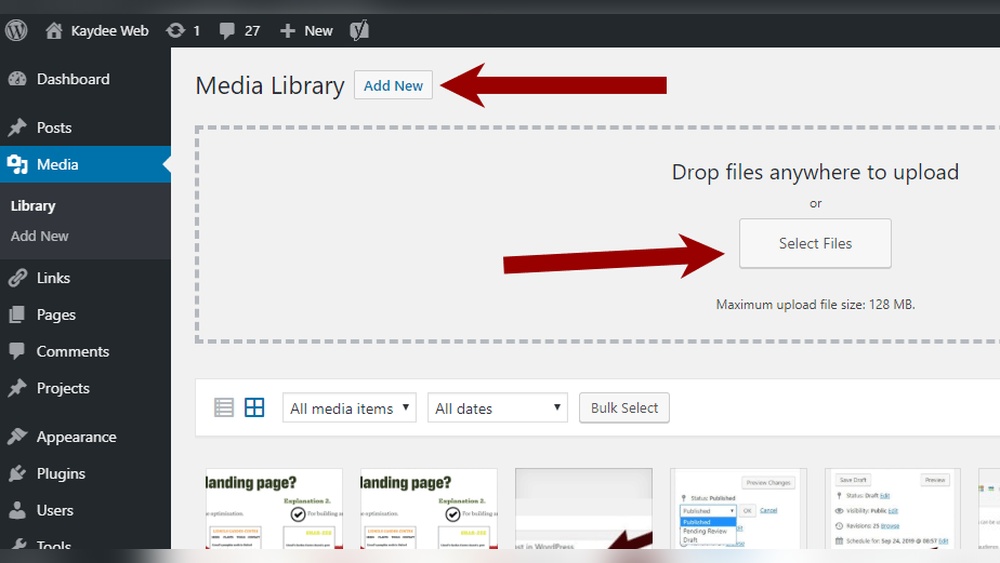
WordPress has a file size limit for uploads. The default limit varies by hosting providers. Usually, it ranges from 2MB to 128MB. Large files may not upload directly. You can check your limit in the Media Library or contact your host to increase it.
Preparing Your Pdf For Upload
Preparing your PDF before uploading to WordPress helps the file load faster and improves user experience. A well-prepared PDF avoids slow loading times and ensures visitors can access your content easily. Small changes can make a big difference.
Optimizing File Size
Large PDF files slow down your website. Reduce the file size by compressing images inside the PDF. Use tools like Adobe Acrobat or online compressors to shrink the file without losing quality. Keep your PDF under 5MB for faster loading. Smaller files make your site faster and more user-friendly.
Naming Your Pdf
Choose a clear and simple name for your PDF file. Use lowercase letters and separate words with hyphens. Avoid spaces and special characters. A good file name helps search engines find your PDF. It also makes it easier for you to manage files in WordPress. For example, use “monthly-report-2024.pdf” instead of “Report April 2024.pdf.”
Step-by-step Upload Process
Uploading a PDF to WordPress is simple and fast. You can share your documents easily with visitors. This step-by-step guide helps you upload PDFs using different tools in WordPress. Follow the instructions below to get your files online quickly.
Using The Media Library
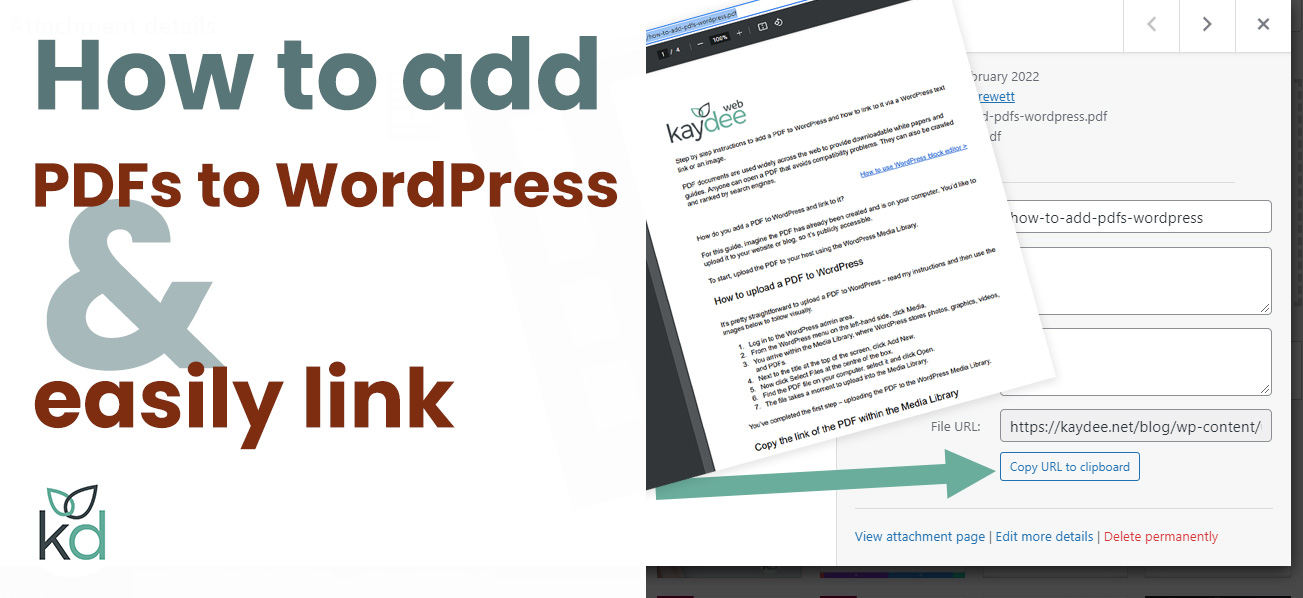
Open your WordPress dashboard. Click on “Media” in the left menu. Select “Add New” at the top. Drag your PDF file or click “Select Files” to upload. Wait a few seconds for the upload to finish. Once done, click the file to see details. Copy the URL to use in posts or pages.
Uploading Via Gutenberg Editor
Go to the post or page where you want the PDF. Click the plus (+) icon to add a block. Search for “File” block and select it. Upload your PDF by dragging it or clicking “Upload.” The file link appears automatically. Visitors can click to view or download the PDF.
Adding Pdfs With Classic Editor
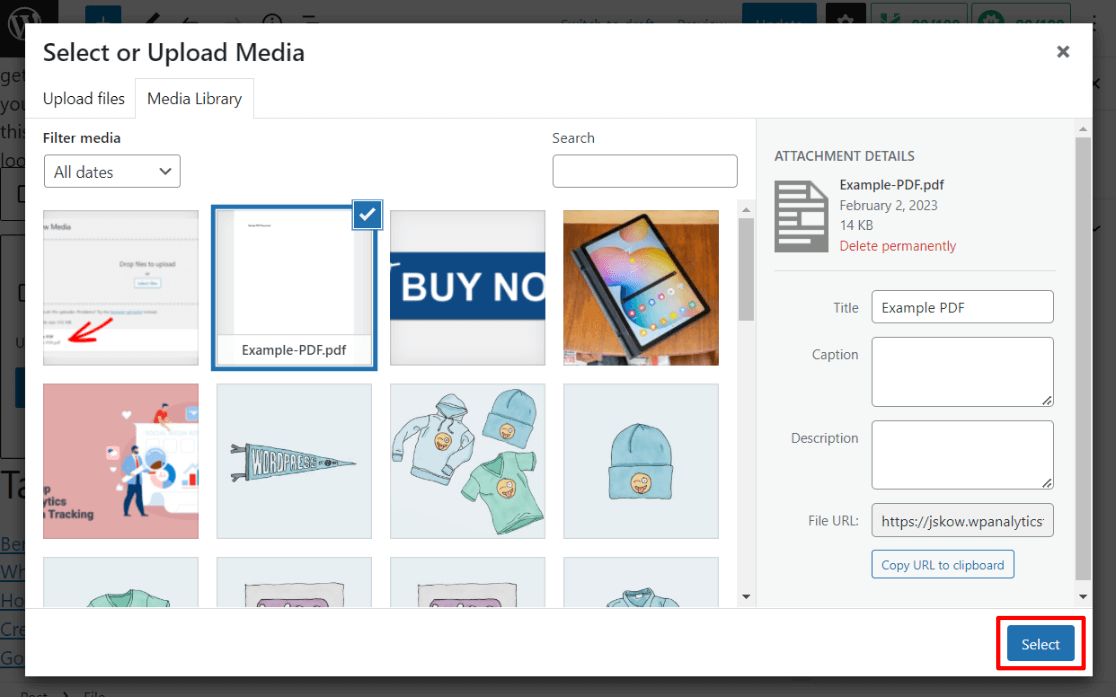
Open the post or page in the Classic Editor. Place your cursor where the PDF should appear. Click “Add Media” above the text box. Upload your PDF or select it from the library. Click “Insert into post” to add the link. Save or update your post to publish.
Embedding Pdfs In Posts And Pages
Embedding PDFs in your WordPress posts and pages helps share documents easily. It allows visitors to view or download files without leaving your site. You can display PDFs directly or offer simple download links. Both methods keep your content neat and user-friendly.
Inserting Download Links
Uploading a PDF to WordPress creates a file link automatically. You can insert this link into any post or page. Visitors click the link to download or open the PDF in their browser.
To add a download link, click the “Add Media” button. Select your PDF file and insert it into the content. The link appears as text or a button. You can change the link text to make it clear.
This method is simple and works on all devices. It keeps your page clean and loads fast. Visitors control when to open or save the PDF.
Using Pdf Viewer Plugins
PDF viewer plugins embed PDFs directly on your site pages. Visitors can read the document without downloading it. This creates a smoother experience and keeps users longer on your site.
Many plugins offer features like zoom, page navigation, and search inside the PDF. They often work with simple shortcodes or blocks. Just upload your PDF, add the shortcode, and the viewer appears.
Choose a lightweight plugin to avoid slowing your site. Check user reviews and update frequency to find good options. A PDF viewer plugin makes your content interactive and professional.
Managing Uploaded Pdfs
Managing uploaded PDFs in WordPress helps keep your website tidy and easy to use. Proper file management saves time and prevents confusion. It ensures visitors find the right documents quickly. Organizing and updating PDFs is part of good website care.
Organizing Files
Create folders or categories to sort your PDFs. Use clear and simple names for each file. Group documents by topic, date, or purpose. This makes it easier to find files later. WordPress allows you to add titles and descriptions. These help you recognize PDFs at a glance.
Updating Or Replacing Pdfs
Replace old PDFs with new versions to keep content fresh. Upload the updated file and change the link on your site. This avoids broken links and confusion for visitors. Keep backups of old files in case you need them. Regular updates improve your website’s reliability and trust.
Credit: kaydee.net
Troubleshooting Upload Issues
Uploading a PDF to WordPress may sometimes cause problems. These issues can stop the file from uploading correctly. Knowing how to troubleshoot helps fix these problems quickly. This section covers common errors and ways to solve upload failures.
Common Errors
One common error is the file size limit. WordPress and your hosting may restrict large files. Another issue is the wrong file type. WordPress only accepts certain file types by default. Sometimes, plugin conflicts can block uploads. Server settings or permissions might also cause errors.
Fixing Upload Failures
Start by checking your file size. Compress the PDF if it is too large. Next, verify the file type is allowed. You can add support for PDFs in your theme or plugin. Clear your browser cache and try again. Deactivate plugins one by one to find conflicts. Finally, check server permissions or contact your host for help.
Credit: www.monsterinsights.com
Frequently Asked Questions
Can You Upload A Pdf To WordPress Directly?
Yes, WordPress allows direct PDF uploads via the media library. You can easily add PDFs to posts or pages for visitors to download or view.
How Do I Embed A Pdf In A WordPress Post?
To embed a PDF, upload it to the media library, then use a block or plugin to display it inline on your post or page.
Are There Size Limits For Pdf Uploads In WordPress?
WordPress has a default upload limit, often 2MB or higher. You can increase it via hosting settings or plugins if needed.
Can I Make Pdfs Downloadable From My WordPress Site?
Yes, after uploading your PDF, insert a download link in your post or page for visitors to easily save the file.
Conclusion
Uploading a PDF to WordPress is simple and quick. You can share documents, guides, or brochures easily. Just use the media library to add your file. Then, link it in your posts or pages for visitors to download. This method keeps your site organized and user-friendly.
Anyone can do it without special skills. Start sharing your PDFs today and enhance your website’s content.



