
Are you thinking about moving your online store from Shopify to WordPress but aren’t sure if it’s possible? You’re not alone.
Many store owners wonder if they can transfer all their products, customers, and data without losing anything important. The good news is, you can make the switch—but it takes some careful steps. You’ll discover exactly how to transfer your Shopify store to WordPress smoothly and avoid common pitfalls.
Keep reading to find out how to take control of your online shop and unlock new possibilities.
Reasons To Switch From Shopify To WordPress
Many store owners think about moving from Shopify to WordPress. This shift happens for several key reasons. WordPress offers more control and options. It can be a better fit for those who want to grow their site beyond simple sales. Here are the main reasons why switching makes sense.
Cost Comparison
Shopify charges monthly fees based on your plan. These fees can rise with added features. WordPress itself is free to use. Costs come from hosting and plugins, often cheaper than Shopify’s fees. This can save money, especially for small stores.
Customization Flexibility
WordPress offers thousands of themes and plugins. These let you change your site’s look and add many functions. Shopify has limits on design and apps. WordPress lets you build a unique store that fits your brand exactly.
Control Over Seo
SEO helps your site show up on search engines. WordPress gives you full control of SEO settings. You can use plugins to improve keywords, links, and site speed. Shopify’s SEO is good but less flexible for advanced users.
Ownership And Data Control
With WordPress, you own your website and data. You decide where to host your files. Shopify keeps your store on their servers. This can limit your control over data and backups. WordPress gives full ownership and freedom.
Preparing For Migration
Preparing for migration from Shopify to WordPress needs careful steps. Each step helps avoid data loss and downtime. Proper planning makes the switch smooth and safe for your store.
Backing Up Shopify Data
Start by backing up all your Shopify data. This includes products, customer info, and orders. Export your data into CSV files for easy import later. Keep a copy on your computer and cloud storage. This backup protects your store from data loss during migration.
Choosing The Right WordPress Hosting
Choose WordPress hosting that fits your store size and traffic. Look for fast servers and good uptime. Hosting with one-click WordPress installation saves time. A reliable host keeps your site running smoothly after migration.
Selecting Essential Plugins
Pick plugins that help build your WordPress store. Use WooCommerce for e-commerce features. Add plugins for SEO, security, and backups. Keep plugin count low to avoid slow site speed. Choose trusted and updated plugins only.
Setting Up A WordPress Store
Install WordPress and set up WooCommerce. Configure store settings like currency, payments, and shipping. Import your Shopify data into WooCommerce. Test the store to check if everything works well. A well-set store ensures a good user experience.
Migrating Products And Content
Migrating products and content is a key step in moving from Shopify to WordPress. It helps keep your store’s data safe and your customers informed. This process includes moving your products, blog posts, pages, and media files. Each element needs careful handling for a smooth transition.
Exporting Shopify Products
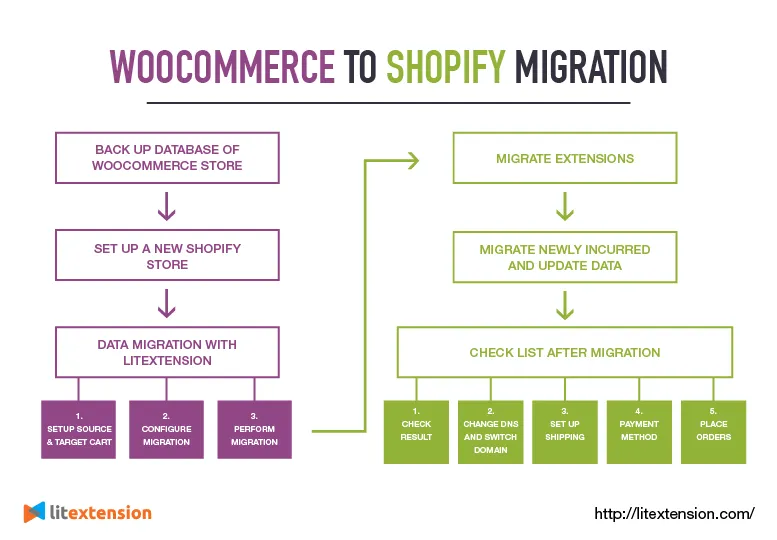
Start by exporting your products from Shopify. Shopify lets you download a CSV file with all product details. This file includes product names, prices, descriptions, and SKUs. Save this file on your computer to use later. It is the main source for importing products into WordPress.
Importing Products To WordPress
WordPress needs a plugin to import products from Shopify. WooCommerce is a popular choice for online stores. Use a CSV importer plugin to upload your product file. Check each product after import to ensure details appear correctly. Fix any errors to avoid problems in your new store.
Transferring Blog Posts And Pages
Blog posts and pages keep your site visitors engaged. Export them from Shopify in a readable format. Use WordPress’s import tool to bring these posts and pages into your site. Organize the content in WordPress to match your old site’s structure. This keeps your site familiar for visitors.
Handling Images And Media
Images and media files are vital for product listings and blogs. Download all images from Shopify’s files or use a media export tool. Upload these images to WordPress’s media library. Link the images to the right products and posts. This step keeps your site looking good and professional.
Credit: litextension.com
Migrating Customers And Orders
Migrating customers and orders is a key step in moving your Shopify store to WordPress. It helps keep your business running smoothly. Your customers expect their details and past orders to stay safe. Transferring this data correctly builds trust and avoids problems. This section explains how to move customer and order data step-by-step.
Exporting Customer Data
Start by exporting your customer data from Shopify. Shopify allows you to download customer lists as CSV files. These files contain names, emails, addresses, and phone numbers. Make sure the file includes all necessary details for your new store. Keep a backup copy of the exported file for safety. CSV format is widely supported and easy to use.
Importing Customers Into WordPress
Next, import the customer data into your WordPress store. Use plugins like WooCommerce Customer Import to upload the CSV file. This tool matches the data fields and adds customers to your new system. Check for errors during import and correct them quickly. After importing, test some customer accounts to ensure accuracy.
Transferring Order History
Order history is important for customer service and accounting. Export your Shopify orders in CSV format as well. This file contains order numbers, products, prices, and dates. Import these orders using a WooCommerce order import plugin. Verify that each order links to the correct customer. Keep order statuses and notes intact to avoid confusion.
Ensuring Data Privacy
Protecting customer data is critical during migration. Use secure connections and trusted tools for exporting and importing. Avoid sharing files over public or unencrypted networks. Delete any temporary files after the transfer is complete. Inform customers about the data move if required by law. Following privacy rules prevents data breaches and legal issues.
Design And Theme Setup
Design and theme setup play a key role in moving your store from Shopify to WordPress. The look and feel of your site affect how visitors see your brand. It also impacts shopping ease and trust. Setting up the right design helps keep customers interested and guides them to buy.
WordPress offers many themes and tools for building a unique store. Choosing and customizing a theme lets you create a smooth and attractive shopping experience. This section covers how to pick a theme, adjust the storefront, ensure mobile friendliness, and keep your brand style.
Choosing A WordPress Theme
Pick a theme that fits your product style and store goals. Search for themes made for online shops. Check if the theme supports popular plugins like WooCommerce. Look for clean code and good user reviews. A lightweight theme loads faster. Speed helps keep visitors on your site.
Customizing The Storefront
Customize colors, fonts, and layout to match your brand. Add your logo and images. Use page builders or theme settings to change sections easily. Show featured products and categories clearly. A neat and simple design helps customers find items fast. Avoid clutter that can confuse buyers.
Mobile Responsiveness
Most shoppers use phones. Your theme must look good on small screens. Test buttons, menus, and images on mobile devices. A responsive design adjusts automatically to screen size. This keeps your store easy to use everywhere. Mobile-friendly stores get better search rankings too.
Maintaining Brand Consistency
Keep the same colors and fonts as your Shopify store. Use similar product images and descriptions. Consistent style builds trust and recognition. Customers feel more comfortable buying from familiar designs. Use style guides or notes to keep your brand uniform across pages.

Credit: pressable.com
Integrating Payment And Shipping
Integrating payment and shipping is a key step when transferring Shopify to WordPress. It ensures customers can pay securely and receive their orders on time. Proper setup helps avoid delays and keeps the shopping experience smooth.
Setting Up Payment Gateways
Choose payment gateways that suit your store needs. Popular options include PayPal, Stripe, and Square. Install plugins on WordPress to connect these gateways. Check transaction fees and supported countries. Test each gateway to confirm it works properly.
Configuring Shipping Options
Define shipping zones based on your delivery area. Set shipping rates for each zone or use weight-based pricing. Use WordPress plugins like WooCommerce Shipping for easy management. Offer multiple shipping methods like standard and express. Update settings regularly to reflect any carrier changes.
Handling Taxes And Currency
Set tax rules according to customer location. Use plugins that calculate taxes automatically. Select the currency your store will use. Allow multiple currencies if you sell internationally. Keep tax and currency settings updated with local laws.
Testing Checkout Process
Perform test purchases to check the entire checkout flow. Verify payment gateways process payments without errors. Confirm shipping options display correctly at checkout. Ensure taxes and currency show as expected. Fix any issues before going live to avoid customer problems.
Seo And Url Structure
SEO and URL structure play a big role when moving your store from Shopify to WordPress. Keeping your SEO intact helps keep your search rankings stable. The URL structure affects how search engines and users find your pages. Careful planning is key to avoid losing traffic or rankings during the move.
Maintaining Url Consistency
Try to keep your URLs the same as on Shopify. This helps search engines recognize your pages. Avoid changing the main parts of your URL, like product or category names. If you must change URLs, make sure to plan redirects carefully. Consistent URLs make it easier for users to find your content.
Setting Up Redirects
Redirects send visitors from old Shopify links to new WordPress URLs. Set up 301 redirects to keep SEO value. This tells search engines the page has moved permanently. Use a plugin or edit your .htaccess file to add redirects. Check redirects regularly to avoid broken links and lost visitors.
Optimizing On-page Seo
Keep your page titles, meta descriptions, and headings the same or better. Use keywords naturally and clearly. Add alt text to images and keep URLs short and clear. WordPress plugins like Yoast SEO can help manage these settings easily. Well-optimized pages improve your chances to rank higher.
Submitting Sitemap To Search Engines
Create a new sitemap after moving your site to WordPress. Submit it to Google Search Console and Bing Webmaster Tools. This helps search engines find and index your new pages fast. Update your sitemap whenever you add or remove pages. Regular submissions keep your site visible in search results.
Testing And Launching
Testing and launching your new WordPress store after moving from Shopify is a key step. It ensures everything works well before customers visit. Careful checks help avoid problems and keep your site smooth.
Pre-launch Checklist
Test all pages for correct loading and display. Check links and buttons to confirm they work. Verify product details, prices, and images match the old store. Set up payment methods and test transactions. Review shipping settings and tax calculations. Ensure mobile and tablet views look good. Backup your site before making it live.
Fixing Common Issues
Fix broken links or missing images immediately. Correct any product or pricing errors found during testing. Adjust page layouts that look off on different devices. Resolve slow loading times by optimizing images and code. Check for plugin conflicts and update them. Clear caches to see recent changes clearly.
Monitoring Site Performance
Track your site speed using free tools. Watch for any errors or downtime. Monitor visitor behavior to spot usability issues. Review sales data to ensure transactions process correctly. Keep an eye on SEO rankings and traffic. Regularly update your WordPress and plugins for security.
Announcing The New Store
Prepare a clear message for your customers about the change. Use email and social media to share the news. Highlight new features and benefits of the WordPress store. Provide support contact for questions or problems. Keep messages simple and positive. Build excitement and trust with your audience.
Post-migration Maintenance
After moving your store from Shopify to WordPress, maintenance keeps your site healthy. Regular care helps avoid problems and keeps your visitors happy. It also protects your data and sales records.
Regular Backups
Backing up your website is a must. It saves a copy of your site and data. If something breaks, you can restore your site quickly. Set backups to run daily or weekly. Store backups in a safe place, separate from your site.
Updating Plugins And Themes
Keep your plugins and themes up to date. Updates fix bugs and add new features. They also close security holes. Check for updates often and apply them soon. Use only trusted plugins to avoid conflicts.
Monitoring Security
Security protects your store from hackers and malware. Use security plugins to scan your site regularly. Change passwords often and use strong ones. Watch for unusual activity like strange logins or slow loading.
Analyzing Traffic And Sales
Track visitors and sales to understand your audience. Use tools like Google Analytics for traffic data. Check which pages get the most visits. Review sales trends to improve your products and offers.

Credit: www.lucentinnovation.com
Frequently Asked Questions
Can I Transfer My Shopify Store To WordPress?
Yes, you can transfer your Shopify store to WordPress. It involves migrating products, customers, and content manually or using plugins. Careful planning ensures smooth transition without losing SEO or data integrity.
What Are The Main Challenges Of Shopify To WordPress Migration?
Challenges include data transfer complexity, maintaining SEO rankings, and configuring WordPress plugins. Technical knowledge is required to avoid downtime and data loss during migration.
Is Shopify Or WordPress Better For Ecommerce?
Shopify offers an all-in-one solution with easy setup. WordPress provides flexibility and customization with plugins like WooCommerce. Choose based on your technical skills and business needs.
How Do I Migrate Products From Shopify To WordPress?
You can export product data from Shopify as CSV and import it into WordPress using WooCommerce. Plugins can automate this process and preserve product details.
Conclusion
Transferring from Shopify to WordPress is possible with careful steps. You need to plan and back up your data first. Tools and plugins can help move products and content smoothly. Expect some time and effort during the switch. WordPress offers more control but requires more management.
Choose the platform that fits your business needs best. With patience, your new site can work well and grow over time.



