
Thinking about moving your WordPress site to Squarespace? You’re not alone.
Many website owners wonder if it’s possible to make the switch without losing their content or starting from scratch. You want a smooth, hassle-free process that keeps your site looking great and working well. You’ll discover exactly how to transfer your WordPress site to Squarespace, step by step.
By the end, you’ll know what to expect and how to avoid common pitfalls. Ready to make your website upgrade easier than you thought? Keep reading.
Reasons To Switch To Squarespace
Many website owners think about switching to Squarespace for better control and ease. Squarespace offers a simple way to build and manage sites without much hassle. It suits those who want clean designs and less technical work. Here are key reasons why moving to Squarespace makes sense.
Benefits Of Squarespace
Squarespace provides beautiful templates that look good on all devices. You can create a professional site fast, without coding. The platform includes hosting, so no extra setup is needed. It offers built-in tools for SEO, helping your site get found on search engines. The drag-and-drop editor is easy to use. Squarespace also supports e-commerce for selling products online. Customer support is available 24/7 with helpful guides and live chat.
Limitations Of WordPress
WordPress needs separate hosting and setup. This can be confusing and take time. Managing updates and security is your responsibility. Some themes and plugins may cause conflicts or slow your site. Customization often requires coding skills or hiring a developer. WordPress can be overwhelming for beginners. The learning curve is steep, especially for those without tech experience. Support is mostly community-based, which may delay answers.
Credit: taylornguyen.ca
Preparing Your WordPress Site
Preparing your WordPress site for transfer to Squarespace is an important step. It helps keep your content safe and organized. This makes the move smoother and less stressful. Taking time now saves effort later.
Backing Up Content
Start by creating a full backup of your WordPress site. This includes posts, pages, and comments. Use a plugin or your hosting provider’s tools for backup. Store the backup file safely on your computer or cloud. This protects your work from any data loss during transfer.
Organizing Media Files
Gather all images, videos, and other media files used on your site. Place them in clearly named folders. This helps you find and upload them quickly to Squarespace. Check that file names are simple and descriptive. Avoid duplicates and large file sizes that slow loading.
Listing Essential Plugins
Write down all WordPress plugins you use now. Note what each plugin does for your site. Some plugins have no Squarespace equivalent. Prepare to find alternatives or change workflows. This list guides you in recreating your site’s features after the transfer.
Exporting Content From WordPress
Exporting your content from WordPress is the first step in moving your site to Squarespace. This process saves your posts, pages, and media files into a file. You can then upload this file to Squarespace to rebuild your site there. The export tool in WordPress makes this task simple and fast.
Using WordPress Export Tool
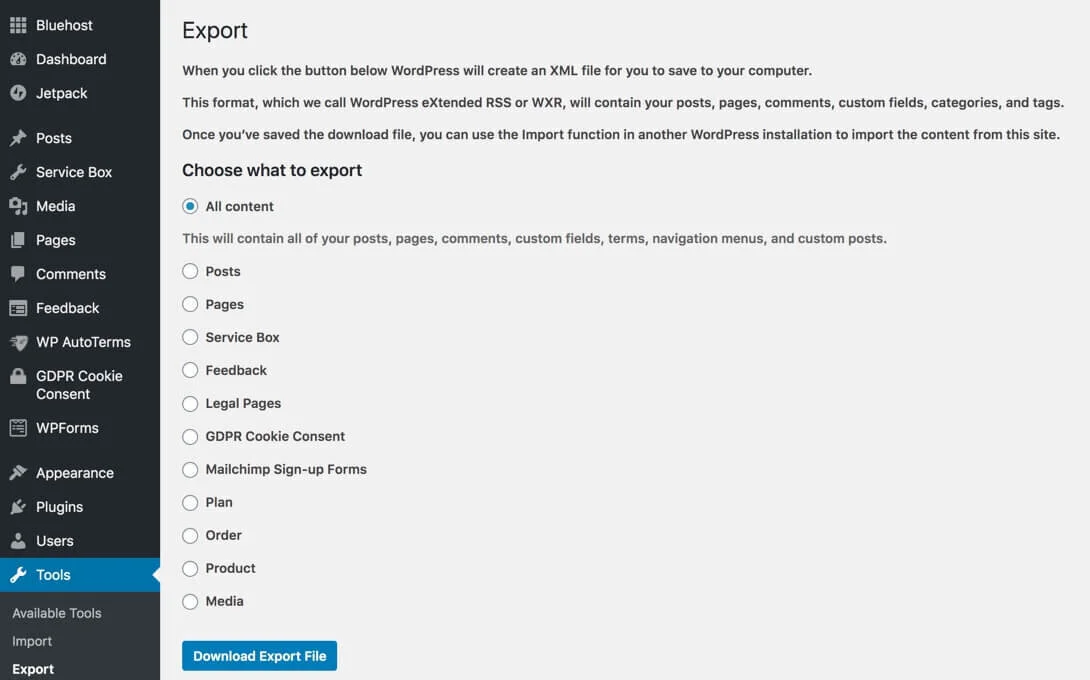
WordPress has a built-in export tool to save your site’s content. You find it in the dashboard under Tools > Export. Choose what to export: all content, posts, pages, or media. The tool creates an XML file. This file contains your site’s text and links. It does not include your design or plugins.
Exporting Posts And Pages
Posts and pages are the main content of your site. The export tool lets you select these separately or together. You can pick specific date ranges or authors too. This helps if you want only part of your site. The exported file keeps the text and basic structure. You will import this file into Squarespace later.
Handling Media Exports
Media files like images and videos are important to your content. The WordPress export tool does not include actual media files. It only links to them. You must download your media files separately via FTP or a plugin. After downloading, upload these files to Squarespace manually. This step ensures your images and videos appear correctly.
Importing Content To Squarespace
Importing content to Squarespace is a key step in moving your WordPress site. It involves transferring your posts, pages, and media to the new platform. This process helps keep your site’s information intact and lets you continue building without starting over.
Supported Import Formats
Squarespace supports importing content from WordPress through XML files. The system reads WordPress export files with a .xml extension. This file contains posts, pages, and some media links. Other formats like CSV or JSON are not supported. Make sure to export your WordPress content in the correct XML format before importing.
Steps To Import WordPress Content
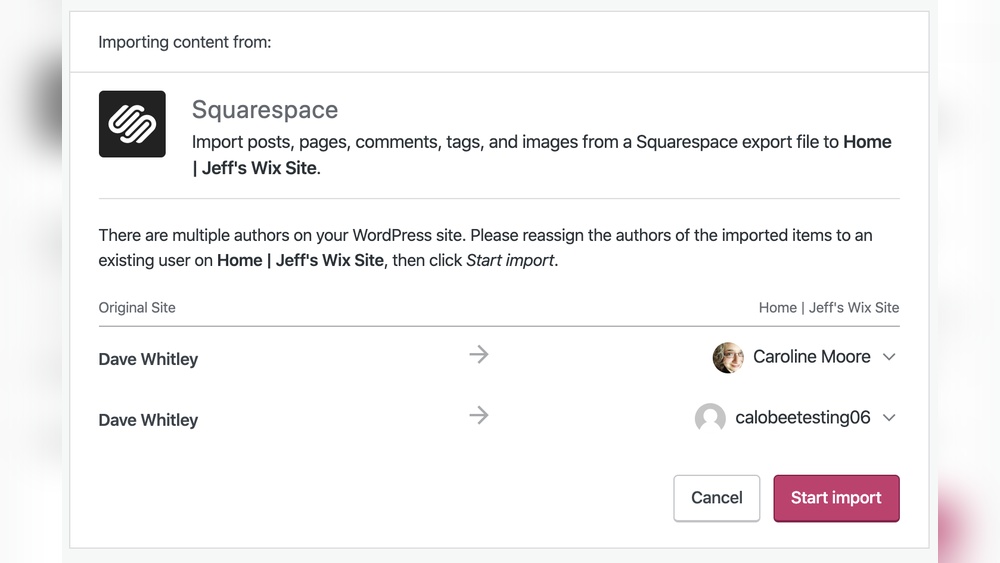
First, export your WordPress site content using the built-in export tool. This creates an XML file with your site data. Next, log in to your Squarespace account and go to the import section. Choose WordPress as the source and upload the XML file. Squarespace will then process and import your posts and pages. Review the imported content to ensure accuracy. Some manual adjustments might be needed after import.
Dealing With Import Limitations
Squarespace does not import WordPress plugins or custom themes. Media files may not transfer automatically and might need manual upload. Some complex layouts or custom code will not move over. Comments and user data are also not imported. Prepare to recreate these features within Squarespace. Keep a backup of your original WordPress site for reference and safety.
Rebuilding Design On Squarespace
Rebuilding your WordPress site design on Squarespace means starting fresh. Squarespace uses a different system for design and layout. You cannot simply copy your WordPress design. You will recreate your site’s look using Squarespace tools. This gives a chance to improve or simplify your design. Focus on making your site clean and easy to navigate.
Choosing A Template
Squarespace offers many templates to fit different needs. Select one that matches your site’s style and purpose. Templates control the basic look and feel of your site. Pick a template with a layout close to your WordPress design. This saves time on adjustments later. Templates are mobile-friendly by default. This helps your site look good on phones and tablets.
Customizing Layout And Style
After choosing a template, customize it to fit your brand. Change colors, fonts, and spacing to match your style. Use Squarespace’s drag-and-drop editor to move elements easily. Add your logo and images to personalize the site. Keep your layout simple and clean for easy reading. Avoid cluttering pages with too many items or text.
Adding Essential Features
Add important features to make your site functional. Include contact forms, social media links, and galleries. Use Squarespace blocks to add videos, maps, and buttons. Set up SEO options in Squarespace to improve search rankings. Make sure navigation menus are clear and easy to use. Test your site on different devices before launching.

Credit: www.bigcatcreative.com
Migrating Domain And Seo Settings
Migrating your domain and SEO settings is a key step in moving your WordPress site to Squarespace. It keeps your website’s identity and search rankings intact. This process requires careful actions to avoid losing visitors or traffic. Understanding how to connect your domain, redirect URLs, and preserve SEO rankings helps ensure a smooth transition.
Connecting Your Domain
Start by linking your domain to Squarespace. If your domain is registered with WordPress or another provider, update the DNS settings. Point the domain to Squarespace’s servers. This step makes your website accessible on the new platform. The domain connection might take a few hours to complete. Check for any errors during this process.
Redirecting Urls
Redirect all old URLs to the new Squarespace pages. Use 301 redirects to guide visitors and search engines. This prevents broken links and lost traffic. Map each WordPress URL to its new location on Squarespace. Squarespace offers tools to set up these redirects easily. Testing redirects ensures all links lead to the correct pages.
Preserving Seo Rankings
Keep your SEO rankings by maintaining meta titles and descriptions. Copy important SEO settings from WordPress to Squarespace. Use the same keywords and optimize new content carefully. Submit an updated sitemap to search engines. Monitor your website’s traffic to catch any issues early. This care helps retain search visibility after migration.
Handling E-commerce And Plugins
Moving a WordPress site to Squarespace involves changes, especially with e-commerce and plugins. These are key parts of many websites. Handling them well keeps your site working smoothly. It also ensures your online store and features stay intact.
Squarespace works differently from WordPress. The platform has built-in tools and limits third-party plugins. This affects how you transfer your online store and replace WordPress plugins.
Transferring Online Store
Squarespace supports e-commerce but lacks direct import from WordPress stores. You must export product data from WordPress manually. Use CSV files to move product details like names, prices, and descriptions.
Rebuild your store in Squarespace using its native commerce tools. Set up payment options, shipping, and taxes inside Squarespace. This ensures customers can buy products smoothly.
Replacing WordPress Plugins
WordPress plugins add many features. Squarespace does not use plugins in the same way. You need to find Squarespace tools or built-in features that match your plugins.
Some plugin functions may be missing. Look for alternatives within Squarespace or third-party services. Plan carefully to keep your site’s features working well.
Using Squarespace Extensions
Squarespace offers extensions for extra functions. These extensions cover shipping, marketing, and accounting. They connect easily with your Squarespace site.
Extensions help fill gaps left by missing WordPress plugins. Check the Squarespace Extension Store for tools that suit your needs. Use them to improve your site’s performance and features.
Testing And Launching Your Site
Testing and launching your site is a key step after transferring WordPress to Squarespace. This process ensures everything works correctly before going live. Proper testing avoids errors and provides a smooth user experience. Launching carefully helps maintain your site’s reputation and traffic.
Checking Functionality
Check all links to confirm they lead to the right pages. Test contact forms to ensure messages send correctly. Verify that images load fast and display well. Look for broken elements or missing content. Confirm that SEO settings, like titles and descriptions, are set properly.
Previewing On Devices
View your site on different devices like phones, tablets, and desktops. Make sure the layout adapts well to each screen size. Check if text remains readable and buttons easy to tap. Test navigation menus for smooth use on mobile devices. Previewing helps catch design issues early.
Launching And Monitoring
Set your site live during low traffic hours to reduce disruptions. Monitor site speed and uptime closely after launch. Watch user behavior to spot any trouble areas. Keep an eye on error reports and fix issues fast. Regular monitoring helps keep your new site stable and reliable.
Common Challenges And Solutions
Transferring a WordPress site to Squarespace can bring many challenges. Many users face issues with content, media, and SEO during the move. These challenges may slow down the process or affect the site’s performance.
Knowing common problems helps prepare for them. There are practical solutions to fix these issues and make the transfer smoother.
Content Formatting Issues
WordPress and Squarespace use different content formats. Text, headings, and lists may not appear the same. Some styles can break or look odd after the move.
Fix this by checking all pages carefully. Use Squarespace’s editor to adjust fonts and layouts. Simplify complex formatting before transfer to reduce errors.
Media Migration Problems
Images and videos might not transfer automatically. Broken links or missing files can appear on the new site.
Download all media from WordPress first. Upload files directly to Squarespace to keep them safe. Rename files clearly to avoid confusion. Check all media after upload to ensure it works.
Seo And Traffic Concerns
SEO settings often do not move to Squarespace. This can affect search rankings and site traffic.
Copy meta titles, descriptions, and keywords manually. Set up 301 redirects from old URLs to new ones. Use Squarespace SEO tools to optimize pages. Monitor traffic to catch and fix issues fast.

Credit: taylornguyen.ca
Frequently Asked Questions
Can I Migrate My WordPress Site To Squarespace Easily?
Yes, you can migrate your WordPress site to Squarespace. The process involves exporting content from WordPress and importing it into Squarespace’s platform. Some customization and design adjustments may be required to match your original site’s look and feel.
What Content Can Be Transferred From WordPress To Squarespace?
You can transfer posts, pages, and images from WordPress to Squarespace. However, custom themes, plugins, and some widgets may not be compatible and need re-creation within Squarespace’s tools.
Will Transferring Affect My Website’s Seo Ranking?
Transferring can affect SEO if not managed properly. Use 301 redirects for URLs and keep metadata consistent. Squarespace offers built-in SEO tools to help maintain your search rankings after migration.
How Long Does It Take To Transfer A WordPress Site To Squarespace?
The transfer time depends on your site size and complexity. Simple blogs can be moved within a few hours. Larger sites with many pages and media may take several days for complete migration and setup.
Conclusion
Transferring a WordPress site to Squarespace takes some planning. You must move your content carefully to keep it safe. Some features may not work the same way on Squarespace. Double-check your design and settings after the move. Squarespace offers easy tools for building and editing websites.
Take your time to learn its functions. The switch can improve your site’s look and management. Think about what fits your needs best before starting. This will help your website grow smoothly on the new platform.



