
Are you thinking about moving your website from Wix to WordPress but aren’t sure if it’s possible? You’re not alone.
Many website owners wonder if they can make the switch without losing their content, design, or SEO ranking. The good news is—you can transfer your site, and it’s easier than you might think. You’ll discover exactly how to move your website step-by-step, avoid common mistakes, and make sure your new WordPress site works even better than before.
Keep reading to find out how to take control of your website’s future today.
Reasons To Switch From Wix To WordPress
Many website owners think about switching from Wix to WordPress. The reasons vary but often focus on control, flexibility, and growth. Wix works well for simple sites but has limits that can hold back serious projects. WordPress offers more options and freedom for those ready to expand.
Limitations Of Wix
Wix limits design changes once your site grows. The platform restricts access to code, blocking custom functions. It has fewer SEO tools than WordPress. Wix also limits the types of plugins you can use. These limits can slow down your site’s growth.
Benefits Of WordPress
WordPress lets you fully control your website. You can add any plugin or feature you want. The platform supports all types of content and media. It offers strong SEO tools to help your site rank better. WordPress is great for blogs, stores, or portfolios.
Cost Considerations
Wix has fixed pricing but charges for extra features. Some plans get expensive as you add apps or storage. WordPress itself is free, but hosting and plugins can cost money. Many hosting providers offer affordable plans for WordPress sites. Overall, WordPress can be cheaper for bigger websites.

Credit: wpengine.com
Preparing For The Transfer
Preparing for the transfer from Wix to WordPress takes careful steps. Proper preparation saves time and avoids problems. This section guides you through key tasks before starting the move.
Backing Up Your Wix Site
First, save your Wix site data. Wix does not offer a full export tool. Copy your text and images manually. Use the Wix site editor to save content. Keep files organized on your computer. This backup ensures no data is lost.
Choosing A WordPress Host
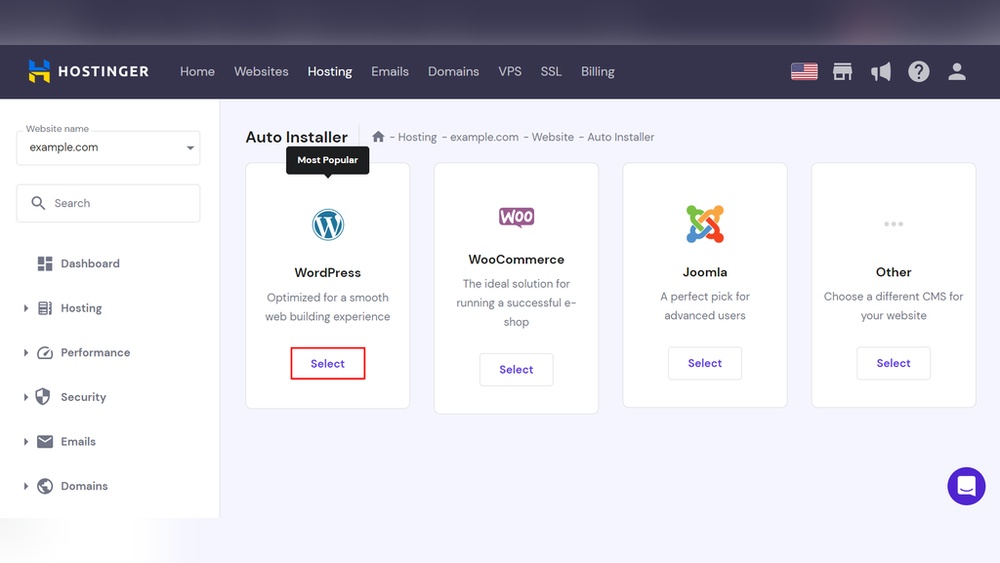
Select a reliable WordPress hosting provider. Good hosting affects your site speed and uptime. Look for hosts with easy WordPress installation. Check for strong customer support. Pick a plan that fits your budget and site needs.
Selecting A WordPress Theme
Choose a WordPress theme matching your site style. Themes control your site’s look and feel. Find one that is mobile-friendly and fast. Check if the theme supports plugins you need. Preview themes before activating them.
Transferring Content
Moving your website from Wix to WordPress means moving all your content too. This step is very important. Your texts, images, and blog posts need to appear correctly on the new site. Careful handling of content keeps your website professional and useful.
Content transfer is not automatic. You need to export and import files carefully. WordPress and Wix work differently. This means you must follow some steps to move everything smoothly.
Exporting Text And Images
Start by copying all your text from Wix. Use the editor to select and copy your pages’ words. Paste them into WordPress pages or posts. This keeps your writing safe and easy to edit later.
For images, download them from Wix to your computer. Wix does not allow direct export of images. Save each image file, then upload it to your WordPress media library. This way, pictures stay sharp and clear.
Migrating Blog Posts
Blog posts need special care. Wix does not offer an easy export for blogs. You can copy blog content manually or use RSS feed export. Export your RSS feed from Wix, then import it into WordPress.
This method brings your blog titles, dates, and content. You may need to fix formatting or add images again after import. Check each post to keep your readers happy.
Handling Media Files
Media files include videos, audio, and documents. Download all media files from Wix. Upload these files into WordPress’s media section. Organize them in folders for easy access.
Check file links on your WordPress site. Fix broken links to keep media working. Proper media handling improves site speed and user experience.

Credit: www.wpbeginner.com
Rebuilding Your Website On WordPress
Rebuilding your website on WordPress means starting fresh but with more control. WordPress offers many tools to create a site that fits your needs. You get more flexibility in design, functionality, and management. This process involves setting up pages, menus, plugins, and customizing the look.
Creating Pages And Menus
First, create the main pages like Home, About, and Contact. Use the WordPress dashboard to add new pages easily. Organize these pages into menus for clear navigation. Menus help visitors find what they need fast. You can create multiple menus for different parts of your site.
Installing Essential Plugins
Plugins add features to your WordPress site. Some essential plugins include SEO tools, security, and backups. Install only what you need to keep your site fast. Use the plugin library in WordPress to search and install plugins. Activate and configure each plugin to fit your site’s goals.
Customizing Design And Layout
Choose a WordPress theme that matches your style. Themes control the look and layout of your website. Customize colors, fonts, and layouts without coding. Use the WordPress Customizer to see changes live. A clean design helps visitors stay longer and explore more.
Redirecting Your Domain
Redirecting your domain is a key step when moving your website from Wix to WordPress. It ensures visitors reach your new site without trouble. Proper redirection keeps your website traffic steady and preserves your search engine rankings. Understanding how to redirect your domain helps you avoid losing visitors and SEO value.
Changing Dns Settings
Start by changing your domain’s DNS settings. DNS tells the internet where to find your website. Log in to your domain registrar’s account. Find the DNS or Nameservers section. Replace Wix’s nameservers with WordPress hosting nameservers. Save the changes. DNS changes can take up to 48 hours to update worldwide.
Setting Up 301 Redirects
Use 301 redirects to send visitors from old Wix pages to new WordPress pages. These redirects inform search engines that your site has moved permanently. Set up 301 redirects in your WordPress hosting control panel or with a plugin. Redirect each old URL to the matching new URL. This keeps your visitors from hitting broken pages.
Maintaining Seo Rankings
Proper redirection protects your SEO rankings during the site move. Search engines transfer ranking signals from old URLs to new ones. Avoid changing your URL structure too much to keep rankings stable. Check your redirects regularly to ensure they work. Use Google Search Console to monitor site health and fix issues.
Common Challenges And Solutions
Moving a website from Wix to WordPress brings several challenges. These often cause frustration for site owners. Understanding common problems helps in fixing them quickly. Below are frequent issues and easy solutions.
Dealing With Broken Links
Broken links appear when URLs change during migration. Visitors see error pages instead of content. Check all links after moving your site. Use a link checker tool for accuracy. Fix broken links by updating URLs manually. Create redirects for old URLs to new ones. This keeps visitors and search engines happy.
Fixing Formatting Issues
Content formatting may look different on WordPress. Text, images, and layouts might shift. This happens because Wix and WordPress use different editors. Review each page carefully after import. Adjust fonts, colors, and spacing in the WordPress editor. Use built-in tools or plugins for better control. Keep your site’s look consistent and clear.
Troubleshooting Plugin Conflicts
WordPress relies on plugins for extra features. Some plugins may not work well together. Conflicts cause errors or slow down your site. Test each plugin after installation. Deactivate plugins one by one to find conflicts. Replace problematic plugins with alternatives if needed. Keep plugins updated for smooth performance.
Tips For A Smooth Transition
Moving a website from Wix to WordPress can feel tricky. Careful steps help avoid common problems. Simple actions can make the switch smooth and stress-free.
Keep your site working well and keep visitors happy. Focus on testing, watching, and getting help if needed. These tips will guide you through the process with less worry.
Testing Your Site Before Launch
Check every page for broken links and missing images. Test on different devices like phones, tablets, and computers. Make sure all forms and buttons work correctly. Preview your site in several browsers to catch display issues. Fix errors before going live to avoid visitor frustration.
Monitoring Performance
Track your site speed and loading times closely. Use tools like Google Analytics to see visitor behavior. Watch for any drops in traffic or errors. Adjust your settings to improve performance. Regular checks keep your site healthy and fast.
Seeking Professional Help
Consider hiring a web developer if unsure about technical parts. Experts can handle complex tasks and save time. They ensure data moves safely without loss. Professionals help with SEO and design tweaks too. Getting help reduces risks and improves the final result.
Credit: themeisle.com
Frequently Asked Questions
Can I Transfer My Wix Website Content To WordPress?
Yes, you can transfer content manually by copying text and images. Automated tools don’t support direct Wix to WordPress migration yet. Prepare for some manual adjustments after transfer.
Is It Possible To Keep My Wix Domain On WordPress?
Yes, you can connect your Wix domain to your new WordPress site. Update your domain’s DNS settings to point to WordPress hosting. This keeps your domain name unchanged.
Will My Website Design Remain The Same After Transfer?
No, Wix templates don’t transfer to WordPress. You must select and customize a new WordPress theme. Designs need to be recreated manually for a similar look.
How Long Does Migrating From Wix To WordPress Take?
Migration time varies by website size and content. Simple sites may take a few hours. Larger sites could take several days for full setup and customization.
Conclusion
Transferring a website from Wix to WordPress is possible with care. It takes patience and some technical steps. You need to move your content, images, and design carefully. WordPress offers more control and flexibility for your site. It might take time to learn new tools.
But the effort can improve your website’s growth. Always back up your Wix site before starting. Test your new WordPress site fully before going live. This move can help your site work better and grow over time.



