
Are you thinking about moving your website from WordPress.com to WordPress.org? You’re not alone.
Many website owners wonder if this switch is possible—and how it might affect their site. The good news is, yes, you can make the move. But before you do, you need to understand what it means for your website, your control, and your future growth.
You’ll discover exactly how to make the switch smoothly, avoid common mistakes, and unlock the full potential of your site. Keep reading to find out how this change could be the game-changer you’ve been looking for.
Reasons To Switch
Many website owners think about moving from WordPress.com to WordPress.org. The main reason is the need for more control and flexibility. WordPress.com has limits that can stop growth. WordPress.org offers more freedom to build and customize your site.
Switching lets you use advanced tools and designs. You get to choose hosting and add extra features easily. It can help your site grow and stand out online.
Limitations Of WordPress.com
WordPress.com restricts many features. You cannot install custom plugins or themes. Your site design options are limited to what they offer. Monetization methods are also controlled. You can only use built-in options for ads and sales. Storage space is capped unless you pay more. These limits can slow down your site’s progress.
Advantages Of WordPress.org
WordPress.org gives full control over your website. You can install any plugin or theme you want. Customization is easy and unlimited. You decide how to monetize your site. Hosting choices depend on your needs and budget. It supports advanced SEO tools and analytics. Your website can grow without restrictions.
Cost Considerations
WordPress.com offers free plans but with limits. Paid plans can get expensive as you add features. WordPress.org requires paying for hosting and domain. Hosting costs vary but often stay affordable. You can pick plans that fit your budget. Over time, WordPress.org can save money. You control what you spend and where.
Credit: duplicator.com
Preparing For Migration
Preparing to move your website from WordPress.com to WordPress.org takes careful planning. This step helps avoid problems during the switch. Getting ready means securing your content, choosing the right hosting, and picking your domain name. Each part plays a key role in a smooth migration.
Take time with these tasks. They set the base for your new site. Proper preparation saves time and stress later.
Backing Up Your Site
Start by saving all your website data. This includes posts, pages, images, and settings. A full backup keeps your content safe. Use WordPress.com tools or plugins to export your files. Check the backup to ensure nothing is missing. This backup will be your safety net during the move.
Choosing A Hosting Provider
Selecting the right host is vital for your new WordPress.org site. Look for a host with good speed, uptime, and support. Check if they offer easy WordPress installation. Compare prices and features carefully. Your host affects your site’s performance and reliability.
Selecting A Domain Name
Your domain name is your website address on the web. You can keep your current domain or register a new one. Using your existing domain keeps your brand consistent. If you pick a new domain, choose something short and easy to remember. Make sure the domain name matches your site’s purpose.
Exporting Content From WordPress.com
Exporting content from WordPress.com is the first step to moving your site to WordPress.org. It lets you save your posts, pages, and other data. You get a file that you can upload to your new WordPress.org site. This process keeps your content safe and ready for the move.
Using The Export Tool
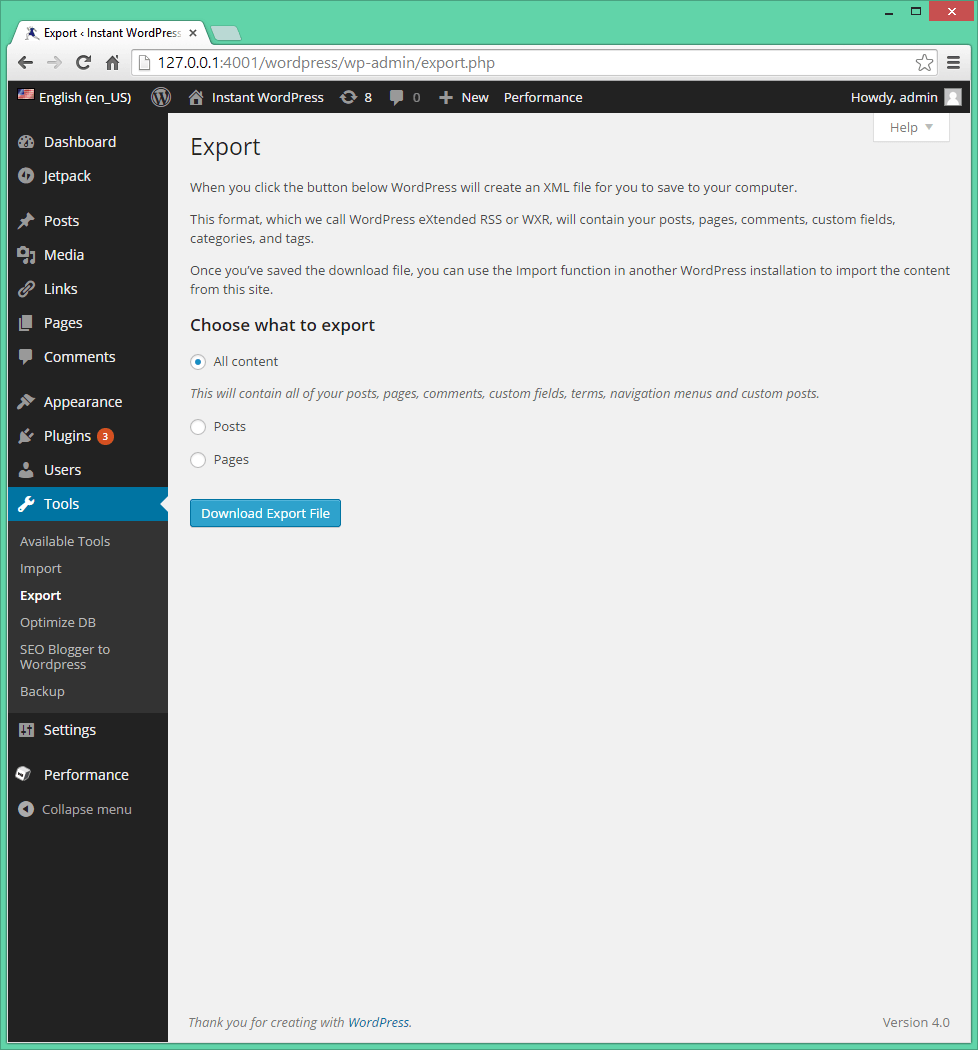
The Export Tool is built into WordPress.com. It creates an XML file with your posts, pages, comments, and more. Go to your WordPress.com dashboard, find the “Tools” menu, and click “Export.” Choose “All content” to export everything. Then, click “Download Export File” to save the file to your computer.
Exporting Media Files
Media files like images and videos are not always included in the export file. WordPress.com tries to link to your media, but some files may not transfer. You should download your media files separately. Use the media library or a plugin to save all your images and videos safely.
Handling Custom Content
Custom content includes things like portfolios, products, or other special post types. The export tool might not include these items. Check your site for any custom content before exporting. You may need extra steps or plugins to export this content properly. Plan ahead to avoid losing data.
Setting Up WordPress.org
Setting up WordPress.org is a key step after moving from WordPress.com. This setup gives full control over your website. You will manage hosting, themes, plugins, and settings. The process is simple and clear. Follow these steps to get started quickly.
Installing WordPress
First, choose a web host that supports WordPress. Most hosts offer one-click WordPress installation. Log in to your hosting account. Find the WordPress installer tool. Enter your site name, username, and password. Click install and wait a few moments. Your WordPress site will be ready for use.
Configuring Basic Settings
After installation, log in to your WordPress dashboard. Go to Settings to set your site title and tagline. Choose a timezone and language. Set your preferred date format. Adjust the visibility settings to make your site public. Save changes to apply your preferences.
Installing Themes And Plugins
Go to Appearance > Themes to add a new theme. Browse free themes or upload a premium one. Activate the theme to change your site’s look. Next, visit Plugins > Add New to find useful plugins. Install and activate plugins for extra features like SEO and security. Keep plugins updated for smooth performance.
Importing Content To WordPress.org
Importing content to WordPress.org is a key step when moving from WordPress.com. This process brings your posts, pages, and media into the new site. It helps keep your website consistent and saves time. Preparing your content for import ensures a smooth transition. Follow a clear method for the best results.
Using The Import Tool
WordPress.org has a built-in Import Tool. It allows you to upload your WordPress.com export file. This file contains all your posts, pages, and comments. Go to your WordPress.org dashboard and find the Import option under Tools. Choose WordPress and upload the export file. The tool will add your content to the new site automatically.
Fixing Broken Links And Images
Links and images may break after import. This happens because URLs can change. Check your site for any broken links or missing images. Use plugins or manual methods to update URLs. Fixing these issues keeps your site professional. It also improves user experience and SEO.
Checking For Missing Content
Sometimes, not all content imports perfectly. Review your pages and posts carefully. Look for missing text, images, or comments. Manually add any missing pieces. This step ensures your new site looks complete. A full content check avoids surprises after launch.
Credit: www.theblogstarter.com
Migrating Design And Functionality
Migrating your design and functionality from WordPress.com to WordPress.org is a key step. It lets you keep the look and feel of your site. Also, it allows you to add new features easily. This section covers how to move your theme, widgets, menus, and plugins.
Recreating Your Theme
WordPress.com themes might not transfer directly. Choose a theme on WordPress.org that looks like your old one. Many free and paid themes offer similar styles. Customize colors, fonts, and layouts to match your brand. Use the theme customizer to make changes easy.
Transferring Widgets And Menus
Widgets add extra content to sidebars or footers. You may need to add them again on your new site. Note the settings of each widget on WordPress.com. Menus control your site navigation. Rebuild menus in the WordPress.org dashboard under Appearance > Menus. Keep the same order and links to maintain user experience.
Installing Essential Plugins
Plugins add functions not found on WordPress.com. Install plugins for SEO, security, backups, and speed. Popular plugins include Yoast SEO, Wordfence, and UpdraftPlus. Activate and configure each plugin to suit your site’s needs. Plugins give you control over your site’s features.
Managing Seo And Traffic
Managing SEO and traffic is a key step when moving from WordPress.com to WordPress.org. You want to keep your current visitors and search rankings. Careful planning helps keep your website visible. Small mistakes can cause traffic loss. Follow clear steps to maintain your SEO power.
Setting Up Redirects
Redirects send visitors from old URLs to new ones. Use 301 redirects to tell search engines about the move. This preserves your page ranking. Without redirects, users find broken links. Many WordPress plugins make redirects easy. Test redirects to ensure they work well.
Submitting Sitemap To Search Engines
A sitemap helps search engines find your pages fast. After moving, create a new sitemap on WordPress.org. Submit it to Google Search Console and Bing Webmaster Tools. This speeds up indexing. Check for errors in the sitemap. Keep it updated as you add content.
Monitoring Traffic Changes
Track your website traffic regularly. Use tools like Google Analytics to watch visits. Note any drops or spikes in traffic. Sudden drops need quick fixes. Compare traffic before and after the move. This helps you spot problems early and adjust your SEO strategy.
Post-migration Checklist
After moving from WordPress.com to WordPress.org, you need a clear plan. A post-migration checklist helps you keep track. It ensures your new site works well. It also protects your content and visitors. Follow these steps to finish the process smoothly.
Testing Site Performance
Check how fast your new site loads. Use tools like Google PageSpeed Insights for this. Test pages on different devices and browsers. Make sure images and videos display correctly. Watch for broken links or missing files. Fast speed keeps visitors happy and improves SEO.
Fixing Common Issues
Look for errors after migration. Check your permalinks and update them if needed. Fix any plugin conflicts that may appear. Ensure your themes work as expected. Repair broken images or missing media files. Clear your site cache to show recent changes.
Securing Your New Site
Install a security plugin to protect your site. Set strong passwords for all accounts. Enable SSL to encrypt visitor data. Keep WordPress, themes, and plugins updated. Regular backups help recover data if needed. Security keeps your site safe and trusted.
Troubleshooting Common Problems
Moving from WordPress.com to WordPress.org can bring some challenges. Troubleshooting common problems helps keep your site running smoothly. Knowing how to fix errors saves time and stress. This section covers typical issues you might face and quick ways to solve them.
Dealing With Import Errors
Import errors often happen during site transfer. Files may be too large or in the wrong format. Check your export file size and format first. Use smaller files if needed. Sometimes, plugins that handle imports can help. Clear browser cache and try again. Always keep a backup before importing.
Handling Plugin Conflicts
Plugin conflicts can break your website functions. Some plugins may not work well together. Deactivate all plugins and reactivate one by one. This finds the plugin causing trouble. Update all plugins to their latest versions. Use plugins from trusted sources only. Remove plugins you do not need.
Resolving Theme Issues
Theme problems can cause display errors or slow loading. Switch to a default WordPress theme to test. If the problem goes away, the theme is the cause. Check for theme updates or compatibility with your WordPress version. Customize your theme carefully to avoid code errors. Backup your site before making changes.
Credit: www.wpbeginner.com
Tips For Smooth Migration
Migrating from WordPress.com to WordPress.org can feel challenging. Careful planning helps avoid problems. Follow these tips to make your move smoother and safer. Prepare step-by-step to protect your content and audience.
Timing Your Move
Pick a time with low website traffic. Fewer visitors mean fewer disruptions. Avoid major holidays or busy days. This reduces the chance of losing readers. Schedule your migration during off-peak hours. Test your new site before going live.
Communicating With Your Audience
Tell your readers about the move early. Use blog posts or emails to inform them. Explain why you are switching platforms. Share the expected date of the change. Keep your audience updated during the process. This builds trust and keeps visitors loyal.
Keeping Backups Updated
Create full backups before starting the migration. Save copies of your posts, images, and files. Use reliable tools for backing up your data. Update backups regularly during the move. This protects you against data loss. Store backups in multiple safe locations.
Frequently Asked Questions
Can I Transfer My Site From WordPress.com To WordPress.org?
Yes, you can move your site from WordPress. com to WordPress. org by exporting your content and importing it to a self-hosted WordPress. org site. This process requires a hosting provider and domain setup.
What Are The Main Differences Between WordPress.com And WordPress.org?
WordPress. com is a hosted platform with limited customization, while WordPress. org offers full control and flexibility by self-hosting your website. WordPress. org requires a hosting service and domain purchase.
Is It Difficult To Migrate From WordPress.com To WordPress.org?
Migrating is straightforward if you follow the right steps. Export your content, set up hosting, install WordPress. org, and import your files. Some technical knowledge helps but many guides simplify the process.
Will I Lose My Seo Rankings After Moving To WordPress.org?
If you set proper redirects and maintain URL structure, your SEO rankings should remain intact. Carefully transfer all content and update links to preserve your SEO performance.
Conclusion
Moving from WordPress. com to WordPress. org gives you more control. You can customize your site and use many plugins. The process takes some time but is doable. Keep backups to avoid losing data. Choose hosting that fits your needs and budget.
Take small steps and learn as you go. This change can help your website grow. Stay patient and enjoy building your own space online.



