
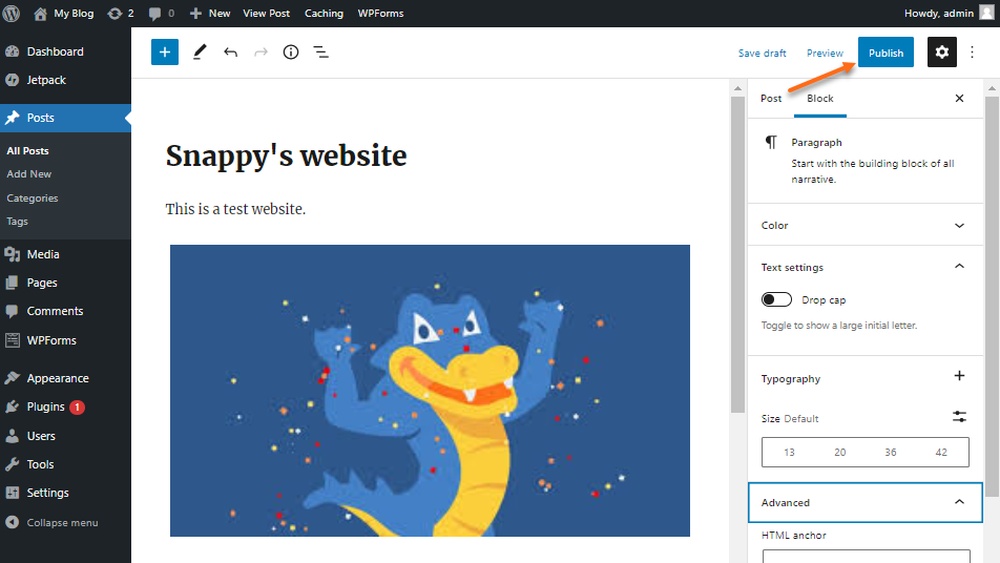
Have you ever hit “Publish” on your WordPress website and then realized you forgot something or wanted to make a quick change? It’s a common worry, but here’s the good news: yes, you can edit your WordPress website even after it’s live.
Imagine having full control to fix mistakes, update content, or improve your site anytime you want—without stress or hassle. You’ll discover exactly how to make those edits smoothly and keep your website looking fresh and professional. Ready to take charge of your site?
Let’s dive in.
Editing Content After Publishing
Editing content after publishing is easy on WordPress. You can update your website anytime. Changes can be small text fixes or new images. This keeps your site fresh and accurate. Visitors will see the latest information.
Accessing The WordPress Dashboard
First, log in to your WordPress dashboard. Use your username and password. The dashboard is the control center of your site. Here, you manage all content and settings. Finding the right place to edit starts here.
Navigating To Published Pages And Posts
Look at the left menu in the dashboard. Click on “Pages” to edit site pages. Choose “Posts” to edit blog posts. Both show lists of your published content. Select the page or post you want to change.
Making Text And Media Changes
Click the title to open the editor. Change any text by typing in the boxes. Add or replace images using the media button. Save your changes by clicking “Update.” Your changes go live immediately.
Credit: www.hostgator.com
Updating Website Design
Updating your website design keeps your site fresh and user-friendly. It improves visitor experience and helps your site stay relevant. You can make many design changes even after publishing your WordPress site. These updates allow you to enhance the look and feel without rebuilding the site.
Modifying Themes And Templates
The easiest way to change your site’s appearance is by modifying themes. WordPress themes control the overall style and layout. You can switch to a new theme or customize an existing one. Many themes offer options to change colors, fonts, and page structure. Templates control how individual pages look. Adjusting templates lets you create a unique look for different parts of your site.
Customizing Widgets And Menus
Widgets add extra features and content blocks to your site’s sidebars or footers. You can add, remove, or rearrange widgets to improve navigation and usability. Menus help visitors find important pages quickly. WordPress allows you to create custom menus and place them in various locations. Updating widgets and menus makes your site easier to use and more organized.
Editing Css For Advanced Styling
CSS controls the fine details of your site’s design, like colors, spacing, and fonts. Editing CSS lets you make advanced style changes beyond theme options. You can customize the appearance of buttons, headings, and backgrounds. Small CSS tweaks can make your site stand out and look professional. WordPress has built-in tools to safely add custom CSS without affecting core files.
Managing Plugins And Features
Managing plugins and features is a key part of editing a WordPress website after publishing. Plugins add new tools and functions to your site. They help improve user experience and site performance. Understanding how to manage these plugins keeps your website fresh and secure.
Adding Or Removing Plugins
You can add new plugins anytime to extend your website’s functions. Go to the WordPress dashboard and open the Plugins section. Click “Add New” to search for plugins that suit your needs. Installing is easy with just a few clicks.
Removing plugins is just as simple. Deactivate the plugin first, then delete it. Removing unused plugins helps keep your site fast and clean.
Configuring Plugin Settings
After installing, configure each plugin to work best for your site. Plugin settings vary but are easy to find in the dashboard. Adjust options like appearance, functionality, and permissions. Proper settings ensure the plugin fits your site’s goals.
Ensuring Compatibility
Compatibility between plugins and your WordPress theme matters a lot. Conflicts can cause errors or slow down your site. Always check plugin reviews and updates before installing. Test new plugins on a staging site if possible. Keep all plugins and WordPress updated to avoid issues.

Credit: procoders.tech
Saving And Previewing Changes
Editing a WordPress website after publishing is simple. You can make changes anytime and control how these changes appear. It is important to save your work properly and preview updates before they go live. This avoids mistakes and ensures your site looks great.
Using The Preview Function
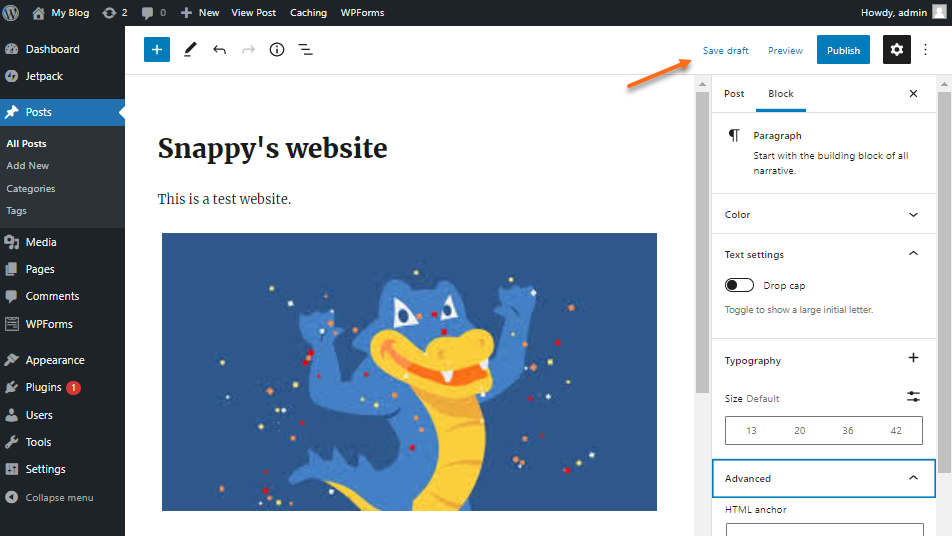
The preview function shows changes without publishing them. It lets you see how the page will look. You can check text, images, and layout before making updates public. This tool helps catch errors early and saves time.
Saving Drafts Vs. Updating Live Content
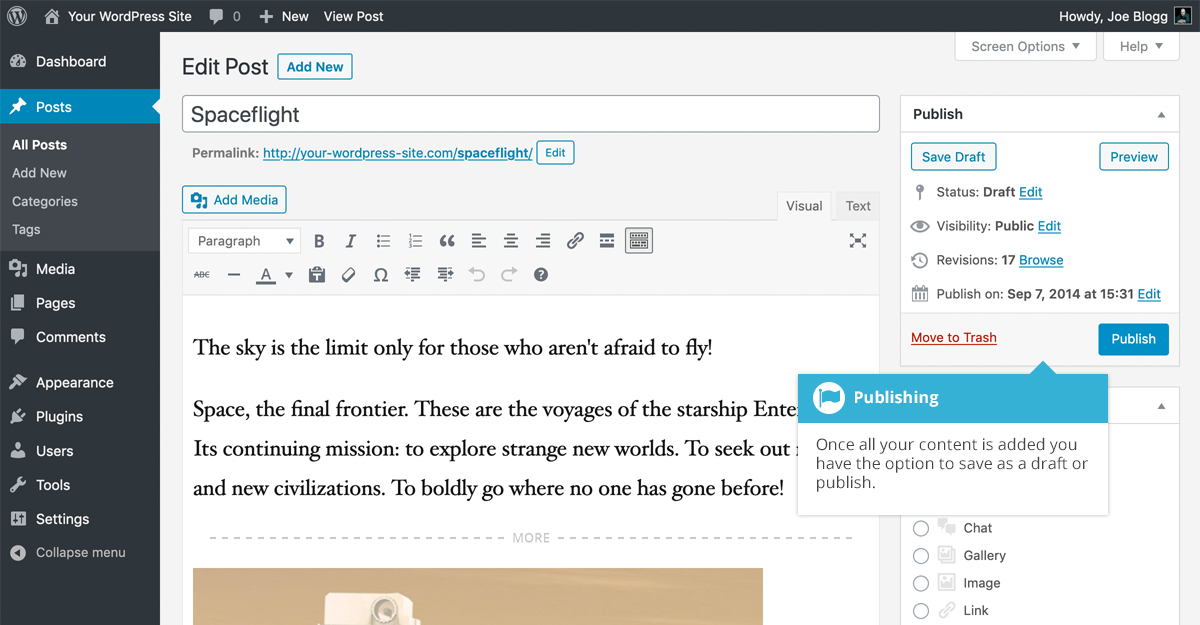
Saving drafts keeps your changes private. Only you can see drafts before publishing. Updating live content makes changes visible to all visitors. Use drafts to work on updates over time. Use update to publish finished edits immediately.
Clearing Cache For Changes To Appear
Sometimes changes don’t show right away. This happens due to cached files stored by browsers or plugins. Clearing cache forces the browser to load fresh content. It ensures visitors see your latest updates. Clear cache regularly after editing your site.
Best Practices For Post-publish Edits
Editing a WordPress website after publishing is common. It helps keep content fresh and accurate. Following best practices ensures smooth updates without causing issues. Careful planning protects your website and visitors.
Backing Up Your Website
Always back up your website before making changes. A backup saves your files and database. It allows you to restore the site if something goes wrong. Use reliable backup plugins or your hosting service tools. Schedule regular backups for extra safety.
Testing Changes On A Staging Site
Test all updates on a staging site first. A staging site is a copy of your live site. It helps you see how changes work without affecting visitors. Fix any errors or bugs before going live. This step reduces risks and ensures smooth updates.
Communicating Updates To Visitors
Let visitors know about important updates. Use banners, pop-ups, or blog posts to inform them. Clear communication builds trust and keeps users engaged. Announce major changes or maintenance periods in advance. Keep messages simple and easy to understand.
Credit: easywpguide.com
Frequently Asked Questions
Can I Update Content After Publishing WordPress Posts?
Yes, you can easily update content after publishing WordPress posts. Simply log in, edit the post, and click “Update. ” Changes reflect immediately on your live site.
How To Edit Images On A Published WordPress Page?
To edit images on a published page, open the page in WordPress editor. Select the image, replace or modify it, then save changes by updating the page.
Will Editing A Published WordPress Site Affect Seo?
Editing a published site can improve SEO if done properly. Update content with relevant keywords and fix errors to boost rankings without harming current SEO.
Can I Change WordPress Website Design After Publishing?
Yes, you can change your WordPress website design anytime. Use themes or page builders to customize layout and appearance without affecting your published content.
Conclusion
Yes, you can edit a WordPress website after publishing. Changes can be made anytime to keep content fresh. Editing helps fix mistakes and improve user experience. Always save updates to make sure changes appear online. Regular updates keep your site useful and relevant.
Don’t worry about editing after publishing; it’s simple and quick. Keep your website growing by making updates often. Easy to manage, WordPress lets you control your content fully.



