
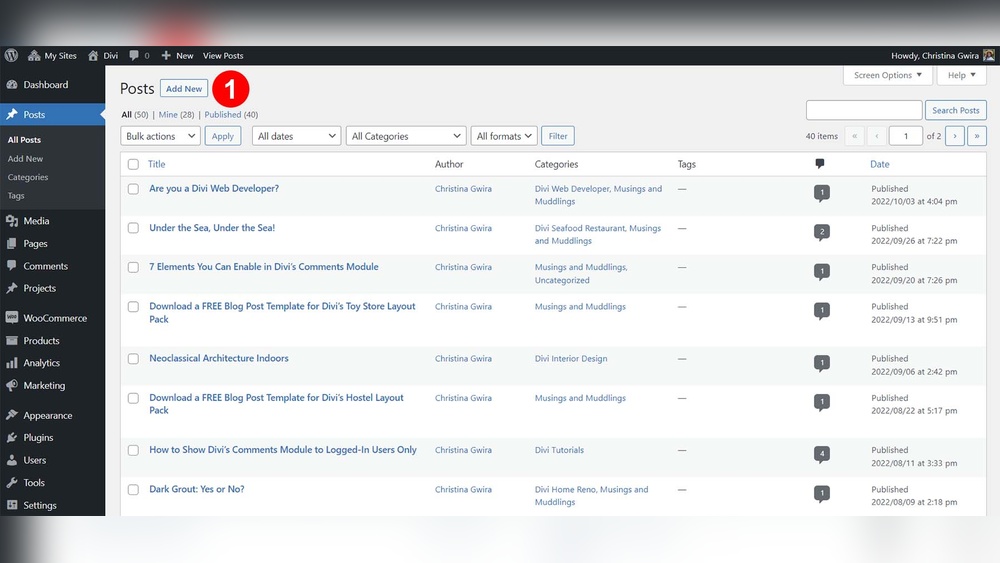
Have you ever wished you could quickly copy a WordPress page without starting from scratch? Whether you’re building a new section, testing changes, or saving time, duplicating a page can make your work so much easier.
But how exactly can you do it? You’ll discover simple, step-by-step ways to duplicate your WordPress pages effortlessly. By the end, you’ll have the tools you need to speed up your website editing and keep your content consistent. Ready to make your workflow smoother?
Let’s dive in!
Why Duplicate A WordPress Page
Duplicating a WordPress page saves time and effort. It allows you to keep the same design and layout without starting from scratch. You can create new pages quickly by copying an existing one. This method keeps your website consistent and professional. It is especially helpful for sites with many similar pages.
Benefits Of Cloning Pages
Cloning a page helps maintain design consistency across your site. It reduces the chance of errors when creating new pages. You save time by not rebuilding the layout each time. It also makes updating content easier by reusing page structures. This process supports faster website growth and better user experience.
Common Use Cases
Duplicating pages works well for product listings or service descriptions. It is useful for creating landing pages with similar formats. You can copy event pages for recurring occasions quickly. Blog templates can also be duplicated for new posts. Many website owners use page cloning to speed up content creation.
Credit: www.elegantthemes.com
Methods To Duplicate WordPress Pages
Duplicating WordPress pages is a common need for many website owners. It helps save time and keeps the design consistent. There are several ways to copy a page. Each method suits different skill levels and needs.
Using Plugins For Cloning
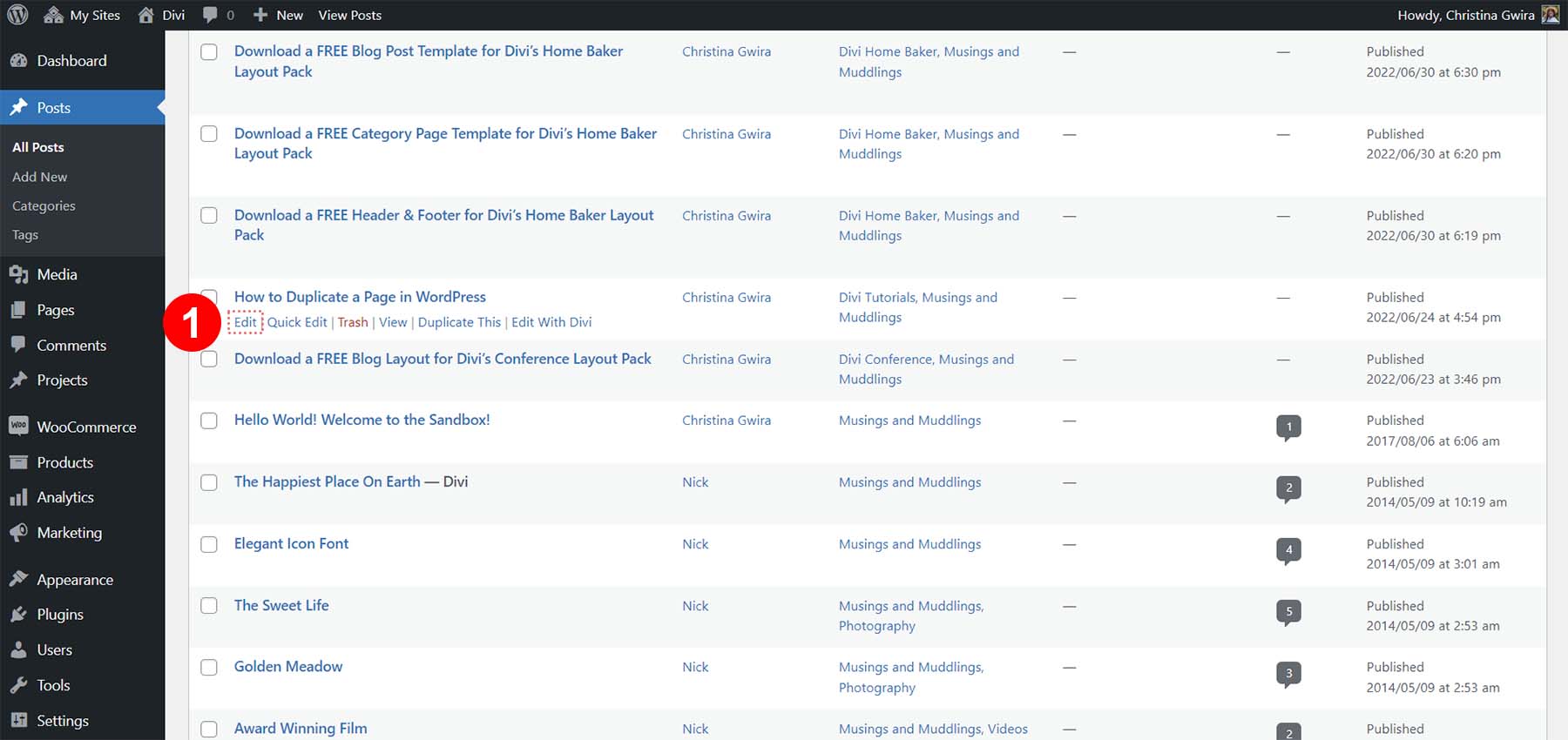
Plugins make duplicating pages easy and fast. You can find many free and paid options in the WordPress plugin directory. These plugins add a “Duplicate” or “Clone” button to your page list. Clicking it creates an exact copy of the page. It keeps the layout, content, and SEO settings intact. No coding knowledge is needed, and it works well for beginners.
Manual Duplication Via Code
For those comfortable with code, manual duplication is possible. It involves editing your theme’s functions.php file. You add a small snippet that creates a copy of a page on command. This method requires care to avoid errors. It gives more control over the duplication process. Developers often choose this for custom needs.
Duplicating Without Plugins
You can duplicate pages without plugins or code. One way is to copy the page content manually. Open the original page, select all text and blocks, then paste them into a new page. This method is simple but may miss some settings. It works well for quick copies with minor changes needed.
Top Plugins For Page Duplication
Duplicating a WordPress page saves time and keeps your site consistent. Plugins make this task simple and fast. They help copy pages without losing design or content. Using the right plugin improves your workflow and reduces errors. Let’s explore some top plugins for page duplication and how to use them.
Features Of Popular Plugins
Many plugins offer easy page duplication with one click. They copy all content, images, and settings. Some plugins also duplicate SEO data and custom fields. Most plugins let you rename the copied page instantly. They work well with popular page builders like Elementor and Gutenberg. Plugins vary in speed and user interface. Some include bulk duplication for copying many pages at once. Security is important; good plugins avoid adding extra risks. Check compatibility with your WordPress version. Choose plugins that receive regular updates and good user reviews.
How To Install And Use Plugins
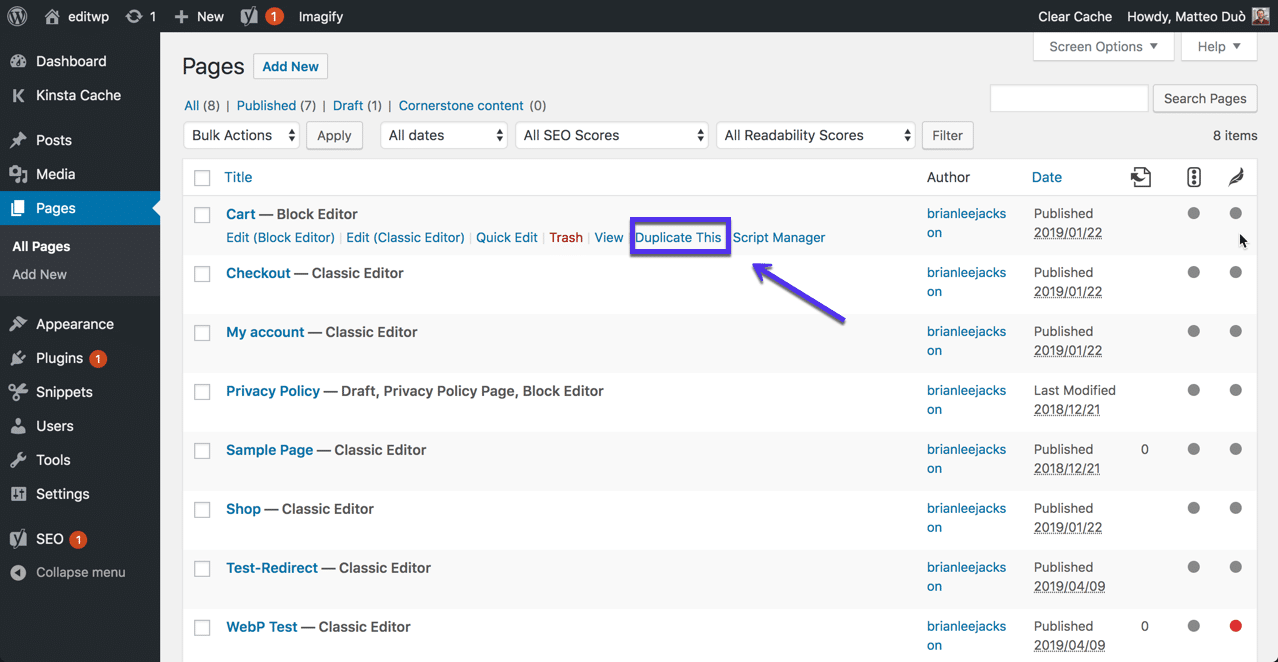
Go to your WordPress dashboard and click “Plugins.” Select “Add New” and type the plugin name in the search bar. Click “Install Now,” then activate the plugin. After activation, find the plugin settings in your dashboard menu. To duplicate a page, open the Pages section. Hover over the page you want to copy. Click the duplicate or clone link added by the plugin. The new page appears as a draft. Edit the title and content as needed. Publish the duplicated page when ready. This process works for posts too, depending on the plugin.

Credit: wordpress.org
Step-by-step Guide To Duplicate A Page
Duplicating a WordPress page is a useful skill for saving time. It helps you keep the same layout and content for new pages. This guide shows you simple steps to duplicate your page easily.
Preparing Your Page For Duplication
First, check the page you want to copy. Make sure it has the content and design you need. Clear any unnecessary elements or drafts. This keeps your new page clean and organized. Also, save your work before starting the duplication process. It prevents data loss if something goes wrong.
Duplicating Using A Plugin
Use a plugin to duplicate pages quickly. Search for “Duplicate Page” or “Duplicate Post” in the WordPress plugin directory. Install and activate the plugin with a few clicks. After activation, go to your pages list. You will see a new option to duplicate each page. Click the duplicate link to create a copy instantly.
Editing The Duplicated Page
Open the new copy in the editor. Change the title to avoid confusion. Update the content to fit your new purpose. Check all images and links to ensure they work. Save or publish the page when ready. Now you have a new page without building it from scratch.
Troubleshooting Duplication Issues
Duplicating a WordPress page can save time but may cause issues. Troubleshooting duplication problems helps keep your site running smoothly. Understanding common errors and how to fix them is key. Also, preserving SEO after duplication protects your search rankings. This section covers both topics to help you manage duplicated pages effectively.
Common Errors And Fixes
Sometimes duplicated pages do not show correctly. A common error is missing images or broken links. Check that all media files copied properly. Another issue is duplicate slugs causing URL conflicts. Change the page slug to fix this. Plugins used for duplication may fail or cause errors. Try disabling other plugins to find conflicts. Clear your cache if changes don’t appear. Always update permalinks after duplication to avoid 404 errors.
Maintaining Seo After Duplication
Duplicate content can harm your SEO ranking. Search engines may penalize pages that look the same. Change the title and meta description on the new page. Use canonical tags to tell search engines which page is original. Avoid copying all the content verbatim; add unique text. Check that internal links point correctly. Keep your keywords relevant but not repeated too much. Regularly monitor your SEO performance after duplication to catch issues early.
Tips To Save Time With Page Duplication
Duplicating a WordPress page can save a lot of time. It helps avoid building pages from scratch.
Using duplication, you keep the same design and layout. This means fewer mistakes and faster publishing.
Here are some tips to use page duplication effectively and keep your workflow smooth.
Streamlining Your Workflow
Start by choosing a reliable plugin for duplication. A good plugin copies content, images, and settings.
Duplicate pages before editing. This keeps your original work safe and unchanged.
Use consistent naming for duplicates. Add “copy” or a date to find them easily later.
Set up templates for common page types. Duplicate templates to create new pages fast.
Best Practices For Managing Duplicates
Keep track of all duplicate pages in a list. This prevents confusion and clutter in your dashboard.
Delete duplicates that are no longer needed. This keeps your site clean and organized.
Check duplicate pages for outdated content. Update them regularly to keep information accurate.
Limit who can duplicate pages. Give access only to trusted team members to avoid errors.
Credit: kinsta.com
Frequently Asked Questions
Can You Duplicate A WordPress Page Without A Plugin?
Yes, you can duplicate a WordPress page manually by copying the page content. However, using plugins is faster and more efficient.
What Is The Best Plugin To Duplicate WordPress Pages?
“Duplicate Post” is a popular and reliable plugin for cloning WordPress pages easily with one click.
Does Duplicating A Page Affect Seo Rankings?
No, duplicating a page itself doesn’t harm SEO if you avoid duplicate content issues by editing the copied page.
How To Duplicate A WordPress Page In The Block Editor?
In the block editor, use the “Copy All Content” option, then create a new page and paste the content.
Conclusion
Duplicating a WordPress page is simple and useful. It saves time and keeps your design consistent. You can do it with plugins or built-in tools. Always check the duplicate page before publishing. This helps avoid mistakes or broken links. Use duplication for testing or creating similar content fast.
It fits well for beginners and experts alike. Try duplicating pages to improve your website’s workflow. Easy steps lead to better site management. Give it a try today and see the difference.



