
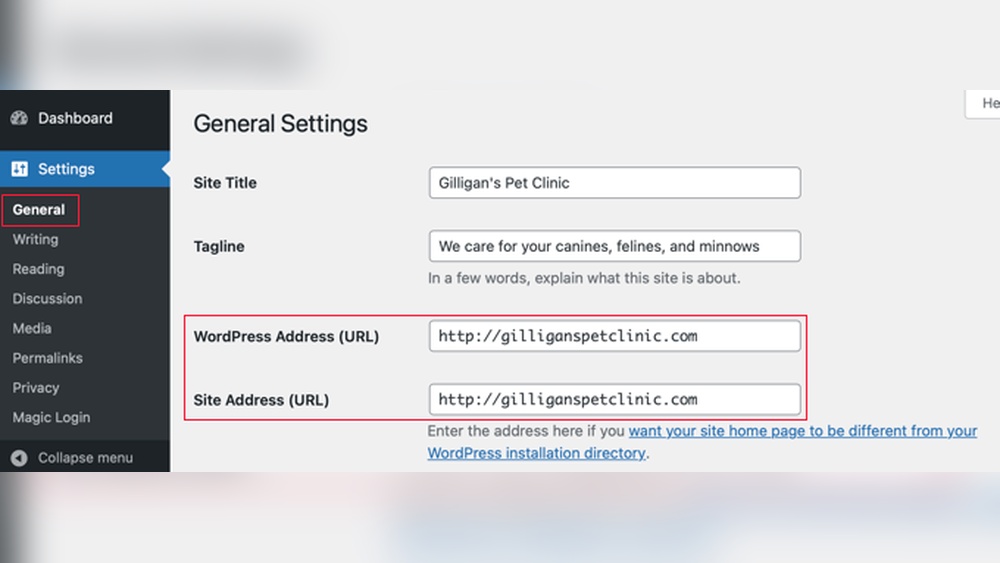
Have you ever wondered if you can change your URL on WordPress? Maybe your site’s web address feels too long, confusing, or just not quite right.
The good news is, yes—you can change it. But how exactly do you do it without losing traffic or harming your site’s ranking? You’ll discover simple, step-by-step tips to update your WordPress URL safely and effectively. Keep reading, because a small change could make a big difference for your website’s success.
Why Url Structure Matters
URL structure plays a key role in your website’s success. A clear and simple URL helps search engines and users understand your content better. It also improves how your site appears in search results. Changing your URL on WordPress can impact how your site is seen and used. Knowing why URL structure matters helps you make smart choices.
Impact On Seo
Search engines use URLs to rank your pages. Clean URLs with keywords show relevance to a topic. This can lead to higher search rankings. Long or confusing URLs may reduce your site’s visibility. A good URL structure helps search engines crawl your site easily. It also increases the chance of your page being found.
User Experience Benefits
Users prefer URLs that are simple and clear. A good URL tells visitors what the page is about. This builds trust and encourages clicks. Easy-to-read URLs are more likely to be shared. They also help users remember your site. Clear URLs reduce confusion and improve navigation. This keeps visitors on your site longer.
When To Change Your WordPress Url
Changing your WordPress URL is a big step. It affects your website’s identity and how visitors find you. Knowing when to change it helps avoid problems. Some situations really need a URL update. Others might cause more harm than good.
Common Reasons For Url Changes
Businesses often change URLs after rebranding. A new name needs a matching web address. Sometimes, site owners want shorter URLs for easier sharing. Long, complex URLs can confuse visitors. Moving to a new domain also requires a URL change. This happens when switching hosting or upgrading services. Correcting mistakes in the original URL is another reason. Typos or unclear URLs can hurt traffic and trust.
Risks To Consider
Changing URLs can break old links. Visitors may see error pages instead of content. Search engines might drop your site from results temporarily. This can reduce your traffic and sales. Improper redirects can confuse both users and search engines. Losing backlinks from other sites is a real risk. Your site could lose some ranking and authority. Always plan carefully and back up your site before changing URLs.
Preparing For Url Changes
Changing your URL on WordPress needs careful preparation. This avoids problems like broken links or lost traffic. Taking steps before the change keeps your site safe and easy to use. Planning helps your website stay organized and search-friendly.
Backup Your Website
Start by backing up your entire website. Save your files, database, and settings. A backup lets you restore your site if something goes wrong. Many WordPress plugins make backups easy. Store your backup in a safe place outside your server.
Plan Your New Url Structure
Think about how your new URLs will look. Keep them simple, clear, and easy to read. Use keywords that match your content. Avoid long or confusing links. Plan how each page’s URL will change. This helps users and search engines understand your site better.

Credit: wpmarmite.com
Step-by-step Url Change Process
Changing your URL on WordPress is simple. Follow this step-by-step process to update your site links safely. This guide shows you how to access settings, edit permalinks, and update individual posts.
Accessing WordPress Permalink Settings
Log in to your WordPress dashboard first. On the left menu, find and click “Settings.” Then, select “Permalinks.” This section controls your website’s URL structure.
Here, you can choose a new permalink style. Options include plain, day and name, month and name, numeric, and custom structure.
Editing Permalinks Safely
Before changing URLs, back up your website. This keeps your data safe. Changing URLs may affect SEO and links.
Use simple and clear words in your new URLs. Avoid long or complex strings. This helps visitors and search engines understand your links.
After editing, save your changes. Check your site to ensure all links work correctly.
Updating Individual Post Urls
Go to “Posts” in your dashboard. Select the post you want to edit. Below the post title, find the permalink.
Click “Edit” next to the URL. Type your new URL slug carefully. Save or update the post to apply changes.
Test the new link to confirm it opens the correct page. Fix any broken links in your content or menus.
Handling Redirects Correctly
Changing your URL on WordPress affects your site’s traffic and search rankings. Handling redirects correctly keeps visitors and search engines happy. Redirects guide users from the old URL to the new one without confusion. This avoids broken links and lost page authority. Proper redirects improve user experience and preserve SEO value.
Setting Up 301 Redirects
301 redirects tell browsers the URL has moved permanently. This type of redirect passes most SEO value to the new URL. You can set up 301 redirects manually using your site’s .htaccess file. Add a simple redirect rule from the old URL to the new one. Always test the redirect to make sure it works correctly.
For example, add a line like Redirect 301 /old-page https://yoursite.com/new-page in .htaccess. This way, visitors and search engines find the right page automatically.
Using Plugins For Redirect Management
Plugins make managing redirects easier, especially if you do not know coding. Popular WordPress plugins let you create and monitor redirects inside the dashboard. These tools often include options for 301 redirects and tracking errors.
Plugins like Redirection or Simple 301 Redirects help you add redirects in minutes. They also show reports for broken links or redirect loops. Using plugins reduces the risk of mistakes and saves time during URL changes.
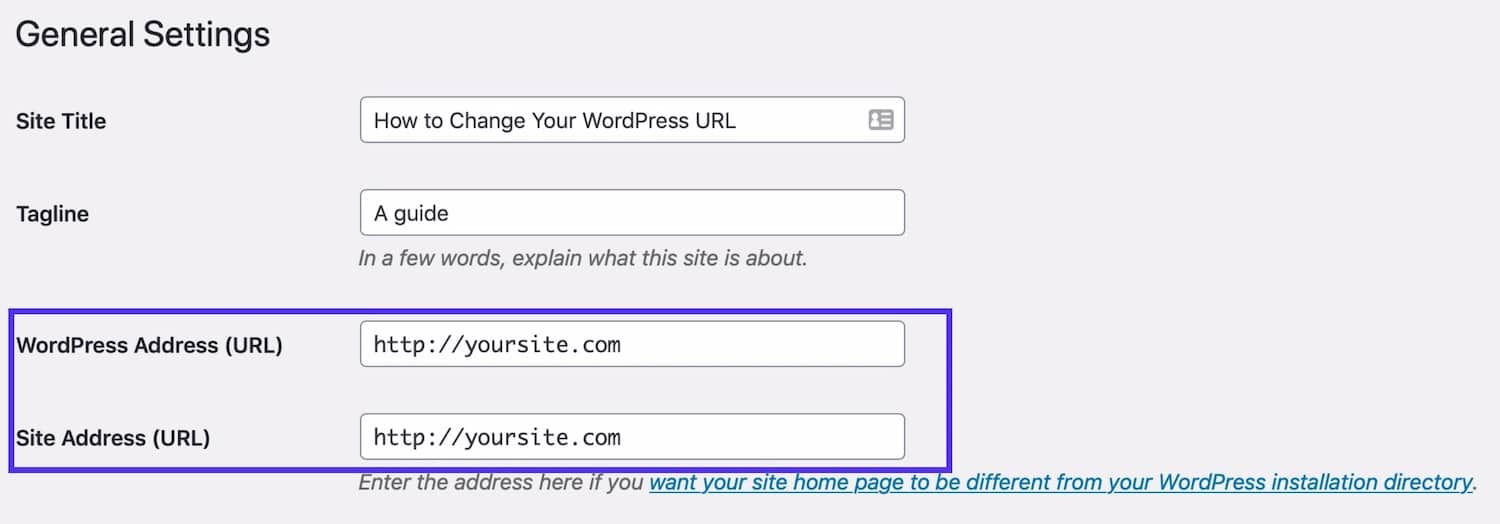
Credit: kinsta.com
Avoiding Common Seo Pitfalls
Changing your URL on WordPress can affect your site’s SEO. Avoiding common SEO pitfalls helps keep your rankings stable. Small mistakes can cause big problems. Take steps to protect your SEO health during the change.
Maintaining Internal Links
Internal links guide visitors and search engines through your site. Broken links hurt user experience and SEO. Update all internal links to match the new URL structure. Use tools or plugins to find and fix broken links quickly. Keep your site easy to navigate and crawl.
Updating Sitemap And Robots.txt
Your sitemap tells search engines about your pages. Update your sitemap with the new URLs after changing them. Submit the updated sitemap to search engines for faster indexing. Check your robots.txt file to ensure it does not block new URLs. Proper updates help search engines find your content fast.
Monitoring Url Changes
Changing a URL on WordPress can affect your website’s performance. It is important to watch these changes closely. Monitoring helps you catch problems early. It ensures your site stays healthy and visible to search engines.
Keeping track of URL changes helps maintain user experience. Visitors find your site easily. It also protects your site’s SEO rankings. Careful monitoring prevents loss of traffic.
Tracking Seo Performance
Use tools like Google Search Console to track SEO after URL changes. Check if your pages still rank well. Look for drops in impressions or clicks. SEO tracking shows how search engines see your site. Regular monitoring helps you fix SEO issues fast.
Fixing Broken Links
Broken links hurt user experience and SEO. After changing URLs, scan your site for broken links. Use plugins or online tools for this task. Fix broken links by updating them or setting redirects. Redirects guide visitors from old URLs to new ones. This keeps your site smooth and prevents 404 errors.
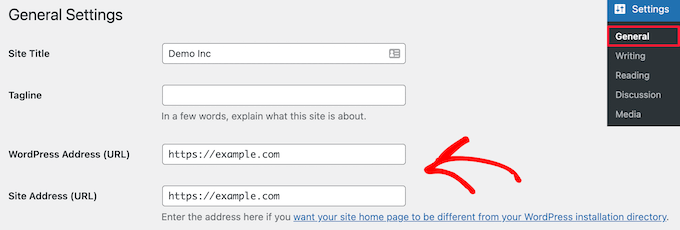
Credit: www.wpbeginner.com
Frequently Asked Questions
How To Change A WordPress Url Safely?
To change a WordPress URL safely, update your site address in the WordPress settings. Use 301 redirects to avoid broken links. Backup your website first to prevent data loss. Test the new URL on different devices to ensure it works properly.
Can Changing A WordPress Url Affect Seo?
Yes, changing a WordPress URL can affect SEO. Use proper 301 redirects to preserve link equity. Update internal links and submit a new sitemap to search engines. This helps maintain your site’s ranking and avoids traffic loss.
Is It Possible To Change The Url Of A WordPress Page?
Yes, you can change the URL of a WordPress page by editing its permalink. Go to the page editor, modify the permalink slug, and save changes. Ensure the new URL is SEO-friendly and use redirects if the page was live before.
What Happens If I Don’t Redirect After Changing Urls?
If you don’t redirect after changing URLs, visitors may encounter 404 errors. Search engines will lose track of your page, causing ranking drops. Always set up 301 redirects to guide traffic from old URLs to new ones.
Conclusion
Changing your URL on WordPress is simple and quick. It can help your site look cleaner and easier to share. Always save a backup before making changes. Check your links after to avoid broken pages. Clear steps and caution keep your site safe.
Try it yourself and improve your website’s structure today.



