
Have you ever wondered if you can build a WordPress website without being connected to the internet? Imagine working on your site anytime, anywhere, without worrying about slow connections or interruptions.
What if you could design, customize, and test your website right on your own computer before going live? You’ll discover exactly how to create a WordPress website offline, step-by-step. By the end, you’ll know how to take full control of your site-building process, save time, and avoid common frustrations.
Keep reading to unlock the secret to hassle-free website creation!
Benefits Of Building Offline
Building a WordPress website offline offers many clear advantages. It lets you create and edit your site in a private, secure space. Working offline removes distractions and interruptions. You control your own environment fully. This approach suits beginners and professionals alike.
Offline development also reduces risks. You can try new ideas without affecting your live site. Changes stay safe until you are ready to publish. This keeps your website stable and reliable.
Work Without Internet
Offline WordPress lets you work without internet access. No connection means no delays or disruptions. You can build pages, design layouts, and write content anywhere. This is perfect for travel or places with weak signals. Your work saves directly on your computer. No need to rely on slow or spotty networks.
Test Changes Safely
Testing offline keeps your live site safe. You can try new themes, plugins, or code without risk. Mistakes stay local and do not break your online site. This lets you fix errors before going public. Testing also helps you see how your site looks and works. You gain confidence in your updates before they go live.
Speed And Control
Building offline is faster than working online. Your computer runs everything quickly without server delays. You decide when to update or publish your site. This control helps you plan and organize better. It also means no unexpected crashes or slowdowns. You work smoothly with all tools ready at hand.

Credit: kinsta.com
Choosing The Right Tools
Building a WordPress website offline needs the right tools. These tools help create and test your site without internet access. Choosing them carefully saves time and effort.
Let’s explore key tools that make offline WordPress site building easy and effective.
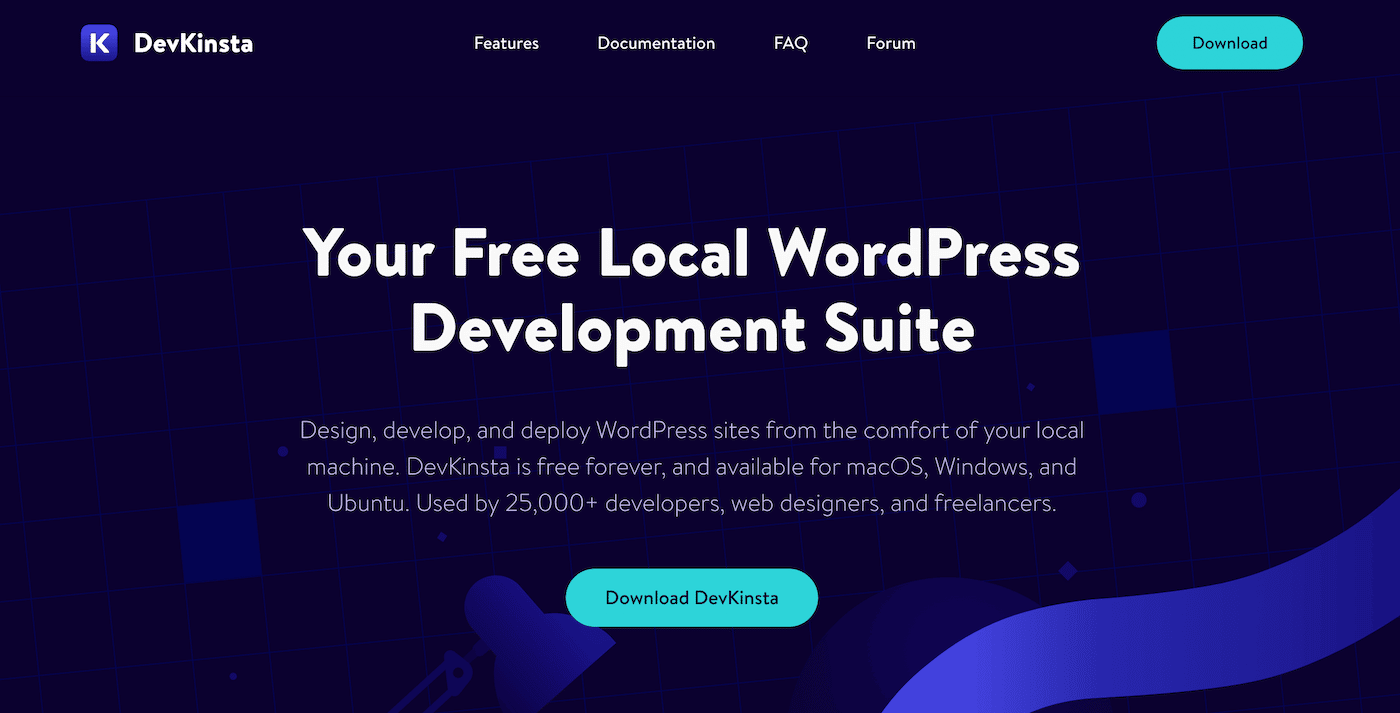
Local Server Software Options
Local server software acts as a web host on your computer. It runs WordPress just like a live website. Popular choices include XAMPP, WAMP, and MAMP. Each supports PHP and MySQL, essential for WordPress. Pick one that fits your operating system and is easy to use.
WordPress Installation Files
Download the latest WordPress package from the official site. Keep the files on your computer for offline use. Extract them into the local server’s web folder. This step prepares WordPress for installation and setup. Always use the most recent version for security and features.
Essential Plugins And Themes
Plugins add new features to your WordPress site. Themes control the look and feel. Download plugins and themes ahead of time. Save them locally to install offline. Choose essential plugins for SEO, security, and performance. Select themes that match your website style and goals.
Setting Up Your Local Environment
Setting up a local environment is the first step to build a WordPress website offline. It lets you work without internet access. This setup mimics a live server on your computer. You can test themes, plugins, and design safely. The process has three main parts: installing a local server, creating a database, and configuring WordPress.
Installing Local Server
A local server runs on your computer. It acts like a live web server online. Popular tools are XAMPP, WampServer, and MAMP. Download and install one based on your operating system. These tools include Apache, PHP, and MySQL, which WordPress needs. After installation, start the server to run Apache and MySQL services. This step creates the environment for WordPress to work.
Creating A Database
WordPress stores all website data in a database. You need to create one in your local server. Open phpMyAdmin through your local server control panel. Click on “Databases” and enter a new database name. Choose “utf8_general_ci” as the collation for better compatibility. Click “Create” to set up the database. Remember the database name for later use in WordPress setup.
Configuring WordPress
Download the latest WordPress package from WordPress.org. Extract the files into the local server’s “htdocs” or “www” folder. Open your browser and go to “localhost/foldername” where you placed WordPress. Select your language and start the setup wizard. Enter the database name, username “root,” and leave the password blank for local servers. Complete the form with site title, username, and password. Click “Install WordPress” and your offline site is ready to use.
Building Your Website Offline
Building your WordPress website offline lets you work without internet. This method helps you create and test your site safely. You can take your time to design and add content. Offline work keeps your progress private until you are ready.
Selecting A Theme
Choose a theme that fits your website’s purpose. Themes control how your site looks and feels. Pick one with simple design and easy navigation. Test several themes to see which one works best. Make sure the theme supports offline use and customization.
Adding Content And Media
Add pages, posts, and images to your site. Write clear and short text that visitors can read easily. Upload pictures and videos from your computer. Organize your content by topics or sections. Keep your files small to avoid slow loading offline.
Customizing Design And Layout
Change colors, fonts, and layouts to match your style. Use WordPress tools to move elements around the page. Adjust the header, footer, and sidebar for a neat look. Preview your site often to check design changes. Make sure your design works on different devices.
Testing And Troubleshooting
Testing and troubleshooting are key steps after building a WordPress website offline. They ensure your site works well before going live. This process helps catch errors early and improves user experience. A smooth, error-free site attracts visitors and builds trust. Let’s explore how to check your site, fix issues, and optimize performance effectively.
Checking Site Functionality
Start by clicking through every page. Check links, buttons, and forms. Make sure images load correctly and text displays well. Test navigation menus to confirm they lead to the right spots. Check your site on different browsers for consistency. Use tools to scan for broken links and missing files. Confirm that plugins and themes behave as expected offline.
Fixing Common Issues
Look for common problems like slow loading pages or missing images. Clear your browser cache to see changes. Disable plugins one by one to find conflicts. Fix broken links by updating URLs or removing them. Check your PHP version; outdated versions cause errors. Review error logs to identify server problems. Adjust settings or update themes and plugins as needed.
Optimizing Performance
Speed matters for user experience and SEO. Compress images to reduce file size without losing quality. Minimize CSS and JavaScript files for faster loading. Use caching plugins to store static content temporarily. Test your site speed with online tools even offline. Remove unnecessary plugins and themes to keep the site light. Regularly update your WordPress version for better performance.
Credit: www.greengeeks.com
Migrating To A Live Server
Migrating your WordPress site from offline to a live server is a key step. It lets you share your website with the world. This process needs careful planning to avoid errors and downtime. Follow the steps below to move smoothly.
Exporting Your Site
First, export your WordPress database. Use tools like phpMyAdmin to save your data as a .sql file. Next, copy all your WordPress files from the offline folder. These include themes, plugins, and uploads. Keep everything organized for easy transfer.
Choosing A Hosting Provider
Pick a reliable hosting provider that fits your needs. Look for good speed, uptime, and support. Shared hosting is affordable for small sites. VPS or dedicated hosting suits larger projects. Check if they support WordPress installations and backups.
Uploading And Configuring Online
Upload your WordPress files to the live server using FTP. Import the database into the hosting control panel. Edit the wp-config.php file to match new database details. Update site URLs in the database to the live domain. Test your website to ensure it works correctly.
Tips For Smooth Offline Development
Building a WordPress website offline can save time and reduce errors. It lets you test designs and features safely. To work smoothly, follow some key tips. These help avoid data loss and keep your project organized.
Regular Backups
Make backups often. Save copies of your website files and database. This protects your work from accidental loss. Store backups in different places, like a USB drive or cloud storage. Regular backups keep your progress safe and easy to restore.
Version Control
Use version control tools like Git. They track changes and let you undo mistakes. Version control helps manage different versions of your website. It also makes teamwork easier if others join your project. Keep your code organized and updated with version control.
Keeping Software Updated
Update your local server and WordPress software regularly. Updates fix bugs and improve security. Using the latest versions avoids compatibility problems. Check for updates before starting work each day. Staying current makes offline development smoother and safer.
Credit: kinsta.com
Frequently Asked Questions
Can You Install WordPress Without Internet?
Yes, you can install WordPress offline using local server software like XAMPP or MAMP. These tools create a local server environment on your computer, allowing you to build and test your site without an internet connection.
How Do I Build A WordPress Site Offline?
To build offline, install a local server (XAMPP/MAMP), then download WordPress. Extract files to the local server folder and run the installation via your browser. This method lets you develop and customize your site without going online.
Can I Test WordPress Themes Offline?
Yes, you can test and customize WordPress themes offline. By using a local server, you can upload themes and plugins to your offline WordPress setup, making it easy to preview changes before publishing your site online.
Is Offline WordPress Development Suitable For Beginners?
Offline WordPress development is great for beginners. It provides a safe space to learn and experiment without affecting a live site. Beginners can practice installing themes, plugins, and customizing content before launching online.
Conclusion
Building a WordPress site offline saves time and avoids internet issues. You can design, test, and fix problems before going live. Offline work helps beginners learn without pressure. It also keeps your ideas safe and private. After finishing, upload your site to a hosting service.
This way, your website works smoothly online. Offline building is a smart choice for many users. Try it to make your WordPress journey easier and faster.



