
Are you wondering if you can use WordPress on your mobile device? Whether you want to update your blog, manage your website, or publish new content on the go, knowing how WordPress works on mobile can save you time and effort.
Imagine handling your website from anywhere, without needing a computer. You’ll discover exactly what WordPress offers for mobile users, how easy it is to use, and tips to make your experience smooth and effective. Keep reading—you’ll find out how to stay in control of your site, right from your phone.

Credit: wpmudev.com
WordPress Mobile Options
WordPress offers several mobile options for users. These choices help you manage your site on the go. Whether through an app or a browser, you can stay connected to your website. Each method has its own strengths. Understanding these helps you pick the best way to work from your phone.
WordPress Mobile App Features
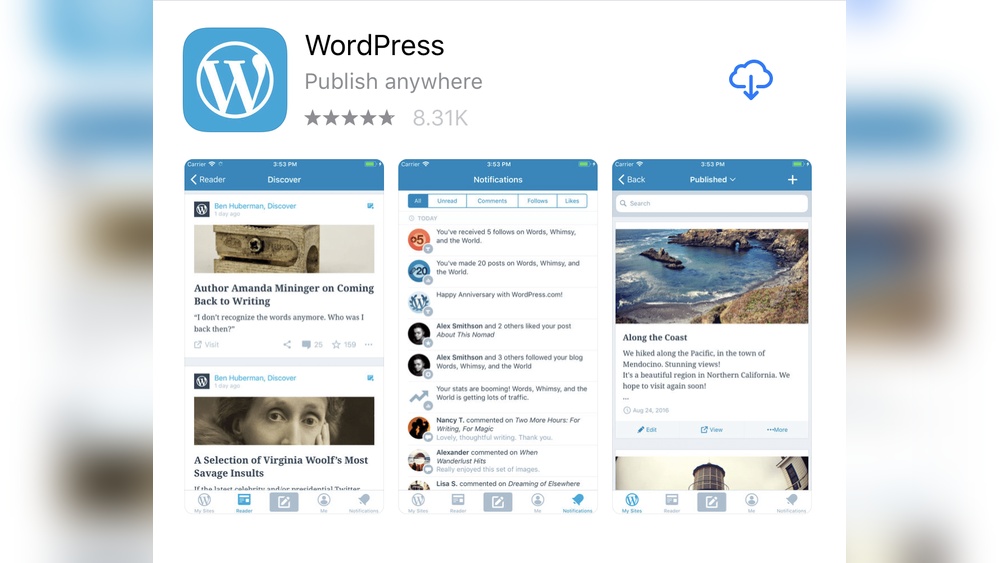
The WordPress mobile app lets you write and edit posts easily. You can upload images directly from your phone. It shows notifications about comments and updates. Managing pages and checking stats is simple within the app. The app supports multiple WordPress sites in one place. It works on both iOS and Android devices. The interface is clean and user-friendly for quick tasks.
Using Mobile Browsers For WordPress
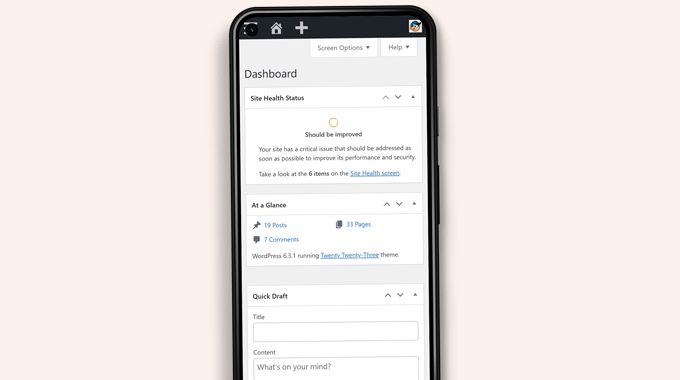
You can also use any mobile browser to access WordPress. This method requires no downloads or updates. It gives access to the full WordPress dashboard. You can create posts, manage plugins, and customize themes. Browsers work on all phones and tablets. The experience depends on your internet connection. Browsers offer more control but can be slower than the app.
Comparing App Vs Browser Experience
The app offers speed and ease for simple tasks. It is designed for quick post updates and comment replies. Browsers give full control over site settings. They allow access to advanced features not in the app. The app works better offline or with poor internet. Browsers need a stable connection but provide more tools. Choose the app for convenience, the browser for depth.
Setting Up WordPress On Mobile
Setting up WordPress on your mobile device makes managing your website easy and fast. You can create posts, check comments, and update pages anywhere. The mobile app offers many features similar to the desktop version. This section explains how to get started with WordPress on your phone or tablet.
Follow these simple steps to install the app, log in, and use the mobile dashboard. You will be ready to manage your site on the go.
Installing The WordPress App
Go to your device’s app store. Search for “WordPress.” Choose the official WordPress app by Automattic. Tap “Install” or “Get” to download it. Wait a few moments for the app to install. After installation, open the app to begin setup.
Logging Into Your Account
Enter your WordPress.com username or email address. Type your password carefully. Tap the “Log In” button to access your account. For self-hosted sites, enter your site URL first. Then provide your login details. The app will connect to your website securely.
Navigating The Mobile Dashboard
The dashboard shows your site’s key features clearly. Use the menu at the bottom to find posts, pages, and comments. Tap “+” to create new content quickly. Notifications alert you to new comments or updates. Explore settings to customize your mobile experience. The dashboard is simple and user-friendly.
Creating Content On Mobile
Creating content on mobile devices offers great flexibility. You can write, edit, and manage your WordPress posts from anywhere. This freedom helps keep your blog updated and fresh without needing a computer.
Mobile tools have become very user-friendly. They let you do many tasks quickly and easily. Here are some ways to create content on your phone or tablet using WordPress.
Writing And Editing Posts
The WordPress mobile app provides a simple editor for writing posts. It includes basic formatting tools like bold, italics, and lists. You can also save drafts and schedule posts for later.
Editing existing posts is easy. The app shows your content clearly, making text changes fast. You can preview posts before publishing to see how they look.
Adding Media From Mobile
Adding images or videos directly from your device is simple. The app connects to your phone’s camera and gallery. You can upload photos or record videos while writing.
Media files can be resized or cropped within the app. This helps keep your posts visually appealing. Proper media use improves reader engagement and SEO.
Using Mobile-friendly Plugins
Many WordPress plugins work well on mobile devices. Choose ones with mobile-friendly interfaces for easy management. Plugins for SEO, social sharing, and contact forms are popular choices.
Check plugin settings on your phone to customize features. Mobile-compatible plugins help maintain your site’s functionality without extra hassle.

Credit: wpmudev.com
Managing Your Blog On Mobile
Managing your WordPress blog on a mobile device is simple and effective. You can handle many tasks without needing a computer. This flexibility lets you keep your blog active anywhere, anytime.
Moderating Comments
Mobile apps let you review and approve comments quickly. You can delete spam or reply to readers on the go. This keeps your blog community safe and engaged.
Updating Themes And Plugins
Update themes and plugins directly from your phone. Regular updates improve site security and performance. The mobile interface makes it easy to see available updates and install them.
Checking Site Analytics
Track your blog’s traffic and user behavior on mobile. Many plugins show statistics clearly on small screens. This helps you understand what content works best anytime, anywhere.
Optimizing Mobile Blogging Workflow
Optimizing your mobile blogging workflow can save time and reduce stress. Writing on a phone or tablet means working in short bursts. Staying organized helps keep your ideas clear and your posts timely.
Mobile blogging needs a smooth process. Simple tools and habits improve writing speed and focus. Small changes make a big difference in your daily routine.
Tips For Faster Content Creation
Start with quick outlines to organize thoughts. Use bullet points to map key ideas. Write short paragraphs for easier editing later. Save drafts often to avoid losing work. Use apps that sync with WordPress for easy posting.
Using Voice-to-text Features
Speak your ideas instead of typing. Voice-to-text speeds up content creation. Speak clearly and pause between sentences. Check the text for errors after dictation. Many smartphones have built-in voice recognition tools. This feature helps when typing is hard or slow.
Managing Notifications Efficiently
Turn off unnecessary notifications while writing. Only allow alerts for urgent messages. Use “Do Not Disturb” mode during focus time. Check comments and updates in set intervals. This prevents constant interruptions. Staying focused improves writing quality and speed.
Credit: www.wpbeginner.com
Troubleshooting Common Mobile Issues
Using WordPress on a mobile device can sometimes cause issues. These common problems can disrupt your workflow and make managing your site difficult. Troubleshooting these issues quickly helps you stay productive and keeps your site running smoothly.
Fixing App Crashes
App crashes occur when the WordPress app stops working suddenly. Close the app completely and restart it. Check for updates in your app store and install the latest version. Clear the app cache in your device settings. If crashes continue, uninstall and reinstall the app. Make sure your device has enough free storage and memory.
Dealing With Slow Load Times
Slow loading can frustrate users and slow your work. Clear your browser or app cache to improve speed. Check your internet connection for stability and speed. Disable unnecessary plugins or features that may slow down your site. Use a lightweight theme optimized for mobile devices. Restart your device to refresh system resources.
Resolving Login Problems
Login issues block access to your WordPress account. Double-check your username and password for typos. Reset your password using the “Forgot Password” link. Clear your browser cookies and cache to fix login errors. Ensure your internet connection is stable. Disable any VPN or proxy that may interfere with login.
Enhancing Mobile User Experience
Enhancing the mobile user experience is key for any WordPress site. More people browse websites on phones than on desktops. A smooth, fast, and clear mobile site keeps visitors happy. It also helps your site rank better in search results. Focus on design, speed, and compatibility to make your site easy to use on any device.
Choosing Mobile-responsive Themes
Select themes that adjust well to small screens. Responsive themes change layout to fit phones and tablets. This prevents users from zooming or scrolling sideways. Many WordPress themes offer built-in mobile responsiveness. Test themes by resizing your browser window or using mobile preview tools. A good theme makes your site look professional on every device.
Improving Mobile Site Speed
Fast loading is crucial for mobile users. Slow sites cause visitors to leave quickly. Optimize images by reducing their size without losing quality. Use caching plugins to save site data on users’ devices. Minimize the use of heavy scripts and large files. Regularly check your site speed with online tools. Quick loading pages improve user satisfaction and search rankings.
Testing Mobile Compatibility
Test your site on multiple devices and browsers. This helps find layout problems or broken features. Use tools like Google’s Mobile-Friendly Test for an easy check. Pay attention to buttons, menus, and forms. They should be easy to tap and use. Fixing mobile issues ensures every visitor has a good experience, no matter their device.
Frequently Asked Questions
Can I Manage My WordPress Site On Mobile Devices?
Yes, WordPress offers a mobile app for iOS and Android. It allows you to create, edit, and manage your site easily on the go. The app supports post publishing, media uploads, and comment moderation, making mobile management efficient and user-friendly.
Is The WordPress Mobile App Free To Use?
The WordPress mobile app is completely free to download and use. It provides essential site management features without any cost. Premium features may require a WordPress. com plan, but basic mobile site management is available to all users at no charge.
Can I Create And Edit Posts On WordPress Mobile?
Absolutely, the WordPress mobile app lets you create and edit posts seamlessly. It features a simple editor optimized for small screens. You can add text, images, and format content directly from your smartphone or tablet, ensuring productivity anywhere.
Does WordPress Mobile Support Media Uploads?
Yes, the WordPress app supports uploading images and videos from your mobile device. You can easily add media to posts or pages, enhancing your content without needing a desktop. This feature helps keep your site visually engaging on the move.
Conclusion
WordPress works well on mobile devices for many tasks. You can write posts, edit pages, and check comments easily. The WordPress app is simple and keeps your site updated on the go. Mobile use saves time and helps you stay connected.
Some complex actions may be easier on a computer. Still, mobile WordPress lets you manage your site anywhere. Try it to see how it fits your needs. Mobile access makes website management flexible and fast. Keep your site active, even when away from your desk.



