
Are you looking to customize your WordPress site but don’t know how to add HTML code? Adding HTML can help you create unique designs, embed special features, or fix small issues quickly.
It might sound tricky, but it’s easier than you think. In this guide, you’ll learn simple, step-by-step ways to add HTML to your WordPress pages, posts, or widgets—without needing to be a coding expert. Keep reading, and you’ll soon have the confidence to make your website truly yours.
Why Add Html To WordPress
Adding HTML code to WordPress lets you control your website’s design and features. It helps you customize parts that default tools can’t change. Using HTML can make your site look unique and work better for visitors. You get more control over content layout and style. It also helps fix small issues that themes or plugins may cause. Simple HTML snippets can improve how your site functions without heavy plugins.
Benefits Of Custom Html
Custom HTML lets you create unique page elements. You can add buttons, forms, or special text styles. It helps you change layouts beyond standard blocks. HTML improves site speed by avoiding bulky plugins. You can fix errors or add features quickly. Custom code keeps your site lightweight and fast. It also enhances SEO by structuring content correctly. Search engines read clean HTML better than complex code.
When To Use Html In WordPress
Use HTML when you need precise control over content. For example, adding a custom button or table. When themes limit design options, HTML fills gaps. Use it to embed third-party widgets or scripts. It works well for small fixes or tweaks. Avoid HTML for large features best handled by plugins. Use HTML in posts, pages, or widgets easily. It helps you tailor your site without coding whole themes.
Accessing WordPress Editor
Accessing the WordPress editor is the first step to adding HTML code to your site. WordPress offers different editors based on the version and settings. Understanding how to open these editors helps you work with your content easily.
Using The Block Editor
The Block Editor, also called Gutenberg, is the default editor for WordPress. It uses blocks to add text, images, and HTML. To add HTML, select the “Custom HTML” block from the block menu. You can type or paste your code directly into this block. This editor shows a live preview of your code output as you edit.
Classic Editor Vs Block Editor
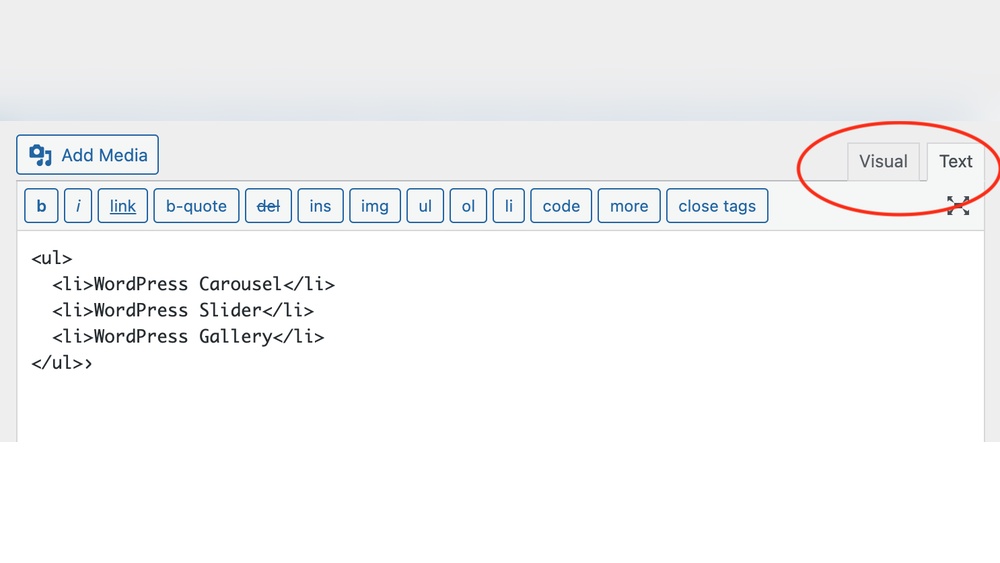
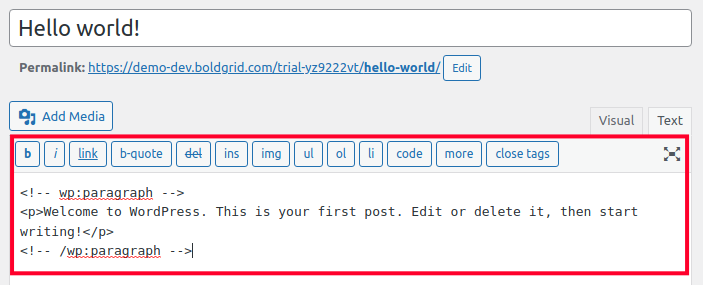
The Classic Editor is the older editor with a simple text box. It lets you switch between Visual and Text tabs. The Text tab allows direct HTML editing. The Block Editor is newer and uses a block system for more control. Both editors let you add HTML, but the method is different. Choose the editor you find easier to use for your HTML needs.
Adding Html In Posts And Pages
Adding HTML in posts and pages lets you control how your content looks. You can insert special designs or features that the regular editor does not offer. This helps make your site unique and more useful for visitors.
WordPress makes it easy to add HTML. You can do this using blocks or by switching views in the editor. Both methods work well for different needs and skill levels.
Using Custom Html Block
The Custom HTML block lets you write or paste HTML code directly into your post or page. It shows your code exactly as you enter it. This block is perfect for adding buttons, forms, or styled text.
To use it, click the “+” icon to add a new block. Search for “Custom HTML” and select it. Then type or paste your HTML code inside the block. Preview the block to see how it looks before publishing.
Switching To Html View
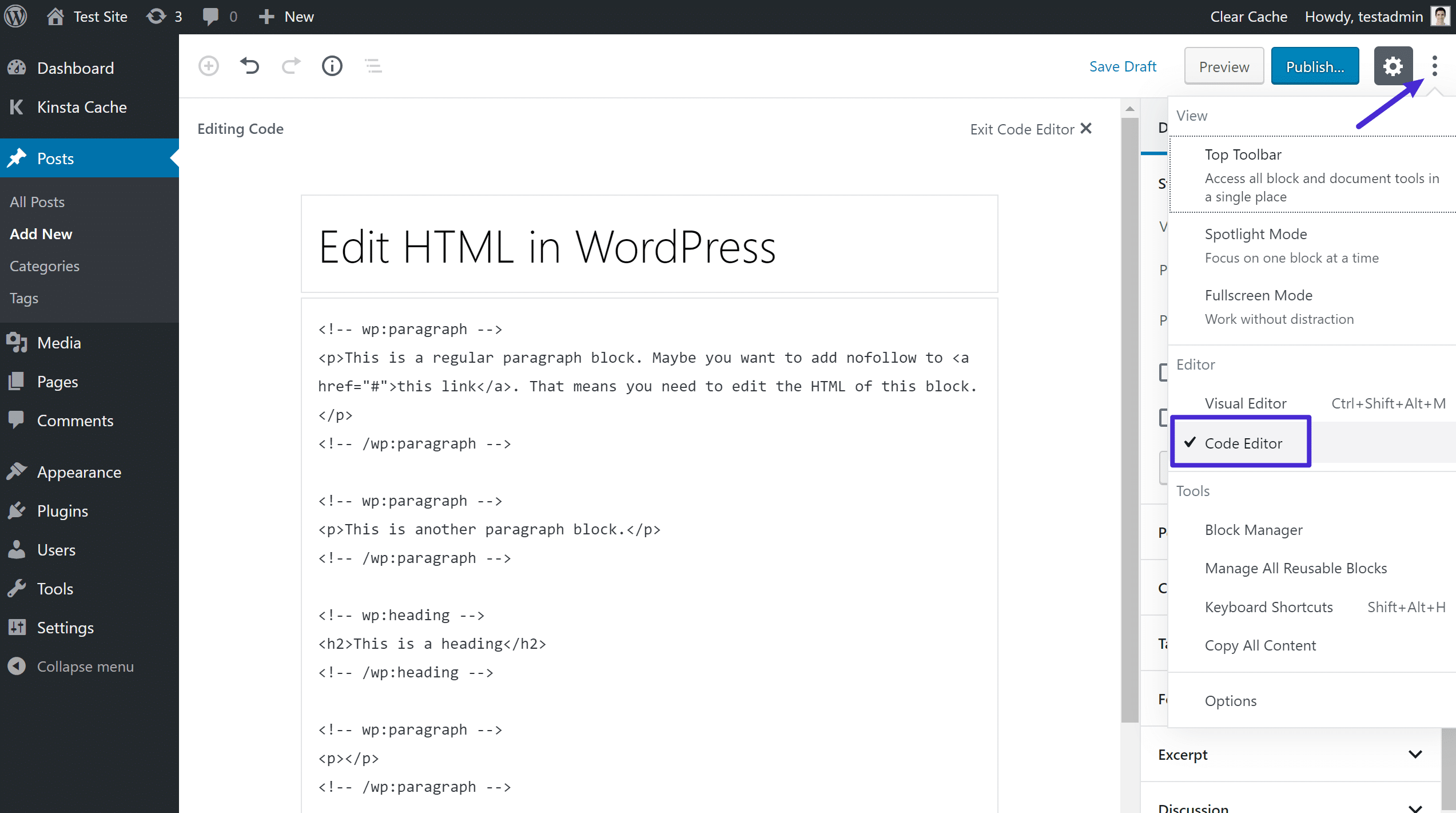
Switching to HTML view shows your entire post or page as code. This view lets you edit all the HTML in one place. It is useful if you want to add HTML outside a block or fix code quickly.
To switch, click the three dots in the editor’s top right corner. Choose “Code editor” from the menu. You can now see and edit your content’s HTML. Switch back to the visual editor to check how it appears.
Credit: www.inmotionhosting.com
Inserting Html In Widgets
Adding HTML code to widgets in WordPress lets you customize your site easily. Widgets show content in sidebars, footers, or other widget-ready areas. Inserting HTML in widgets helps display custom text, images, or links without editing theme files. This method is safe and simple for beginners.
Using Custom Html Widget
The Custom HTML widget lets you enter any HTML code directly. Go to the WordPress dashboard and open Appearance > Widgets. Find the Custom HTML widget and drag it to your chosen area. Paste your HTML code inside the widget’s text box. Click Save to apply your changes. Preview your site to see the widget in action.
Placing Widgets In Sidebar And Footer
Sidebars and footers are common widget areas on most themes. After adding the Custom HTML widget, place it in the sidebar or footer section. This placement shows your HTML content clearly on every page. Sidebars usually appear beside the main content. Footers display at the bottom of the page. Choose the area that fits your website design best.
Embedding Html In Theme Files
Embedding HTML directly into your WordPress theme files allows you to customize your site beyond standard settings. This method changes the structure and appearance by adding or editing code inside theme templates. It provides full control over how your website looks and behaves.
Careful editing is important. Incorrect changes can break your site. Always back up files before editing. Let’s explore two common ways to add HTML safely and effectively.
Using Theme Editor
The Theme Editor is a built-in WordPress tool. It lets you access theme files from your dashboard. You can open files like header.php, footer.php, or single.php to add HTML code.
Open the editor by going to Appearance > Theme Editor. Choose the file to edit. Insert your HTML where needed. Save the changes to update your site immediately.
Be cautious. A small error can cause problems. Always test your site after changes. Use this method for quick edits or small HTML additions.
Child Themes For Safe Edits
Child themes protect your changes from being lost during theme updates. They inherit the parent theme’s features but allow custom code safely.
Create a child theme folder in your WordPress themes directory. Add a style.css and functions.php to link to the parent theme. Then add your HTML to the child theme’s template files.
This method keeps your site safe. Updates won’t overwrite your code. It is ideal for bigger or long-term customizations.

Credit: www.interserver.net
Using Plugins To Add Html
Using plugins to add HTML code in WordPress is a simple way for beginners. Plugins let you insert custom HTML without editing theme files. This keeps your site safe from errors. You can place HTML in posts, pages, or widgets easily.
Plugins often come with extra features. These help you manage your code better. You don’t need to know much about coding to use them. Plugins also save time by making the process faster.
Popular Html Plugins
Several plugins help add HTML code in WordPress.
- Insert Headers and Footers: Adds code to header or footer areas.
- WPCode – Insert Headers and Footers: Supports HTML, CSS, and JavaScript.
- HTML JavaScript Adder: Lets you add HTML and scripts to posts.
- Custom HTML Block: Built into WordPress editor for simple HTML.
Advantages Of Plugin Use
Plugins reduce the risk of breaking your website. They keep your code organized and easy to edit. Most plugins offer a user-friendly interface.
Using plugins means no need to touch theme files directly. Your HTML code stays safe during theme updates. Many plugins offer live previews for quick checks.
This method works well for all skill levels. It speeds up the process and helps avoid mistakes. Plugins are a great choice for adding HTML safely.
Common Html Mistakes To Avoid
Adding HTML code to WordPress can improve your site’s look and function. Yet, some common mistakes can cause problems. These errors may break your page layout or create security risks. Knowing what to avoid helps keep your site safe and looking good.
Breaking Layouts
Incorrect HTML tags can mess up your page design. Missing closing tags or extra spaces can shift elements. Using the wrong tags may cause text or images to move unexpectedly. Always check your code for errors before saving it. Test your page on different devices to ensure it looks right.
Security Concerns
Adding unsafe HTML can open your site to hackers. Scripts or iframes from unknown sources may steal data. Avoid using code from untrusted websites. Use trusted plugins or WordPress’s built-in tools to add custom HTML safely. Keep your WordPress updated to protect against vulnerabilities.
Testing And Previewing Html
Testing and previewing HTML code is an important step in adding it to WordPress. It helps catch errors early and shows how the code looks on the page. This step saves time and avoids problems after publishing. Two main methods to test and preview HTML are using Preview Mode and Browser Developer Tools.
Preview Mode
Preview Mode in WordPress lets you see your HTML before publishing. It shows how the content will appear to visitors. Use the Preview button in the editor after adding your HTML code. This view updates with changes, so you can check layout and style. It helps find mistakes like broken tags or misplaced elements quickly.
Using Browser Developer Tools
Browser Developer Tools provide a deeper look at your HTML code live on your site. Right-click your page and choose “Inspect” or “Inspect Element.” This opens a panel showing your page’s HTML and CSS. You can edit HTML directly here to test changes fast. This tool highlights errors and shows how code affects the page visually. It’s great for fine-tuning before final publishing.
Credit: kinsta.com
Frequently Asked Questions
How Do I Add Html Code To A WordPress Post?
To add HTML code in a WordPress post, switch to the “Text” or “HTML” editor. Paste your code directly where you want it to appear. Then, save or publish your post to display the HTML content properly.
Can I Insert Html Code In WordPress Widgets?
Yes, you can add HTML code to WordPress widgets. Go to Appearance > Widgets, add a Custom HTML widget, and paste your HTML code inside. This method allows you to display custom HTML in sidebars or footer areas.
Is Adding Html Code To WordPress Safe?
Adding HTML is safe if you use trusted code. Avoid scripts from unknown sources to prevent security risks. Always back up your site before making changes to ensure you can restore it if needed.
How To Add Html Code To WordPress Pages?
Edit the page, then switch to the “Text” or “HTML” view. Paste your HTML code where you want it displayed. Save or update the page to see the changes live on your website.
Conclusion
Adding HTML code to WordPress is simple and useful. It helps you customize your website easily. Use the built-in editor or widgets to paste your code. Always check your code for errors before saving. This keeps your site safe and working well.
Practice often to feel confident with HTML in WordPress. Keep learning and exploring new ways to improve your site. Your website will look better and work smoother with small changes. Stay patient and enjoy building your site step by step.



