
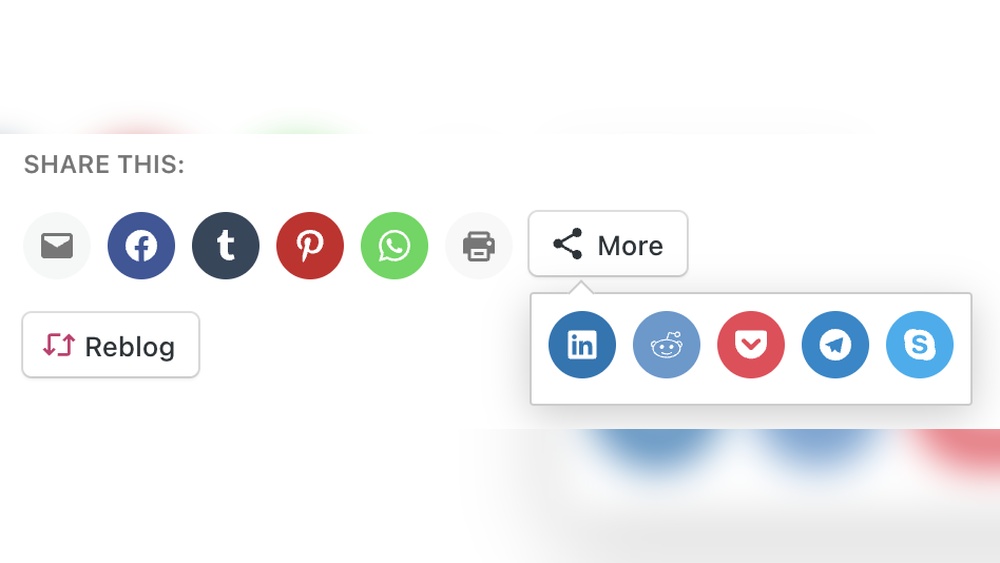
Want more people to see and share your WordPress content? Adding social share buttons is one of the easiest ways to boost your website’s reach and engagement.
Imagine your visitors spreading your posts across Facebook, Twitter, and Instagram with just one click. Sounds powerful, right? You’ll learn simple, step-by-step methods to add social share buttons to your WordPress site—no technical skills needed. Keep reading, and you’ll unlock a proven way to grow your audience faster than you thought possible.
Credit: happyaddons.com
Choosing The Right Plugin
Choosing the right plugin for social share buttons is important. It affects your site’s speed, design, and usability. Picking the best tool helps visitors share your content easily. It also makes your site look professional and trustworthy. Consider your needs and how the plugin fits your website.
Popular Social Share Plugins
Several plugins are popular among WordPress users. Plugins like “Social Warfare,” “AddToAny,” and “ShareThis” offer many features. They support multiple social networks and different button styles. These plugins are easy to use and update regularly. Choose one with good reviews and active support.
Free Vs Premium Options
Free plugins offer basic sharing buttons. They work well for small blogs and simple sites. Premium plugins cost money but provide extra features. These include more button styles, analytics, and faster support. Decide if you need advanced options or just basic sharing tools. This helps you save money and get what you need.
Compatibility Considerations
Check if the plugin works well with your WordPress theme. It should not slow down your site or cause errors. Ensure it supports the latest WordPress version. The plugin must also work with other tools you use, like caching or SEO plugins. Test the plugin on a staging site before using it live. This avoids problems and keeps your site stable.
Installing A Social Share Plugin
Installing a social share plugin on your WordPress site helps visitors share your content easily. This increases your site’s visibility and traffic. The process is simple and takes just a few steps.
Accessing The WordPress Dashboard
First, log in to your WordPress dashboard. This is the control center for your website. Use your username and password to access it. Once logged in, you can manage all parts of your site.
Searching For Plugins
In the dashboard menu, find the “Plugins” option. Click on it, then select “Add New.” Use the search bar to type “social share.” A list of plugins will appear. Look for one with good ratings and many downloads.
Installing And Activating
Click the “Install Now” button next to your chosen plugin. Wait a moment while WordPress installs it. After installation, click “Activate” to start using the plugin. The social share buttons will now be ready to add to your posts.
Configuring Social Share Buttons
Configuring social share buttons is an important step for your WordPress site. It helps visitors share your content on their favorite social networks. Proper setup increases your content’s reach and engagement.
Each site has different needs. Choose settings that match your audience and style. Focus on clear, easy-to-use buttons that encourage sharing.
Selecting Social Networks
Start by choosing which social networks to include. Pick popular platforms your audience uses. Common options are Facebook, Twitter, LinkedIn, and Pinterest. Avoid adding too many buttons. Too many choices can confuse visitors. Stick to the most relevant networks for your content.
Customizing Button Styles
Next, adjust the button styles to fit your website design. Use simple shapes and colors that match your theme. Buttons should be easy to spot but not distracting. Many plugins offer style presets. Select one that looks clean and professional. Consistency in style helps visitors recognize the buttons quickly.
Setting Button Placement
Decide where to place your social share buttons on your pages. Common spots include above or below the content, or floating on the side. Placement affects how often visitors use the buttons. Test different locations to find what works best. The goal is easy access without interrupting reading.
Credit: wpcode.com
Adding Buttons Manually
Adding social share buttons manually gives you full control over their placement. It also helps you avoid extra plugins that slow your site. You can place buttons anywhere on your WordPress site. This method suits users who want a clean, fast-loading website.
Manual addition requires some basic knowledge of WordPress and HTML. You will edit theme files or use widgets. This approach is simple and keeps your site lightweight.
Using Theme Editor
Open your WordPress dashboard and go to Appearance > Theme Editor. Find the file where you want to add the buttons, like single.php for posts. Insert the social share code where you want the buttons to appear. Save the file and check your site to see the changes.
Be careful not to break the theme code. Always back up your theme files before editing.
Inserting Code Snippets
Code snippets are small pieces of code that create social buttons. You can find free share button codes online. Copy the code and paste it into your theme files or widgets. Customize the code to include your social media links.
This method lets you add buttons without plugins. It is fast and keeps your website clean.
Using Widget Areas
Go to Appearance > Widgets in your WordPress dashboard. Choose a widget area like the sidebar or footer. Add a Custom HTML widget and paste the social share button code inside it. Save and check your site to see the buttons.
This method is easy and does not require theme file editing. It works best for sidebars and footers.
Testing And Troubleshooting
After adding social share buttons to your WordPress site, testing and troubleshooting ensure they work well. This step helps keep your site user-friendly and engaging. Problems with buttons can reduce sharing and traffic. Checking them early saves time and frustration.
Verifying Button Functionality
First, click each social share button on your site. Check if it opens the correct social media sharing window. Try sharing a test post to see if it posts properly. Test buttons on different devices like phones and tablets. Make sure buttons appear and work in various web browsers too.
Fixing Common Issues
Buttons may not show due to plugin conflicts or outdated themes. Disable other plugins one by one to find conflicts. Update your WordPress theme and plugins to the latest versions. Clear your website cache to fix display problems. Check your site’s JavaScript console for errors. Fix any broken links or incorrect URLs in share settings.
Improving Load Speed
Social share buttons can slow down your site if not optimized. Choose lightweight plugins with minimal code. Limit the number of buttons to essential social networks. Use asynchronous loading to prevent delays. Compress images and icons used in buttons. Regularly test your site speed using tools like Google PageSpeed Insights.

Credit: www.wpbeginner.com
Boosting Engagement With Social Sharing
Social share buttons make it easy for visitors to share your content. Sharing spreads your message to new audiences. This helps increase traffic and engagement on your WordPress site. Adding these buttons encourages users to interact with your posts. It also builds a community around your content.
Optimizing Button Visibility
Place social share buttons where visitors notice them first. The top and bottom of posts are good spots. Make sure buttons do not cover important content. Use clear and simple icons that users recognize fast. Keep the buttons small but easy to click on phones and tablets.
Encouraging User Interaction
Invite readers to share by adding short calls to action. Phrases like “Share this post” work well. Use friendly language that fits your site’s style. Avoid asking too many times; one or two prompts are enough. Make sharing quick by limiting required clicks or steps.
Analyzing Share Metrics
Track how often users share your content. Use plugins or tools that provide share counts and trends. Look for posts with the most shares to find popular topics. Use this data to improve your content strategy. Adjust button placement and style based on what works best.
Frequently Asked Questions
What Are Social Share Buttons In WordPress?
Social share buttons let visitors easily share your content on social media. They increase your website’s reach and traffic. WordPress offers many plugins to add these buttons quickly without coding.
How Do I Add Social Share Buttons Using Plugins?
Install a social share plugin like Social Warfare or AddToAny. Activate it, customize button styles, and select where to display. Most plugins offer easy drag-and-drop interfaces for quick setup.
Can I Add Social Share Buttons Without Plugins?
Yes, by manually adding custom code or using WordPress block editor’s social icons. However, plugins simplify the process and offer more features and compatibility.
Which Social Platforms Should I Include For Sharing?
Focus on popular platforms like Facebook, Twitter, LinkedIn, and Pinterest. Choose platforms relevant to your audience to maximize sharing and engagement.
Conclusion
Adding social share buttons helps readers share your content quickly. It increases your blog’s visibility on different platforms. Choose easy-to-use plugins or manual code methods. Place buttons where visitors can see and use them. Test on mobile devices to ensure smooth sharing.
Keep designs simple and matching your site’s style. Regularly check and update buttons for best performance. Social sharing boosts your audience and engagement naturally. Start adding buttons today and watch your reach grow.



