

Are you looking to customize your WordPress site but unsure how to add code to your functions.php file safely? You’re in the right place.
Adding code snippets to functions. php can unlock powerful features and tweaks for your site without installing extra plugins. But one wrong move can break your site or cause errors. In this guide, you’ll learn exactly how to add code to functions.
php the right way, step-by-step. By the end, you’ll have the confidence to enhance your site’s functionality quickly and securely. Ready to take control of your WordPress site? Let’s dive in.
Credit: www.rosehosting.com
What Is Functions.php
The functions.php file is a key part of any WordPress theme. It works like a plugin that runs code to change how your site behaves. This file lets you add new features or change existing ones without editing WordPress core files.
Using functions.php, you can customize your site easily. It helps you add custom code snippets that control various parts of your website. Many themes come with this file pre-made, but you can edit or create your own.
What Does Functions.php Do?
The functions.php file runs PHP code to extend your site’s functions. It can add new widgets, change menus, or load scripts. This file loads automatically with your theme, so the code runs every time someone visits your site.
Where To Find Functions.php
You can find functions.php inside your active theme’s folder. Use an FTP client or the WordPress theme editor to access it. The file is usually located at /wp-content/themes/your-theme/functions.php.
Why Use Functions.php Instead Of Plugins?
Adding code to functions.php is faster and simple for small tweaks. You avoid installing extra plugins that may slow your site. This file is perfect for theme-specific changes that only affect your design or layout.
Why Add Code To Functions.php
The functions.php file in WordPress is a powerful tool. It controls how your site behaves without changing core files. Adding code here helps customize your site easily. It lets you add features and change default settings.
This file acts like a plugin but is specific to your theme. You can add small snippets to improve site speed or add new functions. It keeps your site clean by avoiding extra plugins.
What Does Functions.php Do?
This file loads custom code when your theme runs. It can register menus, add sidebars, or change image sizes. It also handles scripts and styles to make your site look better.
Benefits Of Adding Code To Functions.php
Adding code here saves time and effort. It reduces the need for many plugins. This keeps your site fast and secure. You can control many features directly from one file.
Who Should Use Functions.php?
Anyone who wants simple customizations should use this file. It is great for beginners and developers alike. It offers flexibility without complex setups or extra tools.
Preparing For Code Addition
Before adding code to your WordPress functions.php file, some steps will protect your site. These steps help avoid errors and data loss. Prepare carefully to keep your site safe and running smoothly.
Backup Your Site
Creating a backup copies your entire website. It saves your files and database. If something goes wrong, you can restore your site quickly. Use backup plugins or hosting tools to make a full backup. Store the backup file on your computer or cloud storage.
Use A Child Theme
A child theme lets you add code without changing the main theme. It keeps your changes safe during theme updates. Create and activate a child theme before editing functions.php. This way, your custom code will not disappear after updates.
Access Methods
You can access the functions.php file in different ways. Use the WordPress theme editor for quick edits. FTP or file manager gives more control and safety. Choose a method that suits your comfort level. Always work carefully to avoid mistakes.
Editing Functions.php Safely
Editing the functions.php file in WordPress can enhance your website’s features. But it requires care to avoid errors that break your site. Always back up your site before making any changes. Use safe methods to edit functions.php and reduce risks.
Using WordPress Theme Editor
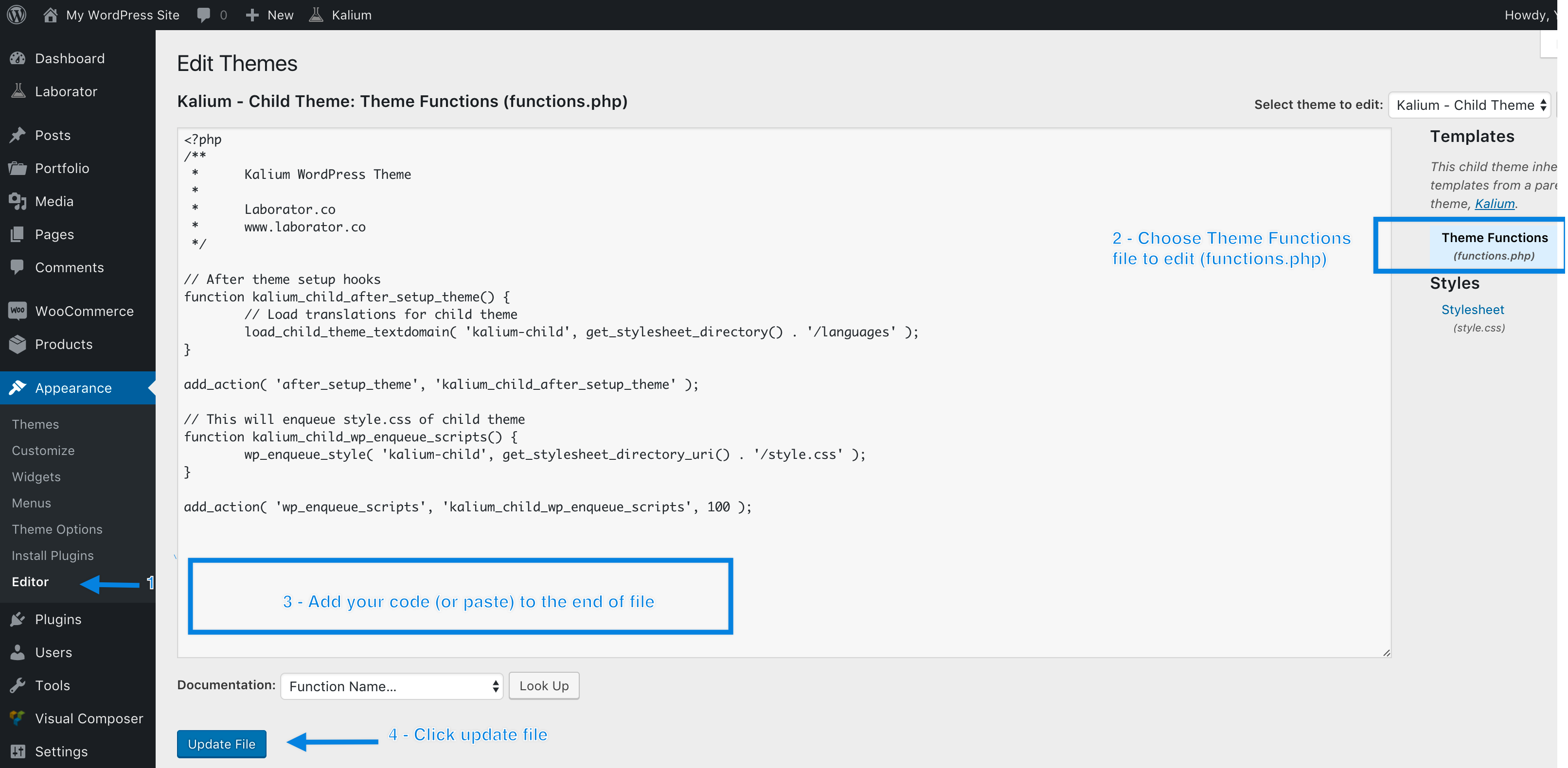
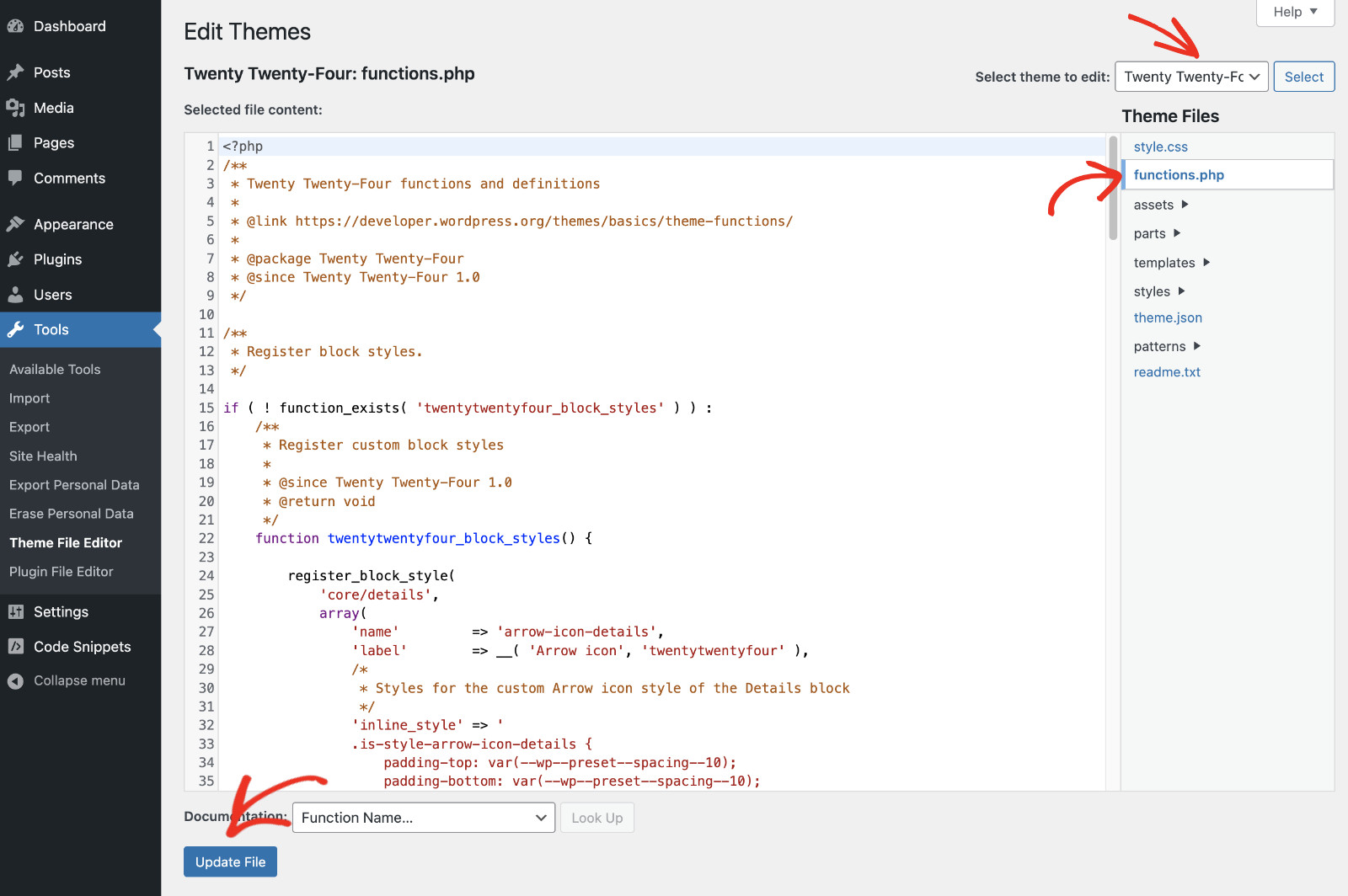
The Theme Editor is a quick way to edit functions.php from the WordPress dashboard. Go to Appearance > Theme Editor and select the functions.php file. Make small changes and save. Be careful: a wrong code can cause errors. Always test changes on a staging site first.
Using Ftp Or File Manager
FTP or File Manager gives direct access to your theme files. Connect to your site using an FTP client or your hosting control panel. Locate the functions.php file inside the theme folder. Download a copy before editing. Upload the fixed file if errors occur to restore the site quickly.
Using Code Editors
Code editors like VS Code or Sublime Text help write clean and error-free code. Download functions.php and open it in the editor. Use features like syntax highlighting and error checking. Save your changes and upload the file back to the server. This method reduces mistakes and improves code quality.
Step-by-step Code Addition
Adding code to the functions.php file in WordPress can customize your site’s behavior. Follow these steps carefully to avoid errors. This guide helps you add code safely and correctly.
Locate Functions.php File
First, find the functions.php file. It is in your theme folder. Use an FTP client or the WordPress dashboard’s Theme Editor. Navigate to wp-content/themes/your-theme. Look for the functions.php file there. Always back up this file before changes.
Insert Custom Code
Open the functions.php file in a text editor. Place your custom code at the end of the file. Avoid placing code inside existing functions. Keep the code outside any closing PHP tag. Check for syntax errors to prevent site issues.
Save And Upload Changes
After adding the code, save the file. If using FTP, upload the updated file back to the server. Refresh your website to check if the code works. If the site breaks, restore the backup file immediately.
Common Code Snippets
Common code snippets help customize your WordPress site quickly. You can add small pieces of code to the functions.php file. These snippets change how your site works without installing plugins. They save time and keep your site fast.
Below are some useful snippets. They show how to add custom shortcodes, change excerpt length, and disable the Gutenberg editor.
Add Custom Shortcodes
Shortcodes let you add special content inside posts or pages easily. You can create your own shortcode with a few lines of code.
function my_custom_shortcode() { return "This is my custom shortcode!"; } add_shortcode('myshortcode', 'my_custom_shortcode'); Use [myshortcode] in your posts to display the message. This helps add reusable content fast.
Modify Excerpt Length
WordPress shows a short summary called an excerpt. You can change how many words it shows with a snippet.
function custom_excerpt_length($length) { return 20; // number of words } add_filter('excerpt_length', 'custom_excerpt_length'); This code sets excerpts to 20 words. You can change the number to fit your style.
Disable Gutenberg Editor
Some prefer the classic WordPress editor over Gutenberg. You can turn off Gutenberg using a code snippet.
add_filter('use_block_editor_for_post', '__return_false'); This disables Gutenberg for all posts. Your site will use the old editor instead.
Troubleshooting Errors
Adding code to your WordPress functions.php file can cause errors. These mistakes may stop your site from working. Knowing how to fix these problems fast is important. This section helps you troubleshoot common errors in functions.php. It shows simple steps to get your site back online.
Fixing Syntax Errors
Syntax errors happen when code is typed wrong. Missing a semicolon or bracket breaks the code. WordPress will show a white screen or an error message. Check your code carefully for small mistakes. Use an online PHP checker to find errors fast. Correct the code and save the file again.
Restoring From Backup
A backup copy saves your site before changes. If errors stop your site, restore the backup. Use your hosting control panel or a backup plugin. Restoring returns your site to the last working state. This step is quick and safe when code causes problems.
Using Debug Mode
Debug mode helps find code issues in WordPress. Turn it on by editing the wp-config.php file. Change WP_DEBUG to true. This shows error messages on your site. Use these messages to understand what went wrong. Turn debug mode off after fixing errors.
Credit: documentation.laborator.co
Best Practices For Functions.php
Editing the functions.php file in WordPress lets you add custom code to your site. This file controls how your theme behaves. Using best practices keeps your site safe and running smoothly. It helps avoid errors and makes future changes easier.
Keep Code Organized
Write clear and simple code. Group similar functions together. Use comments to explain each part. This helps you and others understand your code later. Avoid adding too many functions in one place. If needed, split code into separate files or use plugins.
Avoid Conflicts
Use unique names for your functions to stop clashes. WordPress and plugins have many functions. Duplicate names cause errors. Prefix your function names with your theme or site name. Check your code with tools to find possible conflicts.
Regular Backups
Always save a copy of functions.php before editing. Mistakes can break your site. Backups let you restore the original file quickly. Use a backup plugin or manual download. Regular backups protect your site from unexpected issues.
Credit: wpcode.com
Frequently Asked Questions
How Do I Safely Edit Functions.php In WordPress?
Always back up your site before editing functions. php. Use a child theme to avoid losing changes during updates. Edit via a code editor or WordPress theme editor cautiously to prevent site errors.
What Code Can I Add To Functions.php?
You can add custom PHP functions, hooks, filters, or shortcodes. It helps customize your site’s behavior without plugins. Ensure the code is compatible and tested to avoid errors.
How To Fix Errors After Editing Functions.php?
Access your site via FTP or hosting file manager. Rename the functions. php file to disable it. This restores site access. Then, correct the PHP error in the code and re-upload the file.
Can I Use Plugins Instead Of Editing Functions.php?
Yes, plugins offer safer ways to add custom code. They reduce the risk of site crashes and simplify management. However, functions. php edits allow more direct and flexible customization.
Conclusion
Adding code to your WordPress functions. php file boosts your site’s features. Always back up your site before editing the file. Test new code on a staging site to avoid errors. Keep your code simple and clear for easy fixes later.
With care, you can safely customize your WordPress theme. This small step helps improve your website’s performance and design. Start slow, learn, and enjoy the process. Your site will thank you.



