

Are you looking to make it easier for your visitors to find exactly what they need on your WordPress site? Adding a search bar is one of the simplest yet most powerful ways to improve user experience.
Imagine your readers quickly locating their favorite posts or products without endless scrolling. In this guide, you’ll learn exactly how to add a search bar to your WordPress site—step by step, with no technical jargon. By the end, your visitors will thank you for saving their time, and you’ll boost engagement like never before.
Ready to make your site more user-friendly? Let’s dive in!
Credit: wp101.com
Choose The Right Search Plugin
Choosing the right search plugin for WordPress is key to improving your site’s search experience. A good plugin helps visitors find content fast. It also matches your site’s design and needs. Many options exist. Some are free. Others come with more features but cost money.
Pick a plugin that fits your skill level and budget. Also, think about how much control you want over search results. The right choice can make your site easier to use and keep visitors longer.
Free Vs Premium Options
Free search plugins offer basic search features. They work well for small websites or blogs. These plugins are easy to install and use. They usually cover most search needs without extra cost.
Premium plugins come with advanced features. They may include filters, live search suggestions, and better design options. Paid plugins often provide faster support and regular updates. They suit bigger websites or those needing more control.
Choose free plugins for simplicity and budget. Pick premium if you need more power and customization.
Popular Search Plugins For WordPress
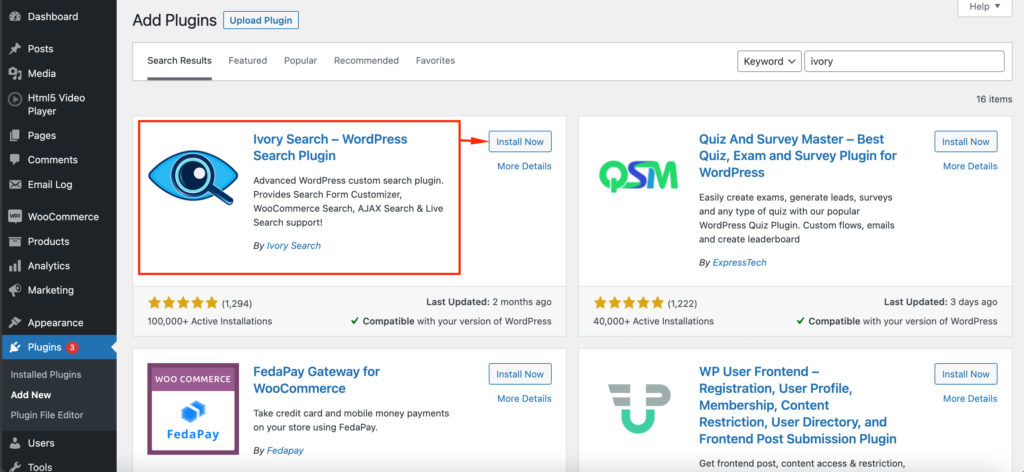
Several search plugins are popular among WordPress users. “Relevanssi” improves search accuracy and offers customizable options. “SearchWP” is a premium choice with powerful features and control. “Ajax Search Lite” provides live search results and works for free.
These plugins are easy to set up and widely tested. They can enhance user experience and keep visitors engaged. Try a few to find the best fit for your site.
Add A Search Bar Using WordPress Widgets
Adding a search bar to your WordPress site helps visitors find content quickly. WordPress widgets make this task simple and fast. Widgets are small blocks that perform specific functions. The search widget lets you place a search bar in your sidebar, header, or footer. It does not require coding skills. Follow the steps below to add a search bar using WordPress widgets.
Locate The Search Widget
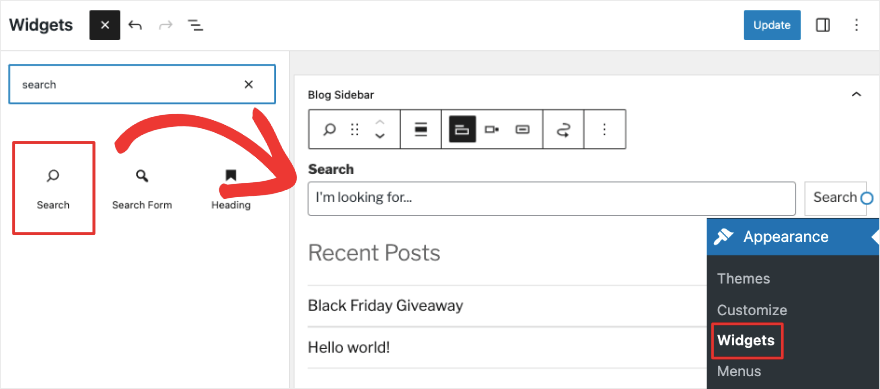
Log in to your WordPress dashboard first. Go to the Appearance menu on the left side. Click on Widgets. You will see a list of available widgets. Scroll through the list until you find the Search widget. It usually has a magnifying glass icon and the word “Search”. This widget is ready to use and built-in with WordPress.
Drag And Drop To Sidebar Or Header
Next, choose where to place the search bar. Common spots include the sidebar or header area. Find the desired widget area on the right side of the Widgets screen. Click and hold the Search widget. Drag it over to the chosen widget area. Release the mouse to drop the widget there. The search bar will now appear on your site in that location.
Customize Widget Settings
After placing the widget, customize its settings. Click the down arrow on the Search widget to open options. You can change the title that appears above the search bar. Leave it blank for no title or type “Search” or “Find”. Click Save to apply changes. Refresh your website to see the search bar in action. Adjust the settings anytime from the Widgets screen.
Insert Search Bar With Shortcodes
Inserting a search bar using shortcodes in WordPress is simple and effective. Shortcodes let you add a search feature without editing your theme files. This method is fast and works well for beginners. You can place the search bar anywhere on your site, like pages or posts. It helps visitors find content quickly. This section explains how to find and use search bar shortcodes step-by-step.
Find The Search Shortcode
WordPress includes a default shortcode for the search bar. The shortcode is [search]. This small code creates a search form instantly. Some themes or plugins might offer different shortcodes. Check your theme’s documentation for custom options. Using the default shortcode works on most WordPress sites. It is a quick way to add a search box without extra tools.
Place Shortcode In Pages Or Posts
To add the search bar, open the editor for a page or post. Paste the shortcode [search] where you want the search bar to appear. The block editor allows inserting shortcodes via the Shortcode block. In the classic editor, paste the code directly into the content area. After saving, the search bar shows up on the front end. Visitors can then use it to search your site’s content easily.

Credit: happyaddons.com
Integrate Search Bar Via Theme Customizer
Adding a search bar to your WordPress site helps visitors find content quickly. Using the Theme Customizer is a simple way to do this. It allows you to add and style the search bar without coding. Most modern WordPress themes support this feature. Follow the steps below to integrate a search bar through the Theme Customizer.
Access Theme Customizer
Log in to your WordPress dashboard. On the left menu, click Appearance. Then select Customize. This opens the Theme Customizer panel. It shows live previews of your site changes. Use this panel to control many design elements.
Enable Search In Header Or Menu
Look for a section named Header or Menu. Each theme names it differently. Inside, find the option to show search. Turn this option on to add the search bar. The search box usually appears in the top area of your site.
Adjust Appearance
Customize the look of your search bar next. Change colors, sizes, and placement. Some themes let you pick icon styles or button text. Preview changes live before saving them. Click Publish to make the search bar visible to visitors.
Use Custom Html And Css For Search Bar
Using custom HTML and CSS to create a search bar in WordPress gives full control over its look and function. It lets you build a simple, clean search box that fits your site’s style. This method works well for those who want a basic search bar without extra plugins. It also helps keep your site fast and light.
Below are clear steps to add a custom search bar. The process includes writing the search form code, adding it to your theme, and styling it with CSS. Each step is easy to follow and uses simple code snippets.
Create Search Form Code
Start by writing the HTML code for the search form. Use the following code to create a basic search box:
This code creates a form that sends search queries to your WordPress site. It includes a text input and a submit button. The form also has a label for accessibility.
Add Code To Theme Files
Next, add the search form code to your WordPress theme files. The best place is inside the header.php file or sidebar.php file.
Open the file where you want the search bar to appear. Paste the form code where it fits your design. Save the file and upload it back to your server.
Check your site to see the search bar in action. It will now be part of your theme and ready for visitors to use.
Style Search Bar With Css
Use CSS to make the search bar match your website’s style. Add the following CSS rules to your theme’s style.css file or customizer:
.search-form { display: flex; align-items: center; } .search-field { padding: 8px; font-size: 16px; border: 1px solid ccc; border-radius: 4px 0 0 4px; width: 200px; } .search-submit { padding: 8px 12px; background-color: 333; color: fff; border: none; border-radius: 0 4px 4px 0; cursor: pointer; } .search-submit:hover { background-color: 555; } This CSS styles the input field and button for a neat look. It uses simple colors and rounded corners for a friendly feel. Adjust the sizes and colors to fit your brand.
Credit: wedevs.com
Improve Search Functionality
Improving search functionality on your WordPress site makes it easier for visitors to find content. A good search bar helps users get quick, relevant results. This keeps visitors engaged and reduces bounce rates. Simple steps can enhance your search tool without complex coding.
Enable Ajax Search For Instant Results
Ajax search shows results as users type. It avoids full page reloads, saving time. Visitors see suggestions instantly. This feature improves user experience and keeps visitors on your site longer. Many WordPress plugins support Ajax search and are easy to install.
Filter Search By Categories Or Tags
Filtering search results by categories or tags narrows down options. Users find specific content faster. This reduces irrelevant results and improves accuracy. Use plugins that allow filtering or customize your search form. Clear filters guide users to the content they want.
Optimize Search Speed
Fast search results keep visitors happy. Optimize your site by using caching and a good hosting service. Limit the number of search results shown. Avoid heavy plugins that slow down your site. Regularly update your WordPress and plugins to keep speed high.
Test And Troubleshoot Search Bar
Testing and troubleshooting the search bar is a crucial step. It ensures users find what they need quickly. A search bar that works smoothly keeps visitors happy and engaged.
Check its accuracy by trying different keywords. Fix any errors before your site goes live. Keep the search experience simple and effective.
Check Search Accuracy
Test the search bar with common and uncommon words. See if results match what users expect. Check for spelling mistakes or typos. Ensure the search finds relevant pages and posts. Update your search settings if results seem off.
Resolve Common Issues
Look out for slow loading or no results found. Clear your website cache to fix temporary glitches. Disable conflicting plugins that affect search function. Check your theme compatibility with the search bar. Update WordPress and plugins to latest versions.
Ensure Mobile Responsiveness
Test the search bar on phones and tablets. Make sure it fits well on small screens. Check if the search box is easy to tap. Adjust the size or layout for better usability. A mobile-friendly search bar improves site navigation.
Frequently Asked Questions
How Do I Add A Search Bar To WordPress?
To add a search bar, go to Appearance > Widgets. Drag the Search widget to your desired sidebar or footer area. Customize its title if needed, then save your changes. This adds a functional search bar to your WordPress site quickly.
Can I Add A Search Bar Using A WordPress Plugin?
Yes, you can use plugins like “SearchWP” or “Relevanssi” to add advanced search bars. These plugins improve search functionality and customization beyond the default widget. Install, activate, and configure the plugin to suit your site’s needs.
Where Should I Place The Search Bar On My Site?
Place your search bar in easy-to-find areas like the header, sidebar, or above the footer. This placement helps visitors quickly find content. The location depends on your theme and user experience preferences.
Is Coding Required To Add A Search Bar In WordPress?
No coding is needed for basic search bars. Use WordPress widgets or plugins for easy integration. For advanced customizations, minimal coding might be required, but most users can add a search bar without touching code.
Conclusion
Adding a search bar makes your WordPress site easier to use. Visitors find content faster and stay longer. It improves user experience and helps your site grow. The process is simple and takes just a few steps. Choose the method that fits your needs best.
Keep your site clear and easy to navigate. A search bar is a smart tool for every website. Try it today and see the difference it brings.



