
Are you wondering how much RAM your WordPress site really needs to run smoothly? Whether you’re just starting out or managing a busy website, having the right amount of memory can make all the difference.
Too little RAM can slow down your site, frustrate visitors, and hurt your rankings. Too much? You might be wasting money. You’ll discover exactly how to find the perfect balance for your WordPress setup. Keep reading to learn what factors affect your RAM needs and how to optimize your site’s performance without overspending.
WordPress Memory Basics
WordPress uses memory to run smoothly. This memory is called RAM. RAM helps WordPress load pages and run plugins fast. Without enough RAM, your site may slow down or crash. Understanding how much RAM WordPress needs helps keep your site healthy.
Memory affects how many visitors your site can handle. It also impacts how well your plugins and themes work. Knowing the right amount of RAM helps avoid common errors and improves user experience.
What Ram Means For WordPress
RAM is the short-term memory for your website. It stores data that WordPress uses right away. This data includes page content, plugins, and scripts. More RAM means WordPress can handle more tasks at once.
If your site has many visitors or plugins, it needs more RAM. Low RAM causes slow loading or errors like “Allowed memory size exhausted.” RAM size affects site speed and reliability.
Default WordPress Memory Limits
By default, WordPress sets a memory limit to protect your server. This limit is often 40MB or 64MB for single sites. Multisite installations may have a limit of 128MB. These limits work for small sites.
Big sites need more memory. Heavy plugins and many visitors need higher limits. You can increase memory by editing the wp-config.php file. Setting the right limit avoids crashes and errors.

Credit: www.makeuseof.com
Factors Affecting Ram Usage
Understanding what affects RAM usage helps optimize your WordPress site’s performance. RAM demands depend on many factors. These include the design of your site, how many visitors you have, and the type of content you post. Knowing these can guide you in choosing the right amount of RAM for smooth operation.
Theme And Plugin Impact
The theme you select can change how much RAM WordPress needs. Heavy themes with many features use more memory. Simple, lightweight themes use less. Plugins also affect RAM. Each plugin adds code and functions that require memory. Using many plugins or poorly coded ones increases RAM use. Choose themes and plugins carefully to keep RAM needs low.
Traffic Volume And User Activity
More visitors mean more RAM is needed. Every user request uses memory to load pages. High traffic sites need more RAM to handle many users at once. User actions like logging in, posting comments, or shopping increase RAM use. Sites with low traffic can run well with less RAM.
Media And Content Size
Large images and videos require more RAM to load. Sites with many media files use more memory. Optimized images and smaller file sizes reduce RAM needs. Text-heavy sites use less RAM than media-rich sites. Manage your content size to control RAM use efficiently.
Recommended Ram For Different Setups
Choosing the right amount of RAM for your WordPress site depends on your setup type. Different websites need different memory sizes for smooth performance. Small sites need less RAM. Bigger sites need more.
Here is a guide to recommended RAM for various WordPress setups. This will help you pick the best option for your site.
Small Personal Blogs
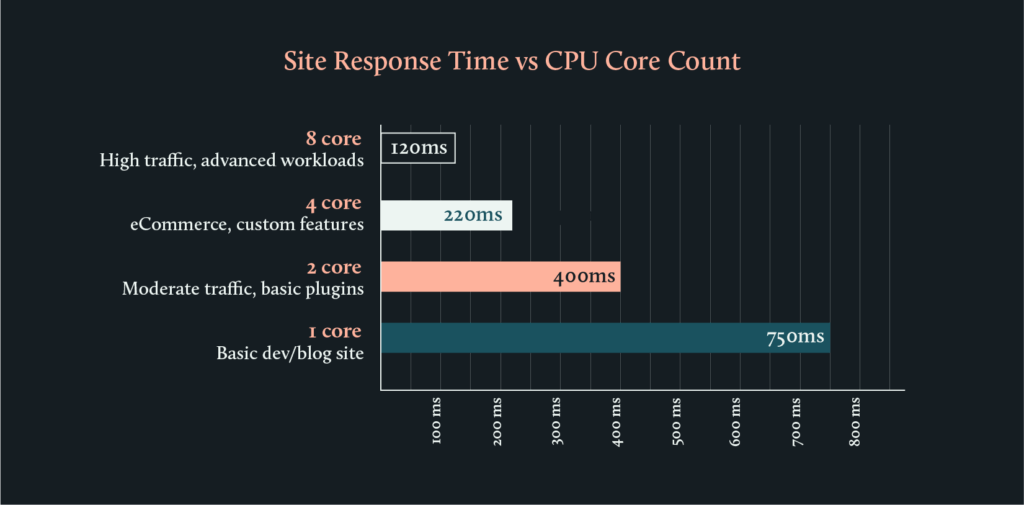
Small personal blogs usually have low traffic and simple features. They can run well on 512MB to 1GB of RAM. This amount supports basic themes and a few plugins. It keeps the site fast and responsive.
Business Websites
Business websites often need more features and more visitors. At least 2GB to 4GB of RAM is ideal. This supports professional themes, multiple plugins, and moderate traffic. It helps keep loading times low and user experience good.
Ecommerce Stores
Ecommerce stores require more memory due to product pages and shopping carts. 4GB to 8GB of RAM is a good start. This supports many products, payment gateways, and customer sessions. It prevents slowdowns during busy shopping times.
High Traffic Sites
High traffic sites need the most RAM to handle many visitors at once. 8GB or more is recommended. This keeps the site stable during traffic spikes. It supports caching, CDN, and multiple plugins without slowing down.
Credit: www.codeable.io
How To Check WordPress Ram Usage
Checking how much RAM your WordPress site uses helps keep it fast and stable. It shows if your hosting plan meets your website needs. You can find this information in several ways. Some methods are simple with tools, others need technical steps.
Using Plugins
Plugins make checking RAM use easy. Install a plugin like WP Server Stats or Query Monitor. These plugins show memory usage on your WordPress dashboard. You get real-time data and other server info. No coding skills required. Just activate and view the stats.
Hosting Control Panel Tools
Many hosts provide control panels with resource details. Login to your hosting account. Look for sections like “Resource Usage” or “Statistics.” These tools display RAM use for your site. They often update automatically. This method is quick and reliable.
Manual Methods
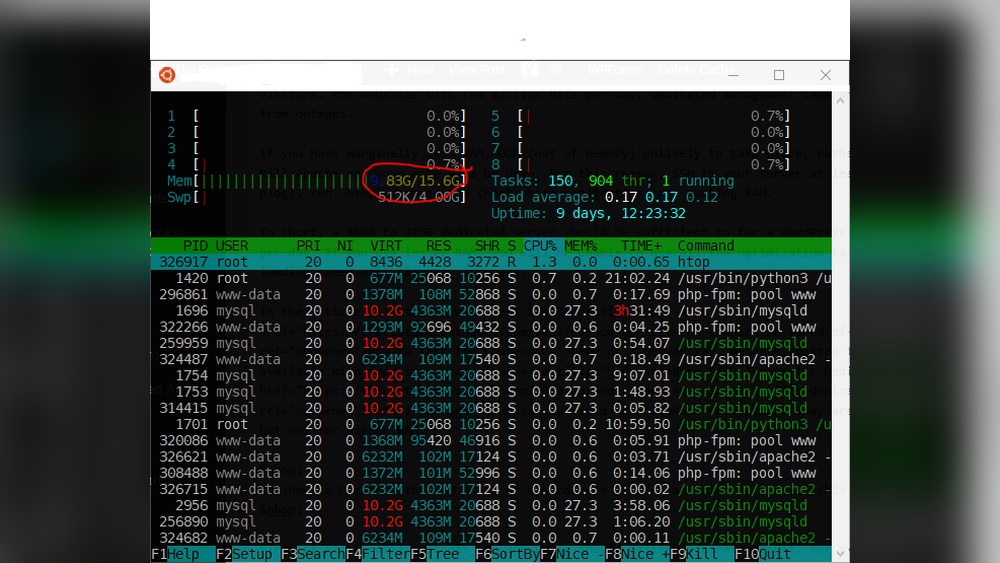
Advanced users can check RAM usage manually. Use SSH or FTP to access your server. Run commands like top or free -m on Linux servers. These commands show memory use in detail. You can also check PHP limits in the php.ini file. This way needs more technical knowledge but gives full control.
Increasing WordPress Memory Limit
Increasing the WordPress memory limit helps your site run smoothly. It allows WordPress to use more RAM for better performance. This is important for sites with many plugins or large themes. You can raise the memory limit in several ways. Each method depends on your hosting setup and access level.
Editing Wp-config.php
The easiest way to increase memory is by editing the wp-config.php file. This file controls core settings of your WordPress site. Open it in a text editor and add this line before / That's all, stop editing! Happy blogging. /:
define('WP_MEMORY_LIMIT', '256M');This code sets the memory limit to 256 megabytes. You can change 256M to a higher value if needed. Save the file and upload it back to your server. Check if your site runs better.
Modifying Php.ini
The php.ini file controls PHP settings on your server. Increasing memory here affects all PHP applications on your site. Find the php.ini file in your hosting control panel or root directory. Add or change this line:
memory_limit = 256MSave the file and restart your web server if possible. This method works well for dedicated or VPS hosting. Shared hosting may not allow this change.
Using .htaccess
You can also increase memory using the .htaccess file. This file controls server behavior in your WordPress directory. Add this line at the end of the file:
php_value memory_limit 256MSave the changes and test your site. This method works if your server allows overriding PHP settings with .htaccess. Not all hosts support this.
Contacting Hosting Provider
Your hosting provider can help increase the memory limit. Some shared hosts restrict memory settings for security. Contact their support and request a higher limit. They may increase it for you or guide you on the best way. This is often the safest option for beginners.
Credit: www.wpthrill.com
Optimizing WordPress For Speed
Speed is key for a good WordPress site. Visitors leave if pages take too long to load. Fast websites keep users happy and improve search rankings. Optimizing WordPress helps it use less RAM and loads quickly. Focus on smart techniques that make your site run smoothly.
Caching Solutions
Caching stores a copy of your pages for fast delivery. It reduces the work your server does. Use plugins like W3 Total Cache or WP Super Cache. These plugins save static versions of pages. Visitors get pages instantly without waiting for processing. Caching also lowers RAM use and server load.
Optimizing Images And Media
Large images slow down your site and use more RAM. Resize images before uploading them to WordPress. Compress files to reduce their size without losing quality. Use WebP format for better compression. Lazy loading delays off-screen images until needed. This saves bandwidth and speeds up page loads.
Minimizing Plugins
Too many plugins slow your site and use extra RAM. Remove plugins you do not use or need. Choose lightweight plugins with good reviews. Avoid plugins that duplicate features. Each plugin adds code that runs on your site. Fewer plugins mean faster performance and less memory use.
Database Optimization
Your WordPress database stores all site data. Over time, it can get cluttered with old data. Clean your database regularly to remove junk like spam comments. Use plugins like WP-Optimize to simplify this task. Optimized databases respond faster and use less memory. This helps your site load quickly and run smoothly.
Choosing Hosting Based On Ram
Choosing the right hosting based on RAM is important for your WordPress site’s speed and stability. RAM affects how many tasks your site can handle at once. Too little RAM can slow your site or cause crashes. Different hosting types offer various RAM amounts. Understanding these options helps you pick the best hosting for your needs.
Shared Hosting Ram Considerations
Shared hosting is the most affordable option. Multiple websites share the same server resources, including RAM. RAM limits are usually low, often between 512MB and 2GB. This suits small blogs or sites with low traffic. Heavy plugins or many visitors can slow your site. Choose shared hosting only if your site is simple and light.
Vps And Dedicated Server Ram Needs
Virtual Private Servers (VPS) offer more RAM and control. You get dedicated RAM, often starting at 2GB or more. VPS suits growing sites with moderate to high traffic. Dedicated servers provide the most RAM, from 8GB up. This option fits large sites with heavy traffic and complex functions. More RAM means better performance and faster loading times.
Managed WordPress Hosting Options
Managed WordPress hosting includes optimized RAM settings. Hosts manage server resources and updates for you. RAM usually ranges from 2GB to 8GB or more. This option suits users who want easy setup and strong performance. Managed hosting improves site speed and security with proper RAM allocation.
Signs You Need More Ram
Knowing when your WordPress site needs more RAM is important. RAM helps your website run smoothly. Without enough RAM, your site slows down and shows errors. Watch for clear signs that your memory is low. These signs tell you to upgrade your hosting or optimize your site.
Slow Load Times
Pages take too long to open. Visitors wait and may leave your site. Slow loading happens when your server lacks enough RAM. Your WordPress site struggles to handle many tasks at once. More RAM can improve loading speed and user experience.
Memory Exhaustion Errors
Errors like “Allowed Memory Size Exhausted” appear on your site. These errors show your site is out of memory. Plugins and themes use a lot of RAM. When memory runs out, WordPress stops working properly. Increasing RAM helps prevent these errors.
High Cpu Usage
Server CPU runs at very high levels often. High CPU usage means your server works too hard. This happens if there is not enough RAM to handle processes. Your site becomes slow and sometimes crashes. More RAM reduces CPU strain and keeps your site stable.
Frequently Asked Questions
How Much Ram Does WordPress Need For Basic Websites?
WordPress typically requires at least 512MB to 1GB of RAM for basic sites. This amount supports simple blogs with low traffic and minimal plugins, ensuring smooth performance without unnecessary resource usage.
Does Woocommerce Increase WordPress Ram Requirements?
Yes, WooCommerce significantly increases RAM needs. For online stores, 2GB or more is recommended to handle product listings, transactions, and customer interactions efficiently.
How Does Traffic Volume Affect WordPress Ram Needs?
Higher traffic demands more RAM to handle concurrent users. Sites with thousands of visitors daily should consider 4GB or more to maintain fast load times and stability.
Can Insufficient Ram Slow Down WordPress?
Insufficient RAM can cause slow loading, crashes, and server errors. Adequate RAM ensures smoother site operation and better user experience, especially under heavy load.
Conclusion
Choosing the right amount of RAM helps your WordPress run smoothly. Small sites need less memory, while big sites need more. Too little RAM can slow your website down. Too much RAM can waste resources. Think about your site’s size and traffic before deciding.
Regular updates and good hosting also improve performance. Keep your site fast and visitors happy with proper RAM. Simple steps make a big difference in site speed and user experience.



