
Are you looking to make changes to your WordPress site but unsure how to edit PHP files safely? Knowing how to handle PHP files can unlock powerful customization options for your website.
You’ll discover simple, step-by-step ways to edit PHP files without breaking your site. Whether you want to tweak your theme, add new features, or fix errors, mastering this skill puts you in control of your WordPress site’s look and functionality.
Keep reading to learn how to edit PHP files easily and confidently.
Credit: www.hostpapa.com
Accessing WordPress Files
Accessing WordPress files is the first step to editing PHP files. These files control how your website looks and works. You need the right access to make changes safely. There are a few simple ways to reach these files. Each method fits different skill levels and needs.
Using WordPress Dashboard
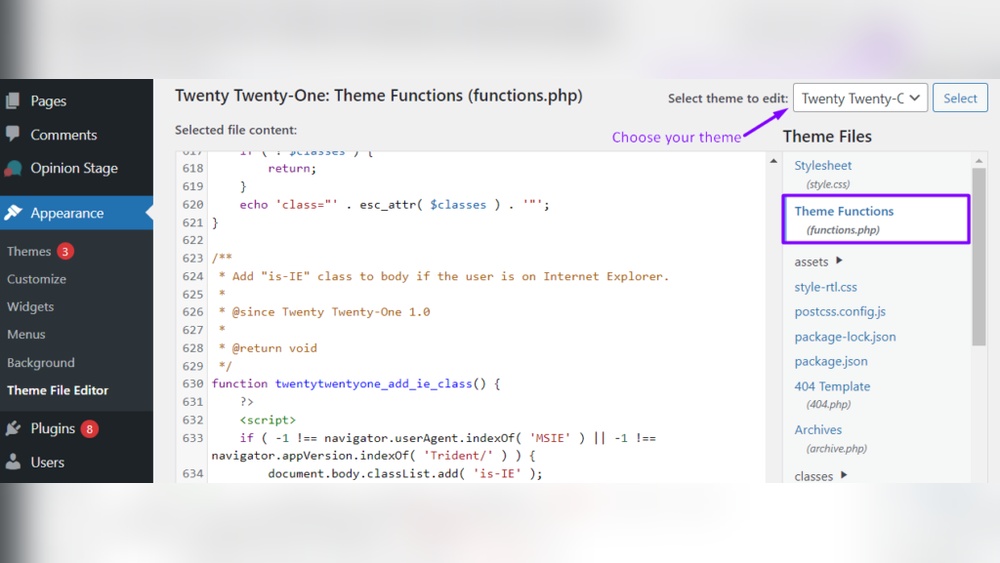
The WordPress Dashboard lets you edit PHP files directly. Go to Appearance > Theme Editor. Here, you see the theme files listed on the right. Click the PHP file you want to edit.
Make small changes carefully. Big edits can break your site. Always save your work after editing. Use this method only if you have basic coding knowledge.
Using Ftp Clients
FTP clients let you access files on your web server. You need an FTP program like FileZilla. Connect to your server using your FTP login details.
Once connected, find the wp-content/themes folder. Inside, locate your active theme folder. Download the PHP file, edit it on your computer, then upload it back.
This method gives full control over files. It is safer for big changes. Always back up files before editing.
Using Cpanel File Manager
cPanel File Manager is another easy way to access WordPress files. Login to your hosting control panel and open File Manager. Navigate to public_html/wp-content/themes.
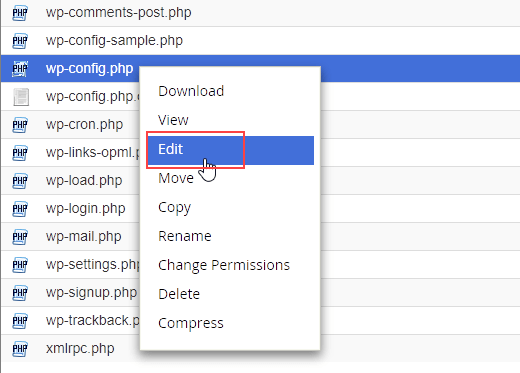
Find your active theme folder and open it. You can edit PHP files directly in the File Manager editor. Save changes carefully. This method is good for quick fixes without extra software.
Choosing The Right Editor
Choosing the right editor to modify PHP files in WordPress is important. The editor affects how easy and safe your coding process will be. Different editors offer different features and comfort levels. Some are simple and built into WordPress. Others are powerful tools used on your computer. Knowing the options helps you pick one that suits your needs.
Built-in Theme Editor
The built-in theme editor is inside the WordPress dashboard. It allows you to edit PHP files directly from your browser. This editor is simple and fast to use. No need to install extra software. It is best for small changes or quick fixes. The downside is it has limited features and no error checking. Mistakes can break your site if you are not careful.
Code Editors For Local Editing
Code editors like Visual Studio Code or Sublime Text run on your computer. They offer many tools like syntax highlighting and error detection. You can work offline and save files before uploading. These editors help you write clean and error-free code. They support many programming languages, including PHP. This option is good for larger projects or frequent edits.
Online Editors And Plugins
Online editors and plugins provide an easy way to edit PHP files. Some plugins add advanced editors inside WordPress. Others let you connect to cloud-based code editors. These tools combine convenience with useful features. They may include version control and collaboration options. This choice suits users who want more than the basic editor but prefer working online.
Backing Up Files
Backing up your PHP files in WordPress is very important. It keeps your site safe from mistakes or crashes. Before you edit any PHP file, make a backup. This way, you can restore your site if something goes wrong. Backups protect your work and save time.
Creating Manual Backups
Manual backups let you save files yourself. Use an FTP client or your web host file manager. Find the PHP files in the WordPress folder, usually under wp-content or the theme folder. Download the files to your computer. Store them in a safe place. This method is simple and free.
Using Backup Plugins
Backup plugins automate the backup process. Install a plugin like UpdraftPlus or BackWPup in WordPress. These plugins save your whole site, including PHP files. Set up automatic backups on a schedule. You can save backups to cloud storage or your computer. Plugins are easy and reduce manual work.
Restoring From Backup
Restoring from backup brings back your original files. Use your FTP client or file manager to upload saved PHP files. Overwrite the current files with the backup copies. If you used a plugin, restore backups from the plugin’s dashboard. Always check your site after restoring to ensure it works well.
Editing Php Files Safely
Editing PHP files in WordPress requires careful steps to avoid breaking your site. Mistakes in code can cause errors or make your site unavailable. Always take actions that keep your site safe and working well.
Follow simple rules to edit PHP files with confidence. Use the right tools and methods. Protect your site from unwanted changes or mistakes.
Best Practices For Code Editing
Always back up your site before editing any PHP files. Use a child theme to keep changes separate from the main theme. This way, updates won’t erase your work. Use a good code editor that highlights syntax and errors. Write clean, clear code with comments to explain changes. Save changes step-by-step and check the results each time.
Avoiding Common Mistakes
Never edit PHP files directly on a live site. Missing semicolons or wrong brackets cause errors. Avoid deleting code without understanding its function. Keep track of all changes made. Use simple code snippets to prevent complex errors. Stay away from copying code from untrusted sources.
Testing Changes Locally
Create a local WordPress setup on your computer. Test all PHP edits in this safe environment first. It helps catch errors before affecting your live site. Use tools like XAMPP or Local by Flywheel. After successful tests, upload files to your live site carefully. This process saves time and protects your website.
Uploading And Applying Changes
After editing PHP files for your WordPress site, the next step is uploading and applying those changes. This process makes sure your updates appear on your live website. Care is important to avoid site errors or downtime. Follow the correct steps to upload files safely and check your site’s functionality.
Using Ftp To Upload Files
FTP is a common way to transfer files to your web server. First, open your FTP client and connect using your login details. Locate the edited PHP files on your computer. Then, find the matching folder on your server. Upload the new files to replace the old ones. Wait until the transfer finishes completely. This ensures your changes are now on the server.
Clearing Cache After Editing
WordPress and browsers save cached versions of your site. This can stop new changes from showing immediately. Clear your WordPress cache through your caching plugin. Also, clear your browser cache or open the site in a private window. This forces the browser to load the fresh files. Without clearing cache, you might see old content.
Verifying Site Functionality
After uploading and clearing cache, test your website. Check all pages to confirm they load correctly. Make sure the new PHP changes work as expected. Look for errors or broken features. If problems appear, review your edits or upload process. Testing ensures your site remains stable and user-friendly.

Credit: www.webnots.com
Troubleshooting Php Errors
Troubleshooting PHP errors in WordPress can feel tricky. These errors stop your site from working right. Understanding how to find and fix them helps keep your site running smoothly. This section guides you through simple steps to handle common PHP problems.
Enabling Debug Mode
Turn on WordPress debug mode to see PHP errors clearly. Open your wp-config.php file. Add this line: define('WP_DEBUG', true);. Save the file. Now, errors show up on your site or in a debug log. This makes spotting problems easier.
Common Error Messages
PHP errors have different types. Some common ones are:
- Parse error: Usually caused by bad code syntax.
- Fatal error: Happens when a file or function is missing.
- Warning: A minor issue that may still let the site run.
- Notice: Small warnings about possible code problems.
Knowing these helps you decide how serious the issue is.
Fixing Syntax Errors
Syntax errors stop PHP from running your code. Check for missing semicolons, brackets, or quotes. Use a code editor that highlights errors. Correct the mistakes and save the file. Refresh your site to see if the error is gone. Small typos cause many problems but are easy to fix.
Alternative Methods For Customization
Editing PHP files directly in WordPress can be risky and complicated. Alternative methods make customization safer and easier. These options help protect your site from errors and updates that may overwrite changes.
Choosing the right method depends on your comfort with coding and the type of customization you want. Below are some common ways to customize PHP functionality without editing core files.
Using Child Themes
Child themes allow you to change your site’s design and functions safely. They inherit all features from the parent theme. You can add or modify PHP files in the child theme folder. This keeps your changes safe during theme updates. Creating a child theme involves making a new folder and adding a style.css and functions.php file. It is ideal for site owners who want full control but avoid risks.
Adding Custom Code With Plugins
Plugins designed for custom code let you add PHP snippets easily. These plugins keep your custom code separate from theme files. They run the code safely without touching core files. You can enable or disable the code snippets anytime. This method suits users who want small changes without building a child theme. It also reduces the chance of breaking your site with bad code.
Utilizing Code Snippet Plugins
Code snippet plugins give a simple interface for adding PHP functions. They organize your snippets and allow easy management. Some offer error checking to prevent common mistakes. Many come with options to export or import snippets. This helps you keep your code clean and reusable. It is an excellent choice for beginners who want to learn how PHP works in WordPress.

Credit: jetpack.com
Frequently Asked Questions
How Can I Safely Edit Php Files In WordPress?
To safely edit PHP files, use a child theme or a staging site. Always back up your site before making changes. Avoid editing files directly on a live site to prevent errors and downtime.
Where Do I Find Php Files In WordPress?
PHP files are located in your WordPress theme or plugin folders. You can access them via the Appearance > Theme Editor or through FTP in the wp-content directory.
Can I Edit Php Files Using WordPress Dashboard?
Yes, you can edit PHP files using the built-in Theme Editor under Appearance. However, this method is risky and may break your site if errors occur.
What Tools Are Best For Editing WordPress Php Files?
Use code editors like VS Code or Sublime Text for PHP editing. These provide syntax highlighting and error detection, making coding easier and safer.
Conclusion
Editing PHP files in WordPress is simpler than it seems. Always back up your site before making changes. Use the built-in editor or a code editor for safety. Small edits can improve your site’s function and look. Take your time and double-check your work.
Mistakes can cause errors, so be careful. Practice helps build confidence with coding. Keep learning to make better changes over time. This skill can help you manage your site better. Stay patient and enjoy improving your WordPress site step by step.



