
If you want to get the most out of your WordPress site, adding Facebook Pixel is a smart move. It helps you track what visitors do on your site and lets you create ads that really connect with your audience.
Imagine being able to see which pages your visitors love and which ads bring them back. Sounds powerful, right? In this guide, you’ll learn exactly how to add Facebook Pixel to your WordPress site—step by step. By the end, you’ll have a simple tool that can boost your marketing and grow your business.
Keep reading, because this is easier than you think!
Credit: www.wpbeginner.com
Facebook Pixel Basics
Before adding Facebook Pixel to your WordPress site, it helps to understand its basics. Facebook Pixel is a tool that tracks visitor actions on your website. It sends this data to Facebook for better ad targeting and performance analysis.
Knowing what Facebook Pixel does and why it matters makes setup easier. This section explains the core concepts clearly and simply.
What Is Facebook Pixel
Facebook Pixel is a small piece of code. You place it on your website pages. It collects information about visitor behavior.
This data helps you see how people interact with your site. It tracks actions like page views, purchases, and sign-ups. Facebook Pixel sends this data to your Facebook Ads account.
With this info, you can measure the success of your ads. You can also create custom audiences for future ads.
Benefits Of Using Facebook Pixel
Facebook Pixel improves your advertising results. It helps you find the right customers. You can target ads to people who already visited your site.
You get detailed reports on how visitors use your website. This insight allows you to adjust your marketing strategy. You can increase sales and leads by showing ads to interested users.
It also helps you track conversions. You see which ads bring real results. This saves money by focusing on what works best.
Preparing Your Facebook Pixel
Preparing your Facebook Pixel is the first step to track visitors on your WordPress site. This tool helps you see how people interact with your content. Setting it up correctly ensures you collect useful data. The process starts with creating a pixel in your Facebook Ads Manager. Then, you find your Pixel ID. Both steps are simple and quick.
Creating A Facebook Pixel
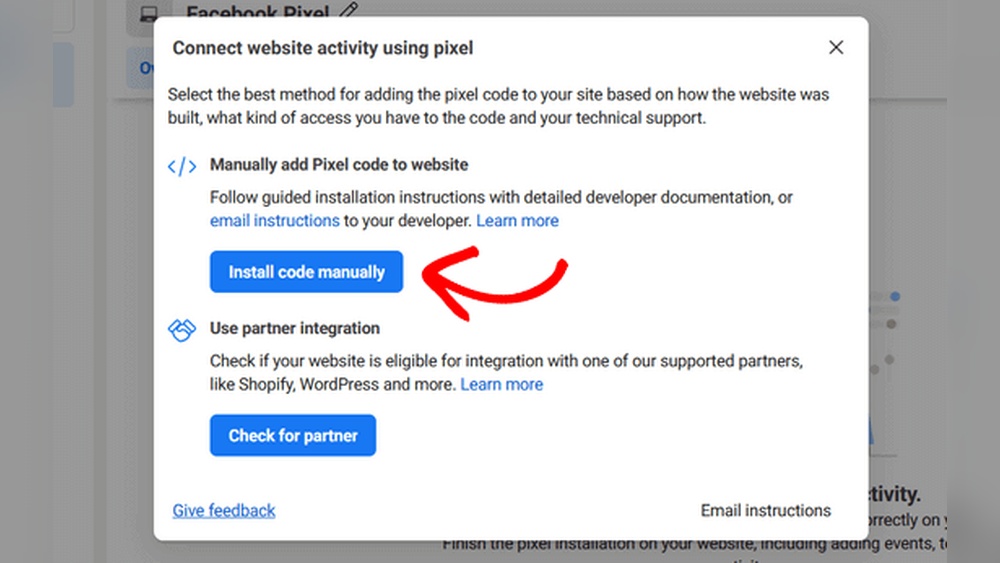
Go to your Facebook Ads Manager account. Look for the Events Manager section. Click on “Connect Data Sources” and choose “Web.” Select “Facebook Pixel” and click “Connect.” Name your pixel clearly. Enter your website URL to check for easy setup options. Finally, click “Continue” to finish creating your pixel.
Finding Your Pixel Id
After creating the pixel, you see its dashboard. The Pixel ID is a unique number for your pixel. It appears under the pixel name. Copy this ID carefully. You will need it to link the pixel with your WordPress site. Keep it safe for the next steps.
Adding Pixel To WordPress
Adding Facebook Pixel to your WordPress site helps track visitor actions. It lets you measure ad results and optimize campaigns.
You can add the Pixel using a plugin or manually. Both ways are simple and effective.
Using A Plugin
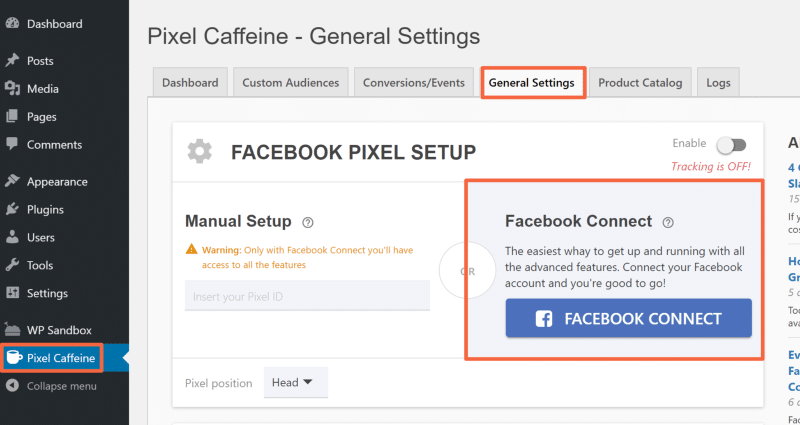
Plugins make adding Facebook Pixel easy. Choose a plugin designed for Facebook Pixel integration.
Install and activate the plugin in your WordPress dashboard. Enter your Pixel ID in the plugin settings.
The plugin handles code placement automatically. This saves time and avoids errors.
Check that the Pixel is working using Facebook’s Pixel Helper tool.
Manual Installation
Manual installation requires adding code to your WordPress theme. Copy the Pixel base code from your Facebook Events Manager.
Open your WordPress dashboard and go to Appearance > Theme Editor. Find the header.php file.
Paste the Pixel code just before the closing tag. Save the changes.
Clear your site cache if you use a caching plugin. Use Facebook’s Pixel Helper to confirm it works.
Configuring Pixel Events
Configuring Pixel events is key to tracking important actions on your WordPress site. These events show what visitors do, like buying a product or signing up for a newsletter. Correct setup helps you understand your audience and improve your ads.
Standard Events
Standard events are predefined actions by Facebook. Examples include “Add to Cart,” “Purchase,” and “Lead.” These events cover common website activities. You add them using simple codes in your WordPress site.
Using standard events helps Facebook track user behavior accurately. This data lets you create better ad campaigns. You can set up events using plugins or manually in your site’s code.
Custom Events
Custom events track specific actions unique to your site. They are useful when standard events don’t fit your needs. For example, tracking clicks on a special button or time spent on a page.
You create custom events by adding custom code snippets. These require more effort but offer detailed insights. Use clear names for each event to keep data organized.
Testing Your Pixel Setup
Testing your Facebook Pixel setup is crucial to ensure it tracks your website activity correctly. Without proper testing, your data may be incomplete or inaccurate. This step helps you confirm that the pixel works as expected.
By testing, you catch errors early and fix them fast. It saves time and improves your ad performance. Use the right tools to make testing simple and clear.
Using Facebook Pixel Helper
Facebook Pixel Helper is a free tool from Facebook. It works as a browser extension for Chrome. This tool shows if your pixel is active on your WordPress site.
After installing, visit your website. The Pixel Helper icon will light up if it detects the pixel. Click the icon to see detailed info about the pixel events.
This tool highlights errors or missing pixels. It helps you understand if the pixel sends data properly. Use it to verify pixel installation and troubleshoot issues easily.
Verifying Event Tracking
Event tracking shows actions visitors take on your site. Testing these events ensures you capture valuable user data.
Go to Facebook Events Manager and open your pixel’s dashboard. Use the Test Events tab to check live activity.
Perform actions on your site, like clicking buttons or submitting forms. Watch if these events appear in real-time in Events Manager.
Confirm that all important events trigger correctly. Fix any missing or wrong events for accurate tracking.
Credit: wp-rocket.me
Optimizing Pixel Performance
Optimizing the Facebook Pixel on your WordPress site helps you get accurate data. This data is key to improving your ads and reaching the right people. Good pixel performance means better tracking of user actions. It also means fewer errors and clearer reports. Small changes can boost how well your pixel works. Focus on fixing issues fast and following smart tracking tips.
Troubleshooting Common Issues
Check if the pixel code is correctly placed in your site header. Missing or broken code stops the pixel from working. Use Facebook’s Pixel Helper tool to find errors. Look for duplicate pixels that cause data confusion. Clear your site cache after installing or updating the pixel. Make sure your WordPress theme supports custom header scripts. Update plugins that may block the pixel code.
Tips For Better Tracking
Set up standard events like purchases or sign-ups to track key actions. Use custom conversions for goals unique to your business. Test events through Facebook’s Event Manager before launching ads. Keep your pixel code updated with Facebook’s latest version. Avoid tracking too many events; focus on the most important ones. Regularly review your pixel data to spot trends and issues. Combine pixel data with other tools for deeper insights.

Credit: themeisle.com
Frequently Asked Questions
What Is Facebook Pixel And Why Add It To WordPress?
Facebook Pixel is a tracking tool that helps measure ad performance. Adding it to WordPress allows you to track visitor actions and optimize Facebook ads for better results.
How Do I Install Facebook Pixel On WordPress Site?
To install, create a Pixel in Facebook Ads Manager. Copy the Pixel code and paste it into your WordPress header using a plugin or theme editor.
Can I Add Facebook Pixel Without A Plugin On WordPress?
Yes, you can manually add Pixel code in the header. php file of your theme. But using a plugin is safer and easier for beginners.
How To Verify Facebook Pixel Is Working On WordPress?
Use Facebook Pixel Helper, a Chrome extension, to check if Pixel fires correctly. It shows active events and any errors on your site.
Conclusion
Adding Facebook Pixel to your WordPress site helps track visitor actions. It gives useful data to improve your ads and site. The setup is simple and takes just a few minutes. You can start seeing better results from your marketing soon.
Keep checking your pixel to ensure it works well. Small steps like this can make a big difference. Start today to understand your audience better and grow your business.



