
Are you wondering if you can use your GoDaddy domain with WordPress? If you’ve already bought a domain from GoDaddy, you might be curious about how to connect it to your WordPress site.
It’s a question many new website owners ask because getting your domain and website to work together smoothly is key to building your online presence. You’ll find simple, clear answers that guide you step-by-step. By the end, you’ll know exactly how to link your GoDaddy domain with WordPress and avoid common pitfalls.
Keep reading, and you’ll have your website up and running faster than you think.

Credit: wordpress.com
Choosing Your Domain
Choosing the right domain is a key step in building a WordPress site. The domain name shapes your website’s identity. It helps visitors find and remember your site easily. A good domain name also supports your site’s SEO, making it easier to rank on search engines.
Picking a domain involves more than just creativity. It requires smart choices about the domain provider and name structure. GoDaddy is a popular choice for domain registration. Let’s explore why and how to pick the best domain for your WordPress site.
Why Pick Godaddy
GoDaddy is one of the largest domain registrars worldwide. It offers a simple and fast registration process. The platform supports many domain extensions like .com, .net, and .org. GoDaddy also provides 24/7 customer support for any issues.
Their user-friendly dashboard helps manage domains easily. You can connect your GoDaddy domain to WordPress without hassle. GoDaddy offers competitive pricing, making it affordable for beginners. Security features like domain privacy protection are also available.
Domain Registration Tips
Choose a short and clear domain name. Avoid complex words or long phrases. Use keywords that relate to your website’s content. This helps search engines and visitors understand your site.
Pick a .com extension for wider recognition. Avoid numbers or hyphens as they cause confusion. Check if your chosen domain is easy to spell and pronounce. Before registering, ensure the name is unique and not trademarked.
Register your domain for multiple years to secure it. Enable domain privacy to keep your details safe. Keep your contact information up to date to avoid losing your domain.

Credit: wordpress.com
Preparing WordPress
Preparing WordPress for your GoDaddy domain is simple and clear. It involves choosing the right hosting and then installing WordPress correctly. These steps help your site run smoothly. They also make sure your domain and website work well together. Let’s explore how to get started.
Selecting A Hosting Provider
Choose a hosting provider that supports WordPress easily. Many hosts offer one-click WordPress installs. Check for good speed and uptime. A reliable host keeps your site online and fast. Also, consider customer support. It helps if you face technical issues. Hosting plans vary in price and features. Pick one that fits your needs and budget.
Installing WordPress
After selecting a host, install WordPress on your server. Most hosts have simple tools for this. Use the one-click installer for quick setup. You just need to enter some basic details. Like site name, username, and password. This sets up WordPress in minutes. Once installed, log in to your WordPress dashboard. Here, you can start customizing your site and linking your GoDaddy domain.
Connecting Godaddy Domain To WordPress
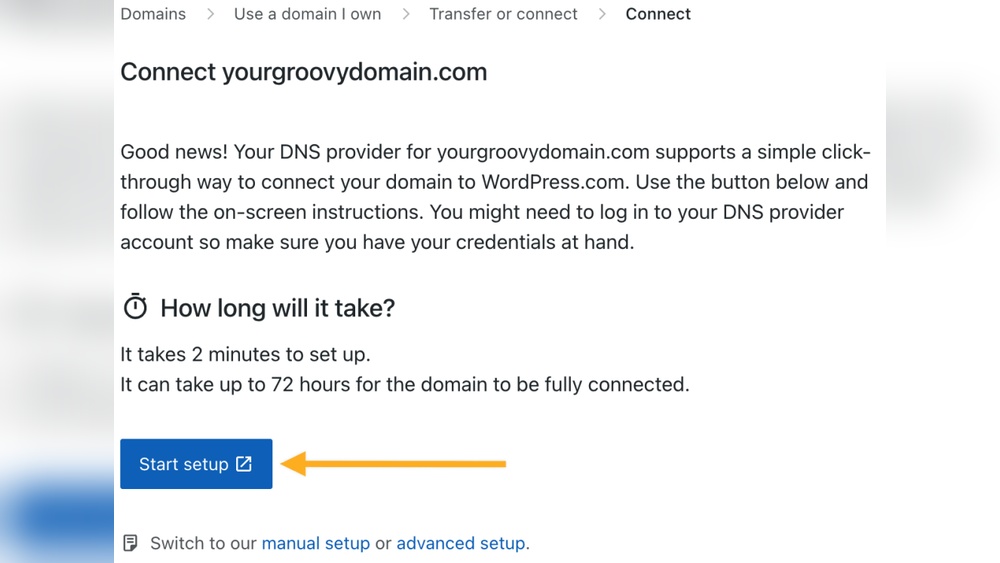
Connecting a GoDaddy domain to WordPress is a simple process. It lets you use your domain name with your WordPress website. This connection helps people find your site easily. It also makes your site look more professional.
To connect your domain, you need to change some settings in your GoDaddy account. These settings tell the internet where to find your WordPress site. Two main steps are important here: updating DNS settings and configuring nameservers.
Updating Dns Settings
DNS stands for Domain Name System. It links your domain name to your website’s address. To update DNS settings, log in to your GoDaddy account. Find the domain you want to connect. Look for the DNS or Manage DNS option.
Change the A record to point to your WordPress hosting IP address. This tells the domain where your website is hosted. Save the changes. It may take some time for the updates to work. Usually, it takes a few minutes to a few hours.
Configuring Nameservers
Nameservers direct your domain to the correct hosting provider. You can change your nameservers in GoDaddy to the ones provided by WordPress hosting. Log in to GoDaddy and select your domain.
Go to the Nameservers section and choose to enter custom nameservers. Add the nameservers from your WordPress host. Save the changes. This step connects your domain directly to WordPress hosting.
Nameserver changes can take up to 48 hours to fully update. After this, your GoDaddy domain will work with your WordPress website smoothly.
Managing Domain Settings
Managing domain settings is key when using a GoDaddy domain with WordPress. It helps control where your domain points and how visitors reach your website. Proper settings ensure smooth connection and better site performance.
Understanding domain settings allows you to make quick changes. You can redirect your domain, update DNS records, and manage email setups. These tasks are simple with the right steps and tools.
Setting Up Domain Forwarding
Domain forwarding sends visitors from your GoDaddy domain to another website. It is useful if you want your domain to show your WordPress site hosted elsewhere.
To set up forwarding, log in to your GoDaddy account. Find the domain you want to forward, then select the option for forwarding. Enter the URL of your WordPress site carefully. Save the changes to activate forwarding.
Forwarding helps keep your branding consistent. Visitors see your GoDaddy domain but land on your WordPress site easily.
Using Godaddy Dashboard
The GoDaddy dashboard is your control center for domain management. It offers tools to change DNS records, update contact info, and enable security features.
Access your dashboard by signing in to GoDaddy. Select “My Products” and choose your domain. You can edit settings like A records, CNAMEs, and MX records here. These settings connect your domain to WordPress hosting properly.
Regularly checking the dashboard keeps your domain active and secure. It also ensures your website runs without interruptions.
Optimizing Website Performance
Optimizing website performance is key for any site owner. A fast, secure site keeps visitors happy. It also helps improve search rankings. Simple steps can make a big difference. Focus on security and speed to create a smooth experience. This section covers two important areas: enabling SSL certificates and improving site speed.
Enabling Ssl Certificate
SSL certificates protect data between your site and visitors. They show a padlock icon in the browser. This builds trust and helps with SEO rankings. GoDaddy domains can easily use free SSL certificates with WordPress. Many hosting providers offer automatic SSL setup. Use plugins or hosting tools to activate SSL quickly. A secure site also prevents warnings from browsers. This boosts visitor confidence and site credibility.
Improving Site Speed
Site speed affects user experience and search engine rank. Slow sites lose visitors fast. Optimize images by compressing them before upload. Choose a reliable hosting provider with good speed. Use caching plugins to reduce loading times. Minimize the use of heavy plugins and scripts. Keep your WordPress theme simple and lightweight. Regularly update your site to fix bugs and improve speed. Fast websites attract and keep more visitors.
Troubleshooting Common Issues
Connecting a GoDaddy domain to WordPress can sometimes cause problems. These issues often confuse users trying to launch their site. Troubleshooting helps fix common errors quickly. It saves time and avoids frustration. Below are some frequent issues and ways to solve them.
Resolving Dns Propagation Delays
DNS changes take time to spread across the internet. This process is called propagation. It can take from a few minutes to 48 hours. During this time, your site may not appear correctly. Patience is important. Avoid making repeated changes to DNS settings. Check your domain status using online DNS checkers. Clear your browser cache to see updates. If delays last beyond 48 hours, contact GoDaddy support for help.
Fixing Domain Connection Errors
Domain connection errors happen when WordPress cannot find your GoDaddy domain. This often occurs due to incorrect DNS records. Verify your domain’s A record points to WordPress IP address. Also, check the CNAME record for the www version of your domain. Ensure no extra spaces or typos exist in the DNS entries. If the problem continues, disconnect the domain and reconnect it in WordPress. Sometimes re-adding the domain solves hidden issues.

Credit: www.gsplugins.com
Frequently Asked Questions
Can I Use A Godaddy Domain With WordPress?
Yes, you can use a GoDaddy domain with WordPress. Simply connect your domain to your WordPress hosting by updating DNS settings or pointing your domain to WordPress servers.
How Do I Connect Godaddy Domain To WordPress?
To connect, log in to GoDaddy, find your domain DNS settings, and update the nameservers to WordPress hosting nameservers. This links your domain to your WordPress site.
Is It Free To Use Godaddy Domains On WordPress?
Using a GoDaddy domain with WordPress is free after purchasing the domain. You only pay for domain registration and hosting separately; linking them has no extra cost.
Can I Manage Dns Settings For Godaddy Domains On WordPress?
Yes, you manage your GoDaddy domain’s DNS settings through GoDaddy’s dashboard. WordPress does not control your domain DNS; you update records directly in GoDaddy.
Conclusion
Yes, you can use a GoDaddy domain with WordPress easily. Just connect your domain to your WordPress site by updating DNS settings. This lets your website have a professional address. Many users do this to keep their domain and website simple to manage.
No special skills are needed, and the steps are clear. Your site will be live and accessible in no time. Using GoDaddy domains with WordPress is a smart choice for many website owners. It helps you create a strong online presence without hassle.



