
If you want to track your website traffic and make smarter marketing decisions, adding Google Tag Manager (GTM) to your WordPress site is a must. But if you’re not a tech expert, the process might seem confusing or overwhelming.
Don’t worry—this guide will walk you through every step in a simple, easy-to-follow way. By the end, you’ll have GTM set up perfectly, giving you powerful insights without any headaches. Ready to take control of your website’s data? Let’s get started.
Credit: wpcode.com
What Is Google Tag Manager
Google Tag Manager is a free tool from Google. It helps you manage website tags without editing code directly. Tags are small pieces of code that track user actions. These can be for analytics, marketing, or other purposes.
Using Google Tag Manager makes tracking easier. You can add, update, or disable tags from one place. This saves time and reduces errors. It works well with WordPress and many other platforms.
What Does Google Tag Manager Do?
Google Tag Manager organizes all your tags in one container. You add this container to your website once. Then, you control all tags from the Tag Manager dashboard. This means no need to touch the website code every time.
Why Use Google Tag Manager On WordPress?
WordPress users benefit from faster tag management. It avoids cluttering the website code with many tags. Changes happen quickly without a developer’s help. It improves website performance and tracking accuracy.
How Does Google Tag Manager Work?
After setting up, you add tags inside Google Tag Manager. Tags fire based on triggers you choose. Triggers track events like page views, clicks, or form submissions. The tool sends data to services like Google Analytics or Facebook Ads.

Credit: www.bluehost.com
Benefits Of Using Gtm In WordPress
Using Google Tag Manager (GTM) in WordPress offers many benefits. It simplifies tracking and managing website tags. GTM helps you control all tags from one place without coding. This improves website performance and saves time.
You can easily add and update tracking codes for analytics, marketing, and other tools. GTM also reduces errors by avoiding manual code changes. It helps you test tags before publishing to make sure they work correctly.
Improved Website Speed
GTM loads tags asynchronously. This means tags do not block your page from loading. Faster pages lead to better user experience. Google also favors faster sites in search rankings.
Easy Tag Management
Manage all tags in a single dashboard. No need to edit WordPress files for each tag. Add or remove tags with a few clicks. This makes tag management simple and less risky.
Better Tracking Accuracy
GTM allows precise tracking setup. You can track clicks, form submissions, and more. It reduces errors from manual coding. Accurate data helps improve marketing and website strategies.
Cost-effective Solution
GTM is free to use. It reduces the need to hire developers for tag updates. Save money and time by managing tags yourself. This makes it ideal for small businesses and bloggers.
Supports Multiple Tools
GTM works with many analytics and marketing tools. Google Analytics, Facebook Pixel, and more can be added easily. This flexibility helps you grow your website effectively.
Preparing Your WordPress Site
Preparing your WordPress site before adding Google Tag Manager (GTM) is important. It helps avoid problems later and keeps your data safe. Taking a few steps now will make the process smooth and easy.
Start by securing your site and choosing the correct GTM account. These steps create a strong foundation for using GTM effectively on your WordPress site.
Backup Your Website
Backing up your website is a must before any changes. It saves your site’s files and database. If something breaks, you can restore it quickly. Use plugins like UpdraftPlus or BackupBuddy for simple backups. Regular backups keep your site safe from data loss.
Choose The Right Gtm Account
Pick the correct GTM account for your website. Use the account linked to your business or project. Check the account ID carefully. Using the wrong account can send data to the wrong place. Keep your GTM organized for better tracking and management.

Credit: rankmath.com
Creating A Google Tag Manager Account
Creating a Google Tag Manager (GTM) account is the first step to manage tags on your WordPress site. GTM lets you add and update tracking codes without changing the website code. This saves time and reduces errors. Follow simple steps to set up your GTM account and container.
Setting Up A New Container
Go to the Google Tag Manager website and sign in with your Google account. Click “Create Account” and enter your account name. Next, add your website name as the container name. Choose “Web” as the target platform. Click “Create” to finish setting up your container.
Retrieving Your Gtm Code Snippet
After creating your container, GTM will show you two code snippets. These snippets need to be added to your WordPress site. Copy both snippets carefully. The first snippet goes in the head section of your site. The second snippet goes just after the opening body tag. This placement ensures GTM works correctly on your website.
Adding Gtm Code Manually To WordPress
Adding Google Tag Manager (GTM) code manually to WordPress helps track website data efficiently. It involves placing two code snippets in specific theme files. These files control the header and footer sections of your site. Careful editing ensures GTM works correctly without affecting site design or speed.
Manual insertion suits users who want full control over their site’s code. It also avoids extra plugins, which can slow down the website. This method requires basic knowledge of WordPress theme files and a simple text editor.
Editing The Header.php File
Open your WordPress dashboard and go to Appearance > Theme Editor. Find and select the header.php file from the right sidebar. Paste the first GTM code snippet just after the opening tag. This placement ensures the tag loads early on each page. Save your changes to update the file.
Editing The Footer.php File
Return to the Theme Editor and locate the footer.php file. Insert the second GTM code snippet immediately before the closing tag. This position allows GTM to load properly without slowing page rendering. After pasting the code, save the file to apply the update.
Using Plugins To Add Gtm
Using plugins is the easiest way to add Google Tag Manager (GTM) to your WordPress site. Plugins handle all the code for you. This means no need to touch any files or code yourself. Just install and activate the plugin. Then enter your GTM ID. The plugin will add the GTM script to every page automatically. This method saves time and reduces errors. It works well for beginners and those who want a quick setup.
Popular Gtm Plugins
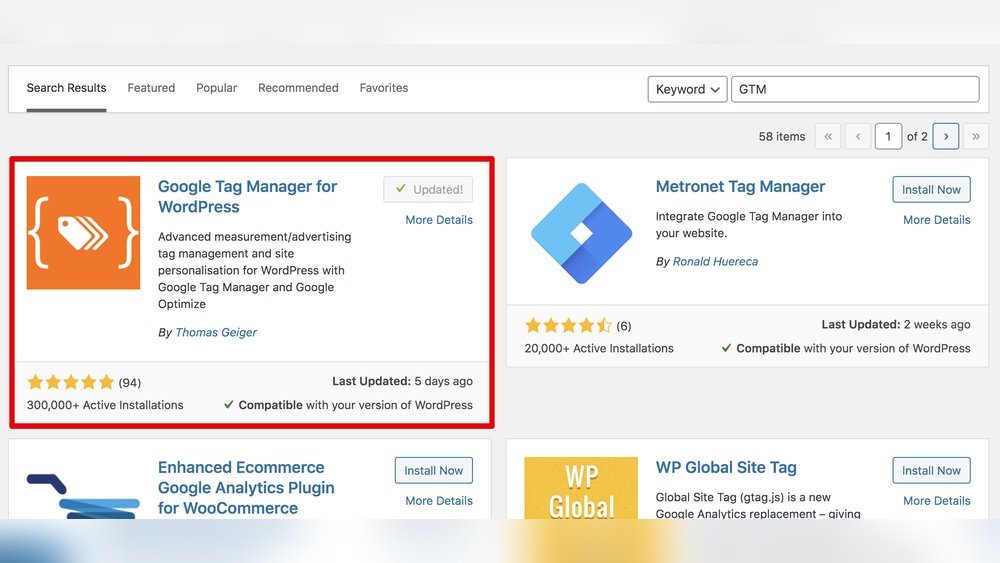
Several plugins can add GTM to WordPress sites. “DuracellTomi’s Google Tag Manager” is a favorite. It is simple and reliable. Another option is “Insert Headers and Footers.” This plugin adds any code to your site’s header or footer, including GTM. “Google Tag Manager for WordPress” by Thomas Geiger also works well. It offers extra features like data layer support. Choose a plugin with good reviews and recent updates.
Step-by-step Plugin Installation
Go to your WordPress dashboard. Click on “Plugins” then “Add New.” Type the plugin name in the search box. Find the plugin and click “Install Now.” After installation, click “Activate.” The plugin is now ready to use. This process takes just a few minutes. No technical skills needed.
Configuring The Plugin With Your Gtm Id
Open the plugin settings from the dashboard menu. Find the field for your GTM container ID. This ID looks like “GTM-XXXXXX.” Copy it from your Google Tag Manager account. Paste the ID into the plugin’s input box. Save the settings. The plugin will insert the GTM code on your site. Check your site source code to confirm. The GTM script should appear in the header section.
Verifying Gtm Installation
Verifying your Google Tag Manager (GTM) installation is crucial after adding it to WordPress. This step ensures that your tags fire correctly and data is tracked properly. Without verification, you may miss important insights or face tracking errors.
There are simple tools to check your GTM setup. They help confirm the installation works before you publish changes live. Follow these easy methods to verify your GTM code on WordPress.
Using Tag Assistant
Tag Assistant is a free Chrome extension by Google. It helps detect GTM and other Google tags on your website. Install it from the Chrome Web Store and open your WordPress site.
Click the Tag Assistant icon in your browser toolbar. It will show the tags found on the page. Look for your GTM container ID to confirm it is active. The tool also shows errors or warnings.
This method provides quick feedback. It helps identify missing or wrongly placed GTM code. Use Tag Assistant to fix issues before moving forward.
Preview And Debug Mode
GTM offers a built-in Preview and Debug mode. It shows real-time tag activity on your site. Open your GTM account and click “Preview” in the top right corner.
Enter your WordPress site URL and start the preview. Your site will open in a new tab with a debug console at the bottom. This console displays which tags fire and when.
Use this mode to test triggers, variables, and tags. It helps ensure everything works as planned before publishing. Exit Preview mode once verification is complete.
Common Troubleshooting Tips
Adding Google Tag Manager (GTM) to WordPress can sometimes cause issues. These problems may stop GTM from working correctly. This section helps you solve common problems fast. Follow simple tips to fix errors and keep your site running smoothly.
Fixing Installation Errors
Check your GTM code snippet carefully. Make sure you copied it exactly from your GTM account. Even small changes can cause errors. Place the code in the right spot, usually in the header or through a plugin.
Clear your site cache after adding the code. Caching may show an older version of your site. Also, check your browser cache or try a different browser. This helps see if GTM loads properly.
Use Google Tag Assistant or similar tools. They detect if GTM tags work on your site. These tools also show any errors in your setup. Fix issues based on their suggestions.
Dealing With Plugin Conflicts
Some WordPress plugins might block GTM scripts. This stops your tags from firing. Disable other plugins one by one to find conflicts. Check if GTM starts working after disabling a plugin.
Update all your plugins and WordPress version. Outdated software often causes compatibility problems. Use only trusted and well-reviewed plugins to avoid conflicts.
Consider using a dedicated GTM plugin for WordPress. These plugins add GTM code safely and reduce conflicts. They often come with easy setup options and support.
Optimizing Gtm For Better Performance
Optimizing Google Tag Manager (GTM) helps your WordPress site run smoother. It reduces load time and improves tracking accuracy. Better performance means faster page speed and clearer data. This section shows how to organize tags and use variables wisely.
Organizing Tags And Triggers
Keep your tags neat and easy to manage. Name each tag clearly. Use folders to group related tags. This helps find and edit tags quickly later.
Set triggers carefully to avoid firing too many tags. Use specific conditions. This stops unnecessary tags from slowing your site. Test triggers to make sure they work right.
Using Variables Efficiently
Variables store important data for tags and triggers. Use built-in variables whenever possible. They save time and reduce errors.
Create custom variables only when needed. Keep them simple and clear. Reuse variables in multiple tags to keep consistency. This makes managing GTM easier and faster.
Frequently Asked Questions
What Is Gtm And Why Use It In WordPress?
Google Tag Manager (GTM) lets you manage website tags easily without code changes. It simplifies tracking and marketing on WordPress sites. GTM improves flexibility, reduces errors, and speeds up tag deployment for better analytics and marketing results.
How Do I Install Gtm On My WordPress Site?
To install GTM, create an account on Google Tag Manager. Copy your container code and paste it into your WordPress theme’s header. php file or use a plugin for easier integration. Publish changes to start tracking.
Can I Add Gtm Without Coding In WordPress?
Yes, you can use WordPress plugins like “Insert Headers and Footers” or dedicated GTM plugins. These plugins let you add GTM container code without editing theme files. It’s a quick, safe method for beginners.
How To Verify Gtm Is Working On WordPress?
Use GTM’s Preview mode to test your setup. Also, check your website source code for GTM scripts. Google Analytics real-time reports can confirm if data is being tracked correctly through GTM.
Conclusion
Adding GTM to WordPress helps track your website’s performance. It gives you useful data to improve your site. The steps are simple and quick to follow. Once set up, you can manage tags without changing code. This saves time and keeps your site organized.
Start using GTM today to better understand your visitors. Keep checking your data to make smart decisions. Easy and effective—just what your WordPress site needs.



