
If your website feels slow or your visitors leave too quickly, you might be missing a simple trick: adding expires headers in WordPress. This small change can make your pages load faster and keep people engaged longer.
Imagine your site loading like a breeze every time someone visits—no waiting, no frustration. In this post, you’ll learn exactly how to add expires headers to your WordPress site, step by step. By the end, you’ll have a faster, smoother website that your visitors—and Google—will love.
Ready to boost your site speed and keep your audience hooked? Let’s dive in!
Credit: www.onepagezen.com
Why Expires Headers Matter
Expires headers help control how long browsers keep files like images and scripts. Setting these headers tells browsers when to get new versions of files. This reduces the need to download the same files repeatedly. It makes websites faster and improves user experience.
Impact On Website Speed
Expires headers let browsers store files longer. When users visit again, the browser loads files from the cache. This cuts down loading time. Faster websites keep visitors happy and reduce bounce rates.
Benefits For Seo
Search engines prefer fast websites. Using expires headers can improve site speed. Faster sites get better rankings in search results. This helps attract more visitors from search engines.
How Browsers Use Expires Headers
Browsers check the expires header on files. If the file is still valid, the browser uses the cached copy. If expired, the browser downloads a fresh file. This process saves data and speeds up browsing.
Methods To Add Expires Headers
Adding expires headers helps speed up your WordPress site. It tells browsers to store files for a set time. This reduces loading times on repeat visits. There are a few ways to add expires headers. Choose the best method for your setup and skill level.
Editing .htaccess File
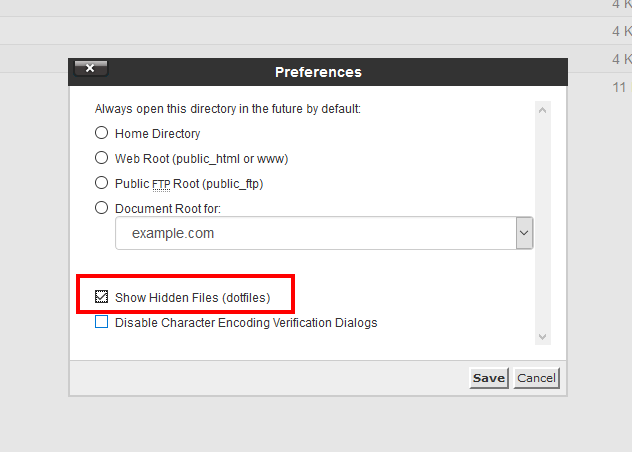
The .htaccess file controls many server settings for Apache servers. You can add expires headers by editing this file. Access your site’s root directory using FTP or a file manager. Open the .htaccess file and insert the expires headers code. This code tells browsers how long to keep files like images and scripts. Save the file and test your website speed.
Using WordPress Plugins
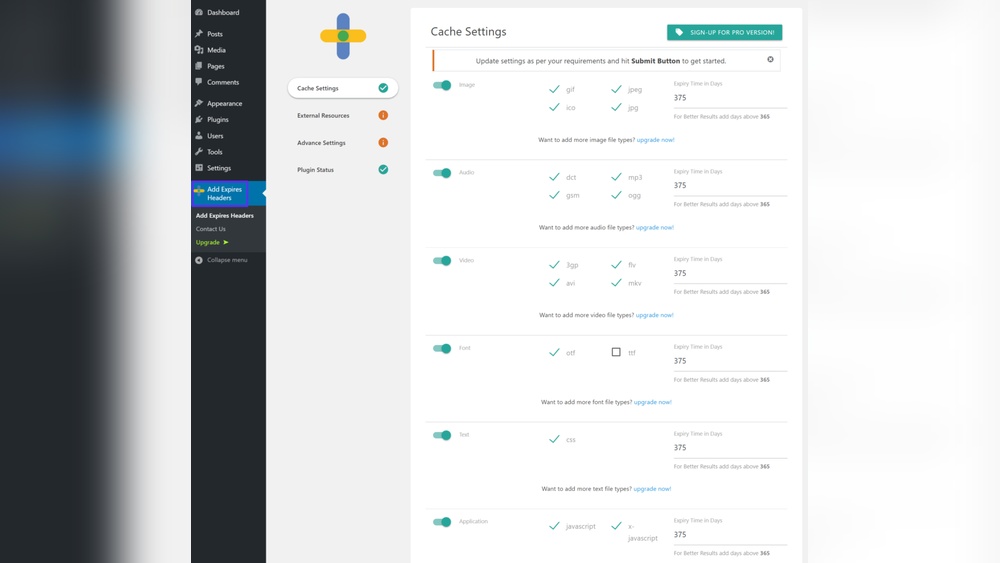
WordPress plugins make adding expires headers simple. They avoid manual file editing. Popular caching plugins often include options for expires headers. Install and activate a plugin like W3 Total Cache or WP Super Cache. Navigate to the settings and enable expires headers. This method suits beginners and saves time. Plugins update automatically to stay compatible.
Modifying Nginx Configuration
Nginx uses a different method than Apache. You must edit the Nginx configuration file on your server. This file is usually named nginx.conf or inside a sites-available folder. Add expires headers rules within the server block or location block. These rules define expiration times for various file types. Save the file and reload Nginx to apply changes. This method requires access to the server and some technical knowledge.
Setting Expiration Times
Setting expiration times for your website’s assets improves loading speed. Browsers save files like images, scripts, and stylesheets. Expiry headers tell browsers how long to keep these files. Properly set expiration times reduce server requests and speed up page loading.
Choosing the right duration is important. Too short means frequent downloads. Too long means old files might show. A good balance keeps your site fresh and fast.
Recommended Durations For Assets
Static files like images and fonts can have long expiration times. Set these between one month and one year. CSS and JavaScript files can also have long durations if you version them. Versioning means changing file names when you update them. This forces browsers to load new versions.
HTML files should have short expiration times. These files change often. Set their expiration to a few minutes or hours. This ensures visitors see the latest content.
Balancing Cache And Updates
Use cache to speed up repeat visits. But update your assets regularly to avoid outdated content. Use version numbers or query strings on files. This tells browsers to refresh files after updates. Expiration times and versioning work together. This keeps your site fast and current.

Credit: kinsta.com
Testing Expires Headers
Testing expires headers ensures your website loads faster for repeat visitors. It confirms that your server tells browsers how long to keep files cached. Proper testing helps improve site speed and user experience. This section covers two easy methods to check expires headers on your WordPress site.
Online Tools To Check Headers
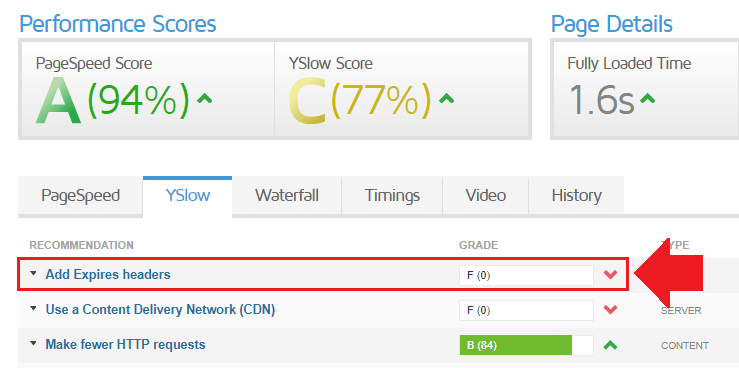
Online tools show expires headers quickly and simply. Enter your website URL, and the tool scans HTTP headers. It tells if expires headers are set and their duration. Tools like GTmetrix, WebPageTest, and Pingdom provide detailed reports. These tools help spot caching issues without technical knowledge.
Browser Developer Tools
Browser developer tools offer a direct way to check expires headers. Open your site in Chrome, Firefox, or Edge. Press F12 or right-click and select “Inspect” to open developer tools. Go to the “Network” tab and reload the page. Click on any file to view its HTTP headers. Look for “Expires” or “Cache-Control” headers to confirm caching rules.
Common Issues And Fixes
Adding expires headers in WordPress can improve your site speed. Sometimes, issues arise during the process. These common problems can stop the headers from working correctly. Knowing how to fix these issues saves time and effort. Below are some typical problems and simple fixes.
Conflicts With Other Plugins
Some plugins may interfere with expires headers. Caching or security plugins often cause conflicts. They might override your header settings. To fix this, try disabling other plugins one by one. Check if the expires headers start working. Find the conflicting plugin and adjust its settings or replace it.
Server Configuration Errors
Incorrect server settings can block expires headers. Apache, Nginx, or other servers need proper configuration. Wrong rules in .htaccess or server files cause errors. Check your server’s configuration files carefully. Use tools to test your headers online. Contact your hosting provider for help if unsure.
Additional Tips To Boost Speed
Adding expires headers is a smart way to speed up your WordPress site. You can make your site load even faster by using extra methods. These tips help reduce page load time. They improve user experience and SEO.
Combining With Other Caching Techniques
Expires headers work best with other caching tools. Use browser caching and server-side caching together. This stores files locally and on the server. It reduces how often the browser downloads the same files.
Plugins like W3 Total Cache or WP Super Cache are easy to use. They handle many caching types at once. This can lower your site’s loading time significantly.
Optimizing Images And Scripts
Large images and scripts slow down your site. Compress images before uploading them. Use formats like JPEG or WebP for smaller file sizes.
Minify CSS and JavaScript files to remove extra spaces and comments. This shrinks file size. Smaller files load faster and improve site speed.
Credit: blog.hubspot.com
Frequently Asked Questions
What Are Expires Headers In WordPress?
Expires headers tell browsers when to cache files. They improve site speed by reducing server requests. Setting them in WordPress helps browsers load your site faster for returning visitors.
How Do I Add Expires Headers In WordPress?
You can add expires headers by editing the. htaccess file or using caching plugins. These methods set expiry times for different file types. This boosts loading speed and SEO performance.
Why Are Expires Headers Important For Seo?
Expires headers improve page load speed, a key SEO factor. Faster sites rank higher on search engines. They enhance user experience by loading pages quickly.
Can I Add Expires Headers Without Plugins?
Yes, by manually editing the. htaccess file in WordPress root directory. Add specific code to set expiration times for images, CSS, and JavaScript files. Always backup before making changes.
Conclusion
Adding expires headers in WordPress helps your site load faster. Faster sites keep visitors happy and improve search rankings. You can add these headers by editing your. htaccess file or using plugins. Both ways are simple and effective. Regularly check your site speed to see improvements.
Small changes like this make a big difference over time. Start today and watch your WordPress site perform better.



